1. Réamhrá
This manual provides comprehensive instructions for the installation, operation, and maintenance of the HP AP-314 IEEE 802.11ac Wireless Access Point, model JW795A. The Aruba 310 Series access points are designed to deliver high performance and an optimal user experience for mobile and IoT devices in dense office environments.
Key features of this device include:
- Wireless transmission speed: 2.10 Gbit/s
- Number of network (RJ-45) Ports: 1
- MU-MIMO capability for efficient multi-user communication
- Advanced client match radio management
- Integrated Aruba Beacon technologies
2. Faisnéis Sábháilteachta
Please read all safety instructions before installing or operating this device. Failure to follow these instructions may result in injury or damage to the product.
- Ensure the device is installed in a well-ventilated area.
- Use only the power adapter supplied with the device (if applicable).
- Ná nochtaigh an gléas d'uisce ná do thaise iomarcach.
- Seachain an gléas a chur in aice le foinsí teasa nó i solas díreach.
- Tá an táirge seo beartaithe le húsáid laistigh amháin.
3. Cad atá sa Bhosca
Upon unpacking, verify that the following item is included:
- Access Point (HP AP-314)
- (Note: Power adapter and mounting hardware may be sold separately or included depending on the specific package.)
4. Táirge Tharview
The HP AP-314 is a high-performance wireless access point designed for robust network connectivity. It features a compact, discreet design suitable for various indoor environments.
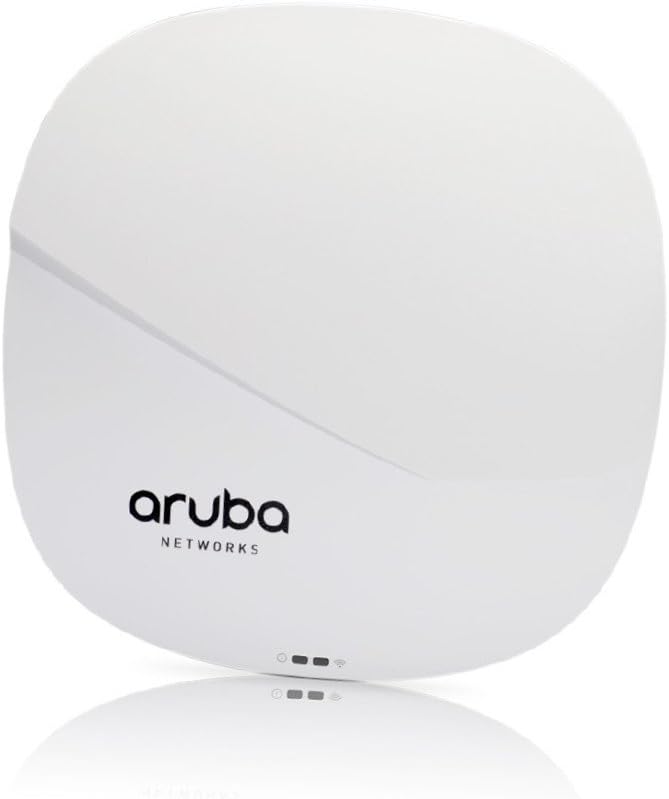
Figure 1: HP AP-314 Wireless Access Point Front View
The image displays the front of the HP AP-314 Wireless Access Point. It is a white, square-shaped device with rounded corners. The 'aruba NETWORKS' logo is prominently displayed in black text. Below the logo, three small indicator lights are visible, suggesting power, network activity, and wireless status.
4.1 Components and Indicators
- Stádas LEDs: Indicate power, network connectivity, and wireless activity. Refer to the device's quick start guide or full technical documentation for specific LED patterns and their meanings.
- Port Eitirnéad (RJ-45): For connecting to the wired network and receiving Power over Ethernet (PoE) if supported.
- USB Port: For potential future expansion or specific configurations.
5. Socrú
5.1 Gléasadh an Phointe Rochtana
The AP-314 can be mounted on a ceiling or wall. Specific mounting hardware (not always included) is required. Ensure the mounting location allows for optimal wireless coverage and is away from obstructions.
- Roghnaigh suíomh gléasta oiriúnach.
- Secure the mounting bracket (if applicable) to the chosen surface using appropriate screws.
- Attach the access point to the mounting bracket, ensuring it clicks securely into place.
5.2 Ag Ceangal leis an Líonra agus leis an gCumhacht
- Connect an Ethernet cable from your network switch (preferably a PoE-enabled switch) to the RJ-45 port on the access point.
- If not using PoE, connect a compatible power adapter (sold separately) to the device's power input and then to a power outlet.
- Once powered, the status LEDs will illuminate, indicating the boot-up process.
5.3 Cumraíocht Tosaigh
Initial configuration typically involves accessing the device's web interface or using a network management system (e.g., Aruba Central or a local controller). Refer to the Aruba documentation for detailed configuration steps specific to your network environment.
- Connect a computer to the same network segment as the access point.
- Determine the IP address of the access point (e.g., via DHCP server logs or a discovery tool).
- Oscail a web browser and navigate to the access point's IP address.
- Log in using the default credentials (refer to Aruba documentation for defaults).
- Configure wireless networks (SSIDs), security settings, and other network parameters as required.
6. Treoracha Oibriúcháin
Once configured, the HP AP-314 operates autonomously to provide wireless network access. Users can connect to the configured SSIDs using their wireless-enabled devices.
6.1 Ag Ceangal leis an Líonra Gan Sreang
- On your wireless device (laptop, smartphone, tablet), scan for available Wi-Fi networks.
- Select the SSID (network name) you configured for the AP-314.
- Enter the network password or security key if prompted.
- Ba chóir go mbeadh do ghléas ceangailte leis an líonra gan sreang anois.
6.2 Monitoring and Management
The access point's status can be monitored via its web interface or through your network management system. This allows for checking connected clients, network traffic, and device health.
7. Cothabháil
7.1 Nuashonrú Firmware
Regularly check for and apply firmware updates to ensure optimal performance, security, and access to new features. Firmware updates are typically available from the HP/Aruba support websuíomh.
7.2 Glanadh
Clean the exterior of the access point with a soft, dry cloth. Do not use liquid cleaners or aerosols directly on the device.
7.3 An Socrú is Fearr
Ensure the access point remains in an optimal location, free from new obstructions that could degrade wireless signal quality.
8. Fabhtcheartú
| Fadhb | Cúis Féideartha | Réiteach |
|---|---|---|
| Gan chumhacht / Ní chasann an gléas air | Power adapter not connected; PoE not active; faulty power source. | Check power connections. Ensure PoE switch port is active. Try a different power outlet. |
| Gan nascacht líonra | Ethernet cable disconnected; network switch issue; incorrect IP configuration. | Verify Ethernet cable connection. Check network switch status. Confirm IP settings. |
| Poor Wi-Fi signal or slow speeds | Interference; device placement; outdated firmware; too many connected devices. | Relocate the access point. Check for sources of interference. Update firmware. Consider network optimization. |
| Ní féidir rochtain a fháil web comhéadan | Seoladh IP mícheart; fadhb nascachta líonra; balla dóiteáin ag blocáil rochtana. | Verify the access point's IP address. Ensure your computer is on the same network. Temporarily disable firewalls. |
9. Sonraíochtaí
| Gné | Sonraigh |
|---|---|
| Branda | HP |
| Uimhir Mhúnla | JW795A |
| Cineál Gan Sreang | 802.11ac (also supports 802.11a/b/g/n) |
| Luas Tarchuir Gan Sreang | 2.10 Giotán/s |
| Number of Network (RJ-45) Ports | 1 |
| Líon na 2.0 USB port | 1 |
| Meáchan Mír | 1.43 punt (thart ar 0.65 kg) |
| Toisí Táirge (LxWxH) | 7 x 2 x 7 orlach (thart ar 17.8 x 5.1 x 17.8 cm) |
| Imltage | 3.6V (internal component voltage; external power supply requirements may vary) |
| Monaróir | Hewlett Packard |
| UPC | 190017041261 |
| An Chéad Ar Fáil | 11 Lúnasa, 2016 |
10. Barántas agus Tacaíocht
For warranty information, technical support, and additional resources, please refer to the official HP or Aruba Networks website. You can typically find detailed documentation, FAQs, and contact information for customer service there.
Ensure you have your product model number (JW795A) and serial number ready when contacting support.