
1. Réamhrá
The Huawei OptiXstar K251a-21 is a sub-FTTR (Fiber to the Room) unit designed to extend the high-speed network provided by the Huawei FTTR OptiXstar F50 Plus main unit. This device supports ultra-Gigabit high-speed access via upstream fiber optic lines and delivers Ultra Gigabit dual-band Wi-Fi and ultra-Gigabit network ports to users. It integrates next-generation Wi-Fi 7 technology for higher speeds and lower latency, ensuring a superior home network experience.
2. Faisnéis Sábháilteachta
Please read and understand all safety instructions before using this device. Failure to follow these instructions may result in injury, damage to the device, or property damage.
- Ná húsáid ach an cuibheoir cumhachta a sholáthraítear leis an bhfeiste.
- Ná nochtaigh an gléas d'uisce, taise, ná teochtaí foircneacha.
- Seachain an gléas a chur in aice le foinsí teasa nó i solas díreach.
- A chinntiú aeráil chuí chun róthéamh a chosc.
- Do not attempt to open or repair the device yourself. Contact qualified service personnel for assistance.
- Coinnigh an gléas ar shiúl ó leanaí agus peataí.
3. Ábhar Pacáiste
Deimhnigh go bhfuil na hearraí go léir i do phacáiste:
- Huawei OptiXstar K251a-21 Sub FTTR Device
- Cábla Cumhachta
- Treoir Tosaigh Thapa (más ann dó)
4. Táirge Tharview
Cuir tú féin ar an eolas faoi chomhpháirteanna agus táscairí na feiste.
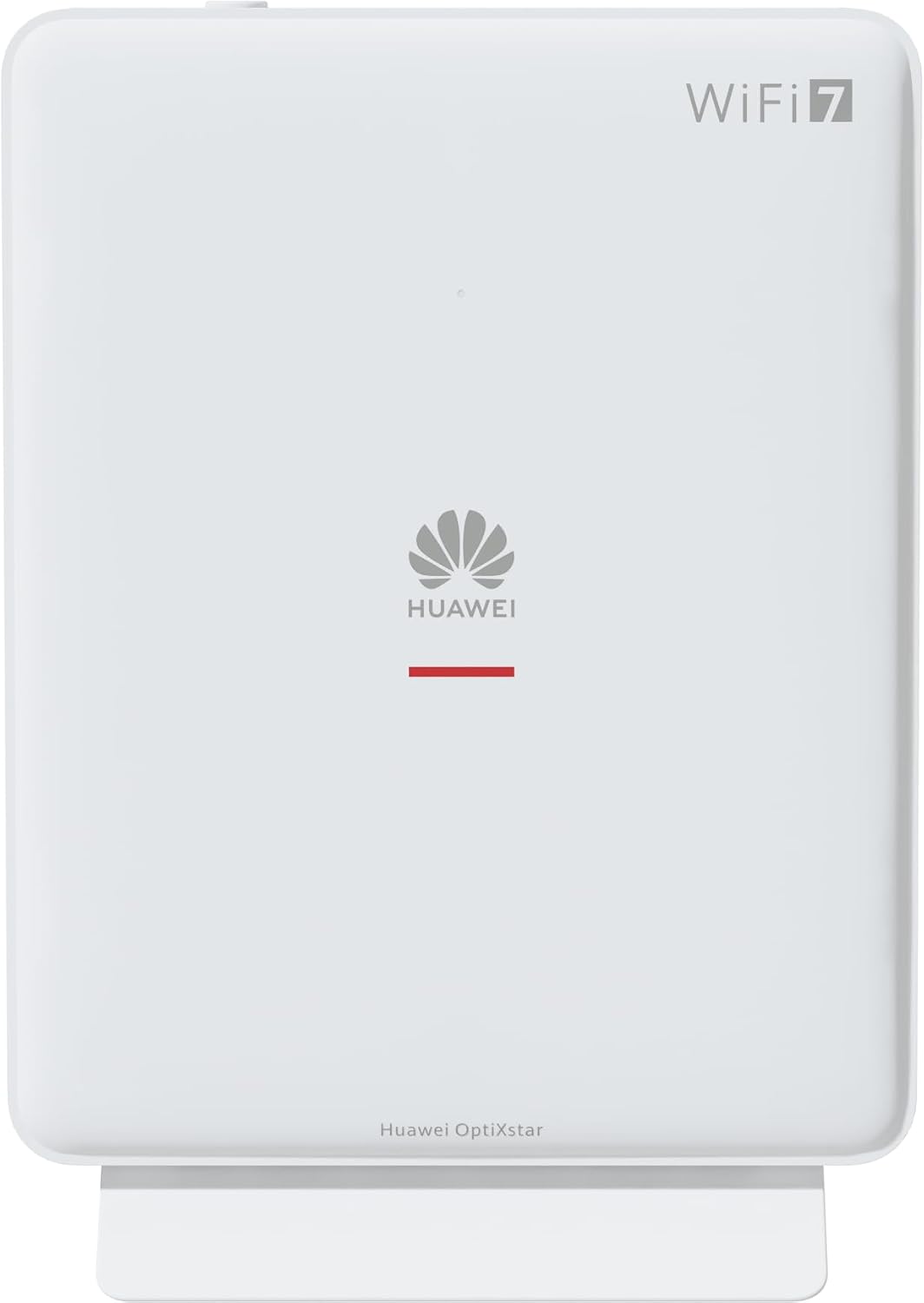
Fíor 1: Tosaigh view of the Huawei OptiXstar K251a-21 Sub FTTR device, showing the Huawei logo and "WiFi 7" branding.

Figure 2: Angled front-side view of the Huawei OptiXstar K251a-21 Sub FTTR, highlighting its sleek design and ventilation.

Fíor 3: Cúil view of the Huawei OptiXstar K251a-21 Sub FTTR, displaying the ports (Reset, 2-GE, 1-2.5GE, Power, FTTR) and mounting options.

Fíor 4: Taobh profile of the Huawei OptiXstar K251a-21 Sub FTTR, showing its slim form factor and ventilation grilles.

Fíor 5: Cúl uilleach view of the Huawei OptiXstar K251a-21 Sub FTTR, providing a clear look at the port labels and layout.

Fíor 6: Barr view of the Huawei OptiXstar K251a-21 Sub FTTR, featuring the WPS/LED button.
Poirt agus Cnaipí:
- FTTR Port: Connects to the main FTTR unit via a fiber optic cable.
- 1-2.5GE Port: Gigabit Ethernet port for high-speed wired connections.
- 2-GE Port: Port Gigabit Ethernet le haghaidh naisc sreangaithe.
- Port Cumhachta: Nascann sé leis an adapter cumhachta.
- Cnaipe Athshocraigh: Used to restore factory settings (press and hold for 5-10 seconds).
- WPS/LED Button: Initiates Wi-Fi Protected Setup (WPS) for easy device connection and controls LED indicators.
5. Socrú
Follow these steps to set up your Huawei OptiXstar K251a-21 Sub FTTR device:
- Socrúchán: Choose a central location in your home for optimal Wi-Fi coverage. The device is suitable for various installation scenarios, including vertical placement on a desk, wall-mounting, plugging into a power strip, or mounting in an 86mm junction box with a bracket.
- Ceangail Cábla Snáithín Optúil: Connect one end of the fiber optic cable to the FTTR port on the Sub FTTR unit and the other end to the corresponding FTTR port on your Huawei FTTR OptiXstar F50 Plus main unit or wall outlet. Ensure the connection is secure.
- Cumhacht Ceangail: Plug the power adapter into the Power port on the Sub FTTR unit, then plug the other end into a power outlet.
- Cumhacht ar: The device will automatically power on. Wait for the indicator lights to stabilize, typically indicating a successful connection to the main FTTR unit and active Wi-Fi.
- Wired Connections (Optional): For wired devices, connect an Ethernet cable from the 1-2.5GE or 2-GE ports on the Sub FTTR to your computer, gaming console, or other network devices.
6. Oibriúcháin
Once set up, your OptiXstar K251a-21 provides seamless Wi-Fi 7 connectivity.
- Ceangal Wi-Fi: Cuardaigh le haghaidh the Wi-Fi network name (SSID) broadcast by your FTTR system on your devices (smartphones, laptops, etc.). Enter the Wi-Fi password. The system's unique SRCN (Seamless Roaming Coordinate Network) technology ensures seamless roaming throughout your home.
- C-WAN Architecture: The C-WAN architecture centrally controls and coordinates network-wide Wi-Fi resources via the Main FTTR, providing an ultra-Gigabit high-speed experience.
- IoT Casing: The device features an IoT casing designed to protect home network security and privacy.
- Feidhm WPS: Press the WPS/LED button briefly to use Wi-Fi Protected Setup (WPS) for quick connection of compatible devices without entering the password.
- Táscairí LED: The LED indicators provide status information. Refer to the main FTTR unit's manual or the device's specific documentation for detailed LED status meanings.
7. Cothabháil
Regular maintenance helps ensure optimal performance and longevity of your device.
- Glanadh: Gently wipe the device with a soft, dry cloth. Do not use liquid cleaners or abrasive materials.
- Nuashonruithe Firmware: Huawei periodically releases firmware updates to improve performance and security. These updates are typically managed through the main FTTR unit or a dedicated mobile application. Ensure your system is always running the latest firmware.
- Aeráil: Cinntigh nach gcuirtear bac ar na hoscailtí aerála chun róthéamh a chosc.
- Bainistíocht Cábla: Keep fiber optic and power cables neatly organized and free from kinks or excessive bending.
8. Fabhtcheartú
Má bhíonn fadhbanna agat, bain triail as na céimeanna fabhtcheartaithe seo a leanas:
- Gan Cumhacht: Check if the power cable is securely connected to both the device and the power outlet. Try a different outlet.
- Gan nasc Idirlín:
- Verify that the fiber optic cable is correctly connected to the FTTR port.
- Check the status indicators on both the Sub FTTR and the main FTTR unit.
- Restart both the Sub FTTR and the main FTTR unit by unplugging them from power for 30 seconds and then plugging them back in.
- Ensure your main FTTR unit has an active internet connection.
- Luas Wi-Fi Mall:
- Ensure the device is placed optimally, away from obstructions and interference sources.
- Check if too many devices are connected to the network.
- Update the firmware of your FTTR system.
- Consider using a wired connection for bandwidth-intensive tasks.
- Ní féidir ceangal le Wi-Fi:
- Deimhnigh go bhfuil tú ag cur isteach an focal faire Wi-Fi ceart.
- Try using the WPS button to connect.
- Restart your device and the Sub FTTR unit.
- Athshocrú Monarcha: If issues persist, you may need to perform a factory reset. With the device powered on, use a pointed object (like a paperclip) to press and hold the Reset button for 5-10 seconds until the indicators change. Note that this will erase all custom settings.
9. Sonraíochtaí
| Gné | Sonraíocht |
|---|---|
| Branda | HUAWEI |
| Uimhir Mhúnla | K8M251a-21G02 |
| Toisí (Pacáiste) | 24.5 x 23.7 x 7.4 cm |
| Meáchan (Pacáiste) | 300 gram |
| Gné Speisialta | Slándáil Idirlín |
| Rang Banna Minicíochta | Banna Dual |
| Caighdeán Cumarsáide Gan Sreang | 802.11ax (Wi-Fi 7 Generation) |
| Gléasanna Comhoiriúnacha | Ríomhaire Pearsanta |
| Úsáidí Molta | Baile |
| Comhpháirteanna San áireamh | Cábla Cumhachta |
| Teicneolaíocht Nascachta | Ethernet, FTTR, Wi-Fi, Fiberglass |
| Dath | Bán |
| Líon na gCalafort | 4 (FTTR, 1-2.5GE, 2-GE, Power) |
| Ráta Aistrithe Sonraí | 1 Gigabit in aghaidh an tsoicind |
| Comhoiriúnacht Baile Cliste | Compatible with smart home systems |
| Nascacht Idirlín | Tá |
| Prótacal Nascachta | Wi-Fi |
10. Barántas agus Tacaíocht
Le haghaidh faisnéise faoi bharántas agus tacaíocht theicniúil, féach ar shuíomh gréasáin oifigiúil Huawei. website or contact your local Huawei customer service. Keep your purchase receipt for warranty claims.
Acmhainní Ar Líne: Tabhair cuairt ar thacaíocht oifigiúil Huawei websuíomh le haghaidh Ceisteanna Coitianta, lámhleabhair nuashonraithe, agus íoslódálacha bogearraí.
Seirbhís do Chustaiméirí: Contact details for customer support can typically be found on the Huawei website or in the documentation provided with your main FTTR unit.