
MIKUSO KB-C026 Wireless Keyboard and Mouse Combo User Manual
1. Réamhrá
This manual provides instructions for the setup, operation, and maintenance of your MIKUSO KB-C026 Wireless Keyboard and Mouse Combo. This combo set offers a reliable 2.4G wireless connection, providing a full-size keyboard with a numeric keypad and an ergonomic mouse for efficient computing tasks. It is designed for ease of use and a clutter-free workspace.
2. Faisnéis Sábháilteachta
- Do not expose the devices to liquids or excessive moisture.
- Seachain teochtaí foircneacha.
- Ná déan iarracht na gléasanna a dhíchóimeáil ná a dheisiú leat féin. Téigh i gcomhairle le pearsanra seirbhíse cáilithe.
- Coinnigh as teacht leanaí.
- Déan cadhnraí a dhiúscairt de réir rialacháin áitiúla.
3. Ábhar Pacáiste
Seiceáil an pacáiste le do thoil le haghaidh na míreanna seo a leanas:
- MIKUSO Full-Size Wireless Keyboard
- MIKUSO Ergonomic Wireless Mouse
- USB 2.4G Wireless Receiver
- Lámhleabhar Úsáideora (an doiciméad seo)
4. Socrú
Follow these steps to set up your MIKUSO Wireless Keyboard and Mouse Combo:
- Ionsáigh Cadhnraí: Open the battery compartments on the underside of both the keyboard and the mouse. Insert the required batteries (typically AA or AAA, not included) according to the polarity indicators.
- Ceangail Glacadóir USB: Locate an available USB port on your computer. Plug the USB 2.4G wireless receiver into the USB port.
- Cumhacht ar: Turn on the keyboard and mouse using their respective power switches, usually located on the underside of each device.
- Ceangal Uathoibríoch: The keyboard and mouse should automatically connect to your computer. No additional software installation is required. Your computer will recognize the devices and install necessary drivers.
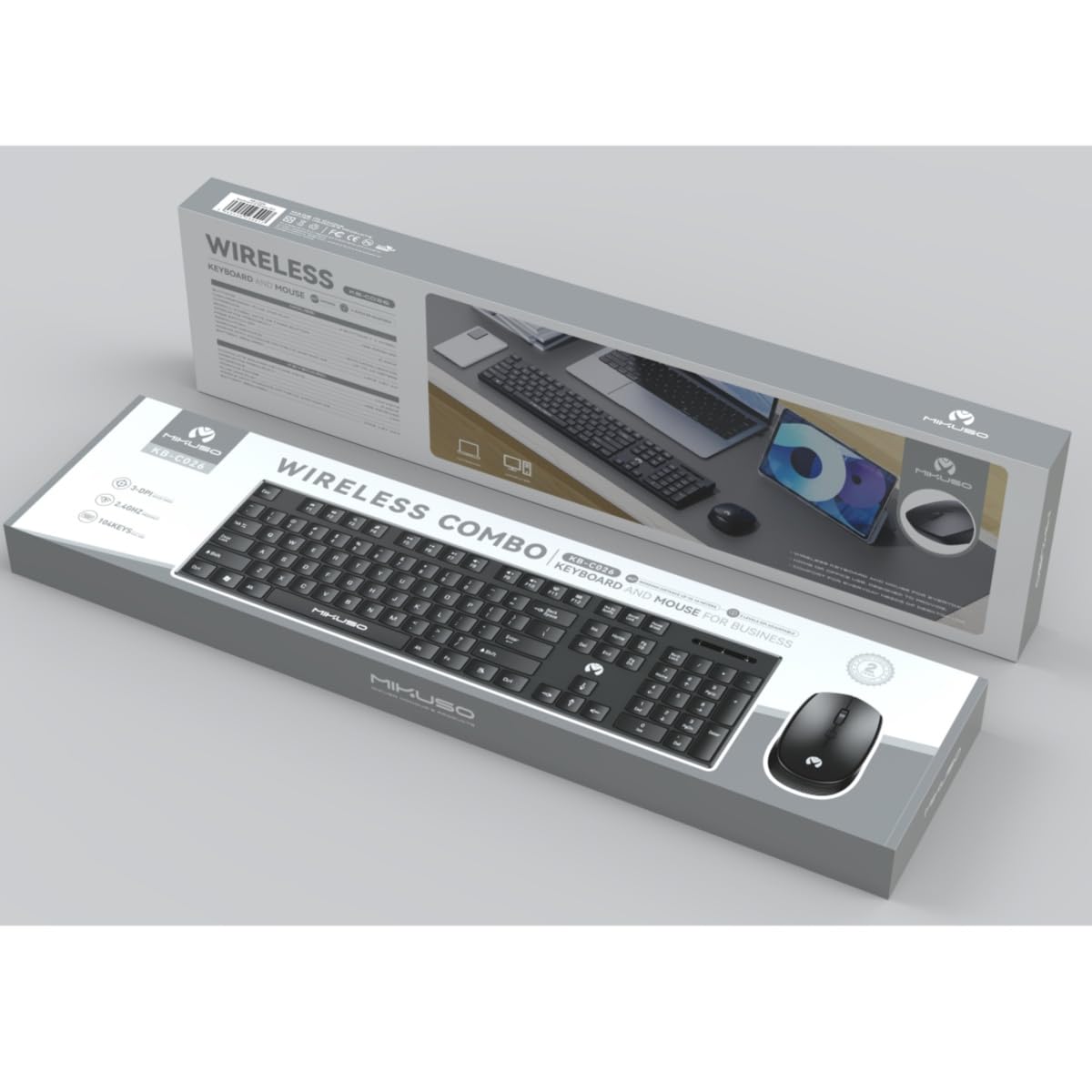
Image 1: MIKUSO KB-C026 Wireless Keyboard and Mouse Combo. This image displays the full-size keyboard, ergonomic mouse, and the compact USB receiver, illustrating the components included in the set.
5. Treoracha Oibriúcháin
5.1. Úsáid Méarchláir
- Clóscríobh: Use the full QWERTY layout for standard typing.
- Méarchlár Uimhriúil: The dedicated numeric keypad on the right side is ideal for data entry and calculations. Ensure the 'Num Lock' key is active if numbers are not registering.
- Eochracha Feidhme (F1-F12): These keys perform various functions, often in combination with the 'Fn' key, depending on your operating system and software.
5.2. Úsáid na Luiche
- Cliceáil ar Chlé: Gníomh príomhúil, roghnú.
- Cliceáil ar dheis: Osclaíonn sé roghchláir chomhthéacs.
- Roth Scrollaigh: Scrollaigh trí dhoiciméid agus web leathanaigh. Féadfaidh an roth scrolla feidhmiú mar chliceáil lár freisin.
- Gluaiseacht: Bog an luch ar dhromchla cothrom chun an cúrsóir ar do scáileán a rialú.
6. Cothabháil
- Glanadh: Bain úsáid as éadach bog, tirim chun dromchlaí an mhéarchláir agus na luiche a ghlanadh. Chun salachar righin a fháil, bain úsáid as éadach beagán tirim.amp Is féidir éadach le gallúnach éadrom a úsáid, ag cinntiú nach dtéann aon leacht isteach sna gléasanna.
- Athsholáthar Ceallra: When the devices become unresponsive or exhibit delayed input, replace the batteries. Ensure correct polarity.
- Stóráil: Nuair nach bhfuil siad in úsáid ar feadh tréimhsí fada, múch na gléasanna chun saol na ceallraí a chaomhnú. Stóráil in áit fhionnuar tirim.
7. Fabhtcheartú
| Fadhb | Réiteach |
|---|---|
| Níl an méarchlár/luch ag freagairt |
|
| Nasc mall nó uaineach |
|
| Níl an méarchlár uimhriúil ag obair |
|
8. Sonraíochtaí
- Múnla: KB- C026
- Nascacht: 2.4G Gan Sreang
- Raon Gan Sreang: Suas le 10 méadar (33 troigh)
- Leagan Amach Méarchláir: Full-size QWERTY with Numeric Keypad
- Cineál Luiche: Ergonomic, Optical
- Glacadóir: Glacadóir Nano USB
- Comhoiriúnacht: Windows 7, Windows 8, Windows 10, Windows 11 (Desktop and Laptop Computers)
- Foinse Cumhachta: Batteries (not included, typically AA/AAA for devices)
9. Barántas agus Tacaíocht
This product is covered by a standard manufacturer's warranty. For specific warranty terms and conditions, please refer to the documentation provided at the time of purchase or contact your retailer. If you encounter any issues or require technical assistance, please contact the seller or manufacturer's customer support through the details provided on your purchase receipt or the product packaging.