
1. Eolas Tábhachtach Sábháilteachta
Please read all instructions carefully before using this monitor. Keep this manual for future reference.
- Ná nochtaigh an monatóir do bháisteach, taise ná teochtaí foircneacha.
- Cinntigh aeráil cheart timpeall an mhonatóra chun róthéamh a chosc.
- Use only the power adapter provided with the monitor.
- Seachain rudaí troma a chur ar an gcábla cumhachta nó ar an monatóir.
- Dícheangail an breiseán cumhachta ón asraon mura n-úsáidfear an monatóir ar feadh tréimhse fada.
- Ná déan iarracht an monatóir a sheirbhísiú tú féin. Cuir gach seirbhísiú faoi bhráid phearsanra cáilithe.
2. Ábhar Pacáiste
Deimhnigh go bhfuil na hearraí go léir i do phacáiste:
- 27-inch QHD 210Hz Monitor (1 unit)
- Monitor Stand (1 unit)
- Treoir Tosaigh Thapa (QSG) (1 aonad)
- DP Cable (1 unit)
- Power Adaptor (1 unit)
- Power Cord (1 unit)
- Shielding Hood (2 units)

Video: KTC 27M1 27 Inch 210Hz Gaming Monitor. This video provides a visual overview of the monitor and its features.
3. Treoracha Socraithe
3.1 An Seasamh Monatóra a Thionól
- Bain comhpháirteanna an mhonatóra agus an tseastáin go cúramach as an bpacáistiú.
- Attach the stand base to the stand arm using the provided screw.
- Align the stand arm with the mounting slot on the back of the monitor and push until it clicks into place.
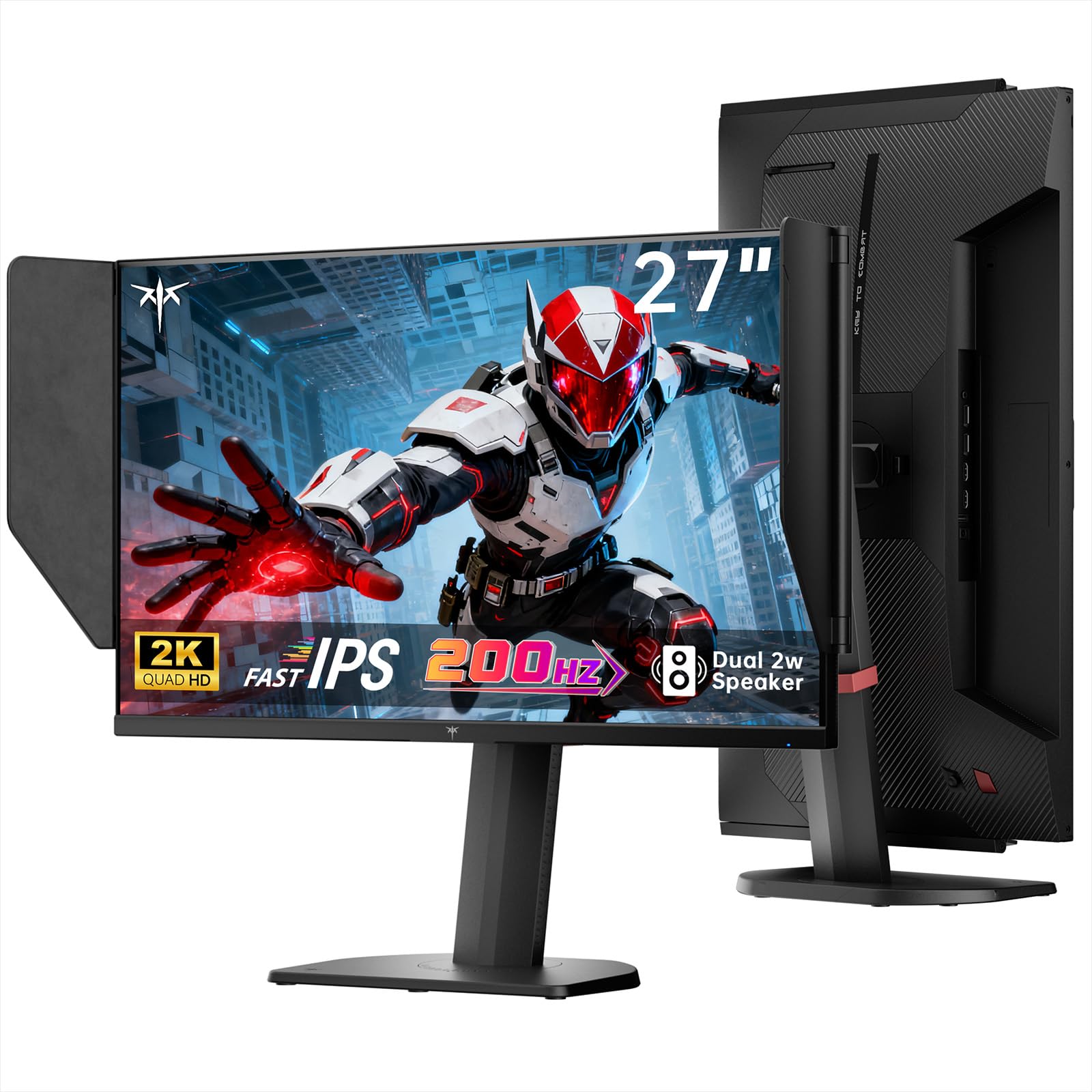
Image: The KTC 27M1 monitor with its stand fully assembled, ready for use.
3.2 Attaching the Shielding Hood
The shielding hood helps reduce glare and reflections for an optimal viewtaithí.
- Locate the two shielding hood pieces.
- Align each piece with the designated slots on the sides of the monitor and gently slide them into place until secure.

Image: The KTC 27M1 monitor shown with the shielding hood attached, designed to block reflected light.
3.3 Cábla a Cheangal
Ceangail an monatóir le do ríomhaire nó le gléasanna eile ag baint úsáide as na cáblaí cuí:
- DisplayPort (DP): For 200Hz (overclockable to 210Hz) refresh rates, connect the DP cable from your graphics card to the monitor's DP 1.4 port.
- HDMI: For 144Hz refresh rates, connect an HDMI 2.0 cable from your device to one of the monitor's HDMI ports.
- Cumhacht: Connect the power adapter to the DC input on the monitor, then plug the power cord into a wall outlet.
- Fuaim: Connect headphones or external speakers to the 3.5mm earphone jack if desired.

Íomhá: Dlúth-amharc view of the KTC 27M1 monitor's rear ports, including HDMI, DisplayPort, USB, and earphone jack.
4. Treoracha Oibriúcháin
4.1 Cumhacht ar siúl / as
Press the 5-way navigation joystick located on the back of the monitor to power it on or off.
4.2 Nascleanúint Roghchláir OSD
The 5-way navigation joystick is used to access and navigate the On-Screen Display (OSD) menu:
- Brúigh an luamhán stiúrtha chun an roghchlár OSD a oscailt.
- Move the joystick Up/Down/Left/Right to navigate through menu options.
- Press the joystick again to select an option or confirm a setting.
- Move the joystick Left to go back to the previous menu or exit the OSD.
4.3 Socruithe Taispeána a Choigeartú
Within the OSD menu, you can adjust various display settings:
- Gile/Codarsnacht: Coigeartaigh na leibhéil lonrúlachta agus codarsnachta foriomlána.
- Socruithe Datha: Modify color temperature (Warm, Cool, User), gamma, hue, and saturation. The monitor offers 130% sRGB color gamut and ΔE<2 for accurate color reproduction.
- Socrú Cearrbhachais: Enable/disable Adaptive Sync (FreeSync/G-Sync Compatible), adjust Overdrive (Ultra Fast recommended for gaming), and activate Game Assist features.
- Ardsocruithe: Toggle HDR (Auto/Off) and OverClock (to achieve 210Hz refresh rate).
- Ionchur: Manually select the input source (DP, HDMI1, HDMI2).
- Socrú an Chórais: Change OSD language, LED indicator, audio volume, and other system preferences.
4.4 Coigeartuithe Eirgeanamaíochta
The monitor stand supports multiple ergonomic adjustments for comfortable viewá:
- Coigeartú Airde: Adjust the monitor height by 150±5mm.
- Tilt: Tilt the screen from -5° to 35°.
- Sclóine: Swivel the monitor ±60°.
- Pivot: Pivot the screen from -5° to 90° for vertical orientation.

Image: Visual representation of the KTC 27M1 monitor's tilt, swivel, elevate, and pivot adjustments.
5. Gnéithe
- Taispeáin: 27-inch QHD (2560x1440) Fast IPS panel.
- Ráta Athnuachana: 200Hz, overclockable to 210Hz.
- Am Freagartha: 1ms (MPRT) for sharp visuals.
- Cruinneas Datha: 130% sRGB color gamut, 99% DCI-P3 coverage, ΔE<2, 450 cd/m² brightness, 1.07 Billion Colors, 1000:1 Contrast Ratio.
- Sync Oiriúnaitheach: FreeSync and G-Sync Compatible to eliminate screen tearing.
- Cúram Súl: Flicker-free and low blue light modes for extended comfortable viewing.
- Fuaim: Built-in dual 2W speakers.
- Nascacht: 2x HDMI 2.0 ports, 1x DisplayPort 1.4 port, 1x USB 2.0 port, 1x Earphone jack.
- Gléasta: 100x100mm VESA mount compatible.
- Dearadh: Includes a detachable shielding hood to block reflected light.

Image: The KTC 27M1 monitor displaying vibrant colors, highlighting its color accuracy and brightness features.
6. Sonraíochtaí
| Gné | Sonraíocht |
|---|---|
| Branda | KTC |
| Uimhir Mhúnla | H27T8 (Marketed as 27M1) |
| Méid an Scáileáin | 27 Orlach |
| Rún Dúchais | 2560x1440 (QHD) |
| Teicneolaíocht Taispeána | IPS tapa |
| Ráta Athnuachana | 200 Hz (Overclockable to 210 Hz) |
| Am Freagartha | 1 Millisecond (MPRT) |
| Gile | 450 Candela (cd/m²) |
| Cóimheas Codarsnachta | 1000:1 |
| Dath Gamut | 130% sRGB, 99% DCI-P3 |
| Viewing Uillinn | 178 Céim |
| Tacaíocht HDR | Tá |
| Sync Oiriúnaitheach | FreeSync, G-Sync Compatible |
| Cainteoirí Insuite | 2x 2W Speakers |
| Nascacht | 2x HDMI 2.0, 1x DisplayPort 1.4, 1x USB 2.0, 1x Earphone |
| Sliabh VESA | 100x100mm |
| Eirgeanamaíocht | Height, Tilt, Swivel, Pivot Adjustment |
| Tomhaltas Cumhachta | 48 Watts |
7. Cothabháil agus Cúram
- Glanadh an Scáileáin: Cuimil an scáileán go réidh le héadach bog, saor ó lint. I gcás marcanna righne, dampen the cloth with a mild, non-abrasive screen cleaner.
- Glanadh an Casing: Bain úsáid as éadach bog, tirim chun an monatóir a ghlanadhasing. Seachain úsáid a bhaint as glantaigh láidre nó glantaigh scríobacha.
- Aeráil: Ensure the ventilation openings on the monitor are clear and unobstructed to prevent overheating.
- Stóráil: Má tá an monatóir á stóráil ar feadh tréimhse fada, dícheangail ón gcumhacht é agus stóráil é in áit fhionnuar, thirim.
8. Fabhtcheartú
8.1 Gan Cumhacht
- Seiceáil an bhfuil an corda cumhachta ceangailte go daingean leis an monatóir agus leis an asraon cumhachta.
- Deimhnigh go bhfuil an asraon cumhachta ag feidhmiú i gceart trí ghléas eile a phlugáil isteach.
- A chinntiú go bhfuil an adapter cumhachta ceangailte i gceart.
8.2 No Signal/Blank Screen
- Confirm that the video cable (DP or HDMI) is securely connected to both the monitor and your computer/device.
- Press the OSD joystick to open the menu and manually select the correct input source.
- Ensure your computer/device is powered on and not in sleep mode.
- Try using a different video cable or port to rule out cable/port issues.
8.3 Flickering/Distorted Image
- Seiceáil an cábla físe le haghaidh aon damáiste nó naisc scaoilte.
- Adjust the refresh rate in your computer's display settings to match the monitor's native refresh rate (200Hz or 210Hz if overclocked).
- Enable Adaptive Sync (FreeSync/G-Sync Compatible) in the monitor's OSD menu and your graphics card settings.
- Cinntigh go bhfuil tiománaithe do chárta grafaicí cothrom le dáta.
8.4 No Sound from Built-in Speakers/Earphone Jack
- Check the volume settings in the monitor's OSD menu and your computer's operating system.
- Cinntigh go bhfuil an gléas aschuir fuaime ceart roghnaithe i socruithe fuaime do ríomhaire.
- Verify that the audio cable (if using external speakers) or headphones are properly connected.
9. Barántas agus Tacaíocht
KTC is committed to providing quality service and support for your monitor.
- Barántas: This product comes with a 3-year quality guarantee.
- Tacaíocht Theicniúil: Lifetime technical support is available for all KTC products.
- Déan Teagmháil Linn: If you have any questions or encounter issues, please contact KTC customer support. Solutions will be provided within 24 hours.