
1. Réamhrá
Thank you for choosing the Dexnor Keyboard Case. This manual provides essential information for setting up, operating, and maintaining your keyboard case to ensure optimal performance and longevity.
Cad atá sa Bhosca
- Slim Folio Magnetic Keyboard Case
- Cábla USB
- Treoir mear-thosaithe
- Lámhleabhar Úsáideora
Comhoiriúnacht
This keyboard case is designed for the following iPad models:
- iPad Air 11-inch 2025 M3 (Models: A3266/A3267/A3270)
- iPad Air 11-inch 2024 M2 (Models: A2902/A2903/A2904)
- iPad Pro 11-inch 2022 4th Gen (Models: A2435/A2759/A2761/A2762)
- iPad Pro 11-inch 2021 3rd Gen (Models: A2377/A2301/A2459/A2460)
- iPad Pro 11-inch 2020 2nd Gen (Models: A2228/A2068/A2231)
- iPad Pro 11-inch 2018 1st Gen (Models: A1980/A2013/A1934/A1979)
- iPad Air 5th Gen 2022 (Models: A2588/A2589/A2591)
- iPad Air 4th Gen 2020 (Models: A2072/A2316/A2324/A2325)
Please double-check the 'A' code on the back of your device for compatibility. This case is NOT compatible with iPad Pro 11 M4/M5 2024/2025 or iPad (A16) 11th/10th Gen. iPad and Apple Pencil are not included.

Image: Compatibility chart for Dexnor Keyboard Case.
2. Socrú
2.1 Do iPad a Cheangal
- Oscail an cás méarchláir.
- Align your compatible iPad with the magnetic back cover of the case. The strong magnets will securely attach the iPad.
- Position the bottom edge of your iPad into the designated slot on the keyboard for a stable viewing angle. The ergonomic 120-degree viewing angle is designed for comfort during study, work, and entertainment.
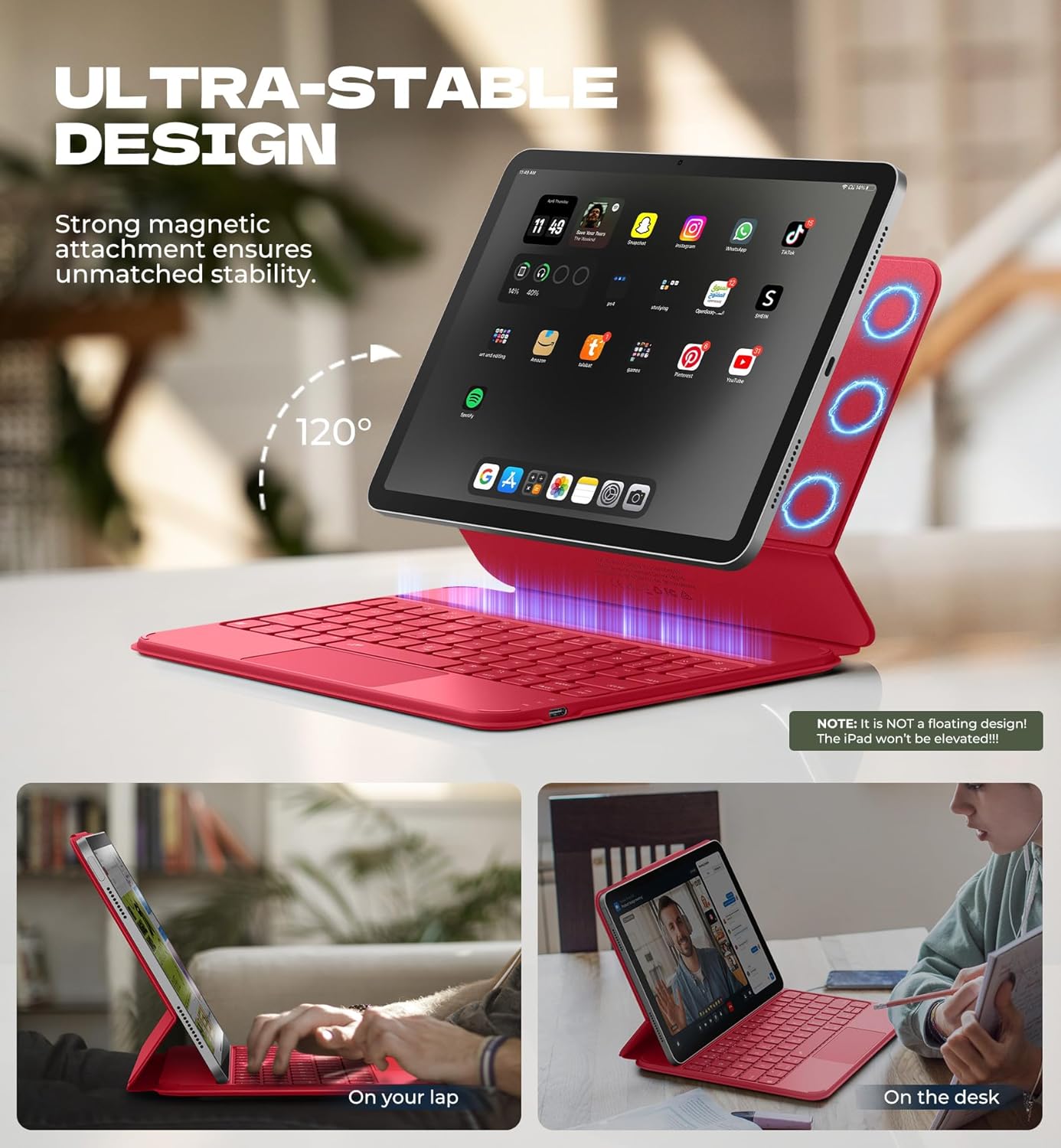
Image: iPad attached to the keyboard case, demonstrating the stable viewuillinn ing.
2.2 Péireáil Bluetooth
- Ensure your keyboard case is charged.
- Turn on the keyboard using the side power button.
- Ar do iPad, téigh chuig Socruithe > Bluetooth agus cas Bluetooth air.
- Brúigh an Fn eochair agus an Péire key (often indicated by a Bluetooth symbol) simultaneously on the keyboard. The Bluetooth indicator light on the keyboard will flash.
- On your iPad, locate "Dexnor Keyboard" in the "Other Devices" list and tap to connect. A pairing request pop-up will appear; tap "Pair".
- Once connected, the Bluetooth indicator light on the keyboard will stop flashing, and your iPad will show "Connected" next to "Dexnor Keyboard".
Video: Demonstrates the setup and magnetic attachment of the Dexnor Ultra-light Folio Keyboard Case with Trackpad.
Video: Shows the connection process for the Dexnor Keyboard Case for iPad Air 11/Pro 11/Air 5th/4th Gen.
3. Treoracha Oibriúcháin
3.1 Gnéithe an Mhéarchláir
- Eochracha Cúllitrithe: The keyboard features a single-color backlight with 3 adjustable brightness levels for comfortable typing in low-light conditions. Use the dedicated backlight keys (often Fn + light icon) to adjust brightness.
- Eochracha Feidhme: Utilize the function keys for quick access to iPad features such as media control, volume adjustment, and screen lock.
- Auto-Wake/Sleep: The case supports auto-wake/sleep functionality, preserving battery life by automatically turning your iPad screen on or off when the case is opened or closed.
3.2 Multi-touch Trackpad
The integrated multi-touch trackpad provides precise navigation and supports various gestures for a laptop-like experience on your iPad.
- Súmáil Isteach/Amach: Use pinch gestures on the trackpad.
- Bainistigh Files: Utilize standard trackpad gestures for file loingseoireacht agus roghnú.
- Brabhsáil Webleathanaigh: Scroll and navigate with ease.
- Athraigh Aipeanna: Use multi-finger gestures to switch between applications.
- Disable Trackpad: To prevent accidental touches during typing, press Fn + barra spáis to disable or enable the trackpad.

Image: Multi-touch trackpad with gesture illustrations.

Image: Backlit keyboard keys.
4. Cothabháil
4.1 Cúram Ceallraí
The keyboard case is equipped with a 650mAh lithium polymer battery. To maximize battery life:
- Charge the keyboard using the provided USB cable when the battery indicator is low.
- Seachain an ceallraí a dhíluchtú go hiomlán go minic.
- Stóráil an méarchlár in áit fhionnuar tirim nuair nach bhfuil sé in úsáid ar feadh tréimhsí fada.
Expected battery performance:
- Suas le 720 uair an chloig d'am fuireachais.
- Up to 200 hours of use without backlight.
- Up to 10 hours of continuous use with the brightest backlight setting.
4.2 Glanadh
To clean your keyboard case:
- Glan an taobh amuigh le bog, damp éadach.
- Seachain ceimiceáin gharbh nó glantóirí scríobacha a úsáid.
- Ensure no moisture enters the keyboard or charging port.
5. Fabhtcheartú
Níl an méarchlár ag ceangal trí Bluetooth
- Seiceáil Battery: Cinntigh go bhfuil an méarchlár luchtaithe go leordhóthanach.
- Atosaigh an Méarchlár: Múch an méarchlár agus cuir air arís é.
- Athphéireáil Bluetooth: Go to your iPad's Bluetooth settings, forget the "Dexnor Keyboard" device if it appears, and then repeat the pairing steps in Section 2.2.
- Atosaigh an iPad: Sometimes a simple iPad restart can resolve connectivity issues.
Trackpad Not Responding
- Check if Disabled: Ensure the trackpad is not disabled (press Fn + barra spáis to toggle).
- Glan an Trackpad: Ensure the trackpad surface is clean and free of debris.
- Restart Keyboard/iPad: Perform a restart of both devices.
Eochracha Neamhfhreagartha
- Seiceáil Battery: A low battery can cause keys to become unresponsive.
- Athphéireáil Bluetooth: Follow the steps to re-pair the keyboard.
- Eochracha Glan: Cinntigh nach bhfuil aon smionagar faoi na heochracha.
6. Sonraíochtaí
| Gné | Sonraigh |
|---|---|
| Uimhir Mhúnla | DK015 |
| Meáchan Mír | 1.06 lb (482 gram) |
| Toisí Pacáiste | 10.43 x 9.05 x 1.05 orlach |
| Monaróir | Dexnor |
| Teicneolaíocht Nascachta | Bluetooth |
| Cur síos ar an Méarchláir | Ilfheidhmeach |
| Gnéithe Speisialta | Backlit keys, Long-lasting rechargeable battery, Auto-wake/sleep, High precision click-anywhere trackpad, Magnetic detachable, Magnetic clasp, Pencil Holder, Smart Magnetic Keyboard Folio with Rock-solid stability (NOTE: NOT Floating), Ultra-thin slim lightweight portable compact |
| Dath | Rose Red (Current Product Variant) |
| Cúlsoilsiú Méarchláir | Dath Aonair |
| Ábhar | Polycarbonate, Polyurethane (PU) |
| Ceallraí | 1 A battery required (included) - 650mAh Lithium Polymer |
7. Barántas agus Tacaíocht
Dexnor is committed to providing high-quality products and customer satisfaction. For any inquiries or support needs, please refer to the following:
- Barántas: This product comes with a 10-year warranty for phone/tablet cases.
- Polasaí um Fhilleadh: A 60-day return policy is available.
- Customer Support Response: Expect a response within 24 hours on business days and 48 hours on weekends/holidays.
For further assistance, please visit the official Dexnor store or contact customer service through your purchase platform.