
1. Réamhrá
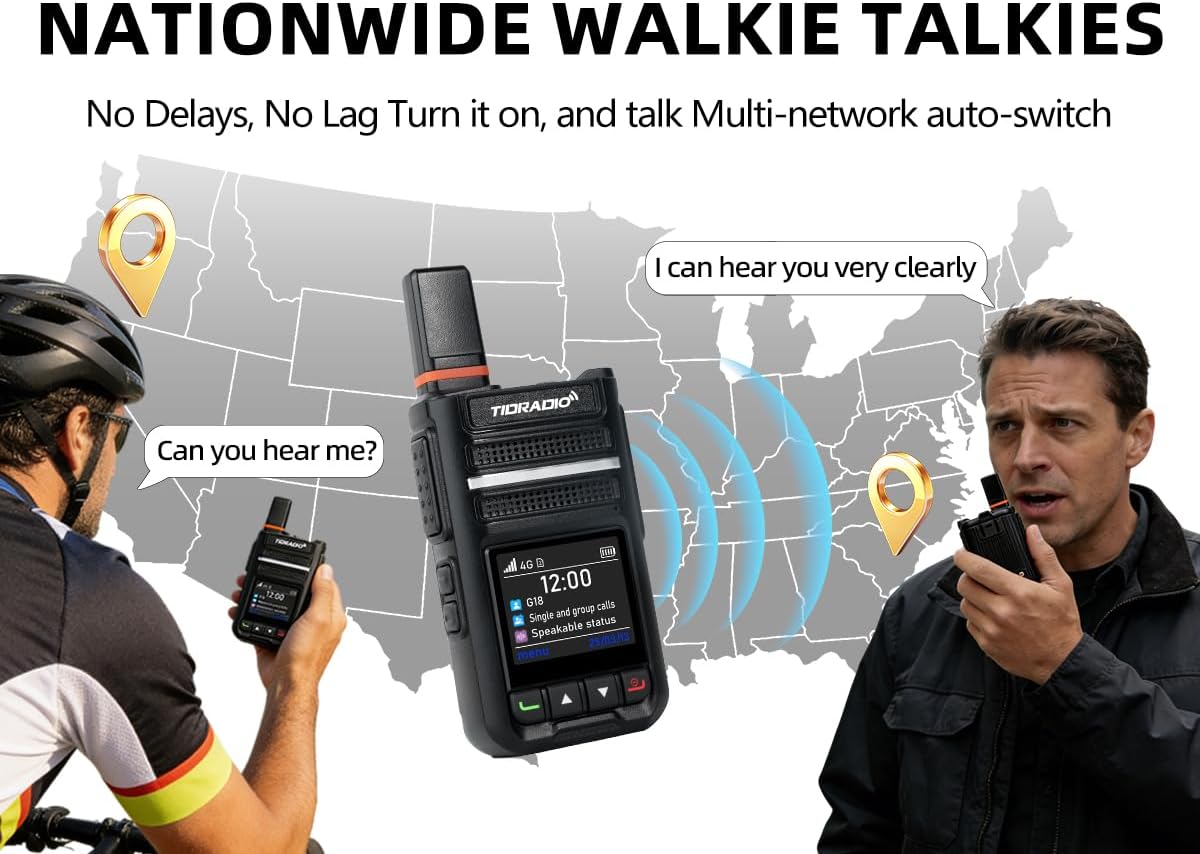
The TIDRADIO TD-G18 is a state-of-the-art Push-to-Talk over Cellular (PoC) radio designed for reliable, long-distance communication. Utilizing 4G LTE networks, it offers nationwide coverage, enabling seamless communication across vast distances without traditional range limitations. This manual provides essential information for setting up, operating, and maintaining your TD-G18 radio.

Figure 1.1: Nationwide communication capabilities of the TD-G18 PoC Radio.
The TD-G18 integrates advanced features such as crystal-clear audio with noise cancellation, a long-lasting 3000mAh battery, USB-C fast charging, and the ability to manage groups and record conversations via the ODmaster app. It is suitable for various applications, including family use, logistics, team collaboration, and emergency communication needs.
Físeán 1.1: Tharview of the TIDRADIO TD-G18 PoC Radio's features and capabilities.
2. Ábhar Pacáiste
Upon opening your TIDRADIO TD-G18 package, please verify that all the following items are included:
- TD-G18 PoC Radio(s)
- SIM Card(s)
- Headphone(s)
- Oiriúntóir(í) Muirir
- Type-C Data Cable(s)
- Lámhleabhar Treoracha (an doiciméad seo)

Figure 2.1: Visual representation of the items included in your TD-G18 package.
Video 2.1: An unboxing video demonstrating the contents of the TD-G18 package and initial handling.
3. Táirge Tharview
3.1 Comhpháirteanna Raidió
Familiarize yourself with the main components and controls of your TD-G18 radio:
Fíor 3.1: Tosaigh view of the TD-G18 radio.

Fíor 3.2: Taobh view of the TD-G18 radio, showing the PTT button and other controls.
4. Socrú
4.1 Suiteáil Cárta SIM agus Ceallraí
The TD-G18 requires a SIM card for network connectivity. Follow these steps to install the SIM card and battery:
- Remove the battery cover from the back of the radio.
- Open the SIM card slot lock buckle.
- Carefully insert the provided SIM card into the designated slot.
- Close the SIM card slot lock buckle to secure the SIM card.
- Insert the 3000mAh Li-ion battery into the battery compartment.
- Replace the battery cover, ensuring it clicks securely into place.

Fíor 4.1: Cúil view of the TD-G18 showing SIM card and battery compartments.
4.2 Cumhachtú Amach/Amach
To power on the radio, long-press the red 'Exit' button until the screen illuminates. To power off, long-press the same button until the device shuts down.
4.3 ODmaster App Download and Radio Binding
The TD-G18 utilizes the ODmaster app for advanced features and management. Download and bind your radio as follows:
- Scan the QR code on the radio screen or visit odmaster.tid-china.com/odmasterAppDownload to download the ODmaster app for your Android or iOS device.
- Register an account within the app using your phone number or email.
- In the app, navigate to the 'Devices' section and click the '+' icon to add your radio.
- Scan the QR code displayed on your TD-G18 radio's screen using the app.
- Follow the on-screen prompts to complete the binding process. You can customize the device name if desired.

Figure 4.2: Activation tutorial for the TD-G18 using the ODmaster app.
For a visual guide, refer to the G18 Activation Video.
5. Treoracha Oibriúcháin
5.1 Bainistíocht Ghrúpa
The ODmaster app allows for flexible group creation and management:
- Cairde á gcur leis: In the ODmaster app, navigate to the 'Friends' tab. Use the search function to find other users by their ID or scan their QR code.
- Creating Groups: From the 'Groups' tab, select 'Create Channel'. Enter a channel name and invite friends to join.
- Joining Groups: You can join existing groups by accepting invitations or using a group ID.

Figure 5.1: ODmaster app interface for managing groups and devices.
5.2 Glaonna a Dhéanamh
Tacaíonn an TD-G18 le cineálacha éagsúla glaonna:
- Glao Iomlán (Glao Grúpa): Select the desired group on your radio. Press and hold the Push-to-Talk (PTT) button on the side of the radio to transmit your voice to all members in the selected group. Release the PTT button to listen.
- Glao Aonair: Use the radio's menu or app to select a specific individual from your contact list. Press and hold the PTT button to initiate a private conversation.
- App-to-Radio Call: You can also use the ODmaster app on your smartphone to communicate with your radio or other radios in your groups.
Video 5.1: A comprehensive demonstration of the TD-G18's communication features, including group and individual calls.
5.3 Príomhghnéithe
- Crystal Clear Audio & Noise Cancellation: The radio is equipped with an advanced noise-filtering microphone, reducing background noise by up to 95% for clear communication in noisy environments.
- Automatic Conversation Backup: The ODmaster app automatically records all group calls, allowing you to replay conversations for accountability and reference.
- Nuashonruithe OTA le cliceáil amháin: Keep your radio's firmware up-to-date with over-the-air updates directly through the ODmaster app, requiring no physical connection.
6. Cothabháil
- Glanadh: Bain úsáid as bog, damp cloth to clean the radio's exterior. Avoid harsh chemicals or abrasive materials.
- Cúram Battery: Charge the battery fully before first use. Avoid overcharging or completely draining the battery to prolong its lifespan. Store the radio and battery in a cool, dry place when not in use.
- Stóráil: Má tá an raidió á stóráil ar feadh tréimhse fada, bain an ceallraí agus stóráil ar leithligh í.
7. Fabhtcheartú
If you encounter issues with your TD-G18 radio, refer to the following common problems and solutions:
| Fadhb | Réiteach |
|---|---|
| No Global Call / Signal Issue | Ensure you are in an area with AT&T or T-Mobile network coverage in North America. PoC radios rely on cellular networks. |
| Teip Líonra | 1. In ODmaster APP, find ME->APN. Enter APN code: indosatgprs. Reboot and test radio again. 2. If the issue persists, send your SIM card number and order number to support. |
| Frequent Disconnections / Choppy Sound | Usually results from weak signals. Try making calls in a well-signaled area. After a call ends, it auto-switches back to the default group. Change the default group in the app. |
| Radio Not Registered / Cannot Bind to App | Unbind the radio in the app, then rebind. If the problem persists, send a clear QR code picture and your account information to support. |
| Echo Problem | Stay away from nearby sources of interference. |

Figure 7.1: Troubleshooting steps for common TD-G18 issues.
8. Sonraíochtaí
| Gné | Sonraigh |
|---|---|
| Branda | TIDRADIO |
| Uimhir Mhúnla | G18 |
| Dath | Dubh |
| Líon Cainéil | 200 |
| Raon Minicíochta | LTE/POC/4G |
| Raon Caint Uasmhéid | 10000 Míle (Ag brath ar an líonra) |
| Cumas Battery | 3000mAh (up to 7 days standby, all-day talk time) |
| Muirearú | Muirearú Tapa USB-C |
| Leibhéal Friotaíocht Uisce | Frithsheasmhach in Uisce |
| Gnéithe Speisialta | Long Range, Rugged, Battery Saver Mode, Noise Reduction, APP recording, OTA Updates |
| Gléasanna Comhoiriúnacha | TD-M15, TD-G100, TD-M2 |

Figure 8.1: TD-G18 battery features.
9. Barántas agus Tacaíocht
TIDRADIO offers a Seirbhís iar-díola 12-mí for the TD-G18 PoC Radio. Additionally, a Beartas fillte 30 lá atá ar fáil ar mhaithe le do shuaimhneas intinne.
For any technical assistance, warranty claims, or support inquiries, please contact our customer service team:
- Ríomhphost: tacaíocht@tidradio.com
When contacting support, please provide your product model number, SIM card number, and order number for faster service.