
WESEARY WG2
WESEARY WG2 Wired Gaming Headset User Manual
Múnla: WG2
1. Réamhrá
Thank you for choosing the WESEARY WG2 Wired Gaming Headset. This manual provides detailed instructions for setting up, operating, and maintaining your headset to ensure an optimal gaming experience. The WG2 headset is designed for immersive audio and clear communication across multiple gaming platforms.
2. Cad atá sa Bhosca
- WESEARY WG2 Gaming Headset (1 unit)
- 1 to 2 3.5mm Audio Jack Splitter Cable (1 unit)
- Lámhleabhar Úsáideora (An doiciméad seo)
3. Táirge Tharview
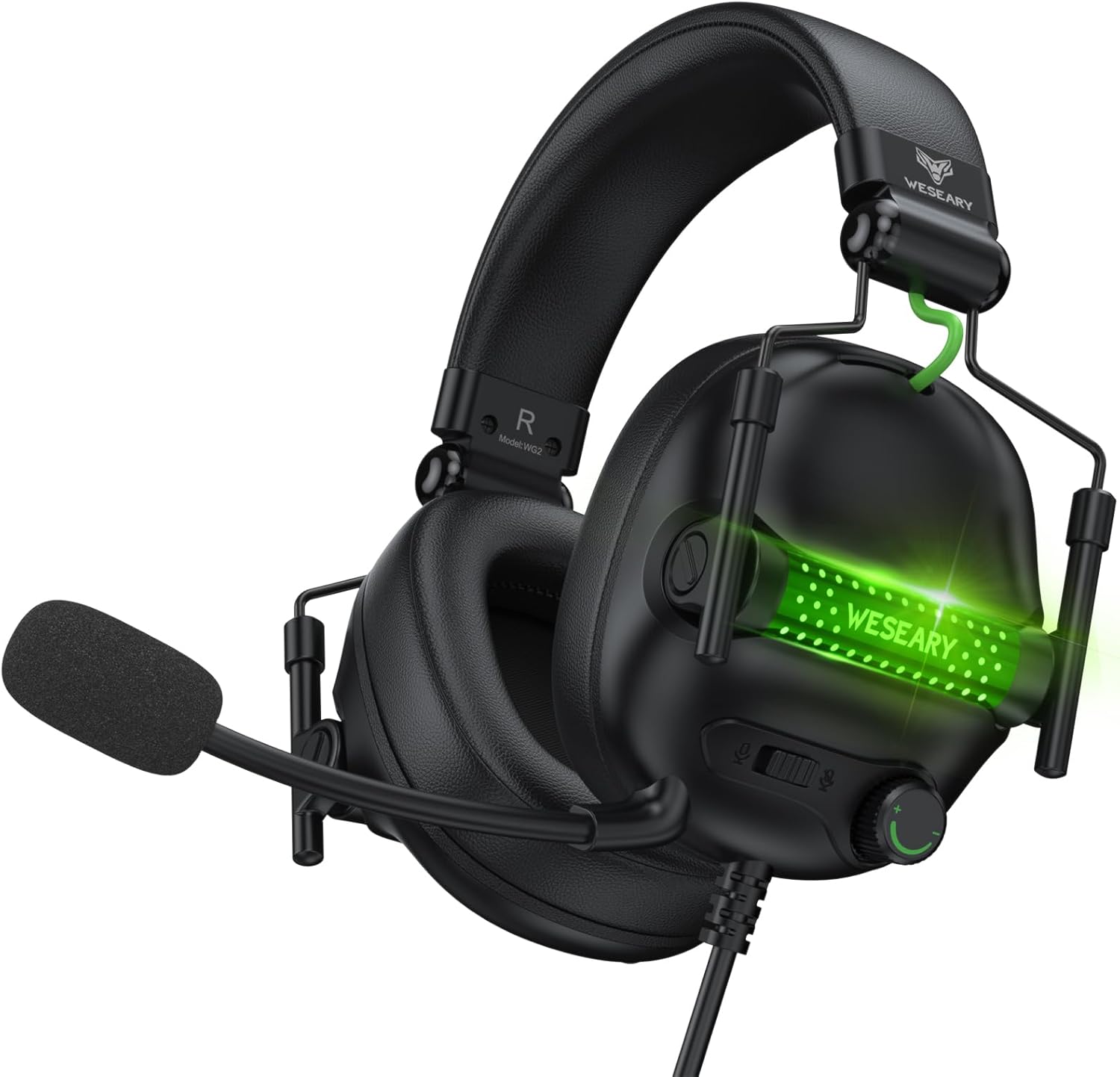
The WESEARY WG2 headset features 50mm drivers for rich stereo sound, an omnidirectional noise-canceling microphone for clear communication, and comfortable memory foam earcups. It is designed for multi-platform compatibility.
3.1 Príomhghnéithe
- Immersive Stereo Sound: 50mm high-density neodymium drivers deliver detailed 3D stereo audio.
- Micreafón a Chealú Torainn: 360° rotatable omnidirectional microphone with advanced noise cancellation for clear voice pickup.
- Compord eirgeanamaíochta: Lightweight design with soft memory foam earcups and an adjustable headband for extended wear.
- Rialuithe gan stró: In-line rotary volume control and one-button microphone mute.
- Dearadh Buan: Features a strong braided cable for longevity.
3.2 Comhpháirteanna Cluasán


4. Treoracha Socraithe
The WESEARY WG2 headset connects via a 3.5mm audio jack. Follow these steps to connect your headset to your device.
4.1 Connecting to PC/Laptop/Mac (with separate audio/mic ports)
- Locate the 3.5mm audio output port (headphone icon) and microphone input port (microphone icon) on your computer.
- Connect the 1 to 2 3.5mm Audio Jack Splitter Cable to the headset's 3.5mm jack.
- Plug the green connector of the splitter into your computer's audio output port.
- Plug the pink connector of the splitter into your computer's microphone input port.
- For LED lighting, connect the USB cable to an available USB port on your computer.
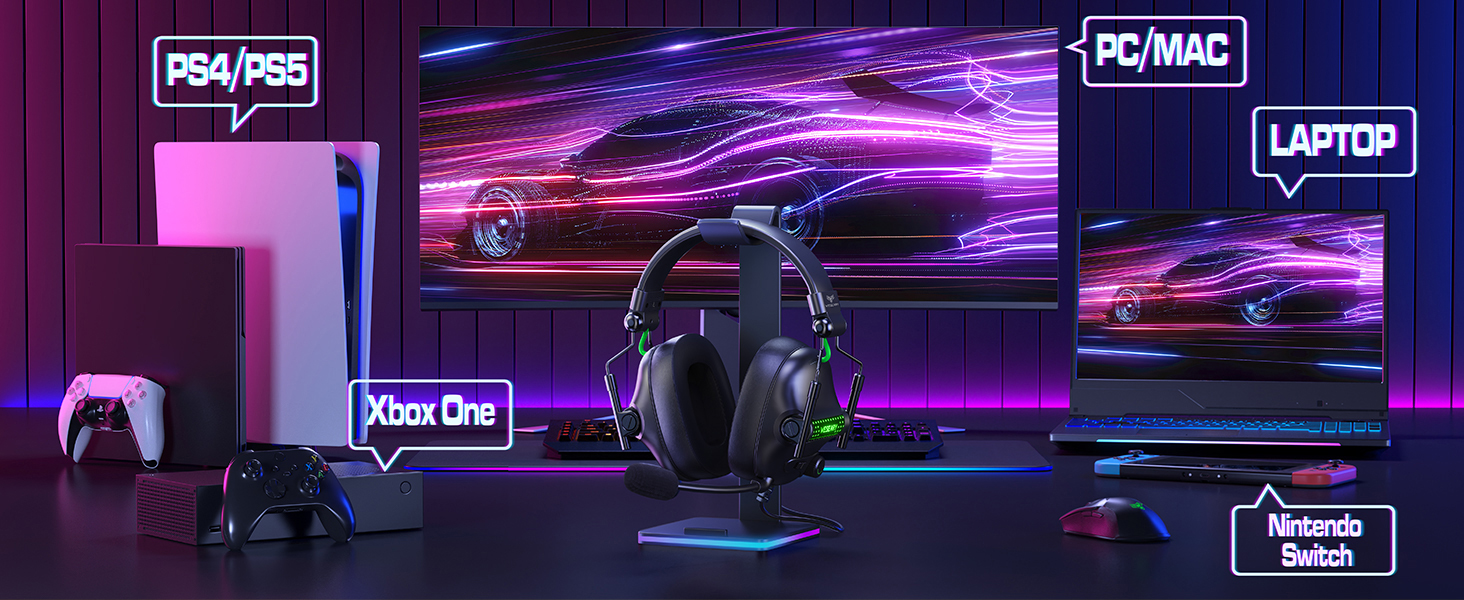
4.2 Connecting to PS4/PS5, Nintendo Switch, Xbox Series X|S, Mobile/Tablet (with single 3.5mm port)
- Plug the headset's 3.5mm jack directly into the 3.5mm audio port on your controller (PS4/PS5, Xbox Series X|S), console (Nintendo Switch), or mobile device.
- For LED lighting, connect the USB cable to an available USB port on your console or a USB power adapter.
- Note for Xbox One (older controllers): A Microsoft adapter (not included) is required for older Xbox One controllers that do not have a built-in 3.5mm jack.
- Nóta Comhoiriúnachta: This headset is not compatible with PS3 (without a 3.5mm adapter) or Xbox 360.

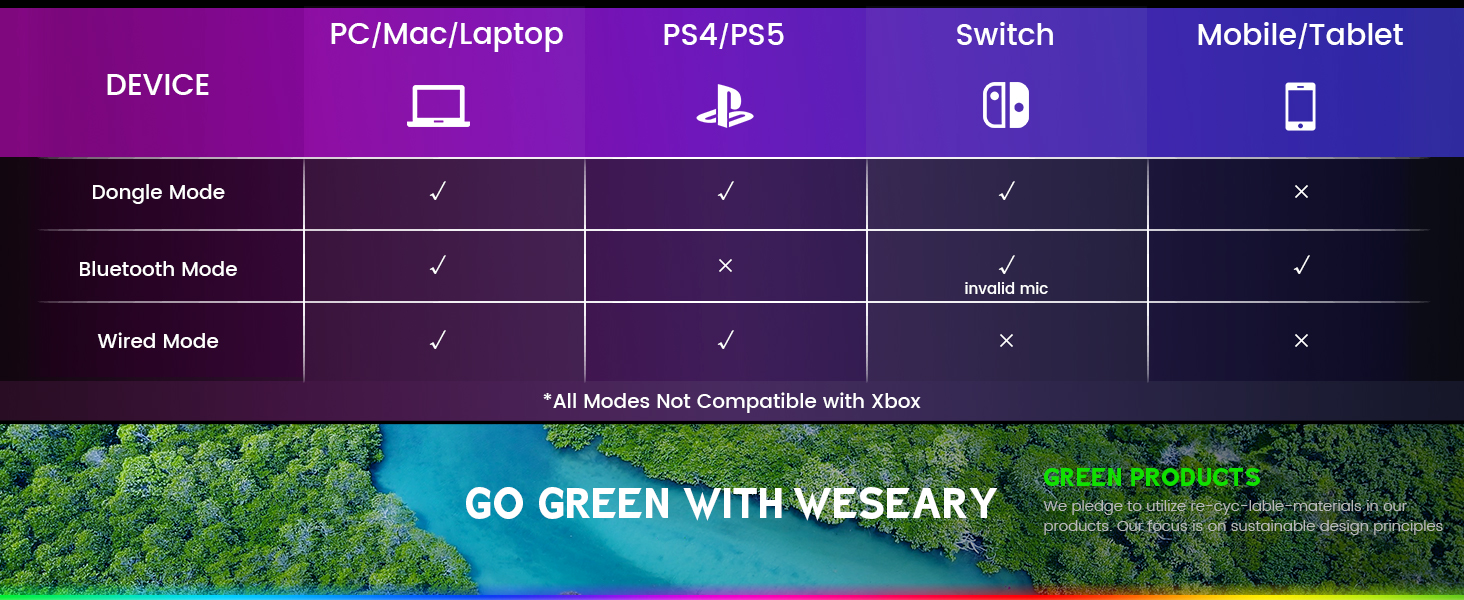
Nóta Tábhachtach: The WESEARY WG2 is a sreangaithe gaming headset. Any references to "Dongle Mode" or "Bluetooth Mode" in external diagrams or marketing materials are not applicable to this specific model (WG2) which connects solely via its 3.5mm audio jack and USB for LED power.
5. Treoracha Oibriúcháin
5.1 Coigeartú an Toirte
- Locate the rotary volume control wheel on the left earcup or in-line control.
- Rotate the wheel upwards to increase volume.
- Rotate the wheel downwards to decrease volume.

5.2 An Micreafón a Mhúchadh
- Locate the microphone mute button on the left earcup or in-line control.
- Press the button once to mute the microphone.
- Brúigh an cnaipe arís chun an micreafón a dhíbholadh.
5.3 Adjusting the Microphone
- The microphone is 360° rotatable. Adjust its position for optimal voice pickup.
- Position the microphone approximately 1-2 inches from your mouth for best clarity.


5.4 Adjusting Headset Fit
- Adjust the headband by sliding the earcups up or down until the headset fits comfortably over your ears.
- Ensure the earcups fully enclose your ears for optimal sound isolation and comfort.
6. Multi-Platform Compatibility
The WESEARY WG2 Wired Gaming Headset is compatible with a wide range of devices:
- Consóil Chearrbhachais: PlayStation 5 (PS5), PlayStation 4 (PS4), Xbox Series X|S, Nintendo Switch.
- Ríomhairí: PC, Laptops, Mac.
- Gléasanna Móibíleacha: Mobile phones, Tablets.
Nótaí Tábhachtacha:
- For older Xbox One controllers without a 3.5mm jack, a Microsoft adapter (not included) is required.
- The headset is not compatible with PS3 or Xbox 360 without additional adapters.
- The USB connection is solely for powering the LED lighting and does not transmit audio.
7. Cothabháil
- Glanadh: Bain úsáid as éadach bog, tirim chun na cluasáin a ghlanadh. Ná húsáid ceimiceáin ghéara ná ábhair scríobacha.
- Stóráil: Stóráil na cluasáin in áit fhionnuar tirim amach ó sholas díreach na gréine agus teochtaí foircneacha. Ceadaíonn an dearadh fillte stóráil dhlúth.
- Cúram Cábla: Seachain lúbadh géar nó tarraingt iomarcach ar an gcábla chun damáiste a chosc.
8. Fabhtcheartú
8.1 Gan Fuaim ó Chluasáin
- Ensure the 3.5mm audio jack is fully inserted into the device's audio port.
- Check the volume control wheel on the headset and ensure it is turned up.
- Verify the audio output settings on your device (console, PC, etc.) are configured to use the headset.
- If using the splitter cable, ensure both green and pink jacks are correctly connected to their respective ports.
8.2 Micreafón Gan Obair
- Cinntigh nach bhfuil an cnaipe múchta micreafóin ar na cluasáin gníomhachtaithe.
- Check the microphone input settings on your device (console, PC, etc.) to ensure the headset microphone is selected and its volume is not muted.
- Ensure the 3.5mm audio jack (and pink splitter jack if applicable) is fully inserted.
- Coigeartaigh suíomh an mhicreafóin níos gaire do do bhéal.
8.3 Soilse LED Gan Obair
- Ensure the USB cable is securely connected to a powered USB port on your device or a USB power adapter.
- Bain triail as an cábla USB a nascadh le port USB difriúil.
9. Sonraíochtaí
| Ainm an tSamhail | WG2 |
| Teicneolaíocht Nascachta | Wired (3.5mm Audio Jack, USB for LED) |
| Cineál tiománaí fuaime | Dynamic Driver (50mm Neodymium) |
| Impedance | 32 Óm |
| Socrúchán Cluas | Thar Cluas |
| Rialú Torainn | Insliú Fuaime, Cealú Torainn (Micreafón) |
| Micreafón | Omnidirectional, Noise-Canceling, 360° Rotatable |
| Ábhar | Composite, Plastic (with Memory Foam Earcups) |
| Toisí Táirge | 5.5 x 2.98 x 5.5 orlach |
| Meáchan Mír | 14.8 unsa |
| Dath | Rock Black |
| Monaróir | WESEARY |
10. Barántas agus Tacaíocht
For warranty information and technical support, please refer to the documentation provided with your purchase or visit the official WESEARY websuíomh. Coinnigh do chruthúnas ceannaigh le haghaidh éilimh bharántais.
Tacaíocht Ar Líne: Visit the WESEARY Store on Amazon
11. Físeán Táirge
Físeán 1: WESEARY Wired Gaming Headset OverviewTugann an físeán seo léargas gairid arview of the headset's features and design, demonstrating its immersive sound and clear communication capabilities.
Ask a question about this manual
Ask about setup, troubleshooting, compatibility, parts, safety, or missing instructions. Manuals+ will review the question and use this page’s manual context to help answer it.