
1. Réamhrá
The darkFlash AIR NOVA is a full tower E-ATX PC case designed for optimal airflow and component compatibility. This manual provides essential information for the proper installation, operation, and maintenance of your new PC case. Please read through these instructions carefully before beginning assembly.

Fíor 1: Taobh amuigh view of the darkFlash AIR NOVA PC Case.
2. Príomhghnéithe
- Full-Mesh Airflow System: Six-sided ventilation design maximizes airflow and cooling performance, ensuring stable system temperatures.
- E-ATX Compatibility & Dual Radiator Support: Supports E-ATX, ATX, and M-ATX motherboards. Accommodates two 360 mm radiators (top and front) for cooling flexibility.
- Vertical GPU Installation Ready: Includes a dedicated vertical GPU mount and reinforced metal support bracket to prevent GPU sag.
- Back-Connect Motherboard Compatible: Supports next-generation back-connect motherboards for a cleaner cable layout and improved airflow.
- Flexible Storage & Spacious PSU Chamber: Features an adjustable HDD cage for flexible positioning and larger PSU installation. The extended PSU chamber provides ample room for cables.
- Lucht leanúna Réamhshuiteáilte: Comes with 7 x PWM ARGB fans included for immediate cooling performance.

Figure 2: Optimized airflow system for efficient cooling.
3. Socrú agus Suiteáil
3.1 Comhpháirt Tharview
Familiarize yourself with the case layout and included components before starting assembly.

Figure 3: Internal layout with pre-installed fans and key dimensions.
3.2 Suiteáil Motherboard
The AIR NOVA supports E-ATX, ATX, and M-ATX motherboards. Install standoffs as required for your motherboard size. For back-connect motherboards, ensure proper alignment with the case's cutouts.

Figure 4: Back-connect motherboard support areas for a cleaner build.
3.3 Suiteáil Soláthair Cumhachta agus Stórála
Install your ATX power supply in the dedicated chamber. The adjustable HDD cage allows for flexible positioning to accommodate larger PSUs or optimize cable routing.

Figure 5: Power supply and adjustable hard disk bay positions.
3.4 Suiteáil Cárta Grafaicí
The case supports both standard horizontal and vertical GPU mounting. A dedicated vertical GPU mount and reinforced metal support bracket are included to prevent sag.
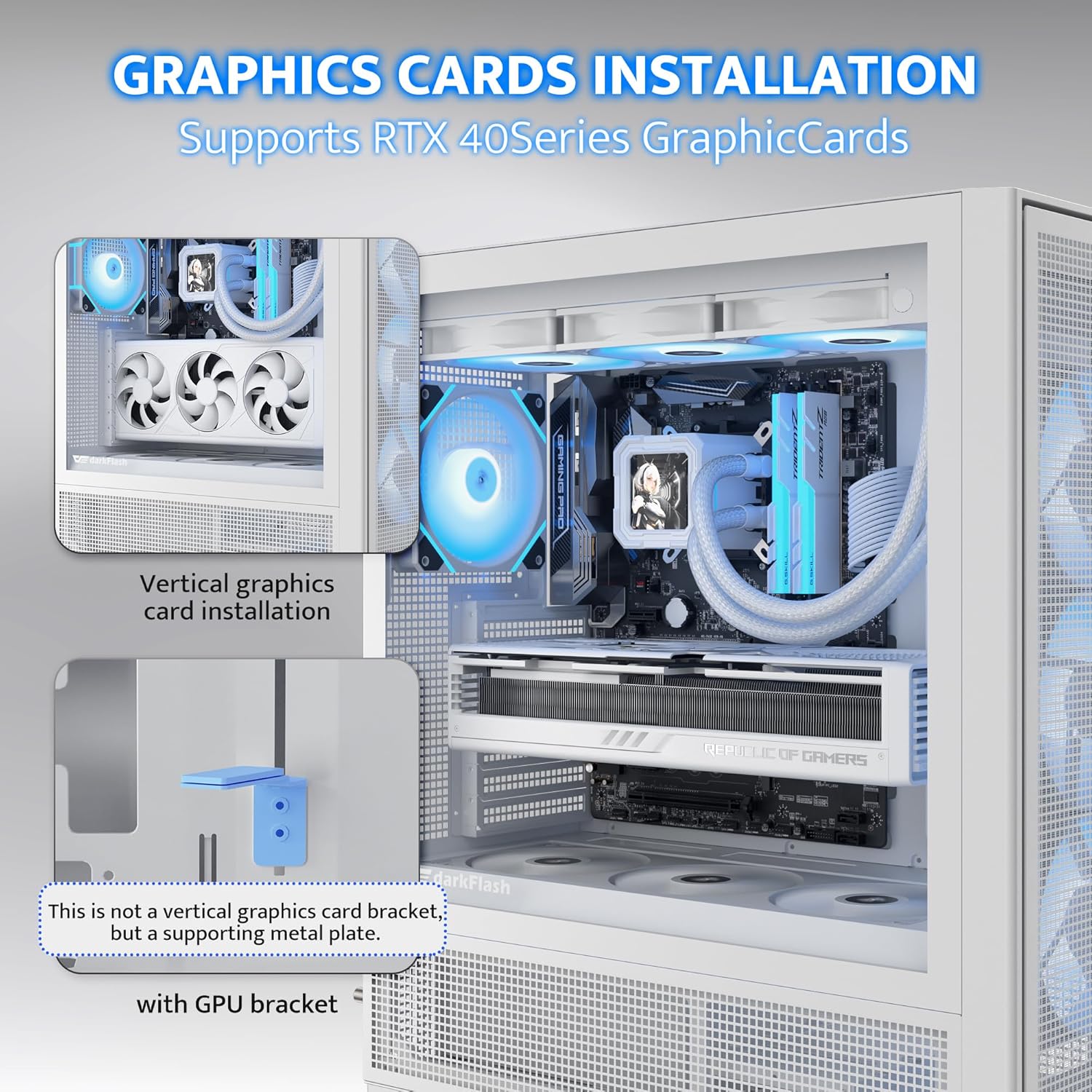
Figure 6: Vertical graphics card installation with supporting bracket.
3.5 Suiteáil Córas Fuaraithe
The case supports up to two 360mm radiators (top and front). Ensure proper fan orientation for optimal airflow (intake/exhaust). The case comes with 7 pre-installed PWM ARGB fans.
3.6 Bainistíocht Cábla
Utilize the movable and raised cable cover panel, offset fan mounting, and lowered bottom fan design for efficient cable routing. Velcro straps and cable clips are provided to secure cables.

Figure 7: Cable management features including clips and straps.
3.7 Tionól Tharview Físeán
Watch this video for a visual guide on the darkFlash AIR NOVA PC case features and assembly process.
Video 1: darkFlash AIR NOVA Full Tower E-ATX PC Case Overview.
4. Oibríocht
4.1 Cumhachtú ar siúl
Once all components are securely installed and connected, press the power button located on the top I/O panel to start your system.
4.2 Painéal I/O Tosaigh
Soláthraíonn an painéal ionchuir/aschuir tosaigh rochtain áisiúil ar chalafoirt riachtanacha:
- Cnaipe Cumhachta
- Cnaipe Athshocraigh
- Poirt USB 3.0 (x2)
- HD Audio Jacks
- Type-C Port (1280MB/s)

Figure 8: Front I/O panel layout and connections.
4.3 Rialú Fan
The pre-installed PWM ARGB fans can be controlled via your motherboard's fan headers and compatible software for speed and lighting adjustments. Refer to your motherboard manual for specific instructions.
5. Cothabháil
5.1 Glanadh Scagaire Deannaigh
Regularly clean the dust filters to maintain optimal airflow and prevent dust buildup inside the case. The AIR NOVA features easily removable dust filters on multiple sides.
- Scagaire Barr: Gently slide out the magnetic filter from the top panel.
- Scagaire Tosaigh: The front panel grid has a non-removable metal dust mesh. Use compressed air or a soft brush to clean.
- Scagaire Bun: Slide out the filter located at the bottom of the case.
- Side Filters: The side panels feature mesh designs. Clean with compressed air or a soft brush.

Figure 9: Locations of various dust filters for easy maintenance.
5.2 Glanadh Taobh amuigh
Glan na dromchlaí taobh amuigh le bog, damp éadach. Seachain glantóirí scríobacha nó tuaslagóirí a d’fhéadfadh damáiste a dhéanamh don chríoch.
6. Fabhtcheartú
6.1 Ní bhíonn an Córas ag Casadh Air
- Cinntigh go bhfuil an soláthar cumhachta ceangailte i gceart leis an asraon balla agus go bhfuil an lasc cumhachta ar an PSU sa suíomh 'AR'.
- Verify all power cables (24-pin ATX, CPU, GPU) are securely connected to the motherboard and components.
- Check that the front panel power switch cable is correctly connected to the motherboard's front panel header.
6.2 Lucht leanúna nach bhfuil ag sníomh nó RGB nach bhfuil ag obair
- Confirm that all fan power cables are connected to appropriate fan headers on the motherboard or a fan controller.
- Ensure ARGB cables are correctly connected to 3-pin 5V ARGB headers on the motherboard (do not connect to 4-pin 12V RGB headers).
- Check motherboard BIOS/UEFI settings or fan control software for fan speed and RGB settings.
6.3 Component Fit Issues
- Motherboard: While the case supports E-ATX, ATX, and M-ATX, always double-check your specific motherboard dimensions against the case's internal clearances.
- GPU: The case supports GPUs up to 395mm. Ensure your graphics card length is within this limit.
- Vertical GPU Mount: The case is designed to support vertical GPU installation and includes a bracket. If you encounter issues, ensure the bracket is correctly installed and compatible with your GPU.
- Radaitheoirí: The case supports two 360mm radiators. Verify radiator thickness and fan configurations do not interfere with other components.
7. Sonraíochtaí
| Gné | Sonraigh |
|---|---|
| Branda | Flash dorcha |
| Ainm an tSamhail | AIR NOVA |
| Cineál Cás | Túr Iomlán |
| Comhoiriúnacht Motherboard | E-ATX, ATX, M-ATX |
| Ábhar | Metal, Plastic, Tempered Glass |
| Dath | Dubh |
| Meáchan Mír | 11.6 punt |
| Toisí Táirge (LxWxH) | 15 x 9 x 18.1 orlach |
| Líon na 3.0 USB port | 1 (Note: Product description states 2, specifications state 1. Please refer to actual product for accurate count.) |
| Modh Fuarú | Aer, Uisce |
| Cineál Gléasta Soláthair Cumhachta | Bun Sliabh |
| Lucht leanúna san áireamh | 7 x PWM ARGB Fans |

Figure 10: Internal component clearance and fan/radiator support.
8. Barántas agus Tacaíocht
8.1 Product Assurance
darkFlash provides a 1-year assurance for this computer case. This warranty covers manufacturing defects and ensures product quality for a professional user experience.
8.2 Déan Teagmháil leis an Tacaíocht
For technical assistance, warranty claims, or any questions regarding your darkFlash AIR NOVA PC case, please contact darkFlash customer support through their official website or the retailer where the product was purchased. Please have your proof of purchase and product model number ready when contacting support.