
Treoracha Tábhachtacha Sábháilteachta
Please read these instructions carefully before using the Avtech DGM5907SVSGAT IP Dome Camera. Keep this manual for future reference.
- Ensure proper power supply (PoE or compatible adapter) to prevent damage.
- Do not expose the camera to extreme temperatures, humidity, or direct sunlight beyond its operating specifications.
- Handle the camera with care. Avoid dropping or subjecting it to strong vibrations.
- Ba chóir do phearsanra cáilithe an suiteáil a dhéanamh agus cloí le cóid leictreacha áitiúla.
- Ná déan iarracht an ceamara a dhíchóimeáil ná a mhodhnú. Cuirfidh sé seo an bharántas ar neamhní.
- Clean the camera lens and housing with a soft, dry cloth. Avoid harsh chemicals.
Táirge Tharview
The Avtech DGM5907SVSGAT is a 5MP AI IP Dome Camera designed for advanced surveillance. It features AI-based human and vehicle detection to minimize false alarms, ONVIF support for system integration, and Power-over-Ethernet (PoE) for simplified installation. The camera provides clear images with Starlight visibility, an integrated microphone for audio recording, and an effective IR range of up to 50 meters for night surveillance. Its WDR (Wide Dynamic Range) function enhances image clarity in challenging lighting conditions, and the IP66 housing ensures durability in various environments.
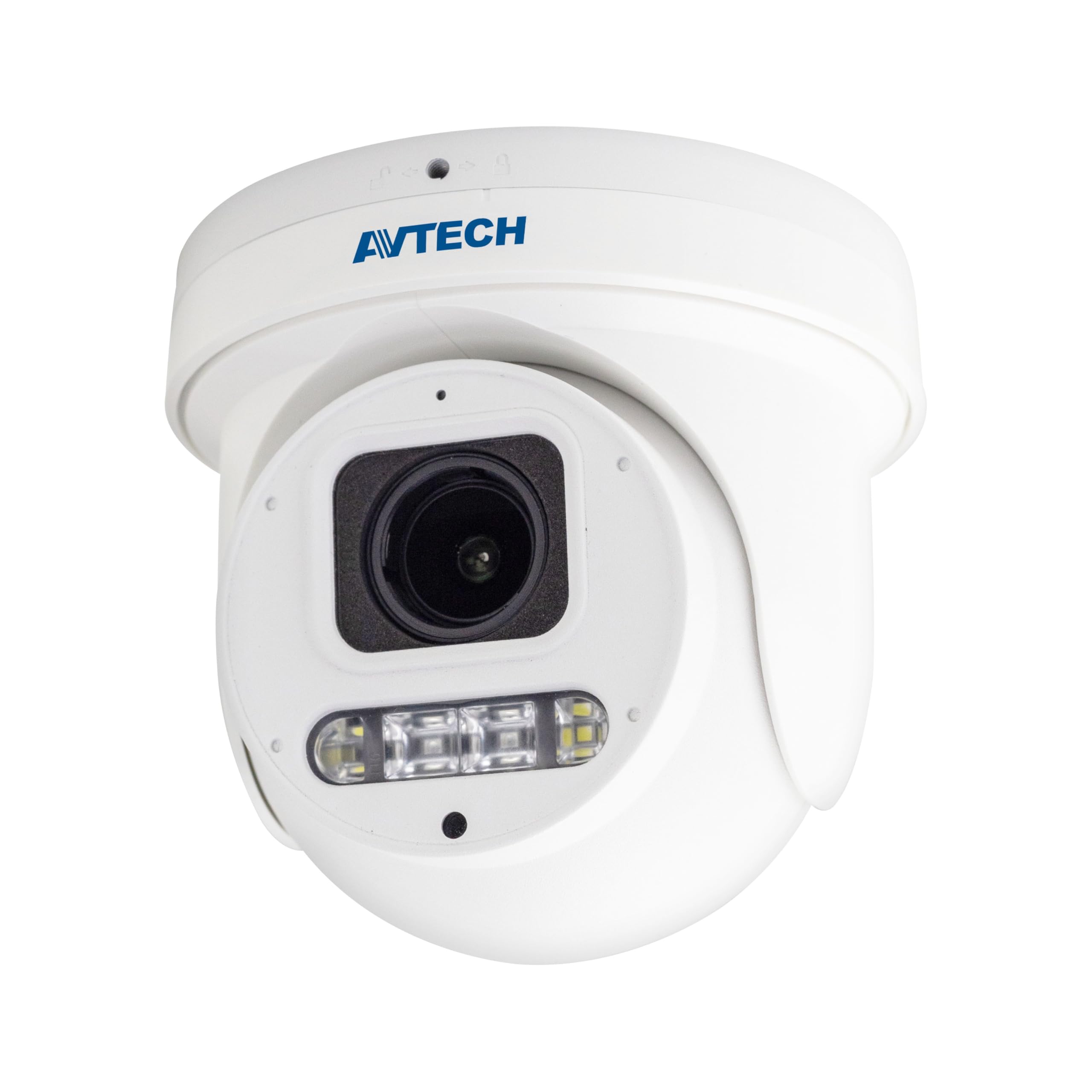
Fíor 1: Tosaigh view of the Avtech DGM5907SVSGAT 5MP AI IP Dome Camera. This image shows the dome-shaped camera housing, the lens assembly, and the IR LEDs visible around the lens.
Ábhar an Phacáiste
Verify that all items are present in the package. If any items are missing or damaged, contact your dealer immediately.
- Avtech DGM5907SVSGAT 5MP AI IP Dome Camera
- Mounting Screw Kit (screws, wall anchors)
- Nascóir Uiscedhíonach le haghaidh Cábla Eitirnéid
- Treoir Tosaigh Tapa
- Teimpléad Druileála
Socrú
1. Suiteáil Fhisiciúil
Before mounting, ensure the installation location provides a clear field of view and is within range of your network infrastructure (PoE switch/injector).
- Ullmhaigh an Dromchla Gléasta: Use the provided drilling template to mark the screw holes on the wall or ceiling.
- Poill Druileála: Drill pilot holes at the marked positions. Insert wall anchors if mounting on drywall or masonry.
- Secure the Camera Base: Ceangail bonn gléasta an cheamara leis an dromchla ag baint úsáide as na scriúnna a sholáthraítear.
- Ceangail Cábla Líonra: Connect an Ethernet cable (RJ-45) from your PoE switch/injector to the camera's network port. Ensure the waterproof connector is properly sealed if installing outdoors.
- Coigeartaigh Uillinn Ceamara: Loosen the adjustment screws on the dome to position the camera lens for the desired viewuillinn ing. Déan na scriúnna a theannú nuair a bheidh siad coigeartaithe.
Fíor 2: Illustrative diagram of the Avtech DGM5907SVSGAT camera mounting process. This image depicts the camera base being secured to a surface, with an Ethernet cable connected.
2. Cumraíocht Líonra
The camera typically obtains an IP address automatically via DHCP. If your network does not use DHCP, you may need to use a discovery tool provided by Avtech or manually configure the IP address.
- Ceangail leis an Líonra: Ensure the camera is powered via PoE and connected to your local network.
- Discover IP Address: Use the Avtech IP Camera Utility software (available on the Avtech website) to discover the camera's IP address on your network.
- Rochtain Web Comhéadan: Oscail a web browser (Internet Explorer 6+, Microsoft Edge, or Google Chrome) and enter the camera's IP address in the address bar.
- Logáil isteach: Enter the default username and password (refer to the Quick Start Guide for default credentials). It is highly recommended to change the default password immediately for security.
- Treoraí Socraithe Tosaigh: Follow the on-screen wizard to configure basic network settings, date/time, and user accounts.
Treoracha Oibriúcháin
1. Beo View agus Taifeadadh
Nuair a bheidh tú logáilte isteach sa web interface, you can access the live video feed and manage recording settings.
- Beo View: Navigate to the 'Live View' section to see the real-time video feed from the camera.
- Recording to MicroSD: The camera supports a MicroSD card up to 256 GB. Insert the card into the designated slot (usually accessible by opening the dome cover). Configure recording schedules and event-triggered recording (e.g., motion detection, AI detection) in the 'Storage' or 'Recording' settings.
- Comhbhrú Físe: The camera supports H.265 and H.264 compression. H.265 offers better compression efficiency, reducing storage and bandwidth requirements. Adjust this in the 'Video Settings'.
2. AI Detection (Human and Vehicle)
The AI detection feature helps reduce false alarms by distinguishing between humans/vehicles and other moving objects.
- Enable AI Detection: Go to 'Event' or 'AI Settings' in the web interface. Enable 'Human Detection' and/or 'Vehicle Detection'.
- Configure Detection Zones: Draw specific areas on the live view where you want AI detection to be active.
- Socraigh Íogaireacht: Adjust the sensitivity levels to optimize detection performance and minimize false positives.
- Configure Actions: Specify actions to be taken upon detection, such as recording, sending notifications, or triggering alarms.
3. Image Enhancement Features
- Fís Oíche IR: The camera automatically switches to IR mode in low light conditions, providing clear black and white images up to 50 meters. Ensure the IR LEDs are not obstructed.
- WDR (Raon Leathan Dinimiciúla): Enable WDR in 'Image Settings' to improve image quality in scenes with both very bright and very dark areas, such as entrances or windows.
- Starlight Visibility: This feature enhances low-light performance, allowing the camera to capture color images in very dim conditions before switching to IR mode.
Cothabháil
Cinntíonn cothabháil rialta feidhmíocht agus fad saoil is fearr do cheamara.
- Glanadh: Periodically clean the camera lens and housing with a soft, lint-free cloth. For stubborn dirt, use a mild cleaning solution specifically designed for optical lenses. Do not use abrasive cleaners.
- Nuashonruithe Firmware: Check the Avtech official website regularly for firmware updates. Firmware updates can improve performance, add new features, and enhance security. Follow the instructions provided with the firmware update package carefully.
- Bainistíocht Stórála: If using a MicroSD card for recording, periodically review foo taifeadtatage and manage storage space. Format the MicroSD card occasionally to maintain performance.
- Cigireacht Cábla: For outdoor installations, inspect network cables and waterproof connectors for any signs of wear or damage.
Fabhtcheartú
Pléann an chuid seo fadhbanna coitianta a d’fhéadfadh teacht ort le do cheamara.
| Fadhb | Cúis Féideartha | Réiteach |
|---|---|---|
| Gan aon bheatha íomhá/físeáin | No power; Network connection issue; Incorrect IP address | Check PoE connection; Verify network cable; Use IP utility to find camera IP; Ensure firewall is not blocking access. |
| Ceamara as líne | Network cable disconnected; Router/switch issue; IP address conflict | Check physical network connections; Restart network equipment; Verify unique IP address. |
| Drochchaighdeán íomhá | Dirty lens; Incorrect resolution settings; Insufficient lighting; WDR not enabled | Clean the lens; Adjust resolution in settings; Ensure adequate lighting or enable IR; Enable WDR for high contrast scenes. |
| Glaonna bréagacha go minic | Sensitivity too high; Detection zone too wide; Environmental factors (e.g., moving branches) | Adjust AI detection sensitivity; Refine detection zones; Ensure AI detection is enabled for human/vehicle only. |
| Ní féidir rochtain a fháil web comhéadan | Incorrect IP address; Browser compatibility; Firewall blocking | Verify IP address; Use recommended browsers (IE, Edge, Chrome); Temporarily disable firewall for testing. |
Sonraíochtaí
Detailed technical specifications for the Avtech DGM5907SVSGAT IP Dome Camera.
- Braiteoir Íomhá: 1/2.8” CMOS
- Taifeach uasta: 2592×1944 (5MP)
- Lionsa: f2.7 ~ 13.5mm / F1.6 ~ F2.2
- Viewing Angle (Diagonal): Tele 40° ~ Wide 117°
- Soilsiú Íosta: 0.001 Lux (IR off), 0 Lux (IR on)
- Luas comhla: Uathoibríoch, 1/25s ~ 1/100000s
- Soilse IR: 4 n-aonad
- Effective IR Distance: Suas le 50 méadar
- Mód Lae/Oíche: Uathoibríoch
- WDR: Tá (120dB)
- RTC (Clog Fíor-Ama): Tá
- Sliotán MicroSD: Suas go dtí 256 GB
- Comhbhrú Físe: H.265 / H.264
- Main Stream Resolution: 5MP (2592x1944) / 4MP (2560x1440) / 3MP (2304x1296) / 2MP (1080P) / 720P
- Ráta Fráma: 5MP @ 25FPS
- Multiple Video Streams: 2 sruth
- Rialú Giotán: 512Kbps - 12Mbps, VBR/CBR
- Feabhsú Íomhá: WDR / BLC / HLC / 2D DNR / 3D DNR
- Fuaim: Micreafón Comhtháite
- Prótacail Líonra: ONVIF supported
- Cumhacht: PoE (Power-over-Ethernet)
- Tithíocht: IP66 Aimsirdhíonach
- Comhoiriúnacht: Internet Explorer 6+, Microsoft Edge, Google Chrome, Windows 10/8/7, DirectX 9.0+
Barántas agus Tacaíocht
Avtech products are designed for reliability and performance. This product comes with a standard manufacturer's warranty against defects in materials and workmanship.
- Tréimhse an Bharántas: Please refer to your purchase documentation or the Avtech official websuíomh gréasáin le haghaidh téarmaí agus fad bharántais shonracha is infheidhme i do réigiún.
- Tacaíocht Theicniúil: For technical assistance, troubleshooting, or warranty claims, please contact Avtech customer support.
- Acmhainní Ar Líne: Visit the official Avtech website for FAQs, driver downloads, firmware updates, and additional product information.
Eolas Teagmhála:
Websuíomh: www.avtech.com.tw
Ríomhphost: support@avtech.com
Fón: +1-XXX-XXX-XXXX