
1. Réamhrá
Thank you for choosing the PRIXTON Prado XL 15.6-inch Digital Photo Frame. This manual provides essential information for setting up, operating, and maintaining your device. Please read it carefully before use to ensure optimal performance and longevity of your digital photo frame.
The PRIXTON Prado XL features a vibrant 15.6-inch Full HD IPS touchscreen display, offering clear and vivid image reproduction. With built-in Wi-Fi, 32GB of internal memory, and support for both photos and videos, it allows you to easily share and display your cherished memories. The frame also includes integrated speakers and multiple input options, including USB Type-C, USB-A, and an SD card slot, providing versatile ways to manage your content.
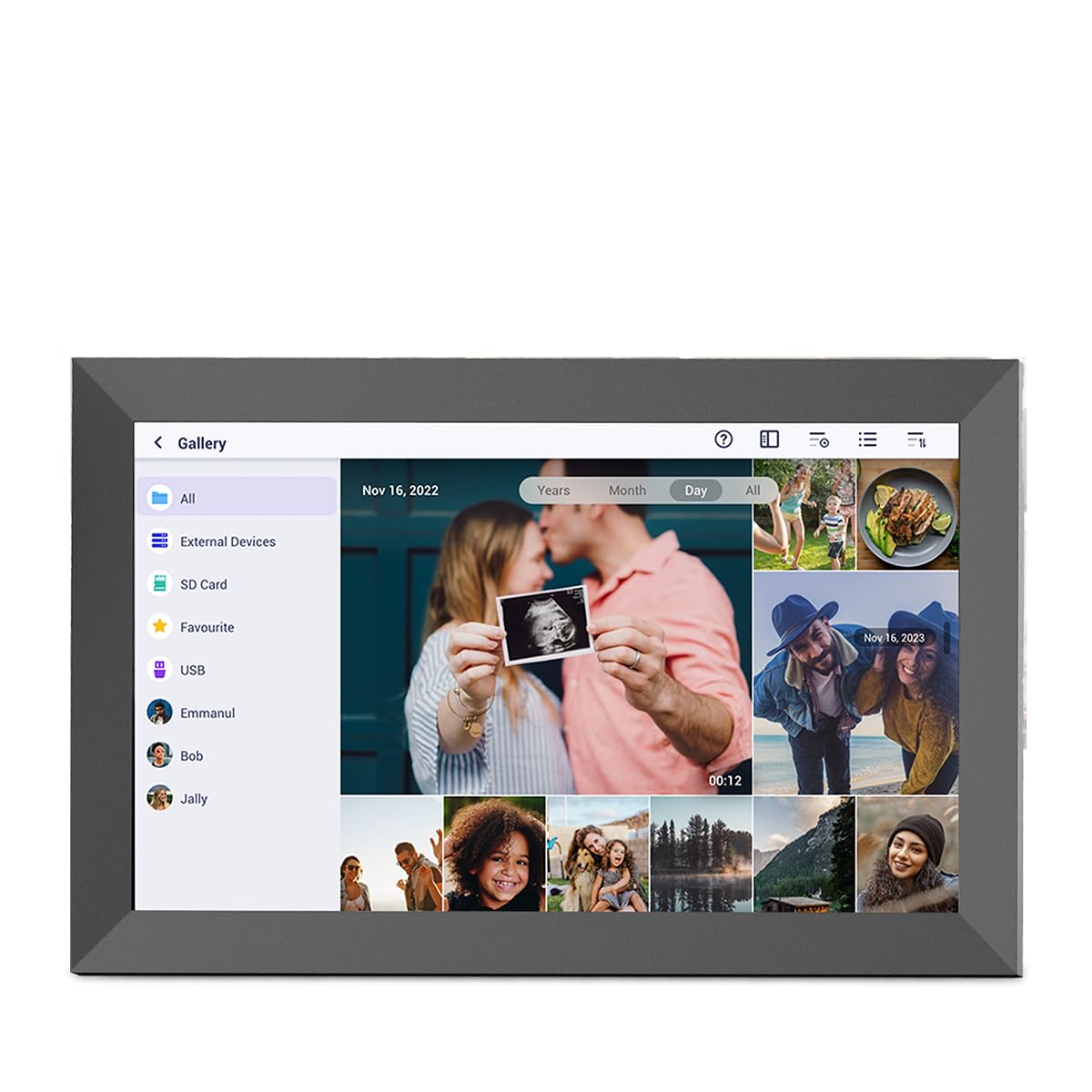
Image: The PRIXTON Prado XL digital photo frame showcasing a family picture.
2. Ábhar Pacáiste
Seiceáil an bosca le do thoil do na míreanna seo a leanas:
- PRIXTON Prado XL 15.6-inch Digital Photo Frame
- Cuibheoir Cumhachta
- Lámhleabhar Úsáideora (an doiciméad seo)
3. Táirge Tharview
Familiarize yourself with the various ports and controls on your digital photo frame.

Image: Back panel of the frame, highlighting the power button, USB-A, USB-C, SD card slot, and headphone jack.
Príomh-chomhpháirteanna:
- Cnaipe Cumhachta: Located on the back, used to turn the frame on/off or put it into sleep mode.
- Port USB-A: For connecting USB flash drives to transfer photos and videos.
- Port USB Cineál-C: For connecting compatible devices or for data transfer.
- Sliotán Cárta SD: For inserting SD cards to display or transfer media.
- Jack Cluasán: Chun feistí seachtracha fuaime a nascadh.
- Ionchur Cumhachta DC: Chun an adapter cumhachta a nascadh.
- Poill Gléasta Balla: Chun an fráma a shuiteáil ar bhalla.
4. Socrú
4.1 Cumhachtú ar siúl
- Connect the power adapter to the DC Power Input port on the back of the frame.
- Plug an adapter cumhachta isteach asraon balla.
- The frame will automatically power on. If not, press and hold the Power Button for a few seconds.
4.2 Cumraíocht Tosaigh
Upon first startup, you will be guided through the initial setup process:
- Roghnaigh Teanga: Roghnaigh do theanga is fearr leat ón liosta.
- Ceangail le Wi-Fi: Select your Wi-Fi network and enter the password. A stable internet connection is required for app functionality and software updates.
- Socraigh Dáta & Am: Configure the correct date, time, and time zone.
4.3 Connecting with the Uhale App
The Uhale app allows you to easily send photos and videos directly to your frame from your smartphone.
- Íoslódáil an App: Cuardaigh le haghaidh "Uhale" in your smartphone's app store (iOS or Android) and install it.
- Cruthaigh Cuntas: Open the Uhale app and follow the instructions to create a new user account.
- Pair the Frame: On your digital photo frame, navigate to the "Settings" menu and find the "Bind Device" or "Add Device" option. This will display a unique code or QR code.
- Enter Code/Scan QR: In the Uhale app, select "Add Device" and either manually enter the code displayed on your frame or use your phone's camera to scan the QR code.
- Once paired, you can start sending photos and videos to your frame.

Image: A smartphone screen showing the Uhale app interface next to the digital photo frame.
5. Operating the Frame
5.1 Nascleanúint Scáileáin Tadhaill
The Prado XL features a responsive touchscreen for easy navigation:
- Tapáil: Roghnaigh mír nó oscail roghchlár.
- Swipe: Navigate through photos, menus, or lists.
- Pinch-to-Zúmáil: Zoom in or out on photos (if supported by software).
5.2 Grianghraif agus Físeáin a Chur Leis
There are several ways to add media to your frame:
5.2.1 Via Uhale App
- Open the Uhale app on your paired smartphone.
- Roghnaigh na grianghraif nó na físeáin is mian leat a sheoladh.
- Tap the "Send" or "Share" button to transfer them to your frame.
- The media will appear on your frame shortly, provided it is connected to Wi-Fi.
5.2.2 Via USB Drive or SD Card
- Insert a USB flash drive into the USB-A port or an SD card into the SD card slot.
- The frame will detect the external storage. Navigate to the "Gallery" or "Files" section.
- Select the desired photos or videos and choose to copy them to the frame's internal memory.

Image: User interacting with the Uhale app to send content to the digital photo frame.
5.3 Managing Content and Slideshows
- Gailearaí: Access all your stored photos and videos. You can view them individually or start a slideshow.
- Scrios: Select unwanted media and choose the delete option.
- Socruithe Sleamhnán: Customize slideshow duration, transition effects, and playback order in the settings menu.

Image: The digital photo frame displaying a lively birthday party scene.
6. Roghchlár Socruithe
Access the settings menu by tapping the gear icon on the home screen. Here you can configure various aspects of your frame:
- Taispeáin: Adjust brightness, screen sleep time, and display mode.
- Wi-Fi: Bainistigh do naisc líonra.
- Dáta & Am: Manually set or synchronize date and time.
- Stóráil: View internal storage usage and manage external storage devices.
- Maidir le: View device information, including software version and model number.
7. Cothabháil
7.1 Glanadh an Scáileáin
Chun an scáileán tadhaill a ghlanadh, cuimil go réidh é le héadach bog, saor ó lint. I gcás smúdáin righne, déan beagán...ampNigh an t-éadach le huisce nó le tuaslagán glantacháin atá sábháilte don scáileán. Seachain ceimiceáin ghéara nó ábhair scríobacha a úsáid.
7.2 Nuashonrú Bogearraí
Ensure your frame is connected to Wi-Fi to receive automatic software updates. Updates provide new features, performance improvements, and bug fixes. You can manually check for updates in the "Settings" > "About" menu.
8. Fabhtcheartú
| Eisiúint | Réiteach Féideartha |
|---|---|
| Frame does not turn on. | Cinntigh go bhfuil an t-oiriúntóir cumhachta ceangailte go daingean leis an bhfráma agus le hasraon cumhachta atá ag obair. Bain triail as asraon eile. |
| Ní féidir ceangal le Wi-Fi. | Check if your Wi-Fi router is on and working. Re-enter the Wi-Fi password carefully. Move the frame closer to the router. |
| Níl grianghraif/físeáin le feiceáil. | Verify that the media has been successfully uploaded via the app or copied from USB/SD. Check file formats for compatibility. Ensure the frame is connected to Wi-Fi if using the app. |
| Níl an scáileán tadhaill freagrach. | Restart the frame by holding the power button. Ensure the screen is clean and free of debris. |
| Frame is slow or freezes. | Restart the frame. Clear some internal storage if it is nearly full. |
9. Sonraíochtaí
| Gné | Sonraigh |
|---|---|
| Uimhir Mhúnla | 10006183 |
| Méid Taispeána | 15.6 orlach |
| Cineál Taispeána | Scáileán Tadhaill IPS |
| Rún | 1920 x 1080 Iomlán HD |
| Cuimhne Inmheánach | Flash 32 GB |
| RAM | 1 GB |
| Nascacht | Wi-Fi |
| Calafoirt | USB Type-C, USB-A, SD Card Slot, Headphone Jack |
| Fuaime | Cainteoirí Comhtháite |
| Toisí (L x W x H) | 14 x 21 x 2.51 cm |
10. Barántas agus Tacaíocht
PRIXTON products are designed and manufactured to the highest quality standards. For information regarding warranty coverage, please refer to the warranty card included with your product or visit the official PRIXTON websuíomh.
If you encounter any issues or have questions not covered in this manual, please contact PRIXTON customer support for assistance. You can find contact details on the PRIXTON websuíomh nó trí d’ardán ceannaigh.
Tacaíocht Ar Líne: Visit the PRIXTON Store on Amazon