
1. Réamhrá
This manual provides detailed instructions for the setup, operation, maintenance, and troubleshooting of your ATTACK SHARK G3PRO Wireless Gaming Mouse. Please read this manual thoroughly to ensure proper use and to maximize your gaming experience.

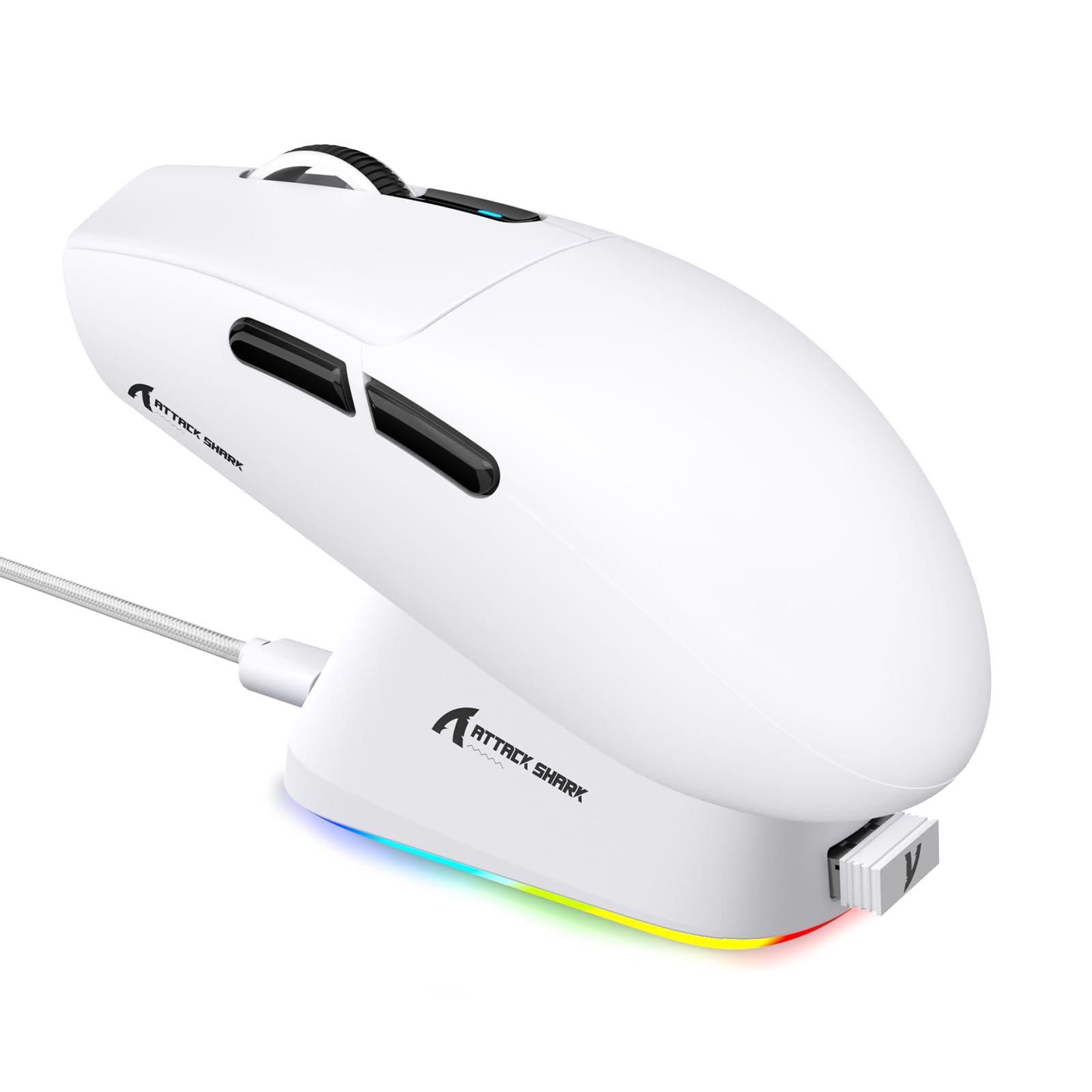
Íomhá: Tharview of the ATTACK SHARK G3PRO mouse and its features, including magnetic fast charging, PAW3311 sensor, web cloud drive, RGB rapid charging dock, and lightweight design.
2. Ábhar Pacáiste
Deimhnigh go bhfuil na hearraí go léir i do phacáiste:
- ATTACK SHARK G3PRO Wireless Gaming Mouse
- RGB Magnetic Charging Dock
- Glacadóir USB 2.4G
- Cábla Muirir/Sonraí USB-C go USB-A
- Lámhleabhar Úsáideora
3. Socrú
3.1 Muirearú Tosaigh
Before first use, it is recommended to fully charge the mouse. Connect the USB-C cable to the charging dock and a power source. Place the mouse onto the magnetic charging dock. The RGB lighting on the dock will indicate charging status.
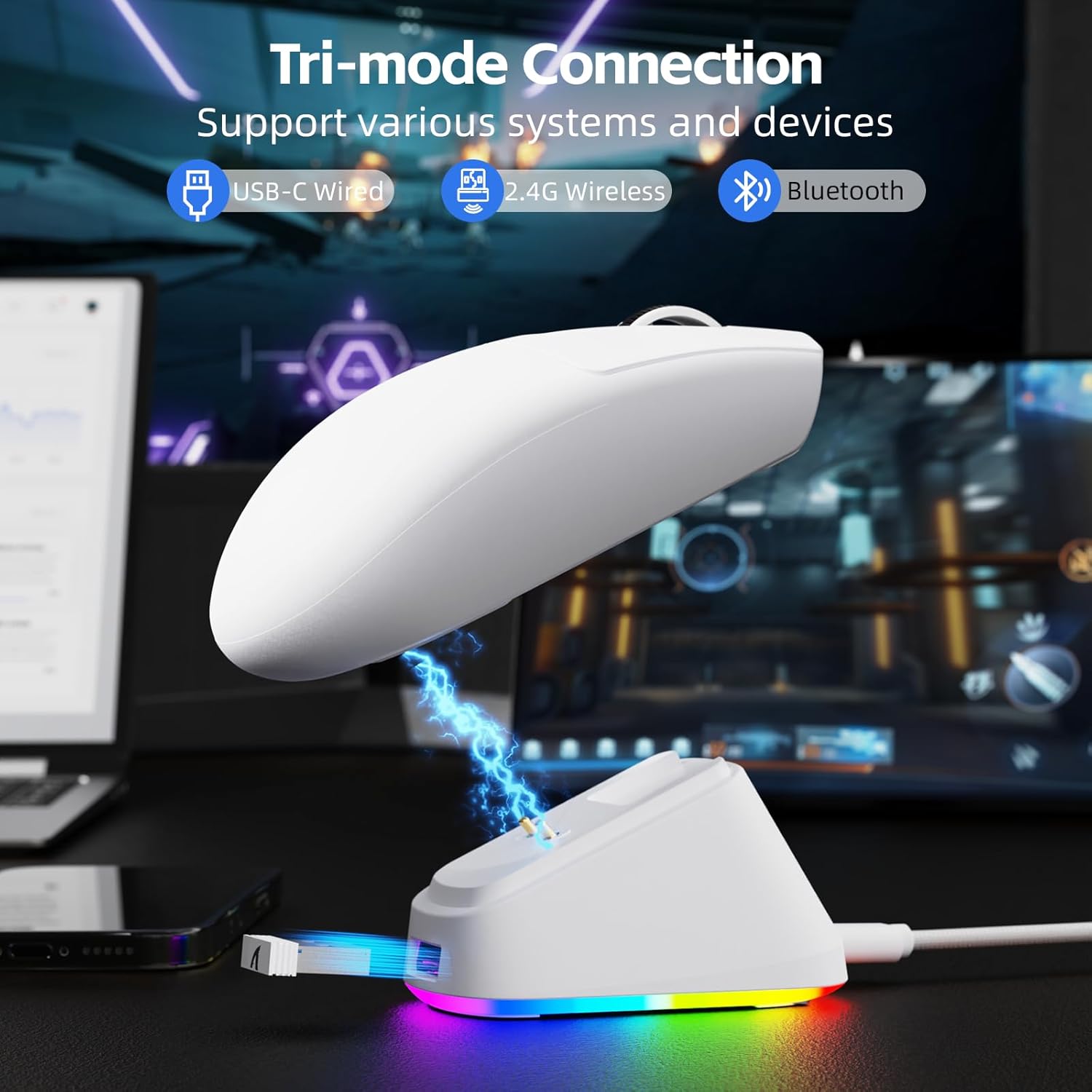
Image: The ATTACK SHARK G3PRO mouse magnetically attached to its RGB charging dock, showing the charging thimbles and USB-C port.
For a visual guide on charging, please watch the following video:
Video: This video demonstrates the magnetic charging dock and its features for the ATTACK SHARK G3PRO Wireless Gaming Mouse.
3.2 An Luch a Cheangal
The G3PRO supports three connection modes: 2.4GHz Wireless, Bluetooth, and USB-C Wired. A switch on the bottom of the mouse allows you to select the desired mode.

Image: The ATTACK SHARK G3PRO mouse with visual indicators for Wired, 2.4G, and Bluetooth connectivity modes.
Mód Gan Sreang 2.4GHz:
- Locate the 2.4G USB receiver, typically stored within the charging dock or the mouse itself.
- Plug an glacadóir USB isteach i bport USB atá ar fáil ar do ríomhaire.
- Set the switch on the bottom of the mouse to "2.4G".
- Ba chóir go mbeadh an luch ceangailte go huathoibríoch.
Mód Bluetooth:
- Set the switch on the bottom of the mouse to "BT".
- Ar do ríomhaire nó ar do ghléas, nascleanúint chuig socruithe Bluetooth agus cumasaigh Bluetooth.
- Cuardaigh le haghaidh new devices and select "ATTACK SHARK G3PRO" to pair.
Mód Sreangaithe USB-C:
- Connect the USB-C cable directly from the mouse to your computer.
- Feidhmeoidh an luch mar luch sreangaithe agus muirearóidh sí ag an am céanna.
For a visual guide on product features and connectivity, please watch the following video:
Video: This video demonstrates the various color options and the magnetic charging feature of the ATTACK SHARK G3PRO Wireless Gaming Mouse, showcasina dhearadh agus a fheidhmiúlacht.
4. Ag Oibriú an Luch
4.1 Feidhmeanna Cnaipe
The ATTACK SHARK G3PRO features 5 programmable buttons:
- Cliceáil ar Chlé: Gníomh príomhúil.
- Cliceáil ar dheis: Roghchlár comhthéacs/gníomh tánaisteach.
- Clic Meán/Roth Scrollaigh: Scroll up/down, middle click for universal scroll or other functions.
- Cnaipe Ar Aghaidh: Default for navigating forward in web browsers/folders.
- Cnaipe Siar: Default for navigating backward in web browsers/folders.
- Athraigh DPI: Timthriallaíonn trí leibhéil DPI réamhshocraithe.

Image: A detailed diagram illustrating the location and default functions of the multi-functional buttons on the ATTACK SHARK G3PRO mouse.

Íomhá: Pléascán view and labeled diagram of the G3PRO mouse components, including buttons, switches, charging points, and the 2.4G/OFF/BT mode switch.
4.2 Coigeartú PSO
The mouse features a dedicated DPI switch to cycle through various sensitivity levels, ranging from 800 to 25,000 DPI. The current DPI setting is indicated by an LED light.

Image: A visual representation of the 25,000 DPI optical sensor's precision and how mouse movement trajectory sensitivity scales with DPI settings.
4.3 Ráta Vótála
The G3PRO supports a 1000Hz polling rate in both wired and 2.4GHz wireless modes, ensuring rapid response times for competitive gaming.

Image: A diagram illustrating the 1000Hz polling rate capability in both wired and wireless modes, highlighting millisecond response times.
5. Bogearraí agus Saincheapadh
Customize your G3PRO mouse settings using the intuitive web driver or downloadable software from ATTACK SHARK. This allows for personalization of DPI, polling rate, macros, and more.
- Web Tiománaí: Rochtain ar an web-based configuration tool for quick adjustments without installation.
- Downloadable Software: For advanced customization and profile management, download the dedicated software.

Image: A screenshot of the ATTACK SHARK Hub software interface, showing options for mouse settings, DPI settings, parameter settings, macro editing, and personal center.

Image: The cloud-driven programming interface for the G3PRO mouse, displaying options for button settings, DPI adjustments, polling rate settings, and power management.
6. Cothabháil
6.1 Glanadh
Chun feidhmíocht is fearr a choinneáil, glan do luch go rialta. Bain úsáid as éadach bog, tirim chun an dromchla a ghlanadh. I gcás salachar righin, bain úsáid as éadach beagán tirim.amp Is féidir éadach a úsáid, ag cinntiú nach dtéann taise isteach sna comhpháirteanna inmheánacha. Seachain ceimiceáin ghéara nó ábhair scríobacha.
6.2 Stóráil
When not in use for extended periods, store the mouse and charging dock in a cool, dry place. Ensure the USB receiver is securely stored, ideally within the charging dock's designated slot, to prevent loss.
7. Fabhtcheartú
| Fadhb | Cúis Féideartha | Réiteach |
|---|---|---|
| Mouse not responding (2.4G) | Low battery; Receiver not plugged in; Incorrect mode selected; Driver issue. | Charge the mouse; Ensure receiver is firmly plugged in; Set mouse to "2.4G" mode; Reinstall mouse drivers. |
| Ní fhreagraíonn an luch (Bluetooth) | Low battery; Bluetooth not enabled on device; Not paired; Incorrect mode selected. | Charge the mouse; Enable Bluetooth on your device; Re-pair the mouse in Bluetooth settings; Set mouse to "BT" mode. |
| Charging dock RGB not lighting up | Cable not connected; Power source issue. | Ensure USB-C cable is securely connected to dock and power source; Try a different USB port or power adapter. |
| Inconsistent tracking | Dirty sensor; Uneven surface; Interference (wireless). | Clean the optical sensor; Use a clean, even mouse pad; Reduce wireless interference by moving other devices or using wired mode. |
| Cnaipí nach bhfuil ag freagairt | Coimhlint bogearraí; Damáiste fisiciúil. | Check software settings for button remapping; Test on another computer; Contact support if physical damage is suspected. |
8. Sonraíochtaí
| Gné | Sonraigh |
|---|---|
| Branda | Ionsaí Siorcanna |
| Múnla | G3PRO |
| Dath | Bán |
| Teicneolaíocht Nascachta | 2.4Ghz Wireless, Bluetooth, USB-C Wired |
| Teicneolaíocht Braite Gluaiseachta | Optúil (Braiteoir PAW3311) |
| Uasmhéid PSO | 25,000 pso |
| Ráta Vótaíochta | 1000 Hz |
| Luasghéarú | 40G |
| Luas Rianaithe | 400 CCT |
| Lasca | Mechanical (100 Million Clicks) |
| Cumas Battery | 500mAh |
| Saol Battery | Suas le 200 uair an chloig |
| Meáchan | 59g ± 3g |
| Cnaipí | 5 |
| Treoshuíomh Láimhe | Ambidextrous |
| Gléasanna Comhoiriúnacha | Ríomhaire Glúine, Ríomhaire Pearsanta, Fón Cliste, Táibléad |
| Córas Oibriúcháin | Windows, macOS |
For a comparison of G3 and G3PRO models, refer to the image below:

Image: A table comparing the specifications of the ATTACK SHARK G3 and G3PRO models, highlighting differences in components and features.
9. Faisnéis Sábháilteachta
- Ná nocht an gléas do theocht mhór nó do thaise.
- Seachain an gléas a scaoileadh nó a chur faoi réir tionchair láidre.
- Coinnigh as teacht leanaí.
- Ná déan iarracht an gléas a dhíchóimeáil ná a mhodhnú, mar cuirfidh sé seo an bharántas ar neamhní agus d’fhéadfadh damáiste a bheith mar thoradh air.
- Use only the provided charging cable and dock.
10. Barántas agus Tacaíocht
The ATTACK SHARK G3PRO Wireless Gaming Mouse comes with a standard manufacturer's warranty. For detailed warranty information, please refer to the warranty card included in your package or visit the official ATTACK SHARK websuíomh.
For technical support, troubleshooting assistance, or to inquire about replacement parts, please contact ATTACK SHARK customer service through their official websuíomh nó an fhaisnéis teagmhála a chuirtear ar fáil i bpacáistiú do tháirge.
oifigeach Websuíomh: Siopa TACK SHARK ar Amazon