
1. Réamhrá
The VITURE Luma Ultra XR Glasses offer an immersive extended reality experience with a high-resolution display, advanced tracking capabilities, and broad device compatibility. This manual provides essential information for setting up, operating, maintaining, and troubleshooting your device to ensure optimal performance.
2. Cad atá sa Bhosca
Deimhnigh go bhfuil na míreanna uile i láthair i do phacáiste táirge:
- VITURE Luma Ultra XR Glasses x 1
- Swappable Nose Pads x 3
- USB-C to Magnetic Connector Cable (1.2m) x 1
- Glasses Case x 1
- Éadach Gloiní x 1
- Hair-friendly Cover x 1
- Treoir maidir le Tús Mear x 1
- Safety Guideline x 1
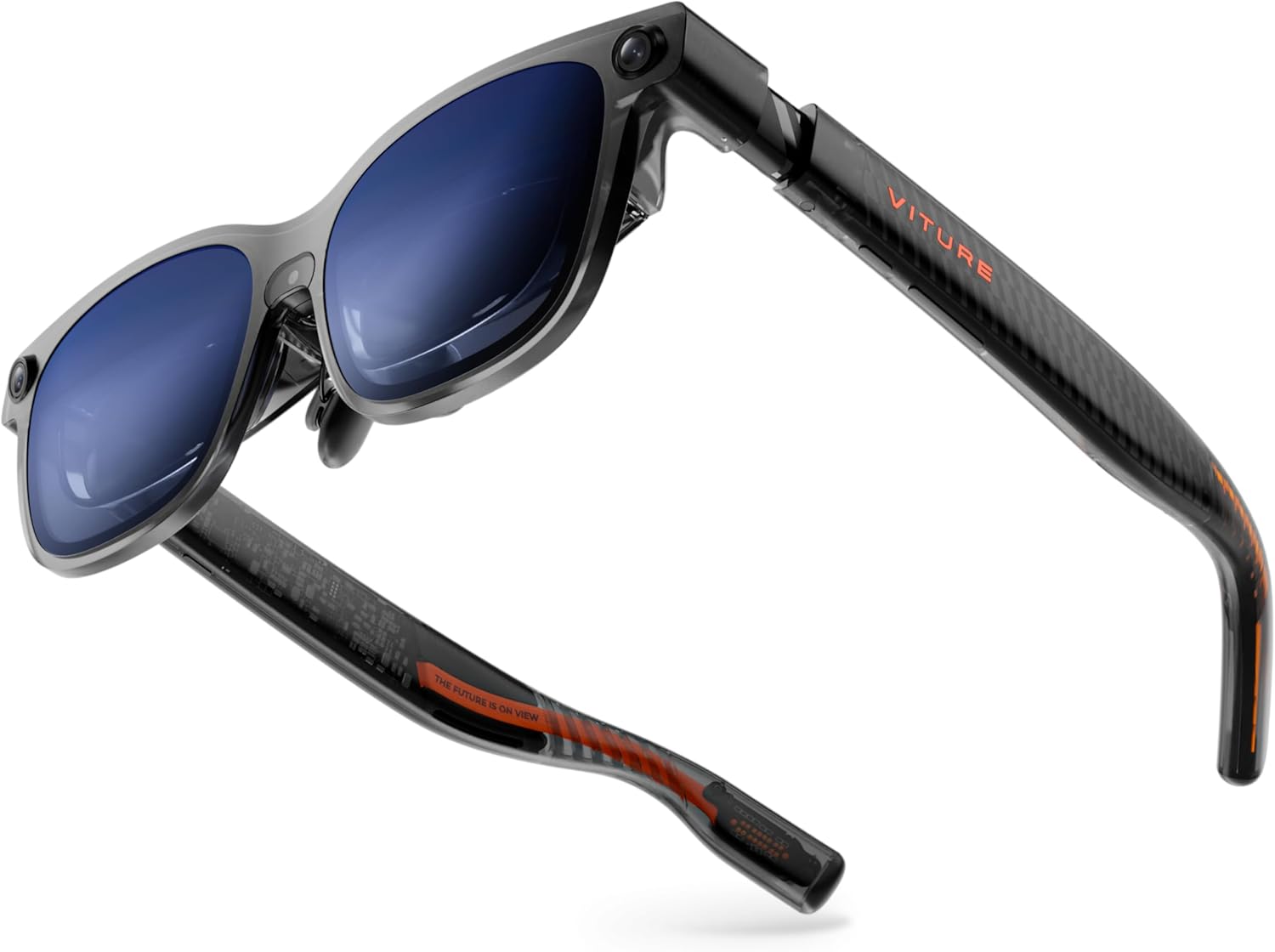
Image: The VITURE Luma Ultra XR Glasses shown with their included accessories, including the charging cable, nose pads, and carrying case.
Físeán: Díbhosca agus níos móview of the VITURE Luma Series, demonstrating the contents of the package and initial setup steps.
3. Socrú
3.1 Nascadh le Gléasanna
The Luma Ultra XR Glasses are compatible with a wide range of devices via USB-C with DisplayPort Alternate Mode. Simply connect the provided USB-C to Magnetic Connector Cable to your device and the glasses.
- Fóin Chliste/Táibléad: Connect directly to compatible iPhone (15/16/17 series), Android phones, and iPads.
- Ríomhairí: Connect to Mac and PC devices for multi-screen productivity via the SpaceWalker app.
- Consóil Chearrbhachais: Connect to Switch & Switch 2, Steam Deck, ROG Ally, and other consoles using the VITURE Pro Mobile Dock (sold separately) or appropriate adapters.
Video: A demonstration of connecting the VITURE Luma Ultra XR Glasses to various devices, including smartphones and laptops, showcasing the plug-and-play functionality.
3.2 Adjusting for Comfort and Vision
- Nose Pads: Three pairs of swappable nose pads are included to ensure a comfortable and secure fit. Choose the size that best suits your face.
- Coigeartú Miopachta: The Luma Ultra features built-in myopia adjustment up to -4.0 D. Use the rotary knobs on top of the glasses to fine-tune the focus until the image is clear.
- Armas Solúbtha: The flexible arms allow for a gentle, adjustable fit to accommodate different head sizes.

Íomhá: Dlúth-amharc view of the VITURE Luma Ultra XR Glasses highlighting the myopia adjustment dials, electrochromic film, and magnetic nose pads.
3.3 Electrochromic Film
Activate the electrochromic film with a single tap to instantly darken the lenses for full immersion, reducing external light. An optional anti-reflective lens shade is also available for enhanced glare reduction.
4. Operating the Glasses
4.1 Gnéithe Taispeána
- Virtual Screen: Experience a 152-inch virtual screen with 1200p resolution.
- Gile: Enjoy industry-leading 1500 nits brightness for clear viewi gcoinníollacha soilsithe éagsúla.
- Ráta Athnuachana: A silky-smooth 120Hz refresh rate ensures fluid visuals.
- Réimse na View (FOV): An immersive 52° FOV provides a wide and natural viewtaithí.
- Cruinneas Datha: Hollywood-grade color accuracy (DeltaE < 2) delivers stunning visuals.

Image: The VITURE Luma Ultra XR Glasses showcasing key features like 1500 Nits brightness, 152-inch virtual display, 120Hz refresh rate, and 6DoF support.
4.2 Spatial Computing and Hand Gestures
The triple-camera system (front RGB camera and dual depth cameras) enables advanced 6DoF tracking and spatial interaction. When paired with the VITURE Pro Neckband (sold separately), Luma Ultra supports hand gesture recognition for precise spatial interactions. Comprehensive 6DoF support is available in SpaceWalker across macOS and Windows, with mobile compatibility coming soon.

Image: An illustration of a user interacting with virtual objects using hand gestures while wearing the VITURE Luma Ultra XR Glasses, demonstrating 6DoF tracking.
4.3 Real-time 2D to 3D Conversion
Transform any 2D content, including streaming and gaming, into an immersive 3D experience with VITURE's Immersive 3D feature.
4.4 Multi-Screen Productivity
Utilize SpaceWalker to create a panoramic workspace with up to three virtual screens from your Mac or PC. Arrange screens horizontally, vertically, or in code mode for enhanced productivity.
4.5 Taithí Fuaime
Dive into a soundscape crafted by HARMAN's audio experts for deeper bass, crisper highs, and a fuller, more immersive audio experience. The built-in microphone allows for clear communication during multiplayer gaming or calls.
4.6 Dynamic Light Effects
Customize your glasses with programmable RGB lighting, syncing colors and animations to match your preferences. This feature will be available soon.

Image: The flexible arms of the VITURE Luma Ultra XR Glasses illuminated with dynamic light effects, showcasinroghanna soilsithe saincheaptha g.
5. Cothabháil
To ensure the longevity and optimal performance of your VITURE Luma Ultra XR Glasses, follow these maintenance guidelines:
- Glanadh: Use the provided glasses cloth to gently clean the lenses and frame. Avoid abrasive materials or harsh chemicals.
- Stóráil: Store the glasses in the included protective case when not in use to prevent scratches and damage.
- Coinníollacha Comhshaoil: Avoid exposing the glasses to extreme temperatures, direct sunlight for prolonged periods, or high humidity.
- Cúram Cábla: Handle the USB-C to Magnetic Connector Cable with care to prevent bending or damage to the connectors.
6. Fabhtcheartú
If you encounter any issues with your VITURE Luma Ultra XR Glasses, refer to the following common troubleshooting steps:
- Gan Taispeántas/Scáileán Dubh:
- Ensure the glasses are securely connected to a compatible device via the USB-C cable.
- Verify that your device supports DisplayPort Alternate Mode.
- Check the brightness settings on the glasses using the L1 button.
- Íomhá Dheil:
- Adjust the myopia adjustment knobs on top of the glasses until the image is clear.
- Ensure you are using the correct size nose pads for optimal eye relief.
- Gan Fuaim:
- Check the volume settings on the glasses using the L1 button.
- Ensure your connected device's audio output is directed to the glasses.
- 6DoF Tracking Issues:
- Ensure you are using the VITURE Pro Neckband for full 6DoF and hand gesture support.
- Verify that the SpaceWalker app is updated and running correctly on your connected device.
- Ensure the cameras on the glasses are not obstructed.
- Comhoiriúnacht Bogearraí:
- Some users have reported issues with antivirus software (e.g., McAfee) blocking SpaceWalker installation on Windows. Ensure your antivirus settings allow the application.
For further assistance, please refer to the official VITURE support channels.
7. Sonraíochtaí
| Toisí Táirge | 1.97 x 2.22 x 6.1 orlach |
| Meáchan Mír | 2.93 unsa |
| Uimhir Mhúnla Mír | v1252 |
| Taifeach Taispeána | 1200p (per eye) |
| Gile | Suas le 1500 nits |
| Ráta Athnuachana | 120 Hz |
| Réimse na View (FOV) | 52° |
| Myopia Adjustment | Up to -4.0 D |
| Rianú | Full 6DoF (with Pro Neckband) |
| Fuaime | HARMAN Audio |
| Monaróir | VITURE |
8. Barántas agus Tacaíocht
For detailed warranty information and to access customer support, please visit the official VITURE website or your retailer's support page. You can also find additional resources and FAQs on the VITURE Store on Amazon.


