
1. Réamhrá
Thank you for choosing the INNOCN 27D1U 27-inch 4K UHD IPS Monitor. This manual provides essential information for the safe and efficient use of your new monitor. Please read it thoroughly before installation and operation, and keep it for future reference.
The INNOCN 27D1U offers a 27-inch 4K UHD (3840 x 2160) IPS display with HDR400 support, 100% sRGB color gamut, and blue light reduction technology. It features versatile connectivity including Type-C with 65W power delivery, DisplayPort, and HDMI 2.0, along with an adjustable stand for optimal viewcompord.
2. Faisnéis Sábháilteachta
- Cuir an monatóir i gcónaí ar dhromchla cobhsaí, cothrom chun cosc a chur air titim.
- Ná nochtaigh an monatóir don bháisteach ná don taise chun turraing leictreach nó tine a sheachaint.
- Coinnigh an monatóir ar shiúl ó sholas díreach na gréine, ó fhoinsí teasa, nó ó theocht mhór.
- Cinntigh go bhfuil aeráil cheart ann timpeall an mhonatóra. Ná bac na hoscailtí aerála.
- Ná húsáid ach an t-oiriúntóir cumhachta a sholáthraítear leis an monatóir.
- Díphlugáil an monatóir ón asraon cumhachta roimh é a ghlanadh.
- Ná déan iarracht an monatóir a dheisiú leat féin. Cuir gach seirbhísiú faoi bhráid phearsanra seirbhíse cáilithe.
3. Ábhar Pacáiste
Seiceáil ábhar an phacáiste le do thoil agus tú á dhíphacáil. Má tá aon earraí ar iarraidh nó má tá damáiste déanta dóibh, déan teagmháil le do mhiondíoltóir.
- INNOCN 27D1U Monitor
- Seasamh Monatóra (Bonn agus Muineál)
- Cuibheoir Cumhachta
- Cábla Cumhachta
- Cábla HDMI
- Cábla USB-C
- Lámhleabhar Úsáideora
4. Socrú
4.1. Tionól Monatóireachta
Seasamh Tionól:
- Bain comhpháirteanna an mhonatóra agus an tseastáin go cúramach as an bpacáistiú.
- Ceangail muineál an tseastáin leis an bpainéal monatóireachta. Cinntigh go gcliceálann sé go daingean ina áit.
- Ceangail bonn an tseastáin le muineál an tseastáin agus teannaigh an scriú ag bun an bhoinn.
Suiteáil Gléasta VESA (Roghnach):
The monitor supports VESA 100x100mm mounting. If you wish to use a VESA-compatible wall mount or desk arm, remove the stand from the monitor by pressing the quick-release button (if available) or unscrewing it. Attach your VESA mount using appropriate screws.

Image: Monitor stand adjustments and VESA mount points.
4.2. Ag Ceangal le Gléasanna
Connect your computer or other devices to the monitor using the appropriate cables. The monitor supports HDMI 2.0, DisplayPort 1.4, and USB Type-C connections.
- Ceangal HDMI: Connect one end of the HDMI cable to your computer's HDMI port and the other end to the monitor's HDMI 2.0 port.
- Ceangal DisplayPort: Connect one end of the DisplayPort cable to your computer's DisplayPort and the other end to the monitor's DisplayPort 1.4.
- Ceangal USB Cineál-C: Connect one end of the USB-C cable to your computer's USB-C port and the other end to the monitor's USB-C port. This connection supports video, data transfer, and up to 65W power delivery to your laptop.
- Aschur Fuaime: Connect external speakers or headphones to the 3.5mm audio out port for sound.
- Ceangal Cumhachta: Connect the power adapter to the monitor's DC Power In port, then plug the power cable into a power outlet.

Image: Monitor ports and button descriptions.
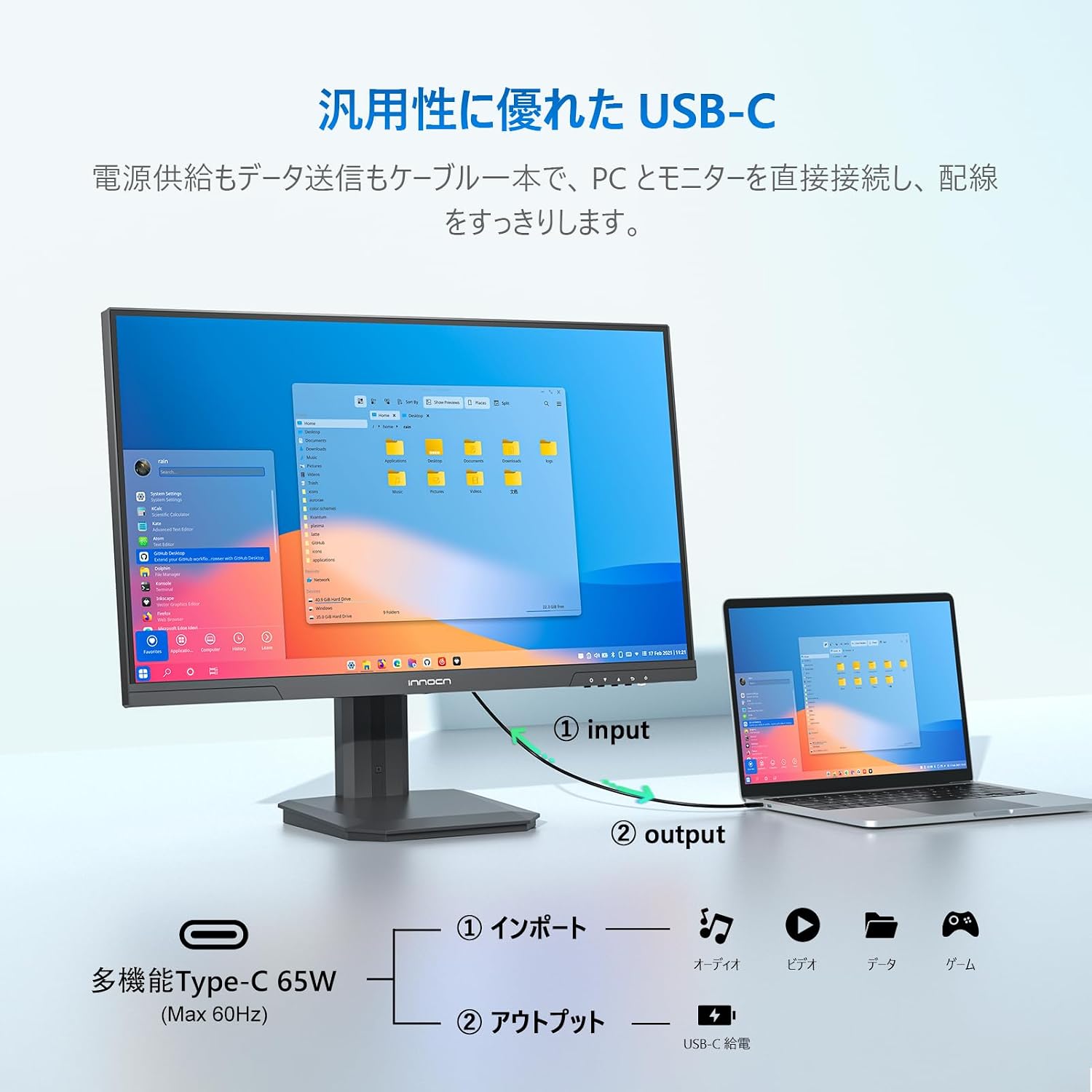
Image: USB-C connection for power and data.
5. Treoracha Oibriúcháin
5.1. Cumhacht Ar / As
Press the Power button located on the back of the monitor to turn it on or off.
5.2. Nascleanúint Roghchláir OSD
The On-Screen Display (OSD) menu allows you to adjust various monitor settings. Use the control buttons on the back of the monitor to navigate the menu:
- Cnaipe Cumhachta: Brúigh chun an monatóir a chasadh air/as.
- Exit/Hot Key: Press to return to the previous menu or quickly switch input signals.
- Cnaipe Suas: Press to move up in the menu or quickly adjust volume.
- Cnaipe an Dúin: Press to move down in the menu or quickly adjust brightness.
- Cnaipe Roghchláir: Press to enter sub-menus or enter the main menu.
5.3. Socruithe Taispeána
- Gile/Codarsnacht: Adjust these settings to optimize image visibility.
- Socruithe Datha: Fine-tune color temperature, hue, and saturation. The monitor offers 100% sRGB and 95% DCI-P3 color gamut for accurate color reproduction, ideal for photo and video editing.
- HDR400: Enable HDR400 for enhanced contrast and vibrant colors in compatible content.
- Laghdú Solas Gorm: Activate this feature to reduce blue light emissions, minimizing eye strain during prolonged use.
- M.BOOK Mode: This mode is optimized for Mac devices, providing natural and consistent colors.

Image: High color accuracy for creative work.
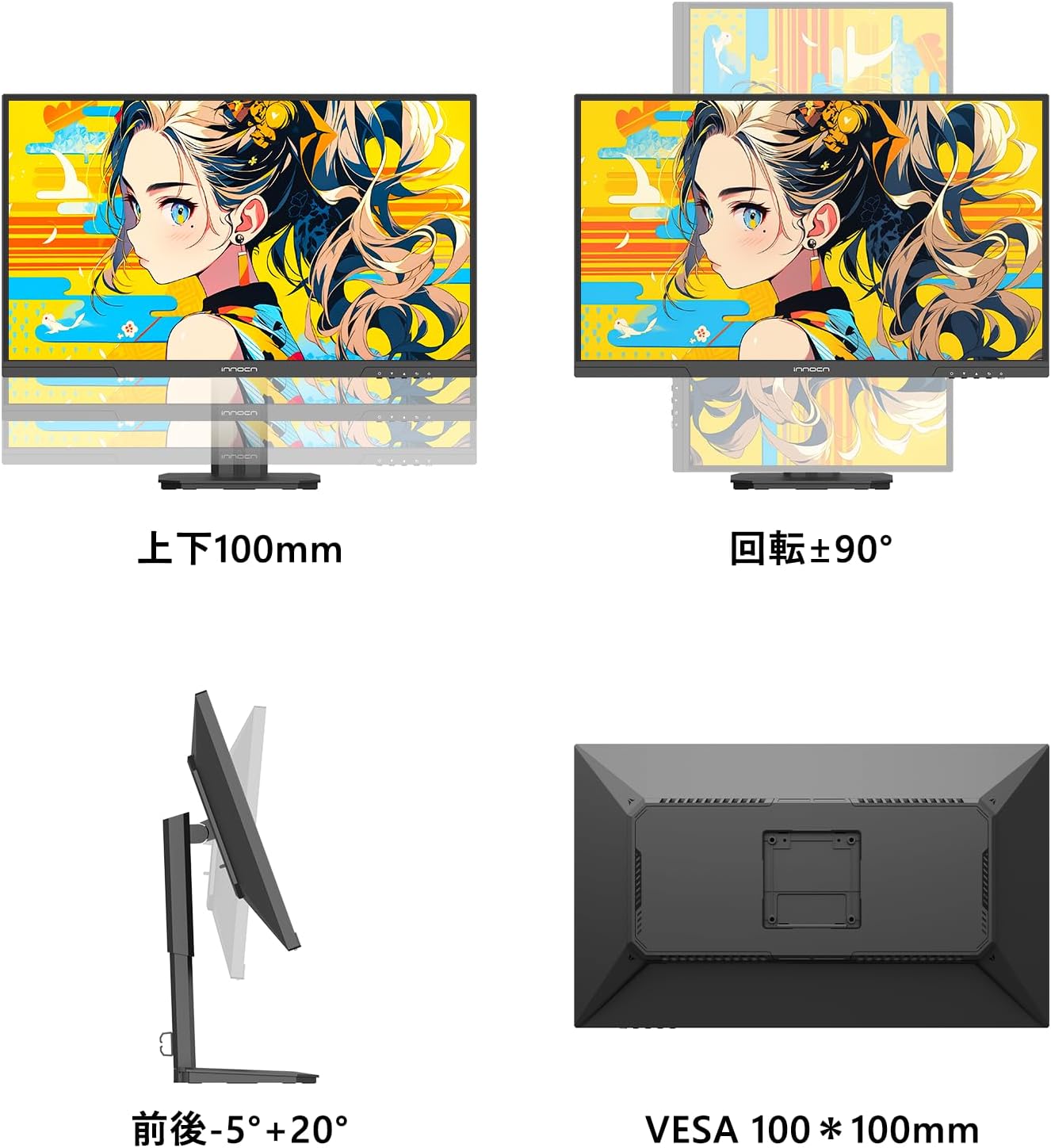
Image: HDR 400 effect comparison.

Image: M.BOOK Mode for Mac compatibility.
5.4. Monitor Adjustments
The monitor stand allows for various adjustments to achieve an ergonomic viewseasamh:
- Coigeartú Airde: Adjust the monitor height up to 100mm.
- Tilt: Claon an scáileán ó -5° go +20° chun an luas is fearr a fháil viewuillinneacha.
- Pivot (Rotation): Rothlaigh an scáileán 90° le haghaidh mód portráide viewing.
6. Cothabháil
- Glanadh an Scáileáin: Glan an scáileán go réidh le héadach bog, saor ó lint. I gcás marcanna righne, bain úsáid as tuaslagán glantacháin atá sainiúil don mhonatóir agus cuirtear é ar an éadach, ní go díreach ar an scáileán.
- Glanadh an Casing: Bain úsáid as éadach bog, tirim chun an monatóir a ghlanadh.asing. Seachain úsáid a bhaint as glantóirí scríobacha nó tuaslagóirí.
- Stóráil: If storing the monitor for an extended period, unplug it and cover it to protect it from dust. Store in a cool, dry place.
7. Fabhtcheartú
Má bhíonn fadhbanna agat le do mhonatóir, féach ar na fadhbanna agus na réitigh choitianta seo a leanas:
| Fadhb | Cúis Féideartha | Réiteach |
|---|---|---|
| Gan íomhá ar an scáileán | No power; Incorrect input selected; Loose video cable | Check power connection; Select correct input source via OSD; Reconnect video cable securely. |
| Tá an íomhá doiléir nó saobtha | Incorrect resolution; Faulty video cable | Set display resolution to 3840x2160; Try a different video cable. |
| No sound from external speakers/headphones | Volume too low; Incorrect audio output selected | Adjust volume via OSD or connected device; Ensure audio output is selected correctly on your device. |
| Monitor not charging laptop via USB-C | Laptop not compatible with USB-C PD; Cable issue | Ensure laptop supports USB-C Power Delivery; Use the provided USB-C cable or a certified alternative. |
8. Sonraíochtaí
| Gné | Sonraíocht |
|---|---|
| Branda | INNOCN |
| Uimhir Mhúnla | 27D1U |
| Méid an Scáileáin | 27 orlach |
| Rún | 4K UHD (3840 x 2160 picteilín) |
| Cineál Taispeána | IPS |
| Cóimheas Gné | 16:9 |
| Ráta Athnuachana | 60 Hz |
| Am Freagartha | 6 ms |
| Gile | 350 cd/m² |
| Viewing Uillinn | 178° (H/V) |
| Dath Gamut | 100% sRGB |
| Tacaíocht HDR | HDR400 |
| Nascacht | 1x HDMI 2.0, 1x DisplayPort 1.4, 1x USB Type-C (65W PD), 1x Audio Out |
| Sliabh VESA | 100 x 100 mm |
| Coigeartuithe | Airde, Claonadh, Pivot |
| Toisí Táirge (D x W x H) | 19.5 x 61.4 x 51.3 cm |
| Meáchan Táirge | 3.95 kg |
9. Barántas agus Tacaíocht
This INNOCN monitor comes with a Barántas monaróra 12 mhí ón dáta ceannaigh. Clúdaíonn an bharántas seo lochtanna déantúsaíochta agus mífheidhmeanna faoi ghnáthúsáid.
Ní chlúdaíonn an bharántas damáistí de bharr:
- Suiteáil nó úsáid mhíchuí.
- Accidents, abuse, or neglect.
- Deisiúcháin nó modhnuithe neamhúdaraithe.
- Power surges or incorrect voltage.
For warranty claims, technical support, or any inquiries regarding your INNOCN 27D1U monitor, please contact our customer service team via email. Please have your purchase receipt and product model number ready when contacting support.