
1. Eolas Tábhachtach Sábháilteachta
Please read all safety instructions before using the projector. Keep this manual for future reference.
- Ná bac na hoscailtí aerála. Cinntigh go bhfuil dóthain spáis timpeall an teilgeora le haghaidh sreabhadh aeir ceart.
- Seachain nochtadh díreach do sholas lionsa an teilgeora.
- Ná cuir an teilgeoir in aice le foinsí teasa ná i solas díreach na gréine.
- Ná húsáid ach an t-oiriúnóir cumhachta a chuirtear ar fáil leis an bhfeiste.
- Do not attempt to open or repair the projector yourself. Refer all servicing to qualified personnel.
- Coinnigh an teilgeoir ar shiúl ó uisce nó ó leachtanna eile.
2. Ábhar Pacáiste
Deimhnigh go bhfuil na míreanna uile i láthair sa phacáiste:
- Aurzen Roku TV Smart Projector (D1R Cube)
- Corda Cumhachta
- Remote Control (2 AAA Batteries Required, not included)
- Lámhleabhar Úsáideora (an doiciméad seo)
3. Táirge Tharview
The Aurzen D1R Cube is a compact smart projector featuring built-in Roku TV for integrated streaming. It offers 1080P Full HD resolution, Dolby Audio, and a sealed optical engine for enhanced durability and clarity.
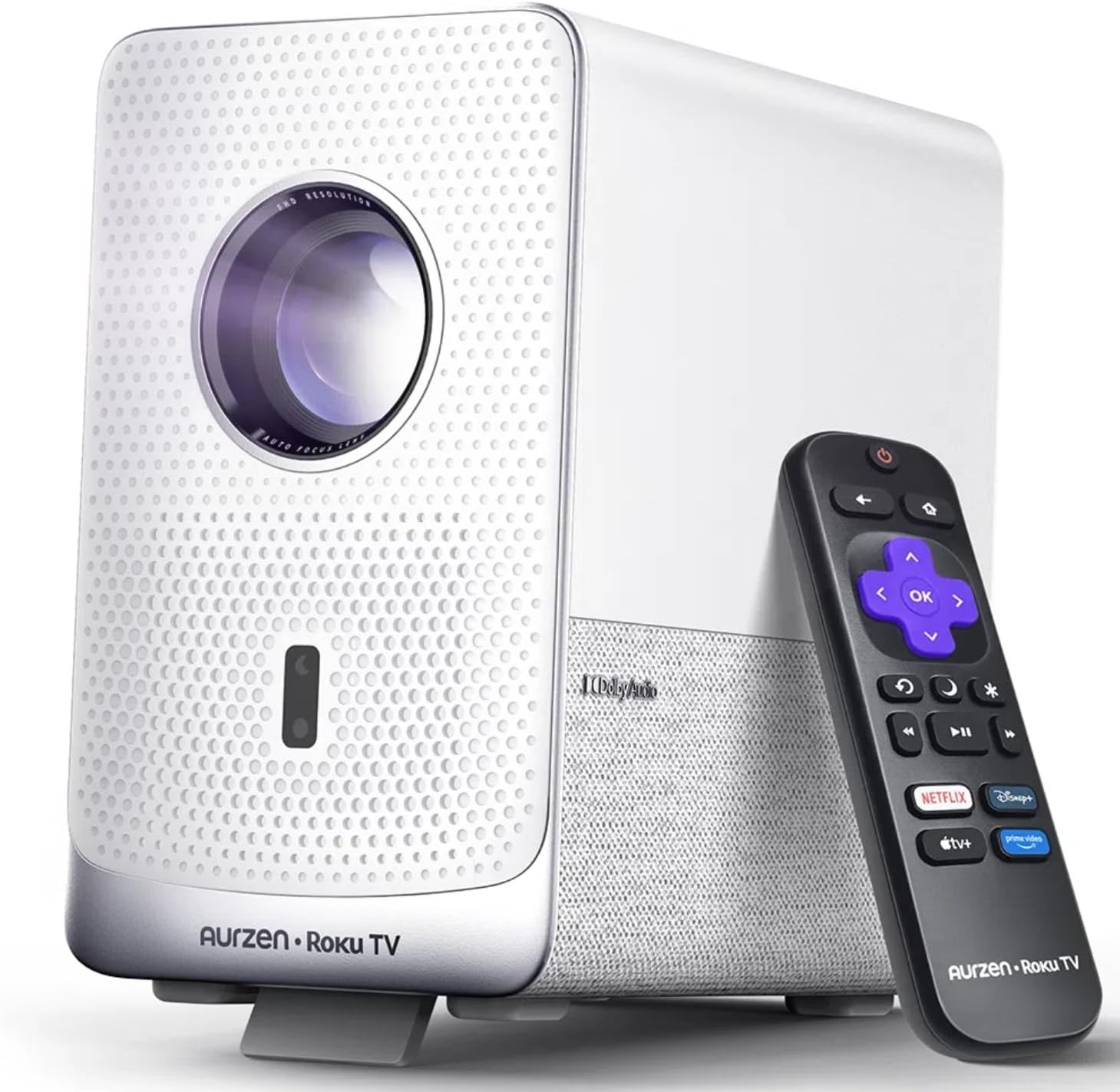
Image: The Aurzen D1R Cube Smart Projector shown with its remote control. The projector is white with a textured front panel and a visible lens.
Príomhghnéithe:
- Roku TV Built-in: Rochtain dhíreach ar sheirbhísí sruthú móréilimh.
- Sealed Optical Engine: Protects against dust, maintaining image quality and extending lifespan.
- 1080P FHD Resolution: Delivers crisp and clear visuals.
- Fuaime Dolby: Provides enhanced sound experience.
- Fócas Uathoibríoch & Ceartú Eochairchloiche: Automatic image adjustment for quick setup.
- Dual-band WiFi & Bluetooth 5.2: For seamless connectivity.
- Apple AirPlay: Effortless content sharing from Apple devices.
- Comhoiriúnacht Baile Cliste: Works with Apple HomeKit, Siri, Alexa, and Google Assistant.

Image: An internal diagram illustrating the sealed optical engine of the Aurzen D1R Cube projector, highlighting its dust-proof design.
4. Socrú
4.1 Socrúchán Tosaigh
Cuir an teilgeoir ar dhromchla cobhsaí, cothrom. Chun an leas is fearr is féidir a bhaint as. viewing, position it directly in front of your projection surface (wall or screen). The projector features automatic focus and keystone correction to adjust the image, but a relatively straight angle is recommended.

Image: A visual representation of the projector's auto-focus and auto-keystone correction features, showing how the image automatically adjusts to create a perfect rectangular display.
4.2 Ceangal Cumhachta
- Ceangail an corda cumhachta le port ionchuir cumhachta an teilgeora.
- Breiseán an ceann eile den chábla cumhachta isteach i soicéad leictreach oiriúnach.
- The projector will power on automatically or can be turned on using the power button on the device or remote.
4.3 Socrú Cianrialtáin
Insert two AAA batteries (not included) into the remote control. Ensure correct polarity. The remote is pre-paired with the projector.
4.4 Socrú Tosaigh Teilifíse Roku
Upon first power-on, follow the on-screen instructions to set up your Roku TV. This includes:
- Ag roghnú do theanga.
- Connecting to a Wi-Fi network (a stable internet connection is required).
- Activating your Roku account. If you do not have one, you will be prompted to create a free account.
- Installing desired streaming channels.
5. Treoracha Oibriúcháin
5.1 Cumhachtú Amach/Amach
Brúigh an cnaipe cumhachta ar an teilgeoir nó ar an gcianrialtán chun an gléas a chasadh air nó as.
5.2 Roku Home Screen Navigation
Use the directional pad and OK button on the remote to navigate the Roku home screen. Access streaming channels, search for content, and adjust settings.

Image: A screenshot of the Roku TV home screen, displaying various streaming app icons and navigation options.
5.3 Feidhmchláir Sruthaithe
The Roku TV platform provides access to a wide range of streaming applications such as Netflix, Prime Video, Disney+, Hulu, YouTube, and more. Select an app from the home screen to begin streaming.

Íomhá: Taispeántas grafachasing various popular streaming service logos available on the Roku TV platform, including Netflix, Disney+, and Hulu.
5.4 Gléasanna Seachtracha a Cheangal
The projector includes HDMI and USB ports for connecting external devices.
- HDMI: Connect gaming consoles, Blu-ray players, or other HDMI-enabled devices. Select the corresponding HDMI input from the Roku TV menu.
- USB: Meáin imeartha files (photos, videos, music) from a USB storage device.
5.5 Nascacht Bluetooth
Connect Bluetooth headphones or speakers for an enhanced audio experience.
- Go to the Roku TV settings menu.
- Select 'Remotes & devices' then 'Bluetooth devices'.
- Cuir do ghléas Bluetooth i mód péireála.
- Select your device from the list on the projector screen to pair.

Image: A diagram illustrating the Bluetooth connectivity of the Aurzen D1R Cube projector, showing it connecting to various external audio devices.
5.6 Apple AirPlay
Effortlessly share content from your Apple devices (iPhone, iPad, Mac) to the projector using Apple AirPlay.
- Ensure your Apple device and the projector are connected to the same Wi-Fi network.
- On your Apple device, open the content you wish to share (e.g., photos, videos).
- Tapáil an deilbhín AirPlay (usually a rectangle with an upward-pointing arrow).
- Select your Aurzen D1R Cube projector from the list of available devices.

Image: A family watching content projected from an Apple device onto a large screen via Apple AirPlay using the Aurzen D1R Cube projector.
5.7 Rialú Gutha agus Comhtháthú Baile Cliste
The projector supports voice control via the Roku mobile app and is compatible with Apple HomeKit, Siri, Alexa, and Google Assistant for broader smart home integration.
- Aip Shoghluaiste Roku: Download the Roku mobile app to use voice commands, type easily, and control your projector from your smartphone.
- Smart Home Assistants: Link your Roku account to your preferred smart home ecosystem (Apple Home, Amazon Alexa, Google Home) to control the projector with voice commands.
6. Cothabháil
6.1 Sealed Optical Engine
The Aurzen D1R Cube features a sealed optical engine designed to prevent dust accumulation on internal components. This reduces the need for routine internal cleaning and helps maintain consistent image quality over time.

Image: A side-by-side comparison showing the difference in dust accumulation between a sealed optical engine (left) and an open optical engine (right) after a period of use.
6.2 Glantachán Ginearálta
- Taobh amuigh: Glan taobh amuigh an teilgeora le héadach bog tirim. Ná húsáid glantóirí scríobacha ná tuaslagóirí.
- Lionsa: Gently clean the projector lens with a lens cleaning cloth or specialized lens cleaning solution. Avoid touching the lens with your fingers.
- Aeráil: Ensure ventilation openings are clear of dust and debris. Use a soft brush or compressed air to gently clean them if necessary.
6.3 Stóráil
When not in use for extended periods, store the projector in a cool, dry place, away from direct sunlight and extreme temperatures. Consider using a protective cover or case to prevent dust accumulation.
7. Fabhtcheartú
If you encounter issues with your Aurzen D1R Cube projector, refer to the following common solutions:
| Fadhb | Réiteach Féideartha |
|---|---|
| Gan Cumhacht | Cinntigh go bhfuil an corda cumhachta ceangailte go daingean leis an teilgeoir agus leis an asraon leictreach araon. Déan tástáil ar an asraon le gléas eile. |
| Gan Pictiúr | Check if the projector is powered on. Verify the input source (HDMI, USB) is correctly selected. Ensure the lens cap is removed. |
| Íomhá Doiléirigh | The projector has auto-focus. If the image remains blurry, try repositioning the projector or restarting it to trigger auto-focus again. Ensure the lens is clean. |
| Gan Fuaim | Check the volume level on the projector and any connected external audio devices. Ensure Bluetooth audio is correctly paired or external speakers are properly connected. |
| Fadhbanna Nascachta Wi-Fi | Ensure your Wi-Fi router is working. Restart the projector and your router. Verify the Wi-Fi password is correct in the Roku TV settings. |
| Cianda Gan Freagra | Replace the AAA batteries in the remote control. Ensure there are no obstructions between the remote and the projector. |
For further assistance, please refer to the online support resources or contact Aurzen customer service.
8. Sonraíochtaí
Detailed technical specifications for the Aurzen D1R Cube Smart Projector:
| Gné | Sonraíocht |
|---|---|
| Branda | Aurzen |
| Múnla | D1R Cube |
| Uasmhéid Taifeach Taispeána | 1920 x 1080 (1080P FHD) |
| Teicneolaíocht Nascachta | WiFi (Dual-band 2.4G/5G), Bluetooth 5.2, HDMI, USB, Audio |
| Gnéithe Speisialta | Roku TV Smart Projector, Sealed Optical Engine, Dolby Audio, Apple AirPlay, Smart Home Compatibility |
| Meáchan Mír | 5.68 punt |
| Toisí Táirge | 7.42 x 7 x 7.83 orlach |
| Dath | Bán |
9. Barántas agus Tacaíocht
9.1 Barántas Táirgí
Aurzen products are covered by a manufacturer's warranty. Please refer to the warranty card included with your product or visit the official Aurzen websuíomh gréasáin le haghaidh téarmaí agus coinníollacha sonracha barántais.
9.2 Tacaíocht do Chustaiméirí
For technical support, troubleshooting assistance, or warranty claims, please contact Aurzen customer service through their official channels. You can find more information and contact options on the Aurzen Brand Store on Amazon.