
1. Réamhrá
Thank you for choosing the TCL Gaming Monitor 25G54. This monitor is designed to provide an immersive gaming experience with its advanced display technology and high performance. This manual will guide you through the setup, operation, and maintenance of your new monitor.
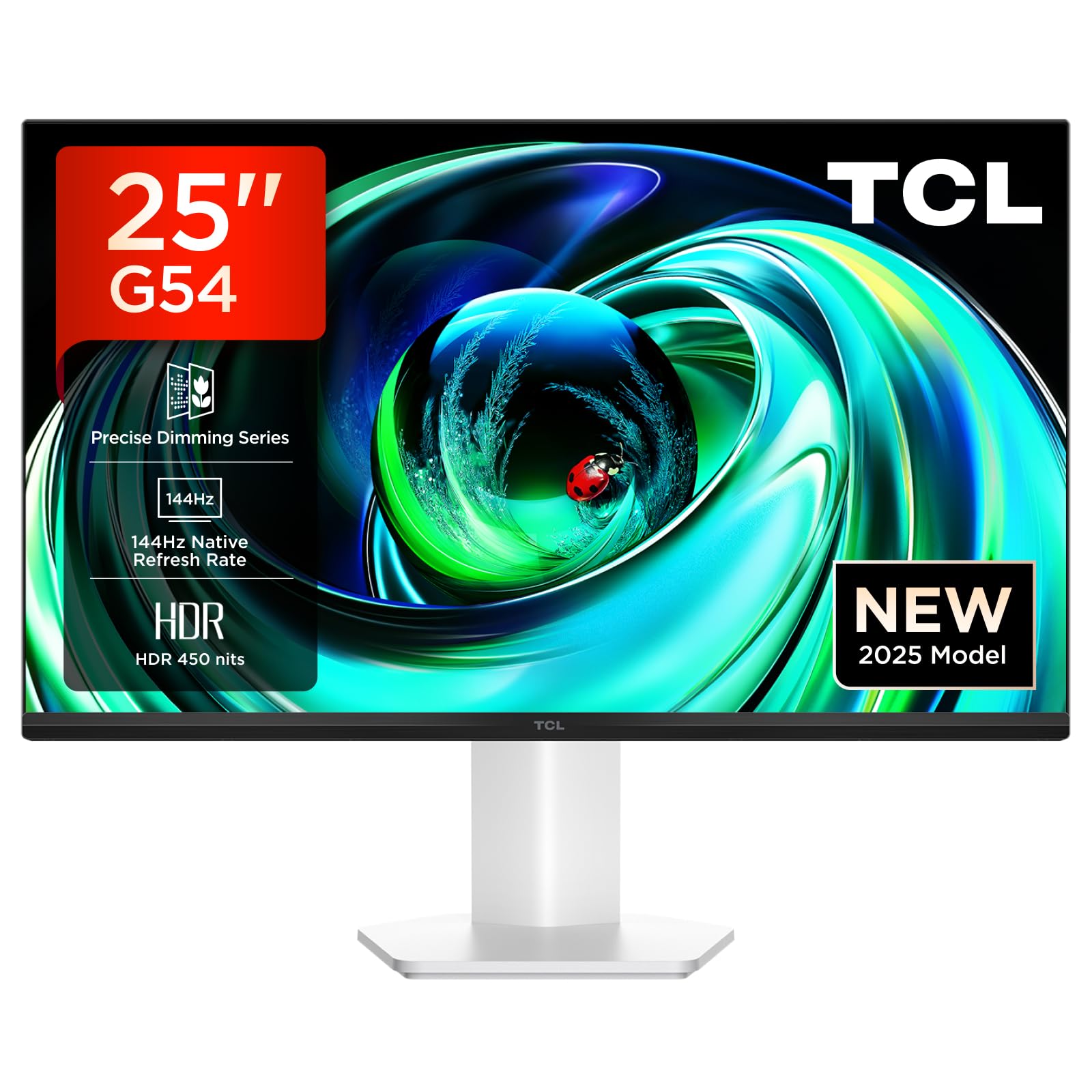
Fíor 1: Tosaigh view of the TCL Gaming Monitor 25G54.
2. Faisnéis Sábháilteachta
Léigh na treoracha go léir go cúramach sula n-úsáideann tú an monatóir. Coinnigh an lámhleabhar seo le haghaidh tagartha sa todhchaí.
- Ná nochtaigh an monatóir don bháisteach ná don taise chun tine nó turraing leictreach a chosc.
- Ná hoscail an monatóir casing. Níl aon chodanna istigh ann ar féidir leis an úsáideoir iad a sheirbhísiú. Tabhair aire do phearsanra cáilithe chun gach seirbhísiú a dhéanamh.
- Cuir an monatóir ar dhromchla cobhsaí, cothrom chun cosc a chur air titim.
- Cinntigh go bhfuil aeráil cheart ann timpeall an mhonatóra. Ná bac na hoscailtí aerála.
- Ná húsáid ach an t-oiriúntóir cumhachta agus na cáblaí a sholáthraíonn an monaróir.
- Disconnect the power plug from the outlet if the monitor will not be used for a long period.
3. Ábhar Pacáiste
Deimhnigh go bhfuil na hearraí go léir i do phacáiste:
- TCL Gaming Monitor 25G54
- Seasamh Monatóra (Bonn agus Muineál)
- Cábla Cumhachta
- Cábla HDMI
- Lámhleabhar úsáideora agus cárta barántas
Note: Specific cable types (e.g., DisplayPort) may vary by region or package.
4. Socrú
4.1 An Seastán a Chruinniú
- Bain comhpháirteanna an mhonatóra agus an tseastáin go cúramach as an bpacáistiú.
- Ceangail muineál an tseastáin leis an bpainéal monatóireachta. Cinntigh go gcliceálann sé go daingean ina áit nó go bhfuil sé daingnithe le scriúnna mar a léirítear sa treoir thosaithe thapa.
- Ceangail bonn an tseastáin le muineál an tseastáin, ag daingniú é leis an scriú a chuirtear ar fáil.
- Cuir an monatóir cóimeáilte ar dheasc cobhsaí.
4.2 An Monatóir a Nascadh
The monitor supports various input options. Connect the appropriate cable from your computer or gaming console to the monitor.
- Ceangal HDMI: Use an HDMI cable to connect your device to the monitor's HDMI port.
- Ceangal DisplayPort: Use a DisplayPort cable to connect your device to the monitor's DisplayPort.
- Naisc USB: Bain úsáid as na calafoirt USB chun forimeallaigh a nascadh.

Fíor 2: Cúil view showing the monitor's connectivity ports including HDMI, DisplayPort, and USB.
4.3 Cumhachtú ar siúl
- Ceangail an cábla cumhachta le hionchur cumhachta an mhonatóra agus ansin le hasraon cumhachta.
- Press the power button, usually located on the back or bottom of the monitor, to turn it on.
5. Treoracha Oibriúcháin
5.1 Roghchlár Taispeána Ar-Scáileán (OSD).
The OSD menu allows you to adjust various monitor settings. Access it using the joystick button, typically located on the back of the monitor.

Figure 3: Illustration of the joystick button for OSD menu navigation.
Socruithe OSD Coitianta:
- Gile/Codarsnacht: Coigeartaigh leibhéil lonrúlachta agus codarsnachta an taispeántais.
- Socruithe Datha: Modify color temperature, gamma, and color space (e.g., DCI-P3, sRGB).
- Foinse Ionchuir: Manually select the active input (HDMI, DisplayPort).
- Gnéithe cluichíochta: Enable/disable FreeSync, adjust response time, and other gaming-specific enhancements.
- Mód Pictiúir: Select preset display modes for different content types (e.g., Standard, Game, Movie).
5.2 Coigeartuithe Eirgeanamaíochta
The monitor stand offers ergonomic adjustments for optimal viewcompord.
- Tilt: Coigeartaigh uillinn ingearach an scáileáin.
- Sclóine: Rothlaigh an scáileán go cothrománach.
- Coigeartú Airde: Ardaigh nó ísligh an scáileán go dtí leibhéal na súl.
- Pivot: Rotate the screen to portrait or landscape orientation.

Figure 4: Illustration of the monitor's ergonomic stand, showing tilt and height adjustment capabilities.
6. Gnéithe
The TCL Gaming Monitor 25G54 incorporates several key technologies for superior performance:
- Teicneolaíocht Mini LED: Combines QLED and OLED advantages for precise, pixel-level illumination, offering sharp contrast and a wide color gamut.
- Precise Dimming Series: Enhances overall image quality by optimizing light and shadow, providing a high-quality visual experience.
- HDR 400 nit Brightness: With a peak brightness of 450 nits and a contrast ratio of 4,500,000:1, it delivers extended dynamic range and vivid details in both dark and bright areas.
- Ráta Athnuachana 144Hz: Ensures smooth and fluid images in all gaming scenes and actions, minimizing motion blur.
- 1ms (GTG) Response Time: An extremely fast response time reduces ghosting and blurring, allowing for quick target acquisition.
- 93% DCI-P3 Wide Color Gamut: Displays vibrant colors with professional-level accuracy, revealing an immersive world of color.
- TÜV Rheinland Flicker-Free & Low Blue Light: Certified for eye protection, this mode blocks harmful blue light and eliminates flicker for prolonged viewcompord.

Fíor 5: Os a chionnview of the TCL 25G54 Mini LED Monitor's key features.
7. Cothabháil
Cinntíonn cothabháil cheart fad saoil agus feidhmíocht is fearr do mhonatóra.
- Glanadh an Scáileáin: Glan an scáileán go réidh le héadach bog, saor ó lint. I gcás marcanna righne, bain úsáid as tuaslagán glantacháin atá sainiúil don mhonatóir agus cuirtear é ar an éadach, ní go díreach ar an scáileán.
- Glanadh an Casing: Bain úsáid as éadach bog, tirim chun an monatóir a ghlanadh.asing. Seachain glantóirí scríobacha.
- Aeráil: Ensure the ventilation openings are clear of dust and debris. Use compressed air to clean if necessary.
- Múch: Always turn off and unplug the monitor before cleaning or if it will be unused for an extended period.
8. Fabhtcheartú
Má bhíonn fadhbanna agat le do mhonatóir, féach ar na réitigh choitianta seo a leanas:
| Fadhb | Cúis Féideartha | Réiteach |
|---|---|---|
| Gan íomhá ar an scáileán | Power cable disconnected, input cable loose, incorrect input source selected. | Check power and input cable connections. Select correct input source via OSD. |
| Tá an íomhá doiléir nó saobtha | Incorrect resolution, faulty cable, graphics driver issue. | Set display resolution to 1920x1080. Try a different cable. Update graphics drivers. |
| Scáileán ag caochadh | Refresh rate mismatch, faulty cable, external interference. | Ensure refresh rate is set to 144Hz. Try a different cable. Check for nearby electronic devices. |
| Gan fuaim | Audio cable not connected, volume too low, incorrect audio output selected. | Connect headphones to the monitor's audio output. Adjust volume. Select monitor as audio output on your device. |
If the problem persists after trying these solutions, please contact TCL customer support.
9. Sonraíochtaí
| Gné | Sonraíocht |
|---|---|
| Branda | TCL |
| Uimhir Mhúnla | 25G54 |
| Méid an Scáileáin | 25 Orlach |
| Rún | 1920x1080 (FHD) |
| Cineál Painéil | IPS |
| Ráta Athnuachana | 144 Hz |
| Am Freagartha | 1 ms (GTG) |
| Gile | 450 nits |
| Cóimheas Codarsnachta | 4,500,000:1 |
| Tacaíocht HDR | VESA Display HDR 400 |
| Dath Gamut | 93% DCI-P3 |
| Viewing Uillinn | 178 Céim |
| Nascacht | 1x HDMI, 1x DisplayPort, 4x USB, Headphone Output |
| Sync Oiriúnaitheach | FreeSync |
| Toisí (DxWxH) | 18.2 x 55.6 x 43.9 cm |
| Meáchan | 4.39 kg |
| Gnéithe Speisialta | Mini LED, Flicker-Free, Low Blue Light |
10. Barántas agus Tacaíocht
Your TCL Gaming Monitor 25G54 comes with a 2-year manufacturer's warranty. For warranty claims, technical support, or service inquiries, please visit the official TCL support websuíomh nó déan teagmháil le do mhiondíoltóir áitiúil.
Le haghaidh tuilleadh eolais, tabhair cuairt ar an Siopa TCL ar Amazon.
11. Faisnéis Athchúrsála
Please dispose of this product responsibly. Electronic waste should not be disposed of with household waste. Follow local regulations for the proper disposal of electronic devices. This helps protect the environment and human health.