
1. Réamhrá
This manual provides essential information for setting up, operating, and maintaining your XIXIMENG M15 Retro Game Stick. Please read it thoroughly to ensure optimal performance and longevity of your device. The M15 Retro Game Stick is a compact gaming console designed to bring classic gaming experiences to your 4K Ultra HD TV, monitor, or projector.
2. Ábhar Pacáiste
Deimhnigh go bhfuil na míreanna go léir atá liostaithe thíos san áireamh i do phacáiste:
- 1 x M15 Game Console (Game Stick)
- 2 x Wireless Gamepads
- 1 x HD Cable (HDMI Extension Cable)
- 1 x Cábla Cumhachta (USB)
- 1 x Glacadóir USB
- 1 x TF Card (64GB, pre-installed in the game stick)
- 1 x lámhleabhar úsáideora

Fíor 2.1: Ábhar an Phacáiste Tharview
This image displays the M15 Game console, two wireless gamepads, an HD cable, a power cable, and a USB receiver, which are all included in the product package.
3. Treoracha Socraithe
Follow these steps to connect your M15 Retro Game Stick to your display device:
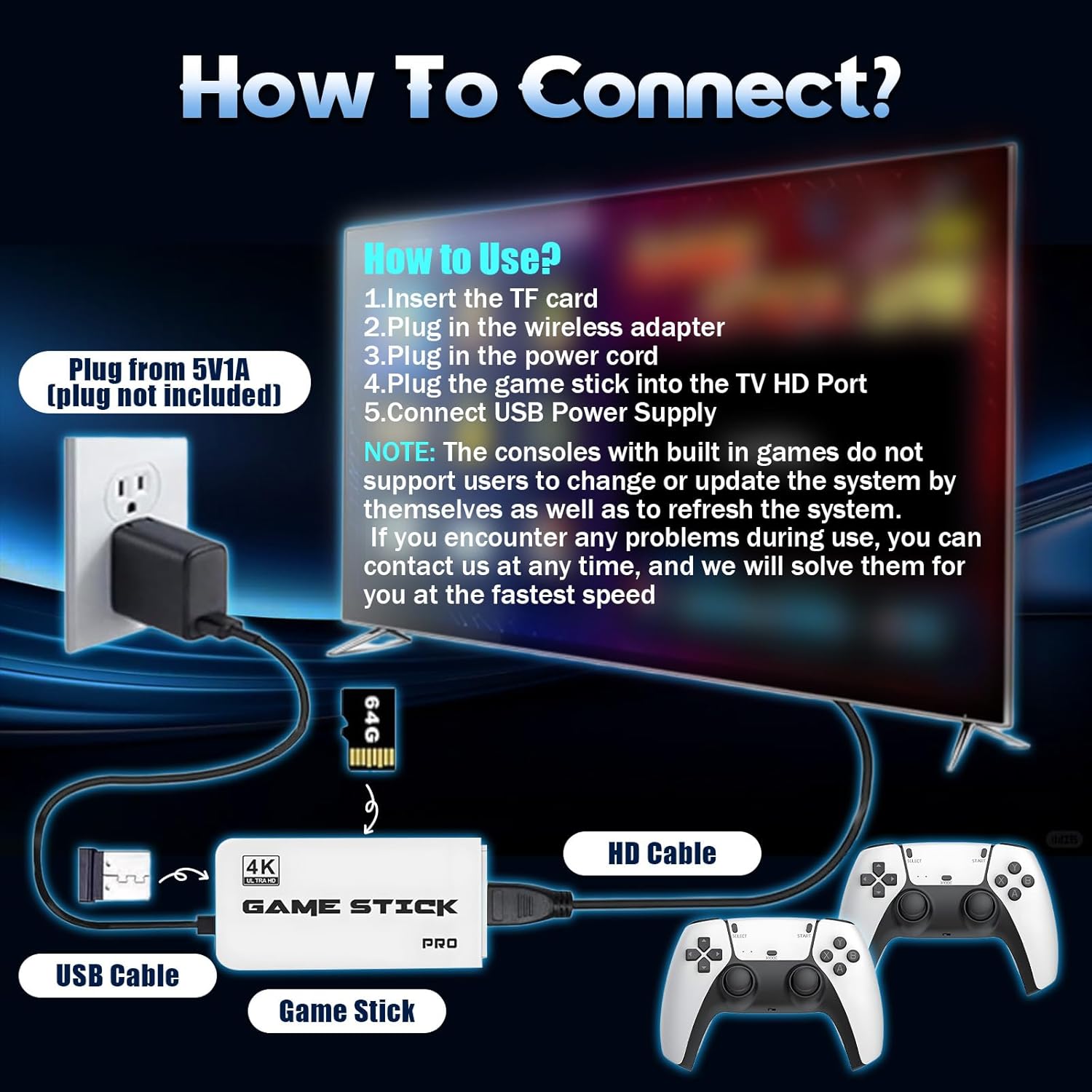
- Cuir isteach an Cárta TF: Ensure the 64GB TF card is already installed in the card slot of the game stick. Do not remove or format the SD card, as it contains games and system files.
- Ceangail an Glacadóir USB: Plug the 2.4GHz USB wireless receiver into the USB port on the game stick.
- Ceangail an Cábla Cumhachta: Connect the USB power cable to the game stick. The power supply should be 5V/1A or above.
- Connect to TV/Monitor: Plug the game stick (via the extended HDMI cable if needed) into an available HDMI input port on your TV, monitor, or projector.
- Cumhacht ar: Connect the USB power cable to a 5V/1A power source (e.g., a USB wall adapter, not included, or a TV USB port if it provides sufficient power).
- Roghnaigh Foinse Ionchuir: On your display device, switch the input source to the corresponding HDMI channel where the game stick is connected. The game list screen should appear.
- Cuir Ceallraí Rialaitheora isteach: Insert 2 AAA batteries (not included) into each wireless gamepad.

Fíor 3.1: Léaráid Nasctha
This diagram illustrates the step-by-step process of connecting the game stick to a television, including the game stick, USB cable, HD cable, and wireless controllers.
Video 3.1: Retro Game Console Overview
Tugann an físeán seo léargas gairidview of the retro game console, demonstrating its components and basic functionality.
4. Treoracha Oibriúcháin
4.1 Nascleanúint an Roghchláir
Once connected and powered on, the main game selection menu will appear on your screen. Use the wireless controllers to navigate through the game list and emulator categories.
4.2 Selecting and Starting Games
Use the directional pad or left joystick on your controller to browse through the available games. Press the A button (or equivalent action button) to select a game and start playing.
4.3 Returning to the Main Menu
To exit a game and return to the main menu, simultaneously press the ROGHNACH agus TÚS buttons on your controller.
4.4 Game Collections and Favorites
The console supports game collections. You can use the TÚS button for three seconds to add or remove your favorite games from a dedicated collection for quick access.
4.5 Rialaitheoir Gan Sreang
The M15 comes with two 2.4GHz wireless controllers, allowing for two-player gaming. The wireless control range is up to 8 meters, providing flexibility and comfort during gameplay. These controllers require 2 AAA batteries each (not included).
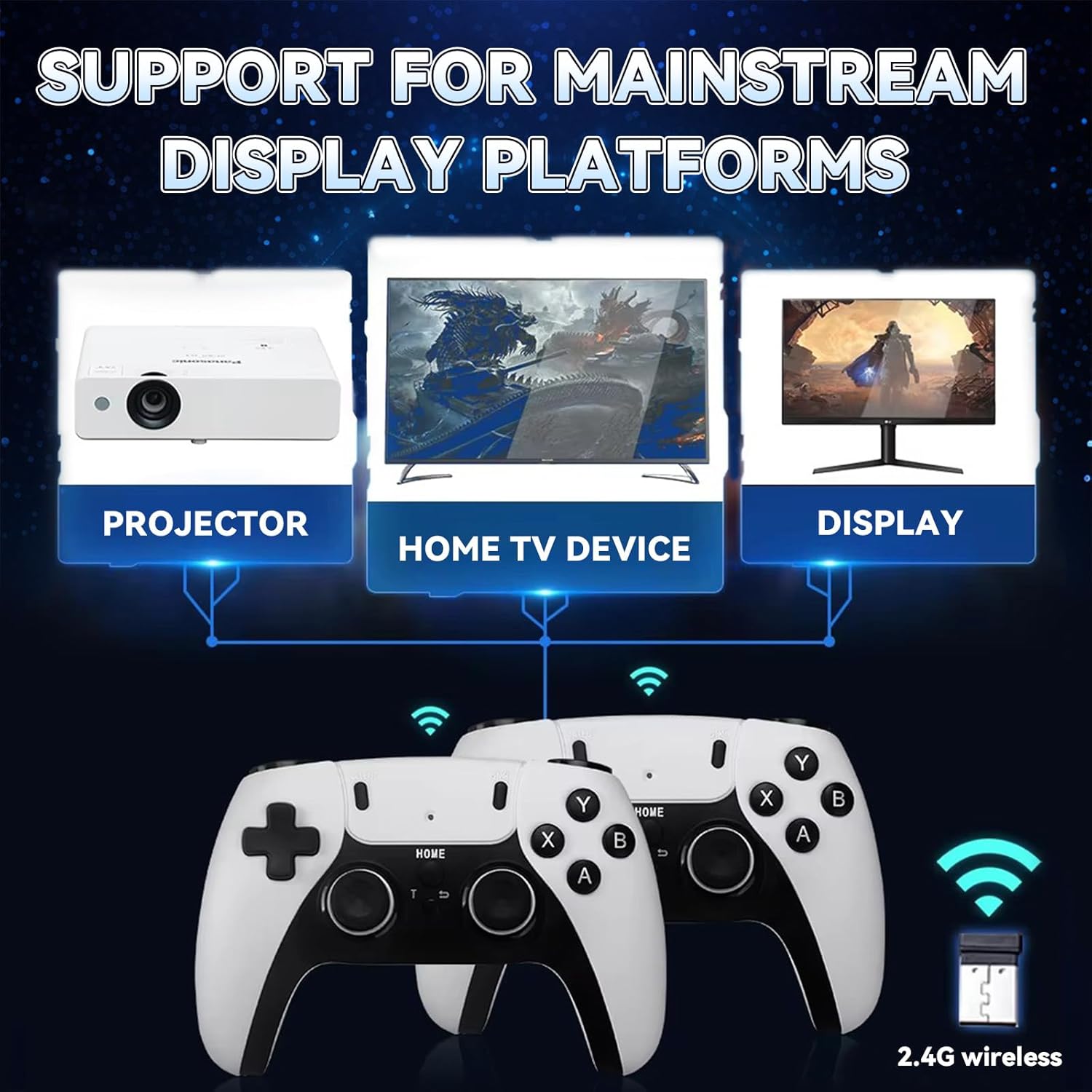
Figure 4.1: Wireless Game Controllers
This image shows the two wireless gamepads included with the M15 Retro Game Stick, highlighting their design and dual-player capability.
Fíor 4.2: Gnéithe Rialaitheora
This image details the ergonomic design, comprehensive key controls, and sensitive joysticks of the wireless gamepads.
5. Display and Connectivity
The M15 Retro Game Stick supports 4K Ultra HD TV video output (1080p/720p), providing crisp and vibrant visuals. It is compatible with various devices that have an HDMI input port, including:
- teilifíseáin
- Monatóirí
- Computers (with HDMI input)
- Teilgeoirí
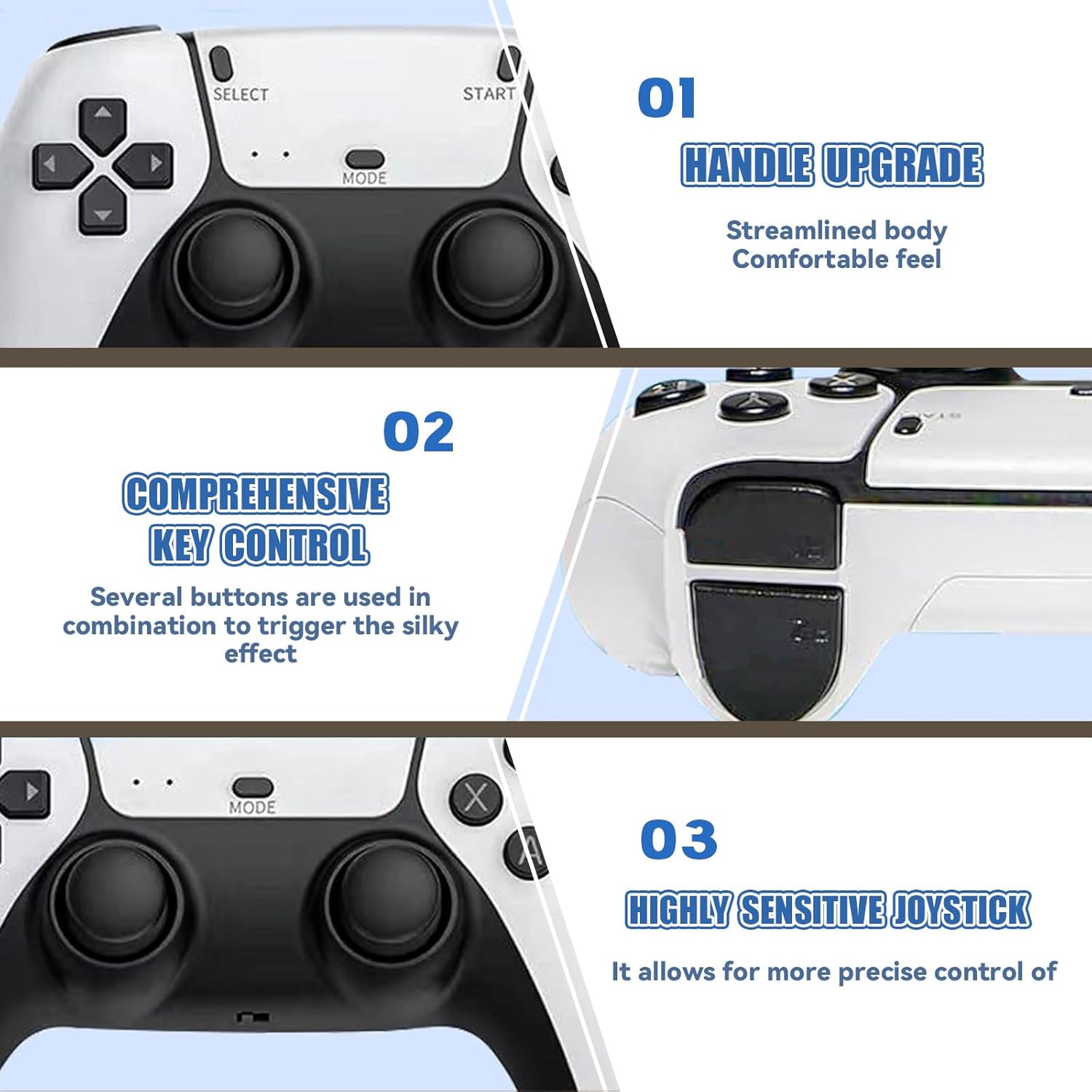
Figure 5.1: 4K HD TV Video Output
This image demonstrates the 4K HD video output capability of the game stick when connected to a television.

Figure 5.2: Support for Mainstream Display Platforms
This image highlights the game stick's compatibility with various display devices such as projectors, TVs, and monitors.
6. Cothabháil
Proper care ensures the longevity of your M15 Retro Game Stick:
- TF Card Handling: Do not remove the TF card while the device is powered on. Avoid formatting the SD card, as it contains essential system files and games. If the card is damaged, the host may become unusable.
- Glanadh: Keep the console clean by using a soft, dry cloth. Avoid using harsh chemicals that may damage the screen or body of the console.
- Coinníollacha Comhshaoil: Avoid exposing the console to extreme temperatures or direct sunlight for long periods, as this can affect performance and lifespan.
- Muirearú: When charging, use the original USB Type-C cable or a high-quality compatible cable to ensure safe and efficient charging.
7. Fabhtcheartú
Má bhíonn fadhbanna agat, féach ar na fadhbanna agus na réitigh choitianta seo a leanas:
- Gan Taispeántas ar an Teilifís:
- Cinntigh go bhfuil an bata cluiche plugáilte go daingean i gcalafort HDMI an teilifíse.
- Confirm the TV input source is set to the correct HDMI channel.
- Verify the USB power cable is connected to a 5V/1A power source. Insufficient power (e.g., from a TV USB port that doesn't provide enough current) can prevent display.
- Check if the TF card is properly inserted and not damaged.
- Ní Fhreagraíonn an Rialaitheoir:
- Ensure fresh AAA batteries are correctly installed in the controllers.
- Verify the USB receiver is securely plugged into the game stick.
- Try unplugging and re-plugging the USB receiver.
- If the controller fails to connect, try resetting the controller or refer to the manufacturer for specific operation video.
- Game Lag or Performance Issues:
- Ensure the game stick has adequate ventilation to prevent overheating.
- Some larger or more complex games may experience minor performance variations due to emulation.
If you encounter any problems during use, please contact customer support for assistance. We aim to respond and solve issues within 12 hours.
8. Sonraíochtaí
| Gné | Sonraigh |
|---|---|
| Uimhir Mhúnla | M15 |
| Cumas Stórála | Cárta TF 64GB (réamhshuiteáilte) |
| Cluichí réamh-luchtaithe | 30,000+ |
| Aithriseoirí a Tacaítear leo | 23 gcineál |
| Aschur Físeáin | 4K Ultra HD (1080p/720p) |
| Nascacht | HDMI |
| Rialaitheoirí | Dual 2.4GHz Wireless Gamepads |
| Ceallraí Rialaitheora | 2 x AAA batteries per controller (not included) |
| Sreang Range | Suas le 8 méadar |
| Ionchur Cumhachta | 5V/1A USB |
| Toisí Táirge | 6.5 x 4.7 x 4.3 orlach |
9. Faisnéis Sábháilteachta
Cloígh le do thoil na treoirlínte sábháilteachta seo a leanas:
- Avoid exposing the console to extreme temperatures or direct sunlight for long periods, as this may affect the performance and lifespan of the device.
- When charging, use the original USB Type-C cable or a high-quality compatible cable to ensure safe and efficient charging.
- Keep the console clean by using a soft, dry cloth. Avoid using harsh chemicals that may damage the screen or body of the console.
- Keep out of reach of small children to prevent accidental ingestion of small parts.
10. Barántas agus Tacaíocht
Your XIXIMENG M15 Retro Game Stick comes with a 1-month return service. If you are not satisfied, you may return the product for a refund within this period. Additionally, we offer a lifetime worry-free warranty. For any issues or support, please contact us. We are committed to responding and resolving problems within 12 hours.
Video 10.1: BELOPERA Retro Gamestick for Holiday (Preview)
This short video provides a quick look at the BELOPERA Retro Gamestick, showcasing its appearance and highlighting its suitability as a holiday gift.