
1. Réamhrá
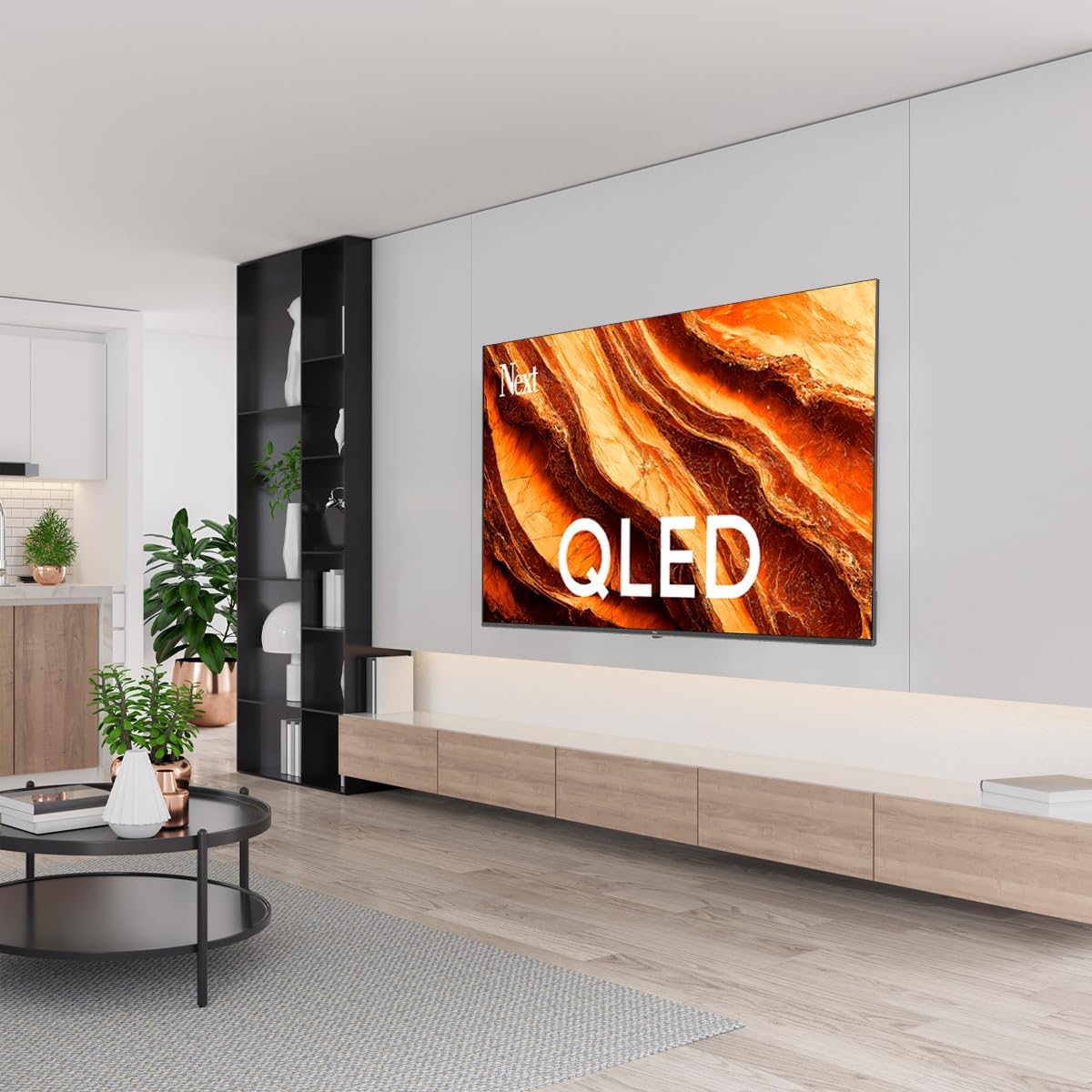
This manual provides essential information for the safe and efficient operation of your Next YE-65GFSG8-QLED 65-inch UHD 4K Google QLED TV. Please read this manual thoroughly before using the television and retain it for future reference. Your new television combines QLED display technology with the Google TV operating system, offering a high-quality viewing experience and smart features.
2. Eolas Tábhachtach Sábháilteachta
Always follow these basic safety precautions when operating your television:
- Foinse Cumhachta: Ensure the TV is connected to a power supply within the specified voltagraon e.
- Aeráil: Ná bac na hoscailtí aerála. Fág dóthain spáis timpeall an teilifíseáin le go mbeidh sreabhadh aeir ceart ann.
- Uisce agus Taise: Ná nochtaigh an teilifís don bháisteach ná don taise. Ná cuir rudaí atá lán le leachtanna, amhail vásaí, ar an teilifís.
- Glanadh: Díphlugáil an teilifís ón asraon cumhachta sula nglanann tú é. Bain úsáid as éadach bog, tirim. Ná húsáid glantóirí leachtacha ná glantóirí aerasóil.
- Socrúchán: Cuir an teilifís ar dhromchla cobhsaí, cothrom. Seachain é a chur i solas díreach na gréine nó in aice le foinsí teasa.
- Tintreach: During lightning storms or when unused for long periods, unplug the TV from the power outlet and disconnect the antenna.
- Ag seirbhísiú: Ná déan iarracht an táirge seo a sheirbheáil ort féin. Déan gach seirbhísiú a tharchur chuig pearsanra seirbhíse cáilithe.
3. Ábhar Pacáiste
Verify that all items are present in your TV package:
- Next YE-65GFSG8-QLED 65-inch UHD 4K Google QLED TV
- Cianrialú
- Cábla Cumhachta
- Seasamh Teilifíse (2 phíosa) agus Scriúnna
- Lámhleabhar Úsáideora (an doiciméad seo)
- Treoir Tosaigh Tapa
4. Socrú
4.1 Suiteáil Fhisiciúil
You can install your TV on a stand or mount it on a wall. Ensure the TV is placed on a stable surface or securely mounted.

Íomhá: TV Dimensions. This image illustrates the physical dimensions of the 65-inch television, including its width, height, and diagonal screen size of 164 cm (65 inches).
Suiteáil Seastán:
- Cuir an teilifís go cúramach agus í aghaidh síos ar dhromchla bog, cothrom chun damáiste don scáileán a chosc.
- Attach the two stand pieces to the designated slots on the bottom of the TV.
- Daingnigh na seastáin leis na scriúnna a chuirtear ar fáil.
- Tóg an teilifís go cúramach go dtí go mbeidh sé ina sheasamh ar dhromchla cobhsaí.
Suiteáil Balla:
For wall mounting, use a VESA-compatible wall mount kit (sold separately) that matches the TV's VESA pattern. Follow the instructions provided with your wall mount kit. It is recommended to have professional assistance for wall mounting.
4.2 Forimeallaigh a Nascadh
Connect your external devices to the appropriate ports on the back of your TV.
Íomhá: Rear Panel Connections. This image displays the various input and output ports located on the back of the television, including HDMI, USB, DVB-S, DVB-T, CI Module, Mini AV-IN, Optical Out, and Ethernet.
- HDMI (ARC): Connect Blu-ray players, game consoles, or other HDMI devices. HDMI 1 supports Audio Return Channel (ARC).
- USB (2x): Ceangail gléasanna stórála USB le haghaidh athsheinm meán.
- DVB-S / DVB-T: Connect satellite (DVB-S) or terrestrial (DVB-T) antenna cables.
- CI Module: Insert a Common Interface (CI) module for encrypted digital channels.
- Mini AV-IN: Connect older devices using an AV adapter cable.
- Optúil Amach: Connect to an external audio system for digital audio output.
- Ethernet: Ceangail cábla Eitirnéad le haghaidh nasc idirlín sreangaithe.
- Cumhacht: Ceangail an cábla cumhachta leis an teilifís agus ansin le soicéad balla.
4.3 An Chumhacht Ar Siúl Tosaigh agus an Chéad Socrú
- After connecting all cables, plug the power cord into an electrical outlet.
- Brúigh an cnaipe cumhachta ar an gcianrialtán nó ar an teilifís.
- The TV will guide you through the initial setup process, which includes:
- Roghnú teanga
- Ag nascadh le Wi-Fi nó Ethernet
- Signing in with your Google Account (required for Google TV features)
- Ag glacadh le téarmaí agus coinníollacha
- Channel scanning (for DVB-S/T)
- Lean na treoracha ar an scáileán chun an socrú a chríochnú.
5. Do Theilifíseán a Oibriú
5.1 Feidhmeanna Cianrialtáin
The remote control allows you to navigate the TV's features. Familiarize yourself with its buttons:
- Cumhacht: Casann sé an teilifís air nó as.
- Cúntóir Google: Gníomhaíonn sé orduithe gutha.
- Ceap Loingseoireachta (Suas/Síos/Clé/Deas/Ceart go leor): Nascleanúint trí roghchláir agus roghanna a roghnú.
- Ar ais: Filleann sé ar an scáileán roimhe seo.
- Baile: Rochtain ar scáileán baile Google TV.
- Imleabhar +/-: Coigeartaíonn an leibhéal toirte.
- Cainéal +/-: Athraíonn sé bealaí teilifíse.
- Ionchur: Roghnaíonn sé foinsí ionchuir (HDMI, AV, srl.).
- Cnaipí Aipe: Rochtain dhíreach ar aipeanna sruthú coitianta.
5.2 Navigating Google TV Interface
Google TV organizes your entertainment with a personalized home screen. Content from your apps is brought together and organized for easy discovery.

Íomhá: Google TV Interface. This image shows the main Google TV home screen with various streaming app icons and content recommendations, demonstrating the user interface.
- Scáileán Baile: Taispeánann sé moltaí pearsantaithe, aipeanna suiteáilte, agus rochtain thapa ar ábhar.
- For You Tab: Provides tailored content suggestions based on your viewnósanna.
- Cluaisín Beo: Accesses live TV channels from integrated services.
- Apps Tab: Shows all installed applications. You can download more from the Google Play Store.
- Library Tab: Accesses your purchased or rented content from Google Play.
5.3 Socruithe Pictiúr agus Fuaime
Chun socruithe pictiúir agus fuaime a choigeartú:
- Brúigh an Socruithe button (usually a gear icon) on your remote.
- Déan nascleanúint chuig Taispeáint & Fuaim.
- Socruithe Pictiúir: Adjust brightness, contrast, color, sharpness, and select picture modes (e.g., Standard, Vivid, Movie, Game). Your QLED TV offers enhanced color saturation.
- Socruithe Fuaime: Adjust bass, treble, balance, and select sound modes (e.g., Standard, Music, Movie, Speech).

Íomhá: QLED Color Saturation. This image visually demonstrates the high color saturation achieved with QLED technology, showing a vibrant and rich color display.

Íomhá: HDR (High Dynamic Range). This image illustrates the visual impact of HDR, showcasing improved contrast and color detail in a scene when HDR is enabled versus when it is off.
5.4 Socruithe Líonra
To connect your TV to the internet:
- Brúigh an Socruithe cnaipe ar do chianda.
- Déan nascleanúint chuig Líonra & Idirlíon.
- Roghnaigh Wi-Fi to connect to a wireless network or ensure Ethernet is connected for a wired connection.
- I gcás Wi-Fi, roghnaigh do líonra ón liosta agus cuir isteach an focal faire.
6. Cothabháil
6.1 Glanadh an teilifíseáin
- Díphlugáil an teilifís i gcónaí sula ndéantar é a ghlanadh.
- Use a soft, dry, lint-free cloth to gently wipe the screen and TV body.
- I gcás marcanna righne, déan iad a dhiúscairt go héadrom.ampen the cloth with water or a specialized screen cleaner (ensure it's safe for TV screens). Never spray cleaner directly onto the screen.
- Seachain ag baint úsáide as glantóirí scríobach, céir, nó tuaslagóirí.
6.2 Nuashonrú Bogearraí
Your TV may receive software updates to improve performance and add new features. It is recommended to keep your TV's software updated.
- Cinntigh go bhfuil do theilifís ceangailte leis an idirlíon.
- Brúigh an Socruithe cnaipe ar do chianda.
- Déan nascleanúint chuig Córas > Maidir > Nuashonrú córais.
- Roghnaigh Seiceáil le haghaidh nuashonrú.
- Lean na leideanna ar an scáileán chun aon nuashonruithe atá ar fáil a íoslódáil agus a shuiteáil.
7. Fabhtcheartú
Má bhíonn fadhbanna agat le do theilifís, féach ar na fadhbanna agus na réitigh choitianta seo a leanas:
| Fadhb | Cúis / Réiteach Féideartha |
|---|---|
| Gan chumhacht | Check if the power cord is securely plugged into the TV and the wall outlet. Ensure the outlet is working. |
| Gan pictiúr, ach tá fuaim ann | Check the input source. Ensure the connected device is turned on and functioning correctly. |
| Gan fuaim, ach tá pictiúr ann | Check the volume level and mute status. Verify audio cable connections for external devices. Check TV sound settings. |
| Cianrialtán nach bhfuil ag obair | Cuir na cadhnraí ina n-áit. Cinntigh nach bhfuil aon bhacainní idir an cianrialtán agus braiteoir infridhearg an teilifíseáin. |
| Ní féidir ceangal le Wi-Fi | Ensure your Wi-Fi router is on and within range. Re-enter the Wi-Fi password carefully. Try restarting the TV and router. |
| Tá aipeanna mall nó reoite | Close unused apps. Clear app cache (Settings > Apps > See all apps > [App Name] > Clear cache). Ensure a stable internet connection. |
Má leanann an fhadhb ar aghaidh tar éis duit na réitigh seo a thriail, déan teagmháil le tacaíocht do chustaiméirí.
8. Sonraíochtaí
Technical specifications for the Next YE-65GFSG8-QLED 65-inch UHD 4K Google QLED TV:
- Branda: Ar aghaidh
- Múnla Bliain: 2025
- Taifeach: 4K (3840x2160)
- Teicneolaíocht Taispeána: QLED
- Méid an Scáileáin: 65 orlach (165 cm)
- Cóimheas Gné: 16:9
- Ráta Athnuachana: 60 Hz
- Príomhghnéithe: Dearadh Fráma
- Nascacht: Bluetooth, Ethernet, HDMI (ARC), USB (2x), Wi-Fi
- Toisí Táirge: 27.8D x 144.6L x 88.9A cm
- Meáchan: 16.3 cileagram
- Córas Oibriúcháin: Teilifíse Google
- Comhpháirteanna san áireamh: Cianrialú
- Tír Bhunaidh: Tuirc
9. Barántas agus Tacaíocht
Your Next YE-65GFSG8-QLED TV comes with a manufacturer's warranty. Please refer to the warranty card included in your package for specific terms and conditions, including the warranty period and coverage details.
For technical support, service requests, or further assistance, please contact Next customer service. Contact information can typically be found on the manufacturer's websuíomh nó i ndoiciméid an bharántais.
- Tacaíocht Ar Líne: Visit the official Next website for FAQs, troubleshooting guides, and support contact details.
- Ionaid Seirbhíse: For hardware issues, locate an authorized service center near you.