
1. Réamhrá
This manual provides essential information for the proper installation, operation, and maintenance of your GAMEON Pro Series 27-inch Fast IPS Gaming Monitor (Model: GOAE27QHD165IPS). Please read this manual thoroughly before using the product to ensure optimal performance and safety. Keep this manual for future reference.

Íomhá 1.1: Tosaigh view of the GAMEON Pro Series 27-inch Fast IPS Gaming Monitor, showcasing a bezels caol agus a sheastán.
The GAMEON Pro Series 27-inch Fast IPS Gaming Monitor features a QHD 2K (2560x1440p) resolution, a 165Hz refresh rate, and a 0.5ms MPRT response time. It supports Adaptive-Sync and Variable Refresh Rate (VRR) technologies for smooth, tear-free gameplay. Connectivity options include dual HDMI 2.1 ports and dual DisplayPort 1.4 ports, along with an audio-out jack and integrated speakers. This monitor is compatible with various gaming consoles and PCs, including PS5.
2. Ábhar Pacáiste
Seiceáil ábhar an phacáiste le do thoil nuair a dhíbhoscaítear é. Má tá aon earraí ar iarraidh nó má tá damáiste déanta dóibh, déan teagmháil le do mhiondíoltóir.
- GAMEON Pro Series 27-inch Fast IPS Gaming Monitor
- Seasamh Monatóra (Bonn agus Muineál)
- Power Adapter and Power Cable
- Cábla HDMI
- Taispeáin Cábla
- Lámhleabhar Úsáideora
3. Socrú
3.1 Tionól Monatóra
- Bain an monatóir go cúramach as a phacáistiú, agus coinnigh an scáileán faoi chosaint.
- Ceangail muineál an tseastáin leis an bpainéal monatóireachta. Cinntigh go gcliceálann sé go daingean ina áit nó go bhfuil sé daingnithe le scriúnna más ann dóibh.
- Ceangail bonn an tseastáin le muineál an tseastáin agus teannaigh an scriú ag bun an bhoinn.
- Cuir an monatóir cóimeáilte ar dhromchla cobhsaí, cothrom.
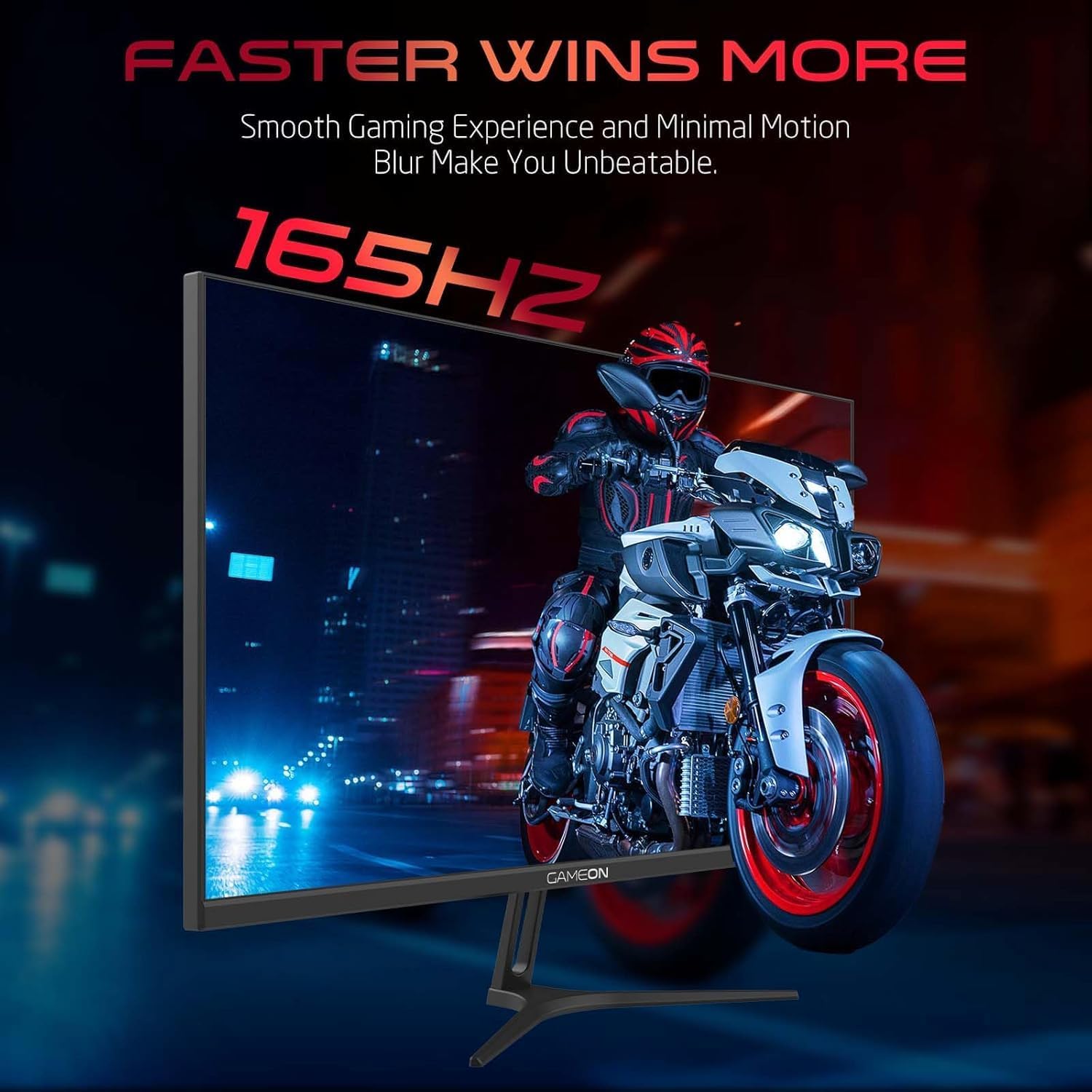
Image 3.1: Illustration of the monitor with its stand, ready for assembly.
3.2 Nascadh le Gléasanna
The monitor offers multiple input options. Choose the appropriate cable for your device (PC, gaming console, etc.).

Íomhá 3.2: Cúil view of the monitor, highlighting the input ports and VESA mounting points.

Image 3.3: Detailed diagram illustrating the various input/output ports and their corresponding devices.
- Ceangal HDMI: Connect one end of the HDMI cable to the HDMI output port of your device (PC, PS5, Xbox, TV box) and the other end to one of the HDMI 2.1 ports on the monitor.
- Ceangal DisplayPort: Connect one end of the DisplayPort cable to the DisplayPort output of your PC and the other end to one of the DisplayPort 1.4 ports on the monitor.
- Aschur Fuaime: For external audio, connect headphones or external speakers to the 3.5mm audio-out jack on the monitor.
3.3 Ceangal Cumhachta
- Connect the power adapter to the DC IN port on the monitor.
- Plug the power cable into the power adapter, then plug the other end of the power cable into a power outlet.
4. Treoracha Oibriúcháin
4.1 Cumhacht ar siúl / as
Brúigh an cnaipe cumhachta atá suite ar an monatóir chun é a chasadh air nó as. Lasfaidh an solas táscaire cumhachta nuair a bheidh an monatóir ar siúl.
4.2 Roghchlár Taispeána Ar-Scáileán (OSD).
The monitor features a menu button (often a joystick or a series of buttons) usually located on the back or bottom right of the monitor. Use this to navigate the OSD menu and adjust settings.
- Press the menu button to open the OSD menu.
- Bain úsáid as na rialuithe nascleanúna chun bogadh trí roghanna an roghchláir.
- Press the menu button again (or a designated 'Enter' button) to select an option.
- Use the navigation controls to adjust values or select sub-menus.
- Select 'Exit' or press the menu button repeatedly to close the OSD menu.
4.3 Socruithe OSD Coitianta
- Socruithe Pictiúir: Coigeartaigh gile, codarsnacht, géire, gáma, agus teocht datha.
- Socruithe Datha: Fine-tune RGB values, hue, and saturation.
- Foinse Ionchuir: Roghnaigh de láimh idir HDMI 1, HDMI 2, DisplayPort 1, nó DisplayPort 2.
- Fuaim: Adjust volume for built-in speakers or connected headphones.
- Gnéithe cluichíochta: Enable/disable Adaptive-Sync/FreeSync, adjust overdrive settings, and activate crosshair overlays if available.
4.4 PS5 120Hz Setup Guide
To enable 120Hz output on your PlayStation 5 with this monitor, follow these steps:

Image 4.1: Visual guide for configuring 120Hz refresh rate on a PlayStation 5 console.
- Enable 120Hz from PS5 Settings:
- Téigh go dtí Socruithe > Screen and Video > Aschur Físeáin.
- Socraigh Enable 120Hz Output chuig Uathoibríoch.
- Socraigh Rún chuig 1080p or Uathoibríoch. (Note: While the monitor supports 1440p, some PS5 games may require 1080p for 120Hz output.)
- Enable Performance Mode for Gamers:
- Téigh go dtí Socruithe > Save Data and Game App Settings > Cluiche Réamhshocruithe.
- Socraigh Mód Feidhmíochta mar an réamhshocrú.
- Check In-Game Settings:
- Go to the specific game's Socruithe cluiche > Socruithe Físeáin agus roghnaigh 120fps or Mód Feidhmíochta.
5. Cothabháil
5.1 Glanadh an Scáileáin
- Múch an monatóir agus díphlugáil an cábla cumhachta.
- Bain úsáid as éadach bog, saor ó lint go héadrom dample huisce nó le glantóir scáileáin speisialaithe.
- Wipe the screen gently. Do not press hard or use abrasive materials.
- Avoid using alcohol, ammonia, or benzene-based cleaners, as they may damage the screen surface.
5.2 Glanadh an Casing
- Bain úsáid as éadach bog, tirim chun an monatóir a ghlanadh.asing.
- Le haghaidh stains stubborn, go héadrom dampNigh an t-éadach le huisce agus glantach éadrom, ansin tirim é.
6. Fabhtcheartú
Má bhíonn fadhbanna agat le do mhonatóir, féach ar an treoir fabhtcheartaithe seo a leanas:
| Fadhb | Cúis Féideartha | Réiteach |
|---|---|---|
| Gan íomhá ar an scáileán | Gan chumhacht; Foinse ionchuir mhícheart; Cábla físe scaoilte | Ensure power cable is securely connected and power outlet is active. Press power button. Check OSD menu to select correct input source (HDMI/DP). Reconnect video cable firmly. |
| Tá an íomhá doiléir nó saobtha | Incorrect resolution; Video cable issue | Set display resolution to 2560x1440p in your device's display settings. Try a different video cable. |
| Gan fuaim | Volume too low; Incorrect audio output selected; Loose audio cable | Adjust monitor volume via OSD. Ensure monitor is selected as the audio output device on your PC/console. Check external audio cable connection if using headphones/speakers. |
| Scáileán flickering | Refresh rate mismatch; Adaptive-Sync/VRR issue | Ensure your device's refresh rate is set to 165Hz. If flickering persists with Adaptive-Sync/VRR enabled, try disabling it in the OSD or your graphics card settings. |
| Monitor not detected by PC/console | Video cable issue; Driver issue | Try a different video cable or port. Update your graphics card drivers. Restart your PC/console. |
7. Sonraíochtaí
Below are the technical specifications for the GAMEON Pro Series 27-inch Fast IPS Gaming Monitor (GOAE27QHD165IPS):
| Gné | Sonraíocht |
|---|---|
| Méid Taispeána | 27 orlach |
| Cineál Painéil | IPS tapa |
| Rún | QHD 2K (2560x1440p) |
| Ráta Athnuachana | 165 Hz |
| Am Freagartha | 0.5ms MPRT |
| Cóimheas Codarsnachta | 1000:1 |
| Gile | 280 (±30) nits typical |
| Viewing Uillinneacha | Leathan viewing angles (IPS technology) |
| Teicneolaíocht Sync Oiriúnaitheach | Adaptive-Sync, FreeSync, VRR Compatible |
| Nascacht | 2x HDMI 2.1, 2x DisplayPort 1.4, 1x Audio Out (3.5mm) |
| Fuaime | Built-in 4Ω2W speakers |
| Comhoiriúnacht Sliabh VESA | 100x100mm |
| Ionchur Cumhachta | Adaptóir seachtrach DC 12V 4A |
| Tomhaltas Cumhachta uasta | 48W |
| Toisí an Táirge (le seastán) | 16.2 x 61.4 x 45.3 cm |
| Meáchan Táirge | 5.84 kg |
| Uimhir Mhúnla | GOAE27QHD165IPS |
8. Barántas agus Tacaíocht
The GAMEON Pro Series 27-inch Fast IPS Gaming Monitor comes with a Barántas 2 bhliain ón dáta ceannaigh. Clúdaíonn an bharántas seo lochtanna déantúsaíochta faoi ghnáthúsáid. Coinnigh do chruthúnas ceannaigh le haghaidh éilimh bharántais.
For technical support, warranty inquiries, or service requests, please contact GAMEON customer service through their official website or the retailer where the product was purchased. Provide your monitor's model number (GOAE27QHD165IPS) and a detailed description of the issue to expedite assistance.