
Réamhrá
Thank you for choosing the OMOTON Wireless Bluetooth Keyboard. This ultra-slim keyboard is designed for seamless compatibility with various Mac devices, offering a stable and efficient typing experience. This manual provides detailed instructions for setup, operation, maintenance, and troubleshooting to ensure optimal performance of your device.

OMOTON Wireless Keyboard compatible with various Mac devices including iMac, Mac mini, and MacBook Pro/Air. System requirement: Mac OS X 10.10 or above.
Socrú
1. Suiteáil Battery
The OMOTON Wireless Bluetooth Keyboard requires two AAA batteries (not included). Follow these steps to install them:
- Locate the battery compartment on the back of the keyboard.
- Sleamhnán oscailt an clúdach ceallraí.
- Cuir isteach dhá chadhnraí AAA, ag cinntiú go bhfuil an polaraíocht cheart (+/-).
- Dún an clúdach ceallraí go daingean.
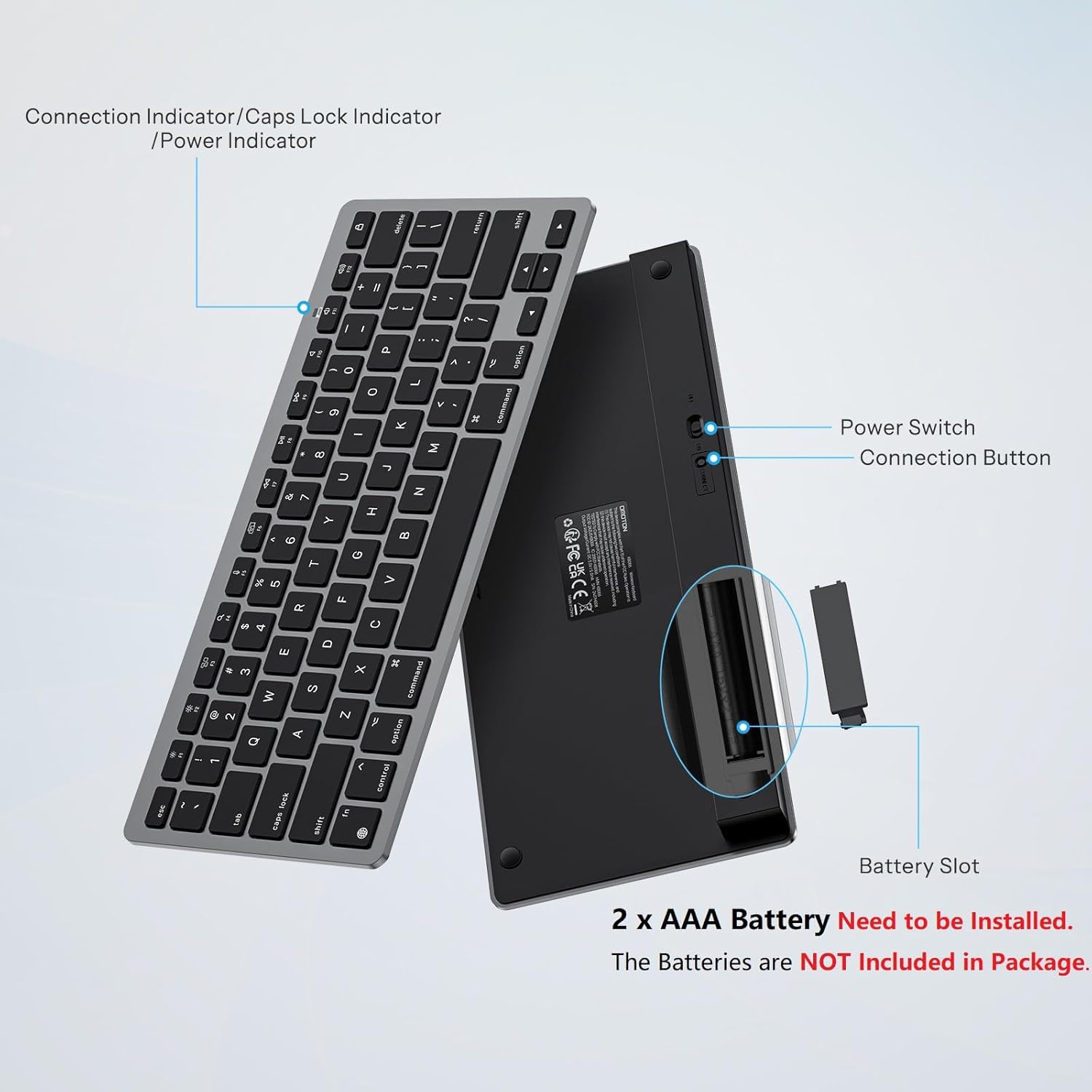
cúil view of the OMOTON Wireless Keyboard showing the power switch, connection button, and battery slot for two AAA batteries.
2. Péireáil Bluetooth
To connect your keyboard to your Mac device, follow these steps:
- Ensure the keyboard has fresh batteries installed.
- Locate the power switch on the back of the keyboard and slide it to the "ON" position.
- Press the "Connect" button on the back of the keyboard. The Bluetooth indicator light on the keyboard will begin to flash, indicating it is in pairing mode.
- On your Mac device, go to Socruithe an Chórais (nó Roghanna Córais) > Bluetooth.
- A chinntiú go ndéantar Bluetooth a chasadh air.
- Look for "KB066 Mac Keyboard" (or similar) in the list of available devices and click "Connect" or "Pair".
- Once connected, the Bluetooth indicator light on the keyboard will stop flashing.

Step-by-step visual guide for connecting the OMOTON Wireless Keyboard via Bluetooth to a Mac device.
The keyboard maintains a stable Bluetooth connection range of up to 33 feet (10 meters).
Treoracha Oibriúcháin
Clóscríobh Bunúsach
The keyboard features a standard QWERTY layout. The keys are designed for a quick and responsive typing experience.

Close-up of a key on the OMOTON Wireless Keyboard, illustrating the scissor-switch mechanism for quick and quiet typing.
Eochracha Ilmheáin
The top row of keys (F1-F12) provides dedicated multimedia and function controls for Mac devices. These include:
- F1/F2: Coigeartú gile
- F3: Rialú Misean
- F4: Cuardaigh
- F5: Deachtú
- F6: gabháil scáileáin
- F7/F8/F9: Rian Roimhe Seo, Súgradh/Sos, An Chéad Rian Eile
- F10/F11/F12: Balbhaigh, Imleabhar Síos, Imleabhar Suas
- Eject Key: Scáileán Glas

Layout of the OMOTON Wireless Keyboard highlighting the dedicated multimedia function keys for Mac.
Dearadh eirgeanamaíochta
The keyboard features an 8-degree tilt angle, designed to promote a comfortable typing posture and reduce strain during extended use. Four rubber feet on the bottom provide slip resistance for stability.

Taobh view of the OMOTON Wireless Keyboard demonstrating its 8-degree ergonomic tilt for comfortable typing.
Cothabháil
Glanadh
Chun cuma agus feidhmiúlacht an mhéarchláir a choinneáil:
- Use a soft, lint-free cloth to wipe the surface.
- Le haghaidh salachar righin, beagán dampNigh an t-éadach le huisce nó le tuaslagán glantacháin éadrom. Seachain taise iomarcach.
- Ná húsáid glantóirí scríobacha, tuaslagóirí, ná spraeanna aerasóil go díreach ar an méarchlár.
Athsholáthar Ceallraí
When the keyboard's performance degrades or it fails to connect, it may be time to replace the batteries. Refer to the "Battery Installation" section for instructions on replacing the two AAA batteries. The energy-saving design and auto-sleep mode allow for a battery replacement interval of up to 6 months under typical usage.
Fabhtcheartú
- Keyboard not connecting or frequently disconnecting:
- Ensure the keyboard is powered on and has fresh batteries.
- Verify that Bluetooth is enabled on your Mac device.
- Move the keyboard closer to your Mac to ensure it's within the 33-foot (10-meter) range.
- Try unpairing and re-pairing the keyboard through your Mac's Bluetooth settings. - Eochracha nach bhfuil ag freagairt:
- Check battery levels and replace if necessary.
- Ensure the keyboard is properly connected via Bluetooth.
- If the keyboard has been idle, it may be in auto-sleep mode. Press any key and wait 2-3 seconds for it to wake up. - Lag or delayed input:
- This could be due to interference. Try moving other wireless devices away from your keyboard and Mac.
- Ensure your Mac's operating system is up to date.
Sonraíochtaí
| Gné | Sonraigh |
|---|---|
| Branda | OMOTON |
| Múnla | B0DLMXVTHM |
| Gléasanna Comhoiriúnacha | Mac/iMac/Macbook/Laptop etc. (macOS 10.10 and later) |
| Teicneolaíocht Nascachta | Bluetooth |
| Cur síos ar an Méarchláir | Multimedia, Wireless |
| Úsáidí Molta | Oifig |
| Gné Speisialta | Eirgeanamaíochta, iniompartha |
| Dath | Dubh Liath |
| Ábhar | Plaisteach |
| Foinse Cumhachta | Cumhachtaithe ag Ceallraí (2 x AAA, nach bhfuil san áireamh) |
| Leagan Amach Méarchláir | QWERTY |
| Meáchan Mír | 11.7 unsa |
| Toisí Pacáiste | 11.38 x 5 x 0.94 orlach |

Dimensions of the OMOTON Wireless Keyboard (11.22 x 4.72 inches) shown in comparison to a MacBook and a smartphone.
Barántas agus Tacaíocht
OMOTON products are designed for reliability and performance. For specific warranty details, please refer to the warranty card included with your product packaging or visit the official OMOTON website. For technical support or further assistance, please contact OMOTON customer service through their official channels.