
Réamhrá
This manual provides essential information for the proper setup, operation, and maintenance of your Anmite Portable Monitor. Please read this guide thoroughly before using the product to ensure optimal performance and longevity.
Ábhar an Phacáiste
- Anmite Portable Monitor x 1
- Mini-HDMI to HDMI cable x 1
- Cábla Cineál-C go Cineál-C x 1
- Type-C to USB-A cable x 1
- Lámhleabhar úsáideora x1 saor in aisce,
Sonraíochtaí
| Meáchan Glan | 0.7kg (1.54 lb) |
| Toisí | 360 x 225 x 5-10 mm (14.17 x 8.86 x 0.2-0.39 orlach) |
| Méid an Scáileáin | 16 orlach |
| Cineál Painéil | IPS |
| Cóimheas Gné | 16:10 |
| Rún | 2560 x 1600 (2.5K QHD) |
| Taispeáin Dath | 16.7M |
| Teocht Dath | 6800K |
| Uillinn Amharc | H: 178 ° V: 178 ° |
| Réimse Amhairc | 344.16 x 194.59 mm |
| Cóimheas Codarsnachta | 1000:1 |
| Gile | 280cd/m² |
| Dath Gamut | 100% sRGB |
| Ráta Athnuachana | 144 Hz |
| Comhéadan ionchur | Mini-HDMI, Type-C (Full Function) x 2 |
| Comhéadan Aschuir | Comhéadan fuaime 3.5mm |
| Cainteoir | Built-in speakers (1W*2) |
| Tomhaltas Cumhachta | Thart. 12 Watt |
Táirge Tharview
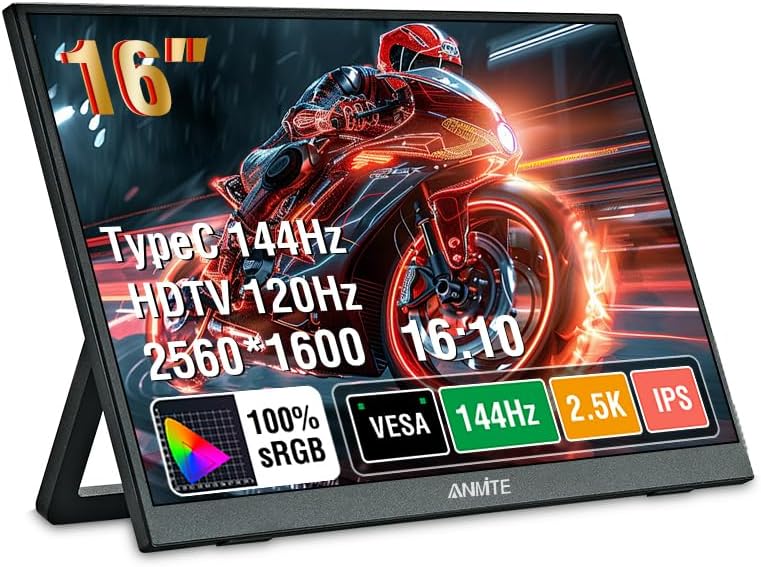
Image: Anmite Portable Monitor showcasing its display capabilities with vibrant gaming graphics.
The Anmite Portable Monitor is a compact and versatile display designed for various uses, including extending your laptop screen, gaming, or mobile entertainment. Its slim metal enclosure and lightweight design make it highly portable.
Physical Features and Ports
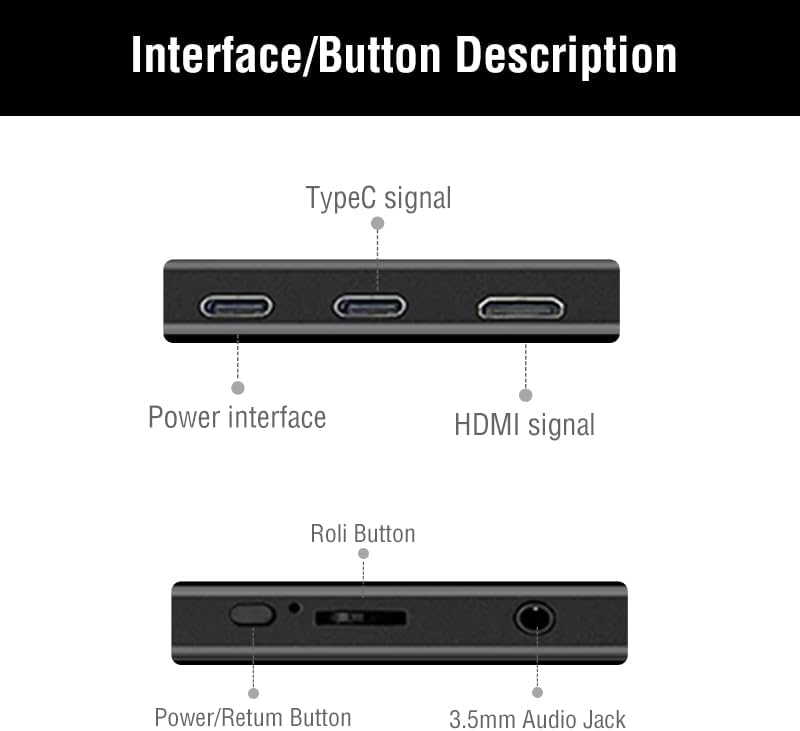
Image: Detailed diagram illustrating the monitor's interface ports and control buttons.
- Comhéadain Ionchuir: Two full-function Type-C (USB-C) ports and one Mini-HDMI port for video signal transmission.
- Comhéadan Aschuir: A 3.5mm audio jack for connecting headphones or external speakers.
- Cnaipí Rialaithe: A toggle button for menu navigation, volume control, and power on/off.
- Cainteoirí Tógtha: Dual 1W speakers provide audio output.
- Magnetic Cover: The included magnetic cover protects the screen and doubles as an adjustable stand.
- Comhoiriúnacht Sliabh VESA: Features wall mounting holes (7.5cm x 7.5cm spacing) on the rear for alternative installation.
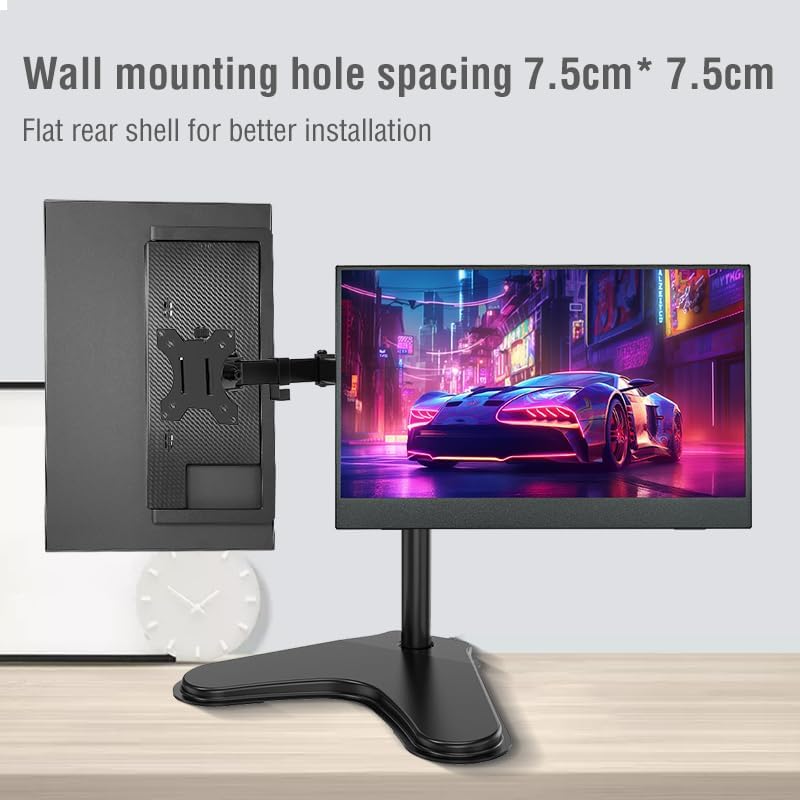
Íomhá: Cúl view of the monitor highlighting the 7.5cm x 7.5cm VESA wall mounting holes for secure installation.
Treoir Socraithe
Follow these steps to connect and set up your Anmite Portable Monitor.
1. Ceangal Cumhachta
- Connect the provided Type-C to USB-A cable to one of the monitor's Type-C ports and a compatible power adapter (not included) or a USB-A port on your host device for power.
- Alternatively, if your host device supports power delivery via Type-C, a single full-function Type-C cable can provide both power and video.

Image: The portable monitor demonstrating multiple power supply methods, including connection to a power bank and a laptop via USB-C.
2. Ceangal Físeáin
Roghnaigh ceann amháin de na modhanna ceangail seo a leanas:
- Type-C (Full Function): Use the provided Type-C to Type-C cable to connect the monitor to a device with a full-featured USB-C port (supports video output and power delivery). This is the simplest connection for compatible devices.
- Mini-HDMI: Use the provided Mini-HDMI to HDMI cable to connect the monitor to a device with an HDMI output. Ensure the monitor is also powered via a separate Type-C to USB-A cable or a power adapter.
Note: Ensure your device's Type-C interface is full-featured for video output. If it is only for charging, it will not transmit video signals.
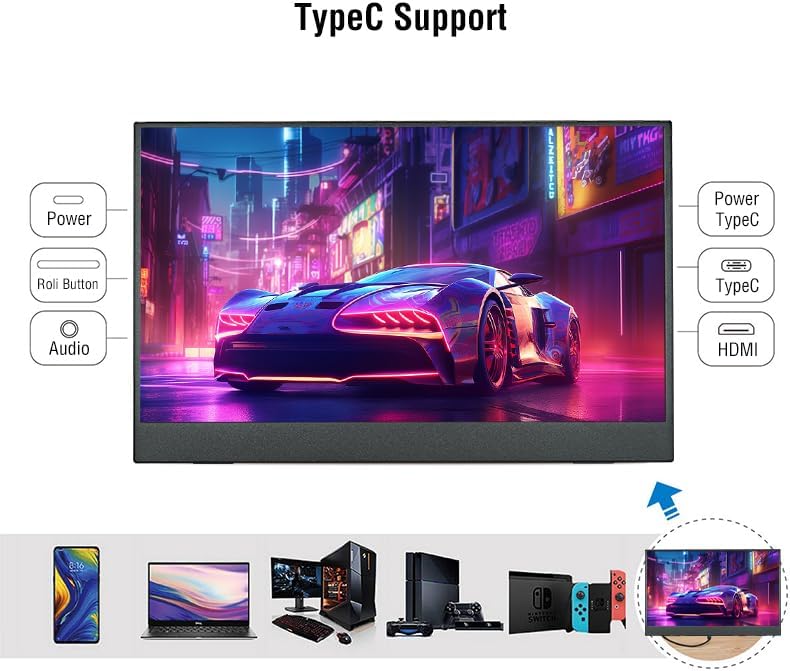
Image: The monitor displaying its compatibility with multiple devices, including smartphones, laptops, and gaming consoles, through Type-C and HDMI connections.
3. Display Settings (Windows/macOS)
After connecting, your operating system should detect the new display. You may need to adjust display settings:
- Leathnaigh an Taispeántas: To use the portable monitor as a secondary screen, allowing you to drag windows between displays.
- Duplicate Display: To mirror your primary screen's content onto the portable monitor.
- Taifeach: Set the resolution to 2560x1600 for optimal clarity.
- Ráta Athnuachana: Adjust to 144Hz for smoother visuals, especially for gaming.
Treoracha Oibriúcháin
1. Using the Magnetic Cover/Stand
The included magnetic cover can be folded to create a stand, allowing you to position the monitor at various viewing angles. Simply fold the cover into a triangular shape and place the monitor into the grooves for stability.
2. Roghchlár Taispeána Ar-Scáileán (OSD).
Use the toggle button on the side of the monitor to access and navigate the OSD menu. This menu allows you to adjust various display settings:
- Gile/Codarsnacht: Adjust screen luminance and contrast levels.
- Socruithe Datha: Modhnaigh teocht an datha, an lí agus an sháithiúlacht.
- Fuaim: Control volume for built-in speakers or connected headphones.
- Foinse Ionchuir: Manually select between Type-C and Mini-HDMI inputs.
- Socruithe Eile: Access advanced display options.
3. Cásanna Úsáide

Image: The monitor adapts to different environments, including casual viewing, gaming, watching films, and professional office tasks.
- Extended Office: Enhance productivity by using the monitor as a second screen for your laptop, allowing for more workspace.
- Cearrbhachas: Connect to gaming consoles (Xbox, PS4, Nintendo Switch) or gaming PCs for a high-refresh-rate, portable gaming experience.
- Siamsaíocht Soghluaiste: Connect to smartphones (with full-function Type-C) for watching videos or browsing content on a larger display.
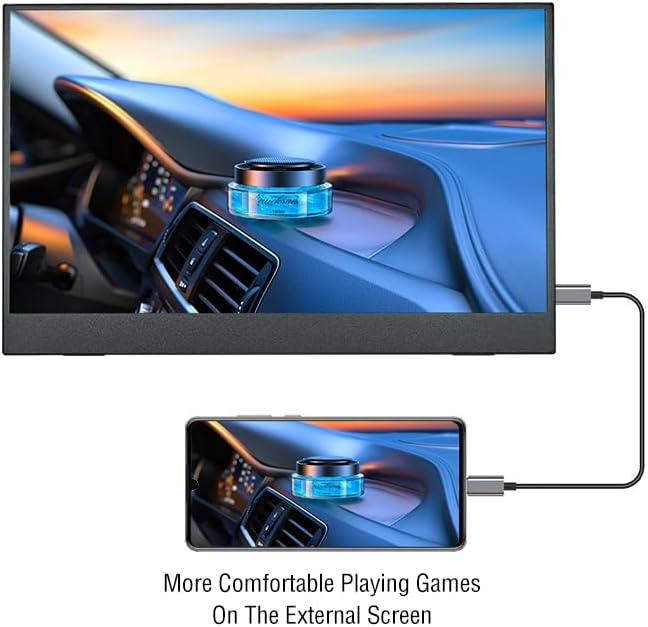
Image: A smartphone connected to the portable monitor, providing a larger display for an enhanced mobile gaming experience.
Cothabháil
- Glanadh: Use a soft, lint-free cloth to clean the screen. For stubborn marks, lightly dampNigh an t-éadach le huisce nó le tuaslagán glantacháin scáileáin. Seachain ceimiceáin ghéara.
- Stóráil: When not in use, store the monitor in its magnetic cover to protect the screen from scratches and dust.
- Láimhseáil: Handle the monitor with care to prevent drops or impacts, which could damage the screen or internal components.
Fabhtcheartú
- Gan Comhartha:
- Cinntigh go bhfuil gach cábla ceangailte go daingean.
- Verify the monitor is receiving power.
- Check if your device's Type-C port supports video output.
- Try selecting the input source manually via the OSD menu.
- Gan Fuaim:
- Seiceáil na socruithe toirte ar an monatóir (tríd an OSD) agus ar do ghléas ceangailte araon.
- Ensure no headphones are plugged into the 3.5mm audio jack if you intend to use the built-in speakers.
- Taispeáint Flickering:
- Cinntigh go bhfuil dóthain cumhachta á fháil ag an monatóir.
- Bain triail as cábla nó port difriúil.
- Coigeartaigh an ráta athnuachana i socruithe taispeána do ghléis.
Barántas agus Tacaíocht
For warranty information and technical support, please refer to the included User Guide or visit the official Anmite websuíomh. Coinnigh d’admháil cheannaigh le haghaidh éilimh bharánta.