
Réamhrá
Go raibh maith agat as an gceannachasing the KTC H27S17 27-inch WQHD 180Hz Curved Gaming Monitor. This manual provides essential information for the safe and efficient use of your new monitor. Please read it thoroughly before use and retain it for future reference.
Táirge Tharview Físeán
Físeán: Taispeántas físe táirge oifigiúilasing the key features and design of the KTC H27S17 27-inch Curved Gaming Monitor.
Ábhar an Phacáiste
Deimhnigh go bhfuil na míreanna go léir atá liostaithe thíos san áireamh i do phacáiste:
- Cábla Cumhachta
- Taispeáin Cábla
- Cuibheoir Cumhachta
- Monatóireacht a dhéanamh ar Seastán
- Bonn Seas
- CD tiománaí (nó nasc íoslódála)
- Scriúnna Gléasta
- Instruction Manual (Japanese version)
- Treoir Tosaigh Tapa
- Cárta Bharántas
Treoracha Socraithe
1. An Seastán a Chéile
Attach the stand base to the monitor stand using the provided screws. Then, securely attach the assembled stand to the back of the monitor.
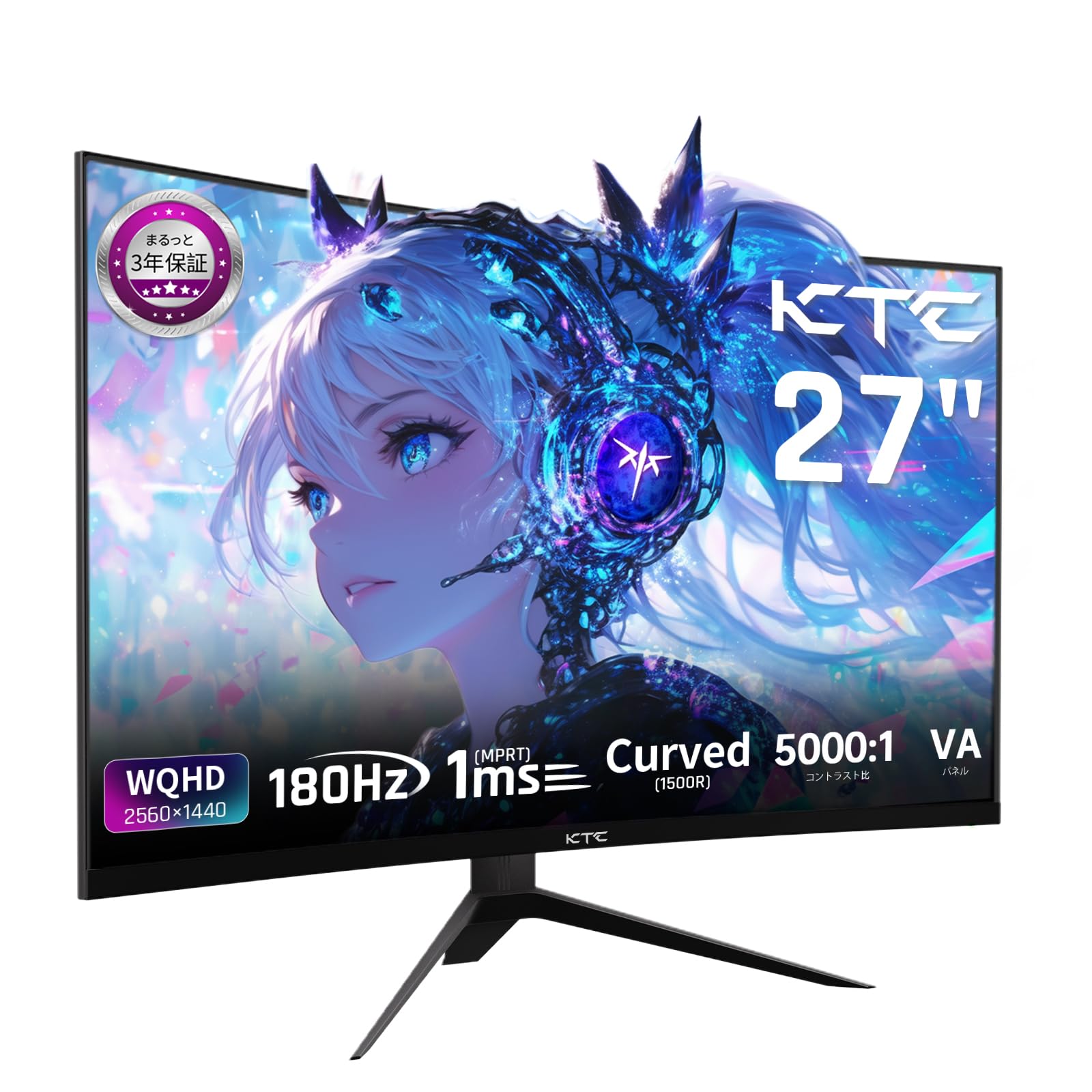
Image: The KTC H27S17 monitor fully assembled with its stand, viewed ón tosaigh.
2. Ag Ceangal le Foinse Cumhachta
Ceangail an t-oiriúntóir cumhachta le port ionchuir DC an mhonatóra, ansin breiseán an cábla cumhachta isteach i soicéad balla.
3. Ag Ceangal le Gléas
Use the appropriate cable (DisplayPort or HDMI) to connect your computer or gaming console to the monitor. Ensure the cable is securely connected to both the monitor and your device.

Íomhá: Cúl view of the monitor showing the various input ports including DC, USB, HDMI, DisplayPort, and headphone jack.
4. Gléasadh VESA (Roghnach)
The monitor supports VESA 100mm x 100mm mounting. If using a VESA mount, remove the stand and attach the monitor to your VESA-compatible arm or wall mount using appropriate screws.
Image: Diagram illustrating the VESA 100x100mm mounting pattern and tilt adjustment range on the back of the monitor.
Treoracha Oibriúcháin
Cumhacht ar / As
Press the power button, usually located on the back or bottom of the monitor, to turn it on or off. The power indicator light will illuminate when the monitor is on.
Roghchlár Taispeáin Ar an Scáileán (OSD)
Use the joystick or buttons on the monitor to navigate the OSD menu. This menu allows you to adjust various display settings such as brightness, contrast, color temperature, input source, and gaming features.
Roghnú Foinse Ionchuir
If multiple devices are connected, use the OSD menu to select the desired input source (HDMI 1, HDMI 2, DisplayPort 1, DisplayPort 2).
Gnéithe Taispeána
Curved Display (1500R)
Soláthraíonn an cuar 1500R tumoideachas viewing experience, reducing eye strain during extended use by matching the natural curve of the human eye.

Image: A curved monitor displaying a vibrant image, highlighting the 1500R curvature for an immersive experience.
WQHD Resolution (2560x1440)
Experience detailed visuals with WQHD (2560x1440) resolution, offering approximately 1.7 times the pixel density of Full HD displays.

Image: A monitor displaying a high-resolution image, emphasizing the clarity of WQHD (2560x1440) compared to lower resolutions.
High Refresh Rate (180Hz) and Fast Response Time (1ms MPRT)
The 180Hz refresh rate and 1ms (MPRT) response time ensure smooth, blur-free visuals, crucial for fast-paced gaming and action scenes.

Image: A split screen comparison on the monitor, demonstrating the difference between 180Hz/1ms and 60Hz/5ms, highlighting reduced motion blur.
Vibrant Color Reproduction and HDR10
With sRGB 132%, DCI-P3 104%, Adobe RGB 112% color volume, and HDR10 support, the monitor delivers accurate and vivid colors with enhanced contrast between bright and dark areas.

Image: A monitor displaying a colorful scene, illustrating the wide color gamut and high contrast ratio (5000:1).
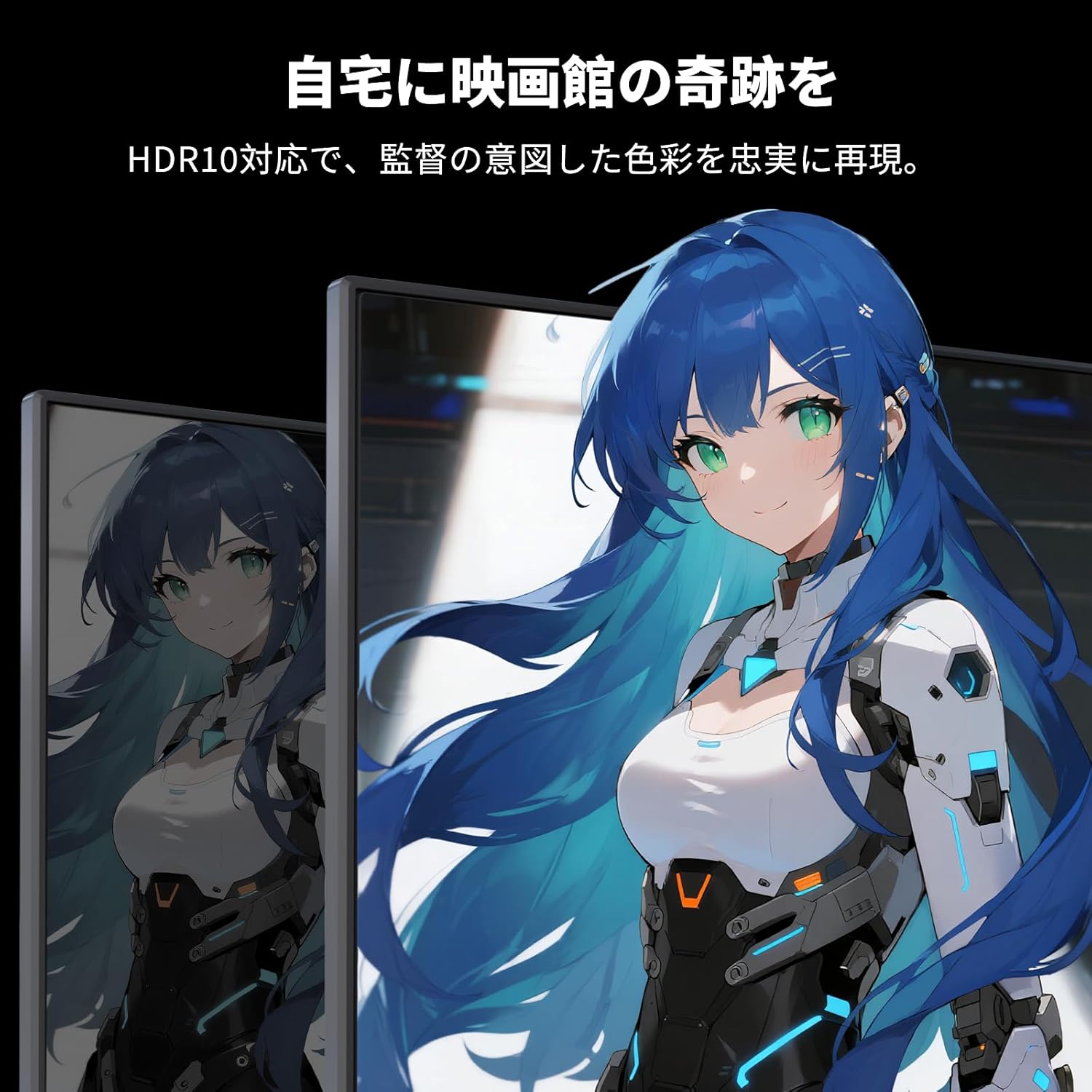
Image: A monitor showing a scene with HDR10 enabled, demonstrating improved dynamic range and detail in both bright and dark areas.
Teicneolaíocht Sync Oiriúnaitheach
Adaptive Sync (FreeSync and G-Sync compatible) eliminates screen tearing and stuttering, providing a fluid gaming experience.

Image: A split screen comparison on the monitor, showing the difference between Adaptive Sync OFF (screen tearing) and ON (smooth image).
Gnéithe Cúraim Súile
The monitor includes Flicker-Free technology and a Low Blue Light mode to reduce eye strain during prolonged use.

Image: Illustrations demonstrating Flicker-Free technology and Low Blue Light mode, designed to reduce eye fatigue.
Nascacht
The KTC H27S17 monitor offers multiple connectivity options:
- 2 x HDMI 2.0: Supports WQHD (2560x1440) at 144Hz.
- 2 x DisplayPort 1.4: Supports WQHD (2560x1440) at 180Hz.
- 1 x USB 2.0: For firmware upgrades only.
- 1 x 3.5mm Headphone Jack: Le haghaidh aschur fuaime.
- 1 x DC Input: Le haghaidh nasc cumhachta.
Íomhá: Mionsonraithe view of the monitor's rear panel, highlighting the DC input, USB port, HDMI ports, DisplayPort inputs, and headphone jack.
Physical Adjustments
Coigeartú Tilt
The monitor stand allows for tilt adjustment from -5 to 15 degrees, enabling you to find an optimal viewuillinn do chompord.
Image: Diagram illustrating the tilt adjustment range of the monitor stand.
Comhoiriúnacht VESA
The monitor is compatible with VESA 100mm x 100mm mounting standards, allowing for flexible installation with monitor arms or wall mounts.
Cothabháil
Glanadh an Scáileáin
Cuimil an scáileán go réidh le héadach bog, saor ó lint. I gcás marcanna righne, glan go héadrom é.ampNigh an t-éadach le huisce nó le tuaslagán glantacháin scáileáin. Seachain ceimiceáin ghéara nó ábhair scríobacha a úsáid.
Cleaning the Monitor Body
Wipe the monitor body with a soft, dry cloth. Do not use liquid cleaners directly on the monitor.
Stóráil
Nuair nach bhfuil sé in úsáid ar feadh tréimhsí fada, stóráil an monatóir in áit fhionnuar tirim, amach ó sholas díreach na gréine agus ó theocht mhór.
Fabhtcheartú
Má bhíonn fadhbanna agat le do mhonatóir, féach ar na réitigh choitianta seo a leanas:
- Gan Cumhacht: Ensure the power cable and adapter are securely connected and the power outlet is functional.
- Gan Comhartha: Verify that the input cable (HDMI/DisplayPort) is correctly connected to both the monitor and the source device. Select the correct input source via the OSD menu.
- Íomhá ag Glioscarnach/Saobhtha: Check cable connections. Ensure your graphics card drivers are up to date. Try adjusting the refresh rate in your device's display settings.
- Picteilíní Marbh: While rare, a small number of dead pixels may be within manufacturing tolerances. Refer to the warranty policy for details.
- Audio Issues (Headphone Jack): Ensure headphones are fully plugged in. Check audio settings on your connected device.
For further assistance, please contact KTC customer support.
Sonraíochtaí
| Gné | Sonraíocht |
|---|---|
| Branda | KTC |
| Múnla | H27S17 |
| Méid an Scáileáin | 27 orlach |
| Rún | WQHD (2560 x 1440 pixels) |
| Cóimheas Gné | 16:9 |
| cuaire | 1500R |
| Cineál Painéil | VA |
| Ráta Athnuachana | 180 Hz |
| Am Freagartha | 1 ms (MPRT) |
| Cóimheas Codarsnachta | 5000:1 |
| Gile | 300 cd/m² |
| Dath Gamut | sRGB 132% / DCI-P3 104% / Adobe RGB 112% |
| Tacaíocht HDR | HDR10 |
| Sync Oiriúnaitheach | FreeSync, G-Sync Compatible |
| Nascacht | 2x HDMI 2.0, 2x DisplayPort 1.4, 1x USB 2.0 (Upgrade only), 1x Headphone Jack |
| Sliabh VESA | 100mm x 100mm |
| Coigeartú Tilt | -5 go 15 céim |
| Gnéithe Cúraim Súile | Gan Flicker, Solas Gorm Íseal |
Barántas agus Tacaíocht
KTC provides a 3-year warranty and a 12-month exchange service for this product. For any questions or issues, please contact customer support.
- Fón: 050-3606-8990
- Ríomhphost: tacaíocht@ktcplay.com

Image: Information regarding KTC's 3-year warranty and contact details for customer support.
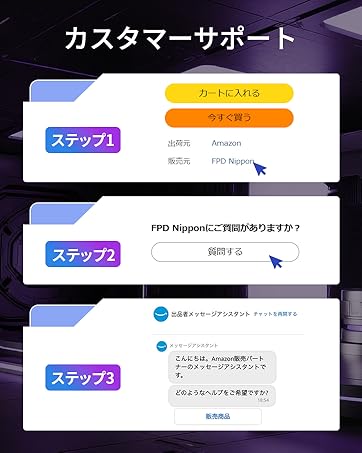
Image: Step-by-step guide on how to contact customer support via Amazon.