
1. Réamhrá
Thank you for choosing the Zelotes Wireless Trackball Mouse. This ergonomic device is designed to provide comfort and efficiency for various computing tasks, reducing wrist and arm strain. It offers versatile connectivity options, including 2.4 GHz wireless and Bluetooth, allowing seamless switching between up to three devices. This manual provides detailed instructions for setup, operation, maintenance, and troubleshooting to ensure you get the most out of your new trackball mouse.

Image: The Zelotes F33 Wireless Trackball Mouse, showcasing its ergonomic design and trackball.
2. Gnéithe Táirgí
- Dearadh eirgeanamaíochta: Utilizes a trackball for cursor movement, minimizing wrist and arm motion. Features an innovative adjustable angle (0° to 18°) with a removable aluminum alloy base for natural palm positioning and reduced fatigue during prolonged use.
- Nascacht Ilmhód: Supports both 2.4 GHz USB wireless and Bluetooth connections. Connects simultaneously to three devices (one via USB, two via Bluetooth) and allows seamless switching between them.
- Ceallraí In-athluchtaithe Insuite: Equipped with a 730mAh rechargeable Lithium-ion battery and includes a USB charging cable. The mouse can be used while charging.
- DPI inchoigeartaithe: Offers 5 adjustable DPI settings: 800, 1200, 1600, 2400, and 4800 DPI, allowing you to customize cursor sensitivity to your preference.
- 8 Cnaipe Ríomhchláraithe: Includes standard left/right click, scroll wheel, and dedicated forward/back side buttons for enhanced navigation and file bainistíochta.
- Soilsiú LED: Features vibrant LED lighting with 16.8 million color options, which can be turned off if desired.
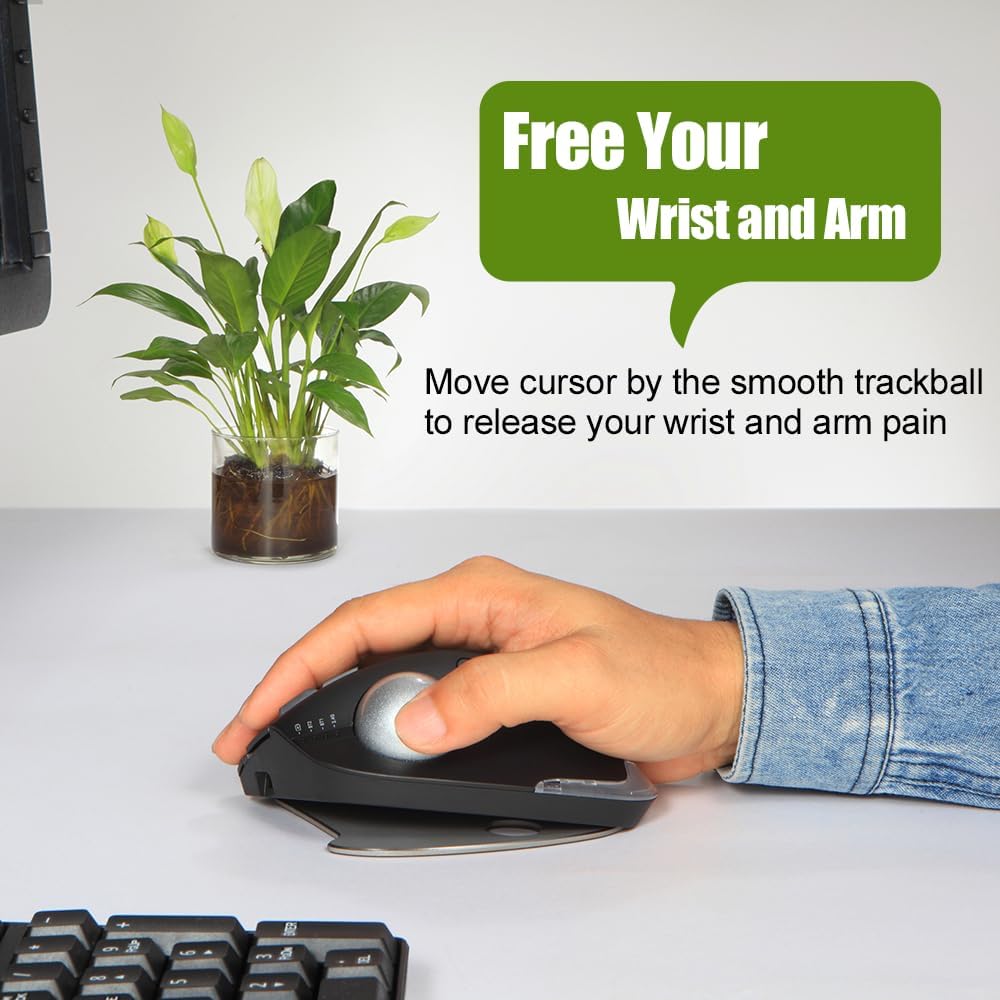
Image: A hand resting comfortably on the trackball mouse, illustrating how it helps free the wrist and arm from strain.

Image: The trackball mouse demonstrating its adjustable angles (0° and 18°) for personalized comfort.
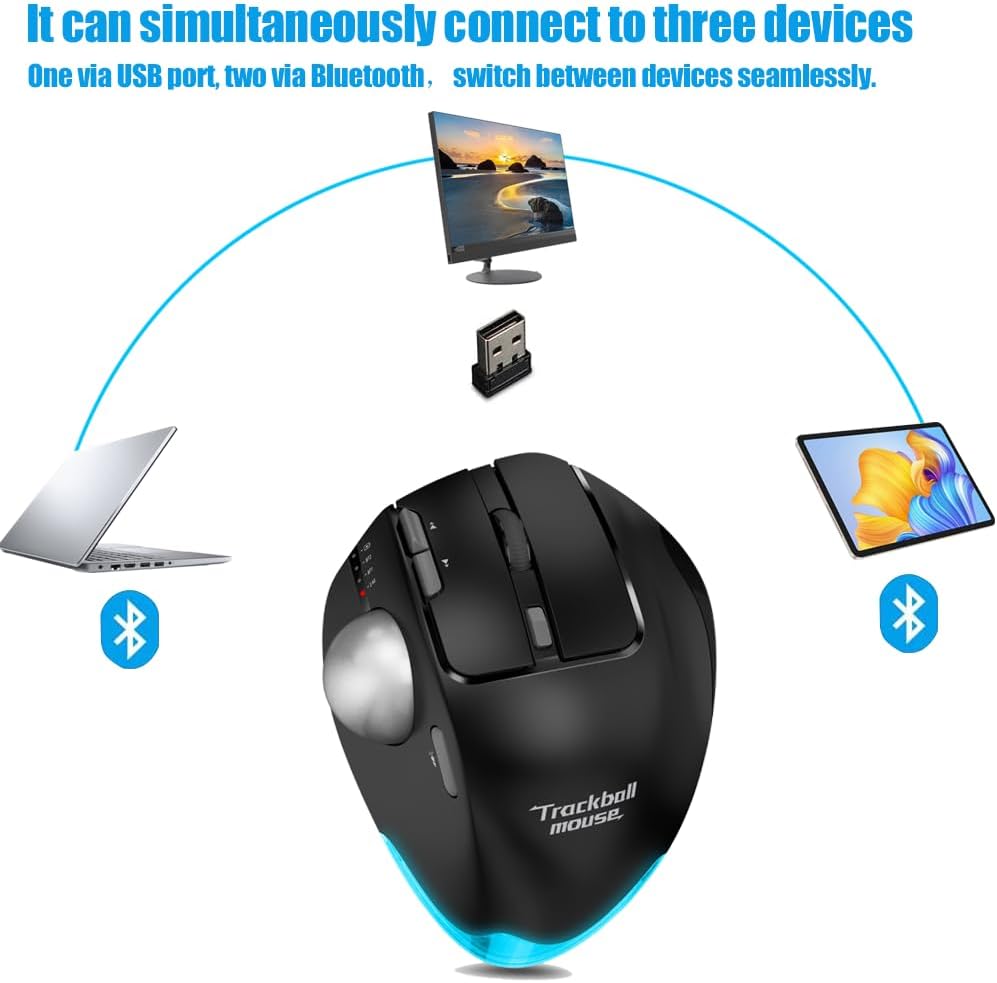
Image: Diagram showing the trackball mouse simultaneously connected to a laptop (Bluetooth), desktop (USB), and tablet (Bluetooth).

Image: The trackball mouse being charged via a USB cable, with an indicator showing its 730mAh battery capacity.

Image: The trackball mouse displaying its customizable LED lighting in various colors.
3. Ábhar Pacáiste
Seiceáil an pacáiste le do thoil le haghaidh na míreanna seo a leanas:
- Zelotes Wireless Trackball Mouse (F33)
- Glacadóir USB (stóráilte i gceallraí an luiche)
- Cábla Muirearú USB
- Lámhleabhar Úsáideora (an doiciméad seo)
4. Socrú
4.1 Muirearú Tosaigh
For optimal performance, fully charge the mouse before first use.
- Connect the provided USB charging cable to the charging port on the front of the mouse.
- Ceangail an ceann eile den chábla USB le foinse cumhachta USB (m.sh., port USB ríomhaire, oiriúntóir balla USB).
- The charging indicator light will illuminate. Once fully charged, the light may change color or turn off (refer to mouse indicators for specific behavior).
4.2 Nasc Gan Sreang 2.4 GHz
Úsáideann an mód seo an glacadóir USB atá san áireamh le haghaidh nasc gan sreang cobhsaí.
- Locate the USB receiver, usually stored in a slot on the bottom of the mouse.
- Plug an glacadóir USB isteach i bport USB atá ar fáil ar do ríomhaire.
- Cas ar an luch ag baint úsáide as an lasc cumhachta ar an mbun.
- Switch the mouse to 2.4G mode (indicated by a specific light or switch position, refer to mouse markings). The mouse should automatically connect to your computer.
4.3 Nasc Bluetooth (BT1 / BT2)
The mouse supports two independent Bluetooth connections.
- Cas ar an luch.
- Switch the mouse to either BT1 or BT2 mode using the mode switch on the mouse. The corresponding indicator light will blink, indicating pairing mode.
- Ar do ghléas (ríomhaire, táibléad, fón cliste), téigh go socruithe Bluetooth agus déan cuardach ar ghléasanna nua.
- Select "Zelotes F33" (or similar name) from the list of available devices to pair.
- Once paired, the indicator light will become solid. Repeat for a second Bluetooth device using the other BT mode (BT2 if you used BT1 first).
4.4 Athrú idir Gléasanna
To switch between connected devices (2.4G, BT1, BT2), simply use the mode switch button on the mouse. The mouse will seamlessly transition control to the selected device.
5. Treoracha Oibriúcháin
5.1 Coigeartú PSO
The mouse features a dedicated DPI button to cycle through sensitivity settings.
- Press the DPI button (usually located near the scroll wheel or trackball) to change the cursor speed.
- The available DPI settings are 800, 1200, 1600, 2400, and 4800.
- Observe the indicator lights or on-screen feedback (if supported by your OS) to confirm the current DPI setting.
5.2 Feidhmeanna Cnaipe
The Zelotes F33 mouse has 8 buttons with default functions:
- Cliceáil ar Chlé: Standard selection.
- Cliceáil ar dheis: Roghchlár comhthéacs.
- Roth Scrollaigh: Vertical scrolling; press for middle click.
- Cnaipí Ar Aghaidh/Ar Ais: Déan nascleanúint web leathanaigh nó fillteáin.
- Cnaipe DPI: Adjust cursor sensitivity.
- Cnaipe Athraigh Mód: Switch between 2.4G, BT1, and BT2 modes.
- Rianpheil: Move the cursor by rotating the trackball with your thumb.
Note: Some buttons may be programmable via software (not included) for custom functions depending on your operating system.
5.3 Ergonomic Angle Adjustment
The mouse comes with a removable aluminum alloy base that allows you to adjust its angle for improved comfort.
- Gently detach the base from the bottom of the mouse.
- Reattach the base in the desired orientation to achieve either a 0° (flat) or 18° (tilted) angle.
- Ensure the base is securely attached before use.
6. Cothabháil
6.1 Trackball Cleaning Guide
Regular cleaning of the trackball ensures smooth and precise cursor movement.
- Céim 1: The trackball can be pushed out from the trackball socket at the bottom of the mouse.
- Céim 2: Remove the trackball and gently clean the trackball socket with a cotton cloth.
- Céim 3: Place the trackball back into the mouse to complete the cleaning process.

Image: A visual guide demonstrating the three steps to disassemble and clean the trackball for smoother operation.

Image: The trackball separated from the mouse, showing the socket for cleaning.
* If the surface of the trackball needs cleaning, gently wipe it with water and allow it to air dry. Avoid using chemical agents.
6.2 Glantachán Ginearálta
Wipe the exterior of the mouse with a soft, dry, or slightly damp éadach. Ná húsáid ceimiceáin gharbh ná glantóirí scríobacha.
6.3 Cúram Ceallraí
Chun saolré na ceallraí a fhadú, seachain an luch a dhíluchtú go hiomlán go minic. Muirearaigh í nuair a bhíonn an táscaire ceallraí íseal le feiceáil.
7. Fabhtcheartú
| Fadhb | Cúis Féideartha | Réiteach |
|---|---|---|
| Mouse not responding / Cursor erratic | Low battery; Trackball dirty; Connection issue; USB receiver not plugged in (2.4G mode) | Charge the mouse; Clean the trackball and socket (refer to Section 6.1); Re-pair Bluetooth or re-insert USB receiver; Ensure correct mode is selected. |
| Ní féidir ceangal via Bluetooth | Mouse not in pairing mode; Device Bluetooth off; Already connected to max devices | Ensure mouse is in BT1/BT2 pairing mode (blinking light); Turn on Bluetooth on your device; Disconnect from another device if necessary. |
| Ní bhíonn an luch ag muirearú | Cable faulty; Power source issue; Charging port damaged | Try a different USB cable; Use a different USB port or power adapter; Contact customer support if port is damaged. |
| Cnaipí nach bhfuil ag obair | Software conflict; Physical damage | Restart your computer; Test on another device; Contact customer support. |
8. Sonraíochtaí
| Gné | Sonraíocht |
|---|---|
| Branda | zelotes |
| Ainm an tSamhail | F-33 (F33) |
| Dath | Dubh |
| Teicneolaíocht Nascachta | Bluetooth, 2.4 GHz USB Wireless |
| Teicneolaíocht Braite Tairisceana | Liathróid rian |
| Líon na gCnaipí | 8 |
| Socruithe DPI | 800 / 1200 / 1600 / 2400 / 4800 |
| Treoshuíomh Láimhe | Ceart |
| Cineál Battery | Litiam-ian |
| Cumas Battery | 730 mAh (thart ar) |
| In-athluchtaithe | Tá |
| Córais Oibriúcháin Comhoiriúnacha | Win11, Win10, Win8, Win7, Mac OS, Chrome OS, Android 5.0 or later |
| Gléasanna Comhoiriúnacha | Personal computer, Tablet, Smartphone, Game console |
| Gnéithe Speisialta | Programmable button, Ergonomic design, LED light, Rechargeable, Adjustable angle (0°/18°) |
9. Barántas agus Tacaíocht
Zelotes products are manufactured to high-quality standards. For information regarding warranty coverage, technical support, or service inquiries, please refer to the warranty card included with your product or visit the official Zelotes websuíomh. Coinnigh do chruthúnas ceannaigh le haghaidh éilimh bharántais.