
1. Réamhrá
Thank you for choosing the Baseus 240W Smart Charging Station. This 5-in-1 desktop USB-C charger features a digital LED display and supports PD 3.1 for fast charging of multiple devices, including laptops and smartphones. This manual provides detailed instructions for setup, operation, and maintenance to ensure optimal performance and safety.
2. Cad atá san áireamh
Deimhnigh le do thoil go bhfuil na hearraí uile i láthair i do phacáiste:
- 1 x Baseus 240W 5-Port Intelligent Fast Charger
- 1 x Cábla Muirir USB-C 240W
- 1 x Cuibheoir DC Leid Chearnógach
- 2 x Oiriúntóir DC Barr Babhta
- 1 x lámhleabhar úsáideora
Video: Unboxing and contents of the Baseus 240W Smart Charging Station.
3. Táirge Tharview
The Baseus 240W Smart Charging Station is designed for efficiency and versatility, featuring multiple ports and smart functionalities.
3.1 Cumraíocht Calafoirt

Íomhá: Tosaigh view of the Baseus 240W Smart Charging Station, highlighting its 1 DC port, 3 USB-C ports, and 1 USB-A port.
The charging station includes 1 DC port, 3 USB-C ports, and 1 USB-A port, allowing for simultaneous charging of up to 5 devices.
3.2 Intelligent Display and App Control
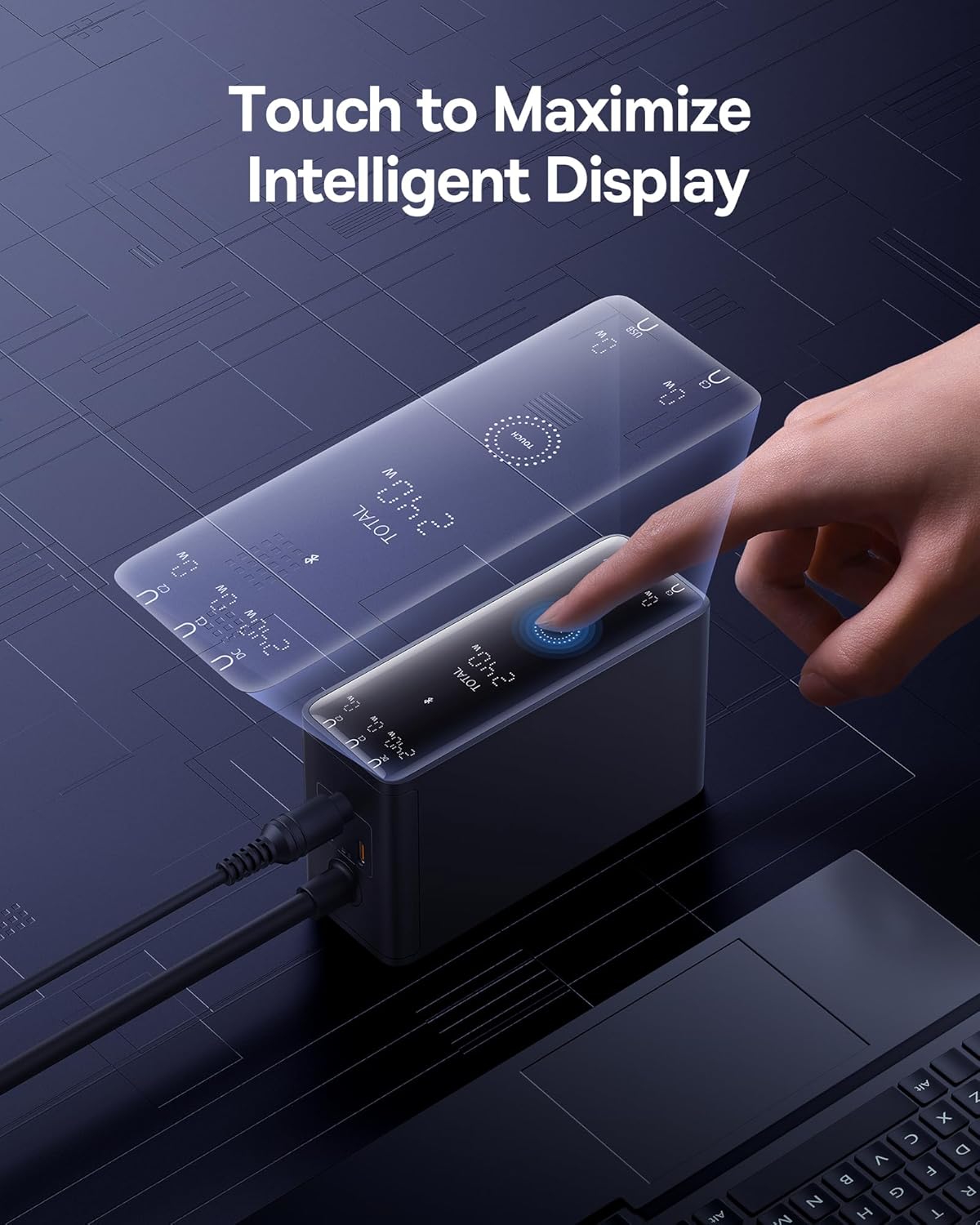
Image: A hand touching the intelligent display of the charging station, showing real-time charging information.
The integrated digital LED display provides real-time charging status. Additionally, the Baseus smart app allows for remote control and monitoring of charging options.

Image: A smartphone displaying the Baseus app interface, demonstrating features like temperature surveillance, maximum output power regulation, charging safety surveillance, and remote control.
3.3 Advanced Cooling Technology

Íomhá: Pléascán view diagram showing the internal cooling technologies: Graphene Cooling Technology, Glue-Fill Technology, and Baseus Cooling Technology (BCT).
The charger incorporates Graphene Cooling Technology, Glue-Fill Technology, and Baseus Cooling Technology (BCT) to ensure efficient heat dissipation and stable performance.
4. Treoracha Socraithe
Follow these steps to set up your Baseus 240W Smart Charging Station:
- Ceangail le Cumhacht: Plug the charging station into a wall outlet using the provided power cable. The digital display will illuminate.
- Ceangail Gléasanna:
- For USB-C devices (laptops, smartphones, tablets): Use the provided 240W USB-C charging cable or other compatible USB-C cables to connect your devices to the USB-C ports.
- For DC-powered laptops: Connect the DC power cord to the charging station. Attach the appropriate square tip or round tip DC adapter to the DC connector, then plug it into your laptop's DC port.
- For USB-A devices: Connect your device using a compatible USB-A cable to the USB-A port.
- Muirearú Monatóir: The digital LED display will show the real-time power output for each port and the total power consumption.
Video: Demonstrates connecting a laptop via USB-C, connecting a laptop via DC port using an adapter, and connecting multiple devices simultaneously.
5. Treoracha Oibriúcháin
5.1 App Connection and Control
The Baseus Smart Charging Station can be controlled via the Baseus app for enhanced functionality.
- Suiteáil an App: Cuardaigh le haghaidh and install the "Baseus" app from your device's App Store. Alternatively, scan the QR code provided in the physical user manual.
- Péireáil an Ghléas: Ensure Bluetooth is enabled on your phone. Open the Baseus app, click "Add Device," and select the "BS-GaN240" model. Once successfully added, navigate to "My Devices" on the homepage to access the device page.
- Feidhmeanna Aipe: Ligeann an aip duit:
- View current total power and device temperature.
- Set countdown timers for power on/off (up to 11 hours and 59 minutes).
- Toggle individual port interfaces on/off. When an interface is turned off, the charger panel will display "OFF."
- Enable "Priority Output" for specific ports to prioritize charging.
- View power and temperature change curves for safety monitoring.
5.2 Device Settings (via App or Touch Button)
You can adjust various settings through the app or directly on the device:
- Cumhacht ar siúl / as: In the app, click the power switch button in the top right corner of "My Devices." Alternatively, long-press the Touch button on the charger for 1 second.
- Scáileán ar / As: In the app, go to "My Devices" and click on the "Device Screen" button. Alternatively, double-click the Touch button on the charger.
- Glas Leanaí: In the app, access the settings page (via "My Devices"). Click the button to enable/disable child lock. Alternatively, long-press the Touch button for 5 seconds to disable it.
- Athshocrú Monarcha: In the app, go to the settings page. Click "Factory Reset" and select "Confirm." Alternatively, long-press the Touch button for 5 seconds.
- Device Unbinding: In the app, go to the settings page. Click "Unbind Device" and select "Confirm."
Video: Demonstrates app connection, setting countdown tasks, enabling priority output, viewing power/temperature curves, toggling screen on/off, enabling/disabling child lock, performing a factory reset, and unbinding the device.
6. Charging Scenarios and Power Distribution
The Baseus 240W Smart Charging Station intelligently distributes power based on the number and type of connected devices. Below is a general guide to power distribution:

Image: A visual guide illustrating the maximum power output for various charging configurations (single, two, three, four, and five devices) across DC, USB-C, and USB-A ports.
| Cás | Calafoirt a Úsáidtear | Aschur uasta |
|---|---|---|
| Muirearú Aonphort | Aschur DC | 240W Uas |
| USB-C1/C2/C3 Output | 140W Uas | |
| Aschur USB-A | 30W Uas | |
| Muirir Dhá-Port | DC + USB-C1/C2/C3 | 140W + 100W Max |
| DC + USB-A | 140W + 30W Max | |
| USB-C1/C2 + USB-C2/C3 | 140W + 100W Max | |
| USB-C1/C2/C3 + USB-A | 140W + 30W Max | |
| Muirearú Trí-Port | DC + USB-C1/C2 + USB-C2/C3 | 140W + 65W + 30W Max |
| DC + USB-C1/C2/C3 + USB-A | 140W + 65W + 30W Max | |
| USB-C1/C2/C3 + USB-C2/C3 + USB-A | 140W + 65W + 30W Max | |
| Muirearú Ceithre Port | DC + USB-C1 + USB-C2 + USB-C3 | 140W + 60W + 20W + 18W Max |
| DC + USB-C1 + USB-C2 + USB-A | 140W + 60W + 20W + 18W Max | |
| USB-C1 + USB-C2 + USB-C3 + USB-A | 140W + 60W + 20W + 18W Max | |
| Five-Port Charging | DC + USB-C1 + USB-C2 + USB-C3 + USB-A | 140W + 45W + 18W + 18W Max |
7. Faisnéis Sábháilteachta
The Baseus 240W Smart Charging Station is equipped with 9 protective charging protocols to ensure the safety of your devices and the charger:
- Thar-Voltage Cosaint
- Cosaint Thar Reatha
- Cosaint Ró-Chumhachta
- Cosaint Leictreastatach
- Cosaint Gearrchiorcaid
- Cosaint Teocht
- Faoi-Voltage Cosaint
- Anti-Interference Protection
- Flame-Retardant Housing
Always use the charger in a well-ventilated area and avoid exposing it to extreme temperatures or moisture. Do not attempt to disassemble or repair the device yourself.
8. Sonraíochtaí
| Gné | Sonraigh |
|---|---|
| Uimhir Mhúnla | CCGAN240CS |
| Iomlán calafoirt USB | 5 (3x USB-C, 1x USB-A, 1x DC) |
| Wattage | 240 vata |
| Cineál nascóirí | USB Cineál C |
| Gléasanna Comhoiriúnacha | Laptops, Smartphones (e.g., MacBook Pro, Dell XPS, Lenovo, iPhone 16, Galaxy S24) |
| Gnéithe Speisialta | 140W PD3.1 Fast Charging, Remote App Control, Smart LCD Display |
| Ábhar | Plaisteach |
| Meáchan Mír | 2.2 punt |
| Toisí Pacáiste | 7.4 x 7.13 x 2.13 orlach |
9. Fabhtcheartú
If you encounter issues with your charging station, please refer to the following common solutions:
- Gan Cumhacht/Taispeántas Múchta: Ensure the power cable is securely connected to both the charging station and the wall outlet. Check if the wall outlet is functional. If using the app, ensure the interface switch is not turned off.
- Muirearú Mall: Verify that your device and cable support fast charging protocols (e.g., PD 3.1). Ensure the total power draw does not exceed the charger's maximum output. Use the app to check individual port outputs and enable "Priority Output" if needed.
- Gléas Gan Aitheanta: Try reconnecting the cable. Ensure the cable is not damaged. Test with a different cable or port.
- Saincheisteanna Ceangail Aipe: Ensure Bluetooth is enabled on your phone and the charger is within range. Try restarting the app or your phone. If issues persist, try unbinding and re-pairing the device in the app.
- Róthéamh: The charger has advanced cooling. If it feels excessively hot, disconnect all devices and allow it to cool down. Ensure it is in a well-ventilated area.
Le haghaidh tuilleadh cúnaimh, déan teagmháil le tacaíocht do chustaiméirí Baseus.
10. Barántas agus Tacaíocht
The Baseus 240W Smart Charging Station comes with a standard manufacturer's warranty. Please refer to the warranty card included in your package for specific terms and conditions. For technical support, warranty claims, or general inquiries, please visit the official Baseus webláithreán gréasáin nó déan teagmháil lena rannóg seirbhíse do chustaiméirí.
Tacaíocht Ar Líne: www.baseus.com


