
Réamhrá
This manual provides detailed instructions for the installation, use, and maintenance of your kwmobile QWERTY US English Keyboard Stickers, specifically designed for the Apple MacBook Air 13 M1 (Model A2337). Please read these instructions carefully to ensure proper application and longevity of your product.

Image: kwmobile QWERTY US English Keyboard Stickers applied to a MacBook Air keyboard.
Comhoiriúnacht
These keyboard stickers are specifically designed for the Apple MacBook Air 13 M1 (Model A2337) le a US-English QWERTY keyboard layout. They are not compatible with other MacBook models or keyboard layouts (e.g., international or non-QWERTY keyboards).

Image: Visual confirmation of compatibility with Apple MacBook Air 13 M1 (A2337).
Gnéithe Táirge
- Fit Foirfe: Vinyl decal set precisely cut for US-English QWERTY keyboards on the specified MacBook model.
- Críoch Snasta: Stylish PVA sticker set with a glossy surface, enhancing the aesthetic of your keyboard.
- Dearadh Buan: Vinyl-treated decals engineered for long-lasting color brilliance, resisting fading over time.
- Airíonna Ábhar: Non-toxic, ultrathin, waterproof, and washable for practical use and easy cleaning.

Image: Features of the PVA material, including non-toxic, ultrathin, waterproof, and washable properties.

Íomhá: Dlúth-amharc view emphasizing the unique design and vinyl treatment for enhanced color durability.
Socrú agus Suiteáil
Follow these steps for proper application of your keyboard stickers:
- Prepare the Keyboard: Ensure your MacBook keyboard is clean and dry. Use a soft, lint-free cloth to remove any dust, oils, or debris from the keycaps. A clean surface is crucial for optimal adhesion.
- Scail go cúramach: Gently peel each sticker from its backing sheet. Avoid touching the adhesive side with your fingers to prevent transferring oils.
- Align and Apply: Carefully align each sticker with its corresponding key on the keyboard. Start from one edge of the key and slowly lay the sticker down, ensuring it is centered and straight.
- Brúigh go daingean: Once aligned, press down firmly on the sticker, working from the center outwards to remove any air bubbles. Repeat this for all keys.
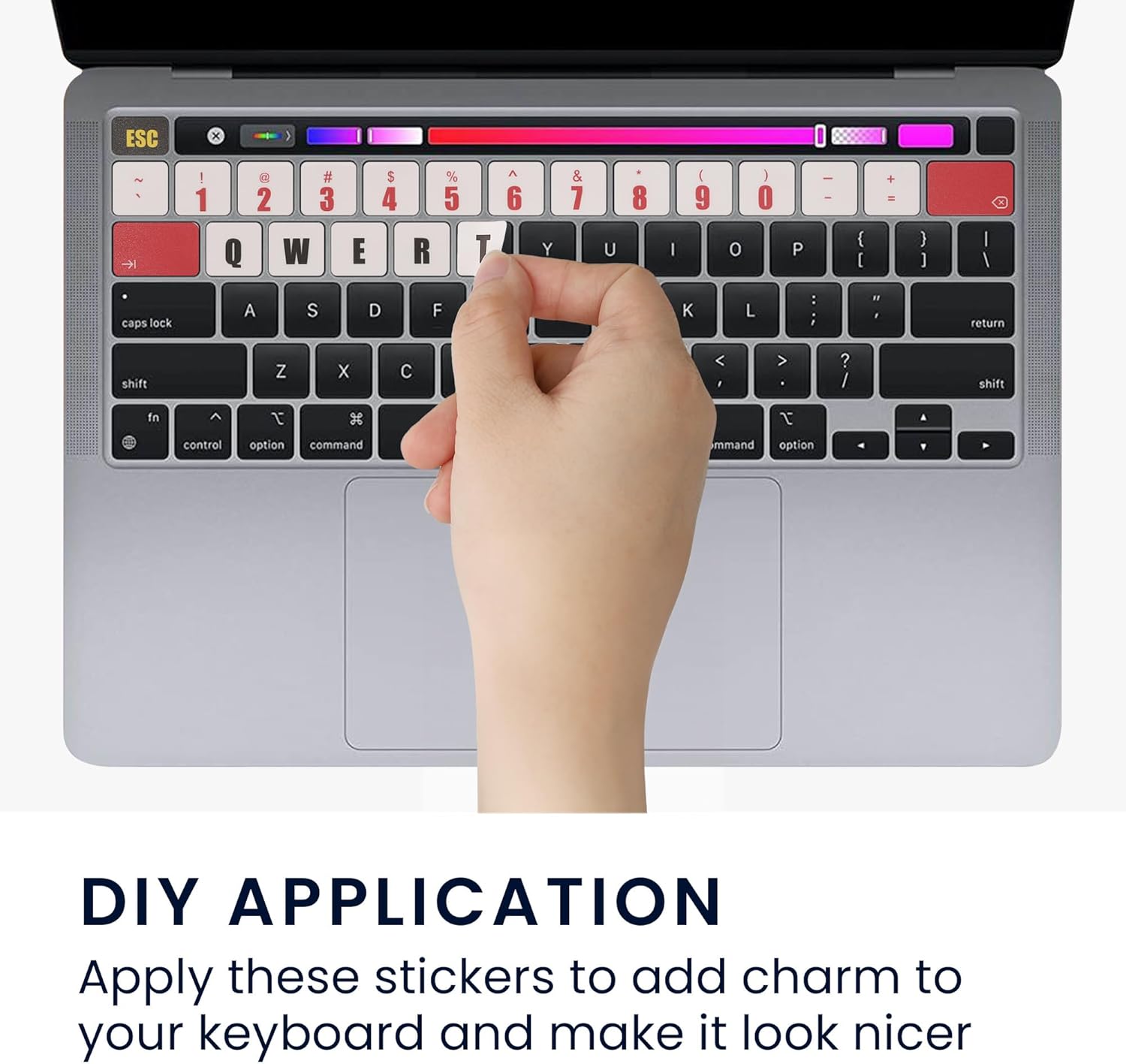
Image: A hand carefully applying a keyboard sticker to a key, illustrating the DIY application process.

Image: The MacBook keyboard with all multicolor stickers successfully applied, showcasing the final appearance.
Cothabháil
To maintain the appearance and longevity of your keyboard stickers, gently wipe them with a soft, damp cloth. Avoid using harsh chemicals or abrasive materials, as these may damage the vinyl or fade the colors. Ensure the keyboard is dry before closing your laptop to prevent moisture damage.
Fabhtcheartú
- Stickers not adhering properly: Ensure the keyboard surface was thoroughly cleaned and dried before application. Press firmly on each sticker after placement to activate the adhesive.
- Bubbles under stickers: Gently lift the edge of the sticker and reapply, smoothing out any trapped air bubbles with a soft cloth or your finger.
- Stickers peeling at edges: Re-press the edges firmly. If peeling persists, ensure the keyboard was free of oils or residue prior to initial application.
Sonraíochtaí
| Gné | Sonraigh |
|---|---|
| Toisí Táirge | 11.22 x 4.72 x 0.02 orlach |
| Meáchan Mír | 0.705 unsa |
| Ábhar | Vinyl |
| Gléasanna Comhoiriúnacha | Apple MacBook Air 13 M1 (A2337) |
| Monaróir | KW-Tráchtáil |
Tacaíocht do Chustaiméirí
For further assistance or inquiries regarding your kwmobile keyboard stickers, please contact kwmobile customer support through the retailer's platform where you purchased the product or visit the official kwmobile websuíomh le haghaidh tuilleadh eolais.