
1. Réamhrá
Welcome to the user manual for your Havit Gaming Mouse MS1032. This document provides essential information for setting up, operating, maintaining, and troubleshooting your device. Please read it carefully to ensure optimal performance and longevity of your mouse.
The Havit MS1032 is a gaming mouse featuring six adjustable DPI settings, a comfortable ergonomic design, and a non-slip surface. It is engineered for smooth and quiet operation, aiming to reduce fatigue during extended use.
2. Socrú
2.1 Ábhar an Phacáiste
- Havit Gaming Mouse MS1032
- Lámhleabhar Úsáideora
2.2 Riachtanais Chórais
- Operating System: Windows XP, Windows 7, Linux
- Port USB ar fáil
2.3 An Luch a Cheangal
- Unpack the Havit Gaming Mouse MS1032 from its packaging.
- Aimsigh port USB atá ar fáil ar do ríomhaire.
- Cuir cónascaire USB na luiche isteach sa phort USB.
- Ba chóir go mbraithfeadh agus go suiteálfadh do chóras oibriúcháin na tiománaithe riachtanacha go huathoibríoch. D’fhéadfadh sé go dtógfadh an próiseas seo cúpla nóiméad.
- Once installation is complete, the mouse is ready for use.
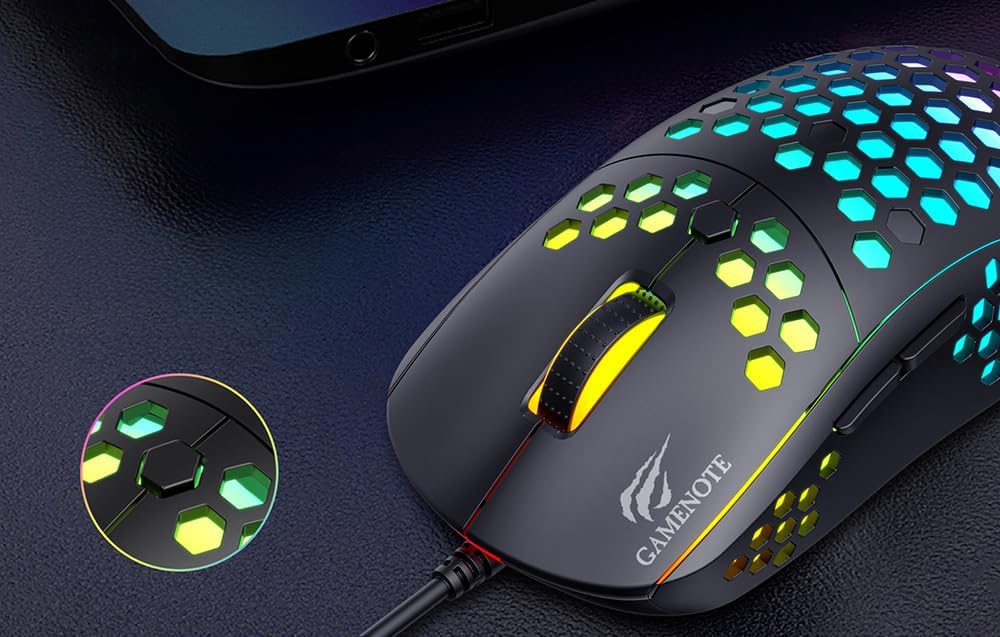
Figure 1: Havit MS1032 Gaming Mouse connected via USB.
3. Treoracha Oibriúcháin
3.1 Feidhmeanna Bunúsacha
- Cliceáil ar Chlé: Primary action, selection, activation.
- Cliceáil ar dheis: Opens context menus, performs secondary actions.
- Roth Scrollaigh: Scrolls up/down documents or web leathanaigh. Is féidir brú a chur air freisin le haghaidh feidhmiúlacht chliceáil lár.
- Cnaipí Taobh: Typically used for forward/backward navigation in web browsers or custom functions in games.
3.2 Coigeartú PSO
The Havit MS1032 features six adjustable DPI (Dots Per Inch) settings, allowing you to change the mouse sensitivity on the fly. This is useful for adapting to different tasks, such as precise aiming in games or fast navigation across multiple monitors.
To adjust the DPI, locate the DPI button, typically positioned behind the scroll wheel. Press this button to cycle through the available DPI settings. The LED lighting on the mouse may change to indicate the current DPI level, providing visual feedback for your selection.
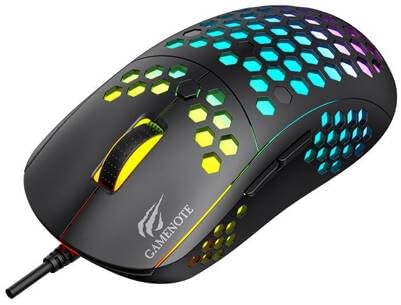
Figure 2: Location of the DPI button (behind the scroll wheel).
4. Cothabháil
4.1 Glanadh
Chun feidhmíocht agus cuma is fearr a choinneáil, glan do luch go rialta:
- Dícheangail an luch ó do ríomhaire sula nglanann tú í.
- Bain úsáid as éadach bog, saor ó lint beagán dample huisce nó le tuaslagán glantacháin éadrom, neamh-scríobach.
- Gently wipe the surface of the mouse.
- For crevices and the optical sensor, use a cotton swab or compressed air to remove dust and debris.
- Avoid using harsh chemicals, abrasive cleaners, or excessive moisture, as these can damage the mouse's finish or internal components.
4.2 Stóráil
When not in use, store the mouse in a clean, dry environment away from direct sunlight and extreme temperatures to prevent damage.
4.3 Cúram Ginearálta
- Avoid dropping the mouse or subjecting it to strong impacts.
- Do not attempt to disassemble the mouse, as this will void the warranty and may cause irreparable damage.
- Keep the mouse away from liquids to prevent electrical damage.
5. Fabhtcheartú
If you encounter issues with your Havit Gaming Mouse MS1032, please refer to the following common solutions:
5.1 Luch Gan Fhreagracht
- Seiceáil Nasc USB: Cinntigh go bhfuil an cábla USB ceangailte go daingean i gcalafort USB atá ag obair ar do ríomhaire. Bain triail as calafort USB eile.
- Atosaigh an ríomhaire: Uaireanta is féidir le atosú simplí ríomhaire fadhbanna nascachta a réiteach.
- Tástáil ar ríomhaire eile: If possible, test the mouse on another computer to determine if the issue is with the mouse or your computer's setup.
5.2 Cursor Movement is Erratic or Jumpy
- Braiteoir Glan: Ensure the optical sensor on the bottom of the mouse is clean and free of dust or debris.
- Seiceáil Dromchla: Use the mouse on a clean, non-reflective, and uniform surface (e.g., a mouse pad). Avoid glass or highly reflective surfaces.
- Coigeartaigh DPI: If the cursor is too fast or too slow, adjust the DPI setting using the DPI button.
5.3 Buttons Not Working
- Seiceáil do Bhacainní: Cinntigh nach bhfuil aon smionagar faoi na cnaipí.
- Coimhlint Bogearraí: If you have custom mouse software installed, try uninstalling it temporarily to see if it resolves the issue.
5.4 Soilse LED Gan Obair
- Seiceáil Ceangal: Cinntigh go bhfuil an luch ceangailte i gceart leis an ríomhaire.
- Timthriall Cumhachta: Disconnect and reconnect the mouse to reset its power.
6. Sonraíochtaí

Figure 3: Havit MS1032 Gaming Mouse design overview.
| Gné | Sonraigh |
|---|---|
| Múnla | MS1032 |
| Branda | Havit |
| Toisí | 15 x 8 x 5.2 cm |
| Meáchan | 200g |
| Socruithe DPI | 6 leibhéal inchoigeartaithe |
| Córais Oibriúcháin | Linux, Windows 7, Windows XP |
| Nascacht | USB sreangaithe |
| Cadhnraí ag Teastáil | Níl |
7. Barántas agus Tacaíocht
For detailed warranty information and technical support, please refer to the official Havit website or contact your local retailer where the product was purchased. It is recommended to keep your purchase receipt as proof of purchase for any warranty claims.
Monaróir: Havit
Uimhir Mhúnla: MS1032