
1. Táirge Tharview
The havit GK59 Gaming Microphone is designed for clear audio capture during gaming, streaming, and voice communication. It features a condenser microphone for high-quality sound and a versatile design for ease of use.

Fíor 1.1: Tosaigh view of the havit GK59 Gaming Microphone, showcasing its main body, stand, and control buttons.
Príomhghnéithe:
- Éasca le húsáid: Simple plug-and-play functionality.
- Good Performance: Delivers clear and consistent audio.
- Good Quality: Durable construction for reliable use.
- Dearadh Inaistrithe: Dlúth agus éasca le hiompar.
- Seastán Inchoigeartaithe: Ceadaíonn sé suíomh solúbtha.
2. Treoracha Socraithe
2.1 Ábhar an Phacáiste
Seiceáil an pacáiste le do thoil le haghaidh na míreanna seo a leanas:
- havit GK59 Gaming Microphone
- Cábla Ceangal USB
- Lámhleabhar Úsáideora (an doiciméad seo)
2.2 An Micreafón a Cheangal
The GK59 microphone offers versatile connectivity options for various devices.
- Ceangal USB: Connect the provided USB cable to the USB-C port on the back of the microphone and the other end to an available USB port on your computer or gaming console. The microphone is plug-and-play and should be automatically recognized by most operating systems.
- 3.5mm Jack Connection: For devices supporting a 3.5mm auxiliary input, connect a 3.5mm audio cable (not included) to the 3.5mm jack on the back of the microphone and to your device's audio input.
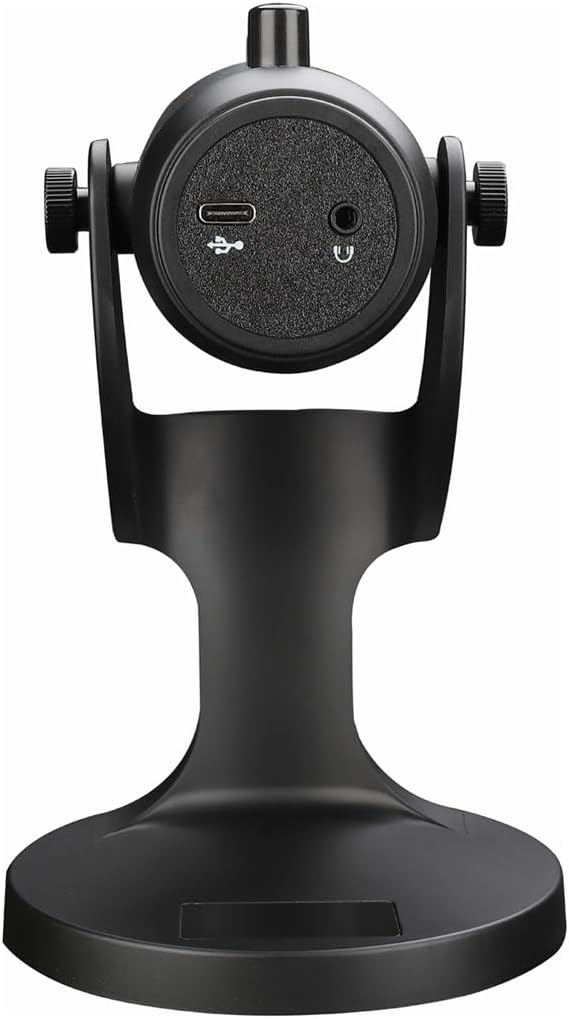
Fíor 2.1: Cúil view of the havit GK59 Gaming Microphone, highlighting the USB-C port for data and power, and the 3.5mm headphone jack for monitoring.
After connecting, ensure the microphone is selected as the default input device in your system's sound settings or your gaming/streaming software.
3. Treoracha Oibriúcháin
3.1 Bunrialuithe
The havit GK59 features intuitive controls located on the front of the microphone body:
- Cnaipe Mute: Press to mute or unmute the microphone. An indicator light will typically show the mute status.
- MIC +/- Buttons: Adjust the microphone input sensitivity (gain). Press '+' to increase, '-' to decrease.
- VOL +/- Cnaipí: Adjust the headphone output volume for monitoring. Press '+' to increase, '-' to decrease.
- ECHO +/- Buttons: Adjust the echo effect level. Press '+' to increase, '-' to decrease.
Fíor 3.1: Mionsonraithe view of the microphone's control panel, including the mute button, microphone gain, volume, and echo adjustment buttons.
3.2 Coigeartú Suíomh an Mhicreafóin
The microphone is equipped with an adjustable stand, allowing you to optimize its position for best sound capture and comfort.
- Gently hold the microphone body and the base of the stand.
- Tilt the microphone forward or backward to achieve the desired angle. The stand's design helps reduce vibration and abnormal sounds during use.
- Position the microphone approximately 6-12 inches (15-30 cm) from your mouth for optimal voice clarity.

Figure 3.2: The havit GK59 microphone demonstrating its adjustable tilt feature on the stand, designed for anti-vibration.
4. Cothabháil
4.1 Glanadh
To maintain the microphone's performance and appearance:
- Disconnect the microphone from its power source before cleaning.
- Bain úsáid as éadach bog, tirim chun na dromchlaí seachtracha a ghlanadh.
- Ná húsáid glantóirí leachtacha, aerasóil ná tuaslagóirí, mar d’fhéadfadh siad seo damáiste a dhéanamh don chríoch nó do na comhpháirteanna inmheánacha.
4.2 Stóráil
When not in use, store the microphone in a cool, dry place away from direct sunlight and extreme temperatures. Protect it from dust and moisture.
5. Fabhtcheartú
If you encounter issues with your havit GK59 Gaming Microphone, please refer to the following table for common problems and solutions:
| Fadhb | Cúis Féideartha | Réiteach |
|---|---|---|
| No sound input from microphone | Níl an micreafón ceangailte i gceart Incorrect input device selected Micreafón balbhaithe | Cinntigh go bhfuil cábla USB ceangailte go daingean. Check system sound settings and select GK59 as input. Press the Mute button on the microphone to unmute. |
| Toirt íseal micreafón | Microphone gain too low System input volume too low | Press the 'MIC +' button on the microphone. Adjust input volume in your system's sound settings. |
| Fuaim shaobhtha nó doiléir | Microphone gain too high Microphone too close to mouth Torann comhshaoil | Press the 'MIC -' button on the microphone. Adjust microphone position (6-12 inches from mouth). Laghdaigh torann cúlra i do thimpeallacht. |
| No headphone monitoring sound | Níl na cluasáin nasctha Headphone volume too low | Ensure headphones are plugged into the 3.5mm jack. Press the 'VOL +' button on the microphone. |
6. Sonraíochtaí Teicniúla
Below are the technical specifications for the havit GK59 Gaming Microphone:
| Gné | Sonraíocht |
|---|---|
| Branda | agat |
| Uimhir Mhúnla | GK59 |
| Teicneolaíocht Nascachta | USB, 3.5 mm Jack (Auxiliary) |
| Úsáidí Molta | Cearrbhachas |
| Patrún Polar | Aontreoch |
| Fachtóir Foirm Micreafóin | Handheld (with desktop stand) |
| Meáchan Mír | 429 gram |
| Impedance | 250 Óm |
| -Comhartha-go Torann Cóimheas | 18 dB |
| Torann inchloiste | 18 Deicibeil |
| Foinse Cumhachta | Leictreach le Sreang (trí USB) |
| Gléasanna Comhoiriúnacha | Gaming Consoles, PCs |
| Toisí na Mír (LxWxH) | 5.59 x 4.92 x 9.06 orlach |
| Dath | Dubh |
7. Barántas agus Tacaíocht
7.1 Faisnéis Bharántas
The havit GK59 Gaming Microphone comes with a standard manufacturer's warranty. Please refer to the warranty card included in your product packaging or visit the official havit websuíomh gréasáin le haghaidh téarmaí agus coinníollacha mionsonraithe an bharántais.
7.2 Tacaíocht do Chustaiméirí
For technical assistance, troubleshooting not covered in this manual, or warranty claims, please contact havit customer support through their official channels. You can find more information and contact details on the Siopa Havit ar Amazon nó a n-oifigeach websuíomh.