
1. Réamhrá
Thank you for choosing the XTREMTEC Wireless Keyboard and Mouse Combo. This ultra-slim, retro-style peripheral set is designed for comfortable and quiet operation across various devices. This manual provides essential information for setup, operation, maintenance, and troubleshooting to ensure optimal performance.
2. Ábhar Pacáiste
- XTREMTEC Wireless Keyboard
- XTREMTEC Wireless Mouse
- 2.4G Nano USB Receiver (stored inside the keyboard's battery compartment)
- Cuibheoir USB-C
- Silicone Keyboard Cover
- Lámhleabhar Úsáideora
3. Socrú
Follow these steps to set up your XTREMTEC Wireless Keyboard and Mouse Combo:
- Suiteáil Cadhnraí:
- For the mouse: Open the battery compartment on the underside of the mouse and insert 1 AA battery (not included), ensuring correct polarity.
- For the keyboard: Open the battery compartment on the back of the keyboard and insert 2 AAA batteries (not included), ensuring correct polarity.
- Ceangail Glacadóir USB:
- Locate the 2.4G Nano USB receiver stored inside the keyboard's battery compartment. Remove it.
- Plug the USB receiver into an available USB port on your computer. If your device only has USB-C ports, use the provided USB-C adapter.
- Cumhacht ar:
- Slide the ON/OFF switch on the bottom of the mouse to the 'ON' position.
- Slide the ON/OFF switch on the back of the keyboard to the 'ON' position.
- Ceangal Uathoibríoch: The keyboard and mouse should automatically connect to your computer. No additional drivers are typically required.

Image: The 2.4GHz wireless connection setup, showing the USB receiver plugged into a laptop.
Video: A demonstration of the XTREMTEC Slim Wireless 2.4G Keyboard and Mouse Combo setup process.
4. Treoracha Oibriúcháin
Maximize your productivity and comfort with these operating features:
- Eispéireas Clóscríofa Ciúin: The keyboard features noise-reduced scissor switches and vintage typewriter-inspired round keycaps for a comfortable and quiet typing experience. The mouse also offers noiseless clicks.
- Coigeartú DPI: The optical wireless mouse allows you to adjust the DPI (dots per inch) sensitivity between 3 different levels with a single click, adapting to your preference.
- Aicearraí Ilmheán: Access common functions quickly with 15 multimedia shortcuts integrated into the keyboard. These include controls for music, volume, homepage, email, and more.
- Feidhm Glasála Scáileáin: The keyboard includes a dedicated button to quickly lock your screen for privacy and security.
- Mód Codlata Uathoibríoch: Both the keyboard and mouse feature an auto-sleep mode to conserve battery life when not in use. They will wake instantly with a single click or key press.

Image: Detail of the keyboard showcasing whisper-quiet keys and noiseless mouse technology.
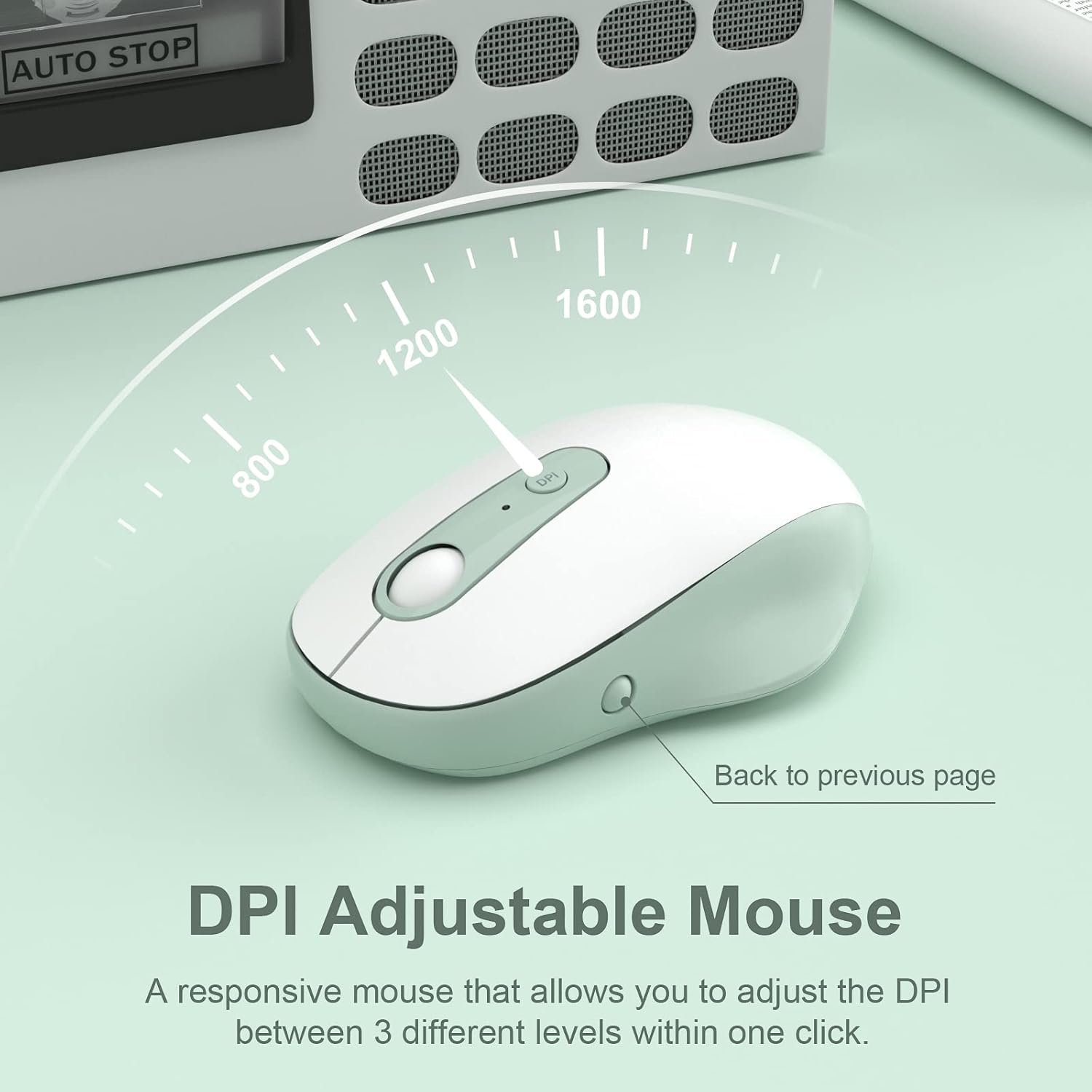
Image: The DPI adjustable mouse, illustrating its responsiveness and settings.
Video: A demonstration of the XTREMTEC Wireless Keyboard and Mouse Combo, highlighting its quiet round keys.
5. Cothabháil
To ensure the longevity and optimal performance of your XTREMTEC combo:
- Clúdach Silicone: Use the provided soft silicone cover to protect your keyboard from dust, spills, and scratches when not in use.
- Durable Keys: The keys are designed to withstand up to 3 million presses and feature a UV coating to prevent letters from fading or scratching easily.
- Glanadh: Regularly wipe down the surfaces with a soft, dry cloth. For deeper cleaning, carefully remove the silicone cover and clean the keyboard keys.

Image: The keyboard with its water and dust resistant silicone cover, also showing a USB-C adapter.
6. Fabhtcheartú
Má bhíonn aon fhadhbanna agat, bain triail as na céimeanna seo a leanas:
- Gan Ceangal:
- Cinntigh go bhfuil an méarchlár agus an luch araon ar siúl.
- Check that the USB receiver is securely plugged into your computer's USB port. Try a different USB port if necessary.
- Verify that the batteries in both devices are correctly installed and not depleted. Replace batteries if needed.
- Nasc mall nó uaineach:
- Bog an méarchlár agus an luch níos gaire don ghlacadóir USB.
- Avoid placing the receiver near other electronic devices that might cause interference (e.g., Wi-Fi routers, other wireless devices).
- Cinntigh go bhfuil córas oibriúcháin do ríomhaire cothrom le dáta.
- Cúrsóir na Luiche Gan Bogadh:
- Check the mouse's power switch and battery.
- Ensure the mouse is on a suitable surface (a mouse pad is recommended).
7. Sonraíochtaí
| Uimhir Mhúnla | KB- K101A |
| Toisí Táirge | 15.31 x 5.3 x 0.16 orlach |
| Meáchan Mír | 1.3 punt |
| Cadhnraí ag Teastáil | 1 AA battery (for mouse), 2 AAA batteries (for keyboard) |
| Teicneolaíocht Nascachta | 2.4G USB Wireless Technology |
| Gléasanna Comhoiriúnacha | Mac OS, Windows, PC, Desktop computer, Laptop |
| Gné Speisialta | Round Key, Scissor Switch, DPI Adjustment |
8. Barántas agus Tacaíocht
For warranty information and customer support, please refer to the documentation included with your product or visit the official XTREMTEC website. You may also contact XTREMTEC customer service directly for assistance.