
MARKLIFE P50
MARKLIFE Label Maker Machine User Manual
Model: P50 | Brand: MARKLIFE
Táirge Tharview
The MARKLIFE P50 Label Maker is a mini portable Bluetooth thermal label printer designed for various labeling needs in homes, offices, and small businesses. It utilizes thermal printing technology, eliminating the need for ink or toner, and supports black and white printing.
I measc na bpríomhghnéithe tá:
- Feidhmchlár Leathan: Supports label widths from 0.59'' to 2.24'', suitable for address, clothing, price, cable, jewelry, and ingredient labels.
- Gan Sreang & Inaistrithe: Lightweight design with Bluetooth 4.0 connectivity for convenient, smooth, and fast printing from smartphones (Android & iOS) within 33 feet.
- Smart Printing Features: Offers voice and image recognition, barcode generation from scans, PDF batch printing, and the ability to print photos on labels. USB connection and online software are available for Windows PC.
- Lipéid Buan: Labels are designed to be tear-proof, watertight, and oil-proof, ensuring longevity.
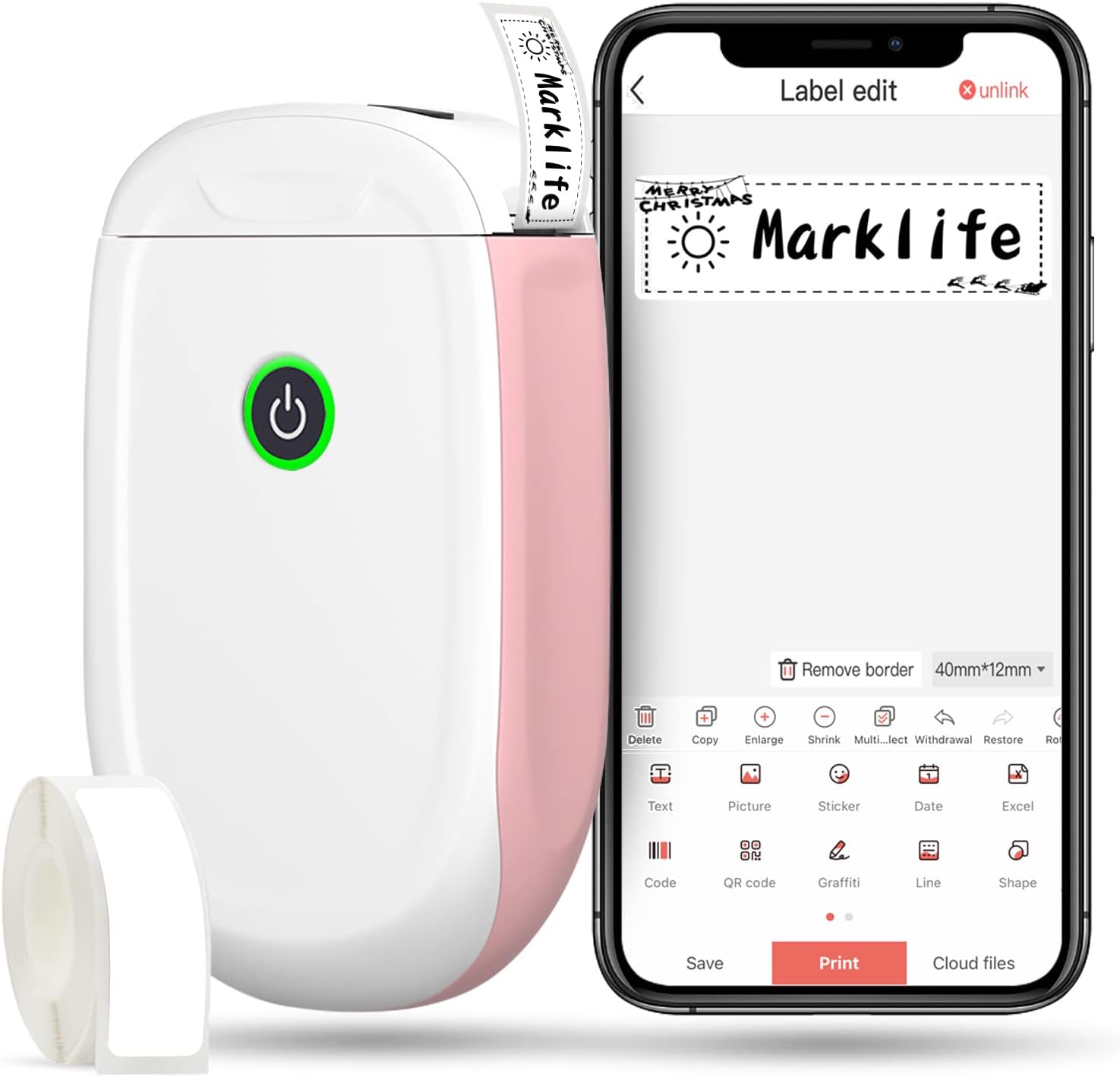
Figure 1: MARKLIFE P50 Label Maker and companion app.
Treoir Socraithe
Follow these steps to set up your MARKLIFE P50 Label Maker:
- Load Label Paper: Open the cover and insert the label roll with the printing side facing up. Close the cover securely.
- Íoslódáil an App: Cuardaigh le haghaidh "Marklife" in your smartphone's app store (available for Android and iOS) and install it.
- Cuir Bluetooth ar siúl: Cumasaigh Bluetooth ar do ghuthán cliste.
- Ceangail le Gléas: Open the Marklife app, turn on the labeler, and connect to the device via Bluetooth. The device name will typically start with "P11" or "P50".

Figure 2: Quick setup guide for the Marklife P50.
Video 1: Demonstrates the setup and basic usage of the Marklife P11 (similar to P50) label maker, including loading paper, connecting via Bluetooth, and printing a label.
Treoracha Oibriúcháin
Once connected, you can begin creating and printing labels:
- Choose a Template: In the Marklife app, select from various pre-designed templates or start a new blank label.
- Edit Label Content: Double-click on the label area to input text. You can customize font, size, alignment, and add elements like images, icons, dates, or barcodes.
- Réamhview agus Priontáil: Roimh phriontáil, réamhview your label to ensure it looks as desired. Then, tap the "Print" button to send the design to the label maker.
- Ardghnéithe:
- Barcode/QR Code: Generate barcodes or QR codes directly from the app. Example barcode: 46745875478655
- Image Recognition (OCR): Use your phone's camera as an OCR scanner within the app to convert text from images into editable label content.
- Priontáil Baisc: Print multiple labels from a PDF or a list for efficiency.
- Saincheapadh: Access over 600 combinations of templates, 9 languages, 600+ symbols, 27+ frames, and 15+ fonts.

Figure 3: Customize your own labels with various design elements.

Figure 4: Many designing items available in the app.
Cothabháil
To ensure the longevity and optimal performance of your MARKLIFE P50 Label Maker, follow these maintenance guidelines:
- Glanadh: Regularly wipe the exterior of the device with a soft, dry cloth. For the print head, use a cotton swab lightly dampened with rubbing alcohol, ensuring the device is off and disconnected from power. Allow it to dry completely before use.
- Stóráil: Store the label maker in a cool, dry place away from direct sunlight and extreme temperatures.
- Cúram Rolla Lipéid: Keep unused label rolls in their original packaging to protect them from dust and moisture.
- Cúram Battery: For optimal battery life, charge the device regularly, even if not in frequent use. Avoid completely draining the battery for extended periods.

Figure 5: Thermal printing technology requires no ink, simplifying maintenance.

Figure 6: Labels are designed for durability and resistance to water and oil.
Fabhtcheartú
If you encounter issues with your MARKLIFE P50 Label Maker, try the following solutions:
| Fadhb | Cúis Féideartha | Réiteach |
|---|---|---|
| Ní chasfaidh an gléas air. | Ceallraí íseal. | Muirear an gléas ag baint úsáide as an gcábla USB a chuirtear ar fáil. |
| Ní féidir ceangal trí Bluetooth. | Bluetooth is off on phone/device, or device is out of range. | Ensure Bluetooth is enabled on your phone and the label maker is within 33 feet. Restart both devices. |
| Poor print quality or blank labels. | Incorrect label paper loading, dirty print head, or low battery. | Re-load label paper correctly. Clean the print head. Charge the device. |
| Tuairteálann nó reoiteann an aip. | Software glitch or outdated app version. | Restart the app. Check for app updates in your app store. Reinstall the app if necessary. |
| Labels not feeding correctly. | Paper jam or incorrect paper type. | Open the cover and clear any jammed paper. Ensure you are using compatible Marklife label rolls. |
Sonraíochtaí
| Gné | Sonraigh |
|---|---|
| Ainm an tSamhail | P50 |
| Branda | MARKLIFE |
| Teicneolaíocht Priontála | Teirmeach |
| Teicneolaíocht Nascachta | Bluetooth |
| Aschur Printéir | Monochrome (Black ink) |
| Uasluas Priontála (Monacrómach) | 30 ppm |
| Uasmhéid Meán | 3 x 5 orlach |
| Label Width Range | 0.59'' - 2.24'' |
| Meáchan Mír | 9.6 unsa (272 gram) |
| Toisí Táirge | 3.14 x 5.5 x 1.18 orlach (thart ar 7.5 x 13.6 x 2.8 cm) |
| Gléasanna Comhoiriúnacha | Android & iOS mobile devices, Windows PC (via USB) |
| Comhpháirteanna San áireamh | Label Maker, Label Tape |
Feidhmchláir
The MARKLIFE P50 Label Maker is versatile and can be used in various scenarios:
- Eagrú Baile: Labeling spice jars, storage containers, baby items, and personal belongings.
- Úsáid Oifige: Eagrú files, marking cables, labeling office tools, and creating name tags. example barcode: 6953124066961
- Gnó Beag: Creating price tags, product labels, barcode labels, and shipping labels for retail, clothing, and jewelry.
- Úsáid Phearsanta: Labeling gifts, creating custom stickers, and marking food expiration dates.
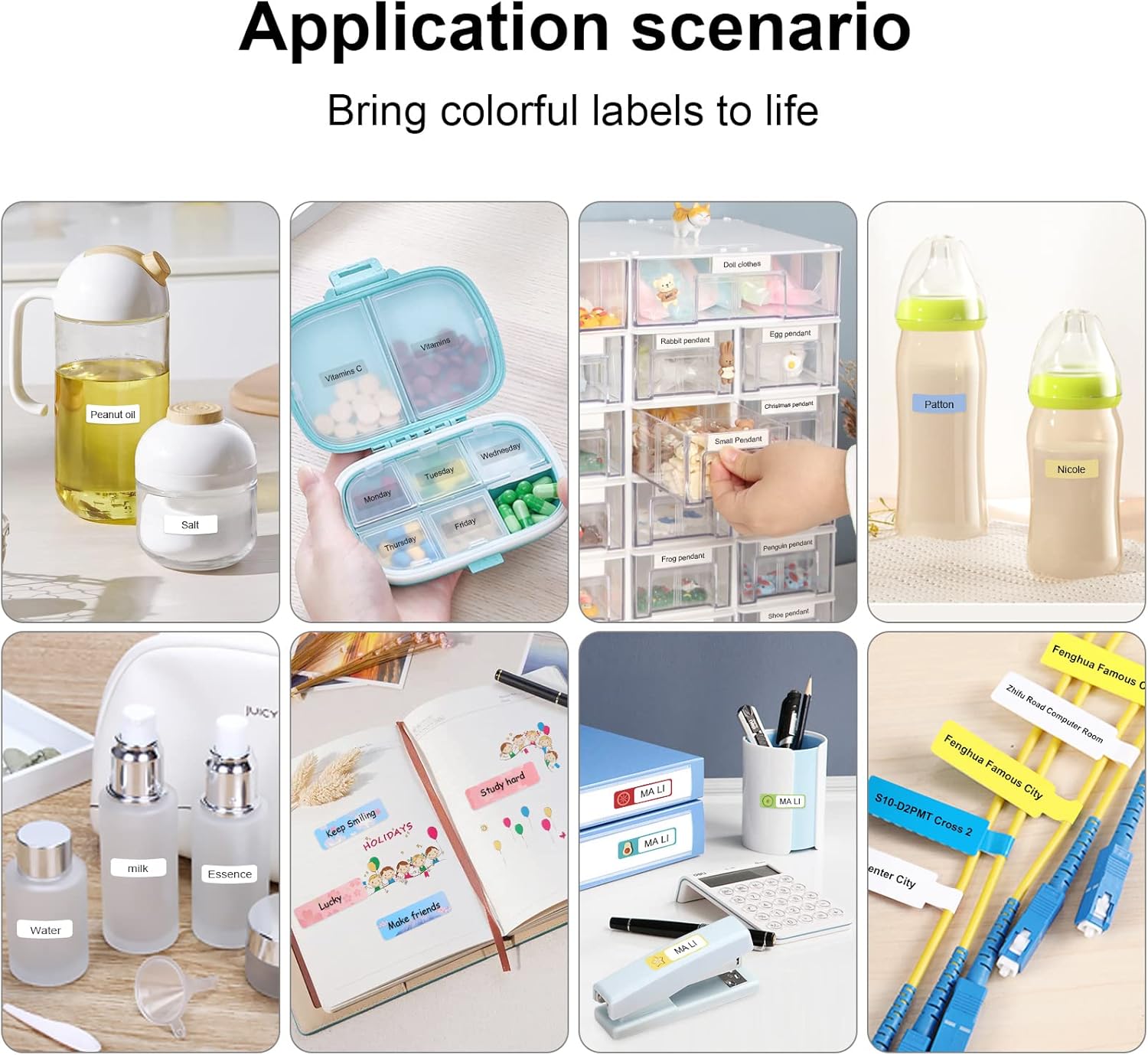
Figure 7: Diverse application scenarios for home and personal use.
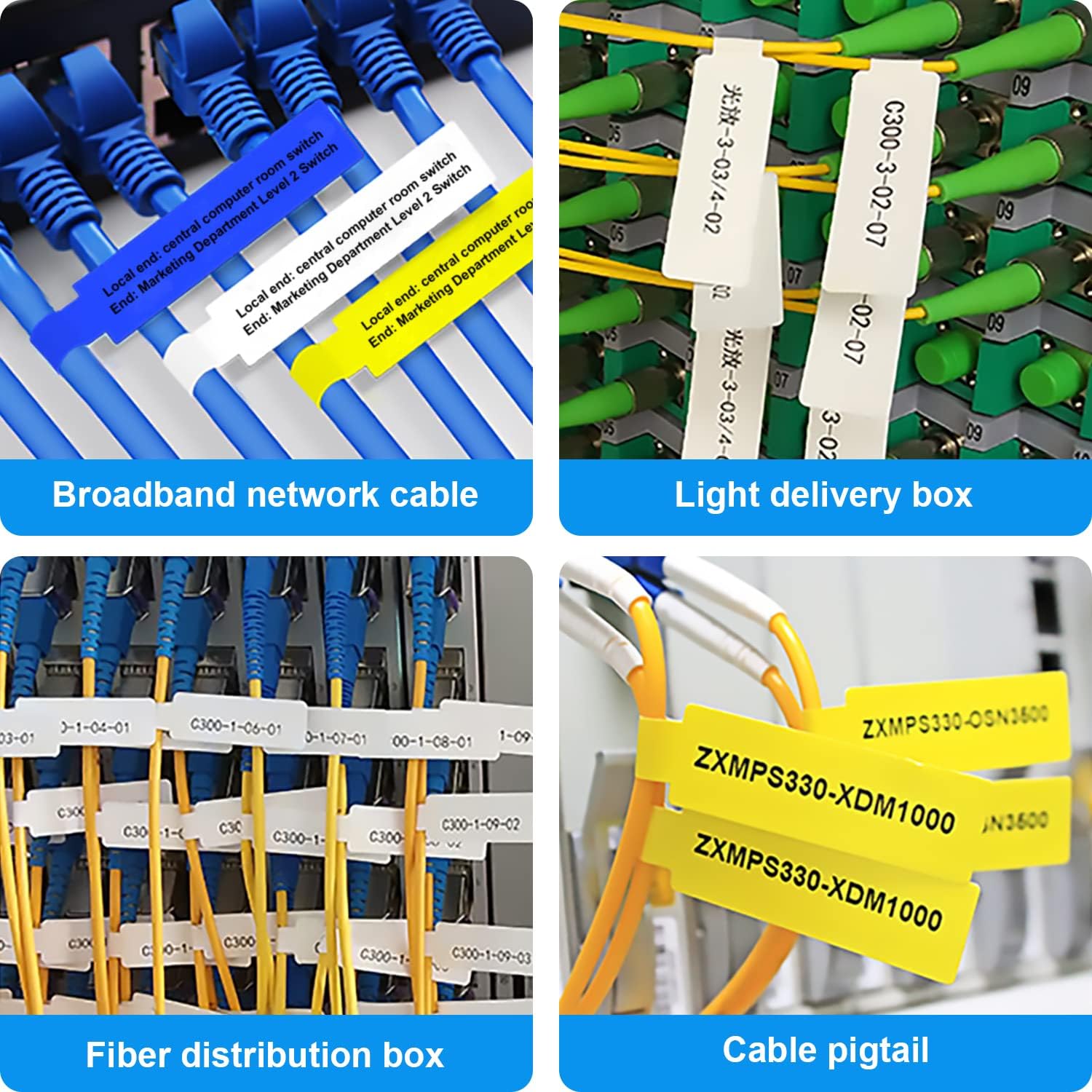
Figure 8: Labeling solutions for various types of cables and wiring.

Figure 9: Practical applications for office organization.

Figure 10: Creative uses for gift labeling.
Barántas agus Tacaíocht
MARKLIFE products are designed for reliability and performance. For specific warranty information and support, please refer to the warranty card included with your product or visit the official MARKLIFE website. For common inquiries, please consult the troubleshooting section of this manual or the FAQ section within the Marklife app.
You can also visit the official MARKLIFE store on Amazon for more information and product updates: MARKLIFE Store.
Doiciméid Ghaolmhara - P50
 |
Lámhleabhar Úsáideora Printéir Lipéad P50 Lámhleabhar úsáideora cuimsitheach don Phrintéir Lipéad P50, a chlúdaíonn thus, oibriú, comhtháthú aipeanna, priontáil, fabhtcheartú agus treoirlínte sábháilteachta. |
 |
Lámhleabhar Úsáideora Printéir Lipéad Marklife P50 Comprehensive user manual for the Marklife P50 Label Printer, covering setup, app installation, label creation, features, troubleshooting, and maintenance. |
 |
Lámhleabhar Úsáideora Printéir Lipéad P15 User manual for the P15 Label Printer, covering initial setup, wireless connection via the Marklife app, label creation methods, replacing consumables, and safety precautions. |
 |
MARKLIFE P50 ラベルライター 取扱説明書 MARKLIFE P50 dúthracht Focal |
 |
Déantóir Lipéad Gan Sreang Bluetooth Phomemo D35: Treoir Úsáideora agus Gnéithe Treoir chuimsitheach úsáideora don déantóir lipéad gan sreang Bluetooth Phomemo D35. Foghlaim conas an aip fóin chliste a chur ar bun, a úsáid, agus lipéid saincheaptha a phriontáil le haghaidh eagrúcháin sa bhaile agus san oifig leis an bprintéir lipéad beag iniompartha seo. |
 |
Lenvii LV-275 Thermal Label Printer User Manual Comprehensive user manual for the Lenvii LV-275 thermal label printer, covering setup, installation, functions, troubleshooting, and maintenance. |
Ask a question about this manual
Ask about setup, troubleshooting, compatibility, parts, safety, or missing instructions. Manuals+ will review the question and use this page’s manual context to help answer it.