
Réamhrá
This manual provides detailed instructions for the setup, operation, and maintenance of your LENVII R999 Mini Wireless Barcode Scanner. Please read this manual thoroughly before using the device to ensure proper functionality and to prevent damage.
Táirge Tharview
The LENVII R999 is a versatile 3-in-1 barcode scanner designed for various applications. It supports 1D and 2D barcodes, including QR codes, and offers multiple connection modes for flexible use.

Fíor 1: LENVII R999 Barcode Scanner Appearance Details. This image highlights key components: the scan window, indicator light, trigger button, and the data interface/charging port at the base.
- Scan Fuinneog: The area through which the scanner reads barcodes.
- Táscaire Solas: Provides visual feedback on scanner status (e.g., connection, battery, scan success).
- Truicear: Activates the scanning function.
- Data Interface and Charging Port: Used for wired connection and charging the device.
Socrú
Modhanna Ceangail
The LENVII R999 scanner offers three connection modes: 2.4GHz Wireless, USB Wired, and Bluetooth. No driver installation is required for any mode.

Fíor 2: Three available connection modes for the LENVII R999 scanner: 2.4GHz Wireless, USB Wired, and Bluetooth. Each mode is depicted with an icon and an example device.
- Ceangal gan sreang 2.4GHz:
Plug the provided 2.4GHz USB dongle into your computer or device. The scanner will automatically connect. This mode offers a transmission distance of up to 50m (164ft) in barrier-free environments and 20m (66ft) with obstacles.
- Ceangal USB Wired:
Connect the scanner directly to your computer using the USB cable. The scanner will function as a wired device and charge simultaneously.
- Ceangal Bluetooth:
Turn on the scanner and activate Bluetooth pairing mode (refer to the scanner's quick start guide for specific steps). Cuardaigh le haghaidh "LENVII R999" on your host device (PC, laptop, tablet, smartphone) and pair. This mode offers a transmission distance of up to 30m (98ft) in barrier-free environments and 15m (49ft) with obstacles.
Comhoiriúnacht an Chórais
The LENVII R999 scanner is highly compatible with various operating systems, allowing for flexible integration into your existing setup.
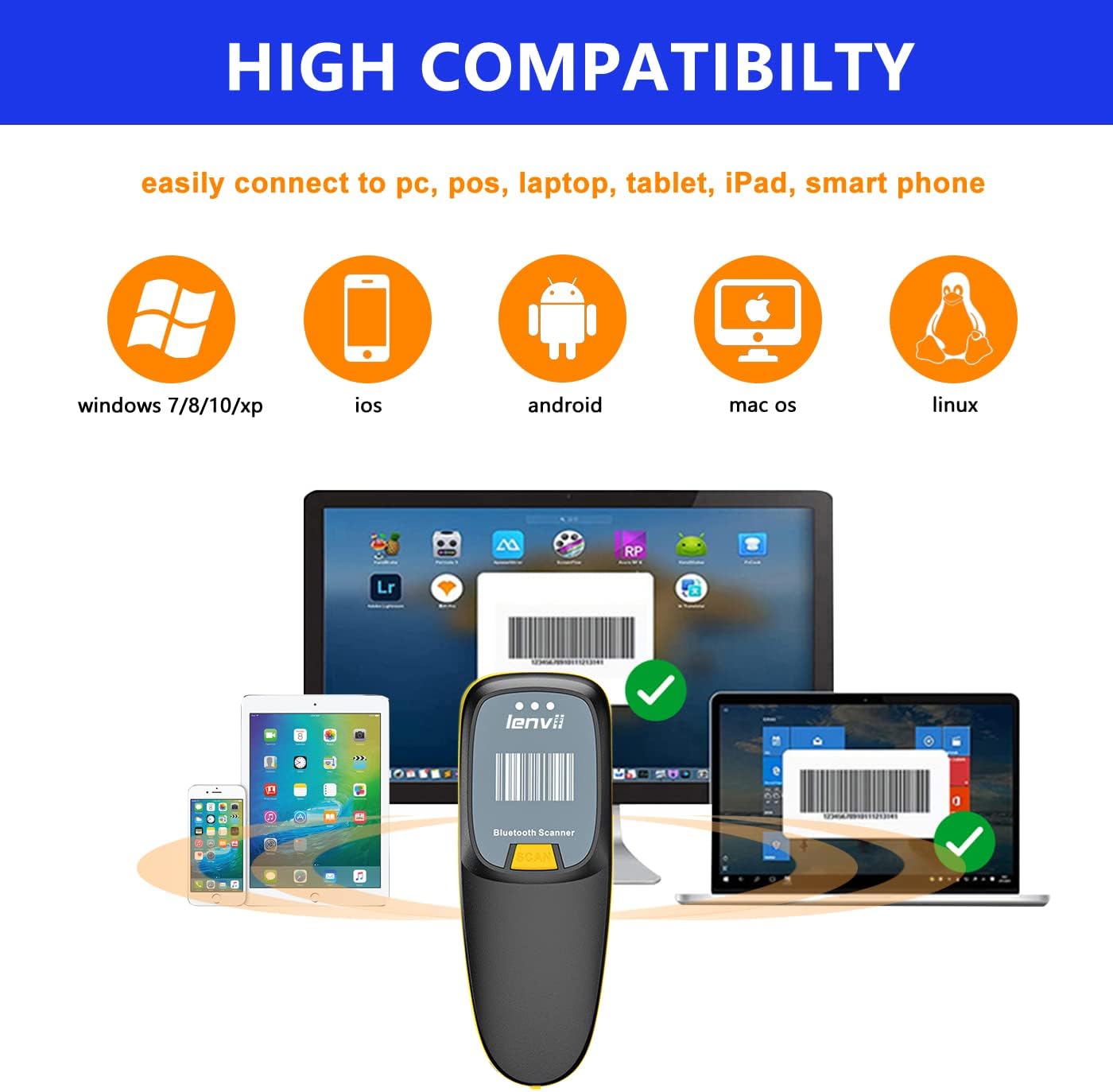
Fíor 3: The LENVII R999 scanner demonstrates high compatibility with various operating systems, including Windows (7/8/10/XP), iOS, Android, Mac OS, and Linux, connecting to PCs, POS systems, laptops, tablets, iPads, and smartphones.
- Córais Oibriúcháin Tacaithe: Windows (7/8/10/XP), iOS, Android, Mac OS, Linux.
- Gléasanna Comhoiriúnacha: PC, POS systems, Laptops, Tablets, iPads, Smartphones.
Treoracha Oibriúcháin
Barrachóid a Scanadh
The scanner supports a wide range of 1D and 2D barcode types, including QR codes, and can scan directly from screens.
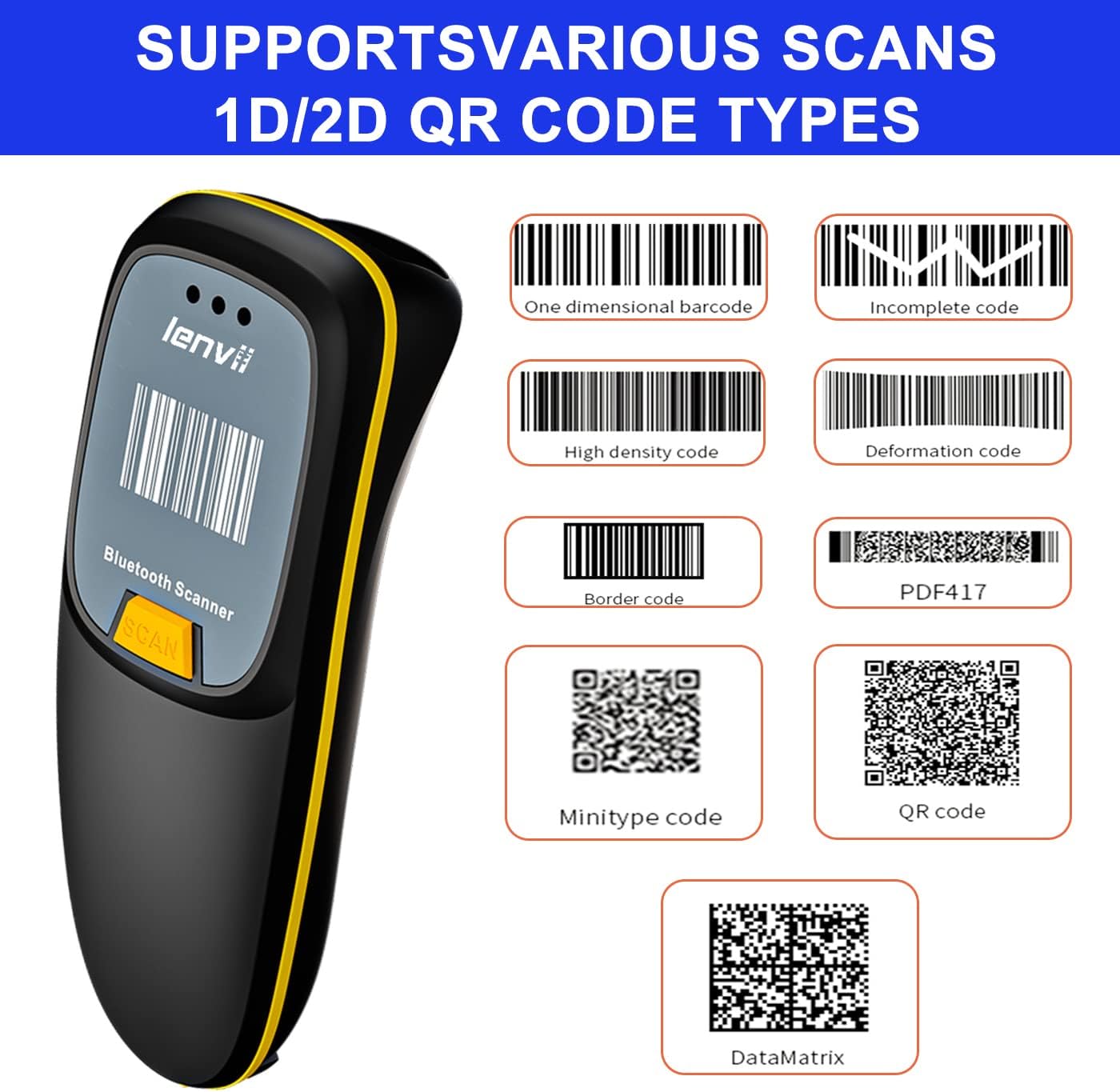
Fíor 4: The LENVII R999 scanner supports various 1D and 2D QR code types, including One Dimensional, Incomplete, High Density, Deformation, Border, PDF417, Minitype, QR Code, and DataMatrix.
- Supported Barcode Types: One Dimensional, Incomplete, High Density, Deformation, Border, PDF417, Minitype, QR Code, DataMatrix.
- Screen Scan: The scanner is capable of reading barcodes directly from digital screens.
- Nós Imeachta Scanadh: Point the scan window at the barcode and press the trigger button. A successful scan will typically be indicated by an audible beep and/or a change in the indicator light.
Modhanna Aistrithe Sonraí
The LENVII R999 offers two primary data transfer modes to suit different operational needs.

Fíor 5: The LENVII R999 scanner supports two data transfer modes: Instant Upload Mode, where scanned data is immediately sent to the connected device, and Offline Storage Mode, where data is stored internally for later upload.
- Mód Uaslódála Meandaracha: Scanned data is immediately transmitted to the connected host device. This is ideal for real-time inventory management or point-of-sale operations.
- Offline Storage Mode: Scanned data is stored internally in the scanner's memory. This mode is useful when working out of range of a host device. Data can be uploaded later when the scanner is reconnected.
Refer to the scanner's quick start guide or advanced settings for instructions on switching between these modes.
Cothabháil
Bainistíocht Battery
The LENVII R999 is equipped with a 1200mAh Lithium Ion battery, providing extended continuous use and standby time.

Fíor 6: The LENVII R999 barcode scanner features a 1200mAh battery, offering significantly longer operational time compared to scanners with 500mAh batteries.
- Muirearú: Connect the scanner to a power source using the provided USB cable. The indicator light will show charging status.
- Saol Battery: A fully charged battery provides prolonged operation. Actual battery life may vary based on usage patterns.
- Stóráil: If storing the scanner for an extended period, ensure the battery is partially charged (around 50%) to maintain battery health.
Glanadh
To ensure optimal performance, keep the scanner clean.
- Scan Fuinneog: Gently wipe the scan window with a soft, lint-free cloth. For stubborn dirt, slightly dampNigh an t-éadach le huisce nó le glantóir éadrom, neamh-scríobach. Seachain ceimiceáin ghéara.
- Taobh amuigh: Glan an taobh amuigh casing le héadach bog, tirim.
- Seachain: Do not immerse the scanner in water or use abrasive materials.
Fabhtcheartú
If you encounter issues with your LENVII R999 scanner, refer to the following common problems and solutions:
| Fadhb | Cúis Féideartha | Réiteach |
|---|---|---|
| Ní chasann an scanóir air. | Ceallraí íseal nó fadhb cumhachta. | Charge the scanner using the provided USB cable. Ensure the cable and power source are working. |
| Scanner does not connect via Bluetooth/2.4GHz. | Not in pairing mode, out of range, or interference. | Ensure the scanner is in the correct pairing mode. Check the distance to the host device. Remove potential sources of interference. Re-pair the device. |
| Ní léann an scanóir barrachóid. | Barcode damaged, poor lighting, scan window dirty, or incorrect barcode type settings. | Ensure the barcode is clear and undamaged. Provide adequate lighting. Clean the scan window. Verify the scanner is configured for the specific barcode type. |
| Tá na sonraí scanta mícheart nó neamhiomlán. | Partial scan, incorrect data format settings. | Ensure a complete scan of the barcode. Check the scanner's configuration for data formatting. |
Má leanann an fhadhb, déan teagmháil le tacaíocht do chustaiméirí.
Sonraíochtaí
Key technical specifications for the LENVII R999 Mini Wireless Barcode Scanner:
- Uimhir Mhúnla: R999
- Branda: LENVII
- Teicneolaíocht Nascachta: Bluetooth, 2.4GHz Wireless, USB Wired
- Foinse Cumhachta: Ceallraí Powered
- Cineál Battery: 1 Lithium Ion battery (1200mAh capacity)
- Meáchan: Approximately 130g (as indicated in product imagery)
- Barrachóid Tacaithe: 1D and 2D (including QR Code, DataMatrix, PDF417, etc.)
- Transmission Distance (Bluetooth): Up to 30m (98ft) barrier-free, 15m (49ft) with obstacles.
- Transmission Distance (2.4GHz Wireless): Up to 50m (164ft) barrier-free, 20m (66ft) with obstacles.
- Comhoiriúnacht: Windows (7/8/10/XP), iOS, Android, Mac OS, Linux.

Fíor 7: The LENVII R999 barcode scanner is designed for portability, featuring a mini size and a weight of approximately 130g, making it suitable for various scenarios such as retail, warehousing, and libraries.
Barántas agus Tacaíocht
For warranty information, technical support, or further assistance, please contact the manufacturer or your point of purchase.
You may also visit the official LENVII store for support and product information: LENVII Official Store