
1. Réamhrá
This manual provides essential information for the safe and efficient operation of your iProda 2 in 1 Laptop, Model M1169YM. Please read this manual thoroughly before using the device and retain it for future reference. This convertible laptop features an 11.6-inch touchscreen, powered by an Intel N4100 processor, and runs on Windows 10 Pro.

Image: The iProda 2 in 1 Laptop can be used in multiple configurations, including traditional laptop, tent, stand, and tablet modes, showcasina solúbthacht.
2. Faisnéis Sábháilteachta
Lean na réamhchúraimí sábháilteachta seo a leanas chun damáiste do do ghléas nó díobháil duit féin a chosc:
- Ná nochtaigh an gléas do theocht mhór, do sholas díreach na gréine, ná do thaise ard.
- Seachain an gléas a ligean titim nó a chur faoi thionchar trom.
- Ná húsáid ach an t-oiriúntóir cumhachta a chuirtear ar fáil nó a ceadaíodh le haghaidh muirir.
- Coinnigh an gléas ar shiúl ó uisce agus leachtanna eile.
- Ná déan iarracht an gléas a dhíchóimeáil ná a dheisiú leat féin. Téigh i gcomhairle le pearsanra seirbhíse cáilithe.
3. Ábhar Pacáiste
Deimhnigh go bhfuil na hearraí go léir i do phacáiste:
- iProda 2 in 1 Laptop (Model M1169YM)
- Cuibheoir Cumhachta
- Lámhleabhar Úsáideora (an doiciméad seo)
4. Táirge Tharview
The iProda 2 in 1 Laptop is designed for versatility, offering multiple usage modes and essential connectivity options.
4.1. Príomhghnéithe
- Scáileán tadhaill IPS 11.6-orlach: A responsive 10-point precision touchscreen with 1920x1080 resolution for interactive use.
- Dearadh Inchomhshóite: 360-degree hinge allows seamless transition between laptop, tablet, tent, and stand modes.
- Intel N4100 Processor: Provides efficient performance for daily tasks.
- Windows 10 Pro: Pre-installed operating system for productivity and security.
- Stóráil Inmhínithe: Supports M.2 2242 SSD for additional storage capacity.

Image: Key features of the iProda laptop, including its touchscreen, operating system, display specifications, and camera resolution.

Image: The laptop's 360-degree hinge allows it to convert into a tablet, enabling direct interaction via its precision touchscreen.
4.2. Calafoirt agus Cnaipí
Familiarize yourself with the various ports and buttons on your laptop:
- Port Cineál-C: Used for power supply and data transfer.
- Micrimhilseogra HDMI: Chun ceangal le taispeántais sheachtracha.
- Micrea USB: Chun gléasanna USB a nascadh.
- Sliotán Cárta TF: For expanding storage with a TF (MicroSD) card.
- Cnaipe Cumhachta: Chun an gléas a chasadh air/as nó é a chur a chodladh.
- Cnaipí Toirt: To adjust audio output.
- Jack Earphone: Chun cluasáin nó cainteoirí seachtracha a nascadh.

Íomhá: Mionsonraithe view of the laptop's side panels, indicating the location and function of each port and button for easy identification.
5. Socrú
5.1. Muirearú an Battery
Before first use, fully charge the laptop's battery. Connect the provided power adapter to the Type-C port on the laptop and plug it into a power outlet. The charging indicator light will illuminate.
5.2. An Chéad Tosaithe agus Socrú Windows
- Press and hold the Power Button until the screen turns on.
- Lean na treoracha ar an scáileán chun an chéad thus Windows 10 Pro a chríochnú, lena n-áirítear rogha teanga, nasc líonra, agus cruthú cuntais úsáideora.
6. Ag Oibriú Do Ríomhaire Glúine
6.1. Ag baint úsáide as an touchscreen
The 10-point precision touchscreen allows for intuitive interaction with Windows 10 Pro. Use gestures such as tapping, swiping, pinching, and stretching to navigate, zoom, and interact with applications.
6.2. Méarchlár agus Teagmhéadán
The integrated keyboard and touchpad provide traditional input methods. The touchpad supports multi-touch gestures for scrolling, zooming, and switching applications.

Image: The laptop's full-size American keyboard and responsive touchpad, designed for comfortable typing and navigation.
6.3. Móid Inchomhshóite
The 360-degree hinge allows you to switch between various modes:
- Mód ríomhaire glúine: Standard configuration for typing and productivity.
- Mód Táibléid: Fill an scáileán siar go hiomlán le haghaidh eispéireas táibléid, rud atá iontach maith le haghaidh brabhsála nó líníochta.
- Mód Puball: Position the laptop like a tent for media consumption or presentations.
- Mód Seasamh: Flip the keyboard face down to use the screen as a display, suitable for watching videos.

Image: The laptop configured in tent mode, demonstrating its flexibility for viewing content without the keyboard in the way.
7. Leathnú Stórála
The laptop comes with 64GB eMMC storage. You can expand the storage capacity by installing an M.2 2242 SSD (128GB/256GB/512GB, not included).
7.1. Installing an M.2 2242 SSD
To install an M.2 2242 SSD:
- Power off the laptop and disconnect the power adapter.
- Carefully open the back cover of the laptop.
- Locate the M.2 slot.
- Insert the M.2 2242 SSD into the slot and secure it with the appropriate screw (if provided).
- Cuir an clúdach cúil in áit.
- Upon booting, you may need to initialize and format the new SSD through Windows Disk Management.
Note: If you are unsure about this procedure, it is recommended to seek professional assistance.

Image: Visual representation of the M.2 SSD slot, illustrating how additional storage can be integrated into the laptop.
8. Nascacht
8.1. Ceangal Wi-Fi
The laptop supports dual-frequency 2.4GHz/5GHz Wi-Fi. To connect to a wireless network:
- Cliceáil ar an deilbhín Wi-Fi sa tráidire córais.
- Roghnaigh an líonra atá uait ón liosta.
- Cuir isteach focal faire an líonra má iarrtar ort é agus cliceáil 'Ceangail'.
8.2. External Display (Micro HDMI)
Connect an external monitor or TV using a Micro HDMI to HDMI cable. Once connected, you can configure display settings (duplicate, extend, second screen only) through Windows display settings.
8.3. Gléasanna USB
Use the Micro USB port or the Type-C port (with an appropriate adapter) to connect peripherals such as a mouse, keyboard, or external storage devices.
9. Cothabháil
9.1. Glanadh
To clean the laptop, power it off and disconnect the power adapter. Use a soft, lint-free cloth slightly dampened with water or a screen cleaner for the display. Avoid harsh chemicals or abrasive materials.
9.2. Cúram Battery
Fad a chur le saol na ceallraí:
- Seachain an ceallraí a dhíluchtú go hiomlán go minic.
- Do not expose the laptop to high temperatures.
- Má tá an ríomhaire glúine á stóráil ar feadh tréimhse fada, déan cinnte go bhfuil an ceallraí luchtaithe go dtí thart ar 50-70%.
10. Fabhtcheartú
Seo réitigh ar fhadhbanna coitianta a d’fhéadfadh teacht ort:
| Fadhb | Réiteach |
|---|---|
| Ní lasann an ríomhaire glúine. | Ensure the battery is charged. Connect the power adapter and try again. If still unresponsive, perform a hard reset by holding the power button for 10-15 seconds. |
| Tá an scáileán bán nó ag caochadh. | Restart the laptop. Check if an external display is connected and interfering. Update display drivers if possible. |
| Fadhbanna le nasc Wi-Fi. | Cinntigh go bhfuil Wi-Fi cumasaithe. Atosaigh do ródaire agus an ríomhaire glúine. Seiceáil socruithe líonra i Windows. |
| Níl an scáileán tadhaill freagrach. | Restart the laptop. Ensure the screen is clean. Check for any pending Windows updates or driver updates for the touchscreen. |
11. Sonraíochtaí
Technical specifications for the iProda 2 in 1 Laptop (Model M1169YM):
| Gné | Sonraigh |
|---|---|
| Branda | iProda |
| Uimhir Mhúnla | M1169YM |
| Córas Oibriúcháin | Windows 10 pro |
| Méid an Scáileáin | 11.6 Orlach |
| Taifeach Scáileáin | 1920×1080 picteilín (1080p) |
| Próiseálaí | Intel N4100 (up to 2.4 GHz Burst Frequency) |
| RAM | 4 GB DDR4 |
| Tiomántán Crua | 64 GB eMMC |
| Cárta Grafaice | Integrated (UHD 600 Graphics) |
| Cineál Gan Sreang | 2.4 GHz / 5 GHz Dual-frequency Wi-Fi |
| Meán Saol Battery | 8 Hours (3500mAh, 27Wh) |
| Meáchan Mír | 3.63 punt |
| Toisí Táirge | 11.99 x 11.6 x 0.5 orlach |
| Teicneolaíocht Nascachta | HDMI, USB Type-C, Micro USB |
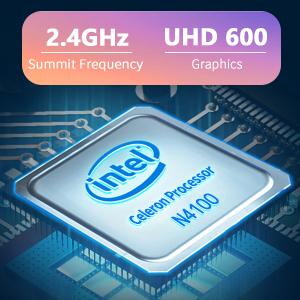
Image: The Intel Celeron N4100 processor, central to the laptop's performance, highlighting its clock speed and integrated graphics capabilities.

Image: The laptop's battery specifications, indicating its power capacity for extended use.
12. Barántas agus Tacaíocht
For warranty information and technical support, please refer to the documentation included with your purchase or visit the official iProda website. Contact information for customer service can typically be found on the manufacturer's support page.