
Iproda T1045A
iProda T1045A 10.1 inch Android Tablet User Manual
Comprehensive instructions for your iProda T1045A Android Tablet.
1. Réamhrá
This manual provides detailed instructions for the setup, operation, maintenance, and troubleshooting of your iProda T1045A 10.1 inch Android Tablet. Please read this manual thoroughly before using your device to ensure proper functionality and to maximize your user experience.
The iProda T1045A is a 10.1-inch tablet featuring an HD IPS display with 1280x800 resolution, powered by a 64-bit Quad-core processor running Android 9 Pie. It includes 3GB RAM, 64GB internal storage expandable up to 128GB via TF card, dual-band Wi-Fi, HDMI output, and a 5000mAh battery for extended use.
2. Táirge Tharview
2.1 Ábhar an Phacáiste
Nuair a osclaítear an pacáiste, cinntigh go bhfuil na hearraí go léir i láthair:
- iProda T1045A 10.1 inch Android Tablet
- Cábla USB
- Cuibheoir Cumhachta
- Lámhleabhar Úsáideora (an doiciméad seo)

Image: Contents of the iProda T1045A tablet package.
2.2 Leagan Amach Gléas
Familiarize yourself with the physical components and ports of your tablet:
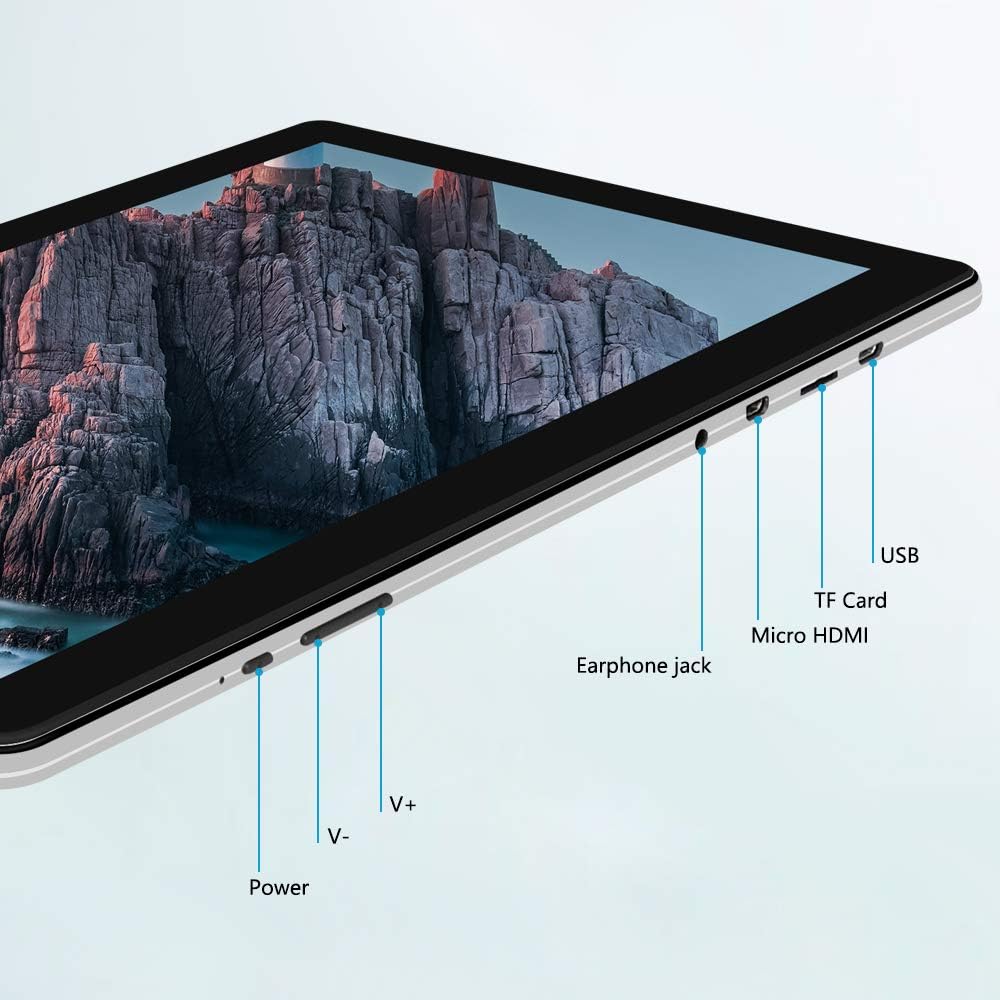
Íomhá: Taobh view of the iProda T1045A tablet highlighting port locations.
- Cnaipe Cumhachta: Press and hold to power on/off or restart the tablet. Short press to turn the screen on/off.
- Volume Buttons (V+, V-): Coigeartaigh an toirt fuaime.
- Jack Earphone: Ceangail cluasáin 3.5mm.
- Sliotán Cárta TF: Insert a microSD card for expandable storage (up to 128GB).
- Calafort Micrea HDMI: Connect to an external display using a Micro HDMI to HDMI cable.
- USB Port: Connect to a computer for data transfer or for charging the device.
3. Socrú
3.1 Muirearú Tosaigh
Before first use, fully charge the tablet. Connect the provided USB cable to the tablet's USB port and the power adapter, then plug the adapter into a wall outlet. The charging indicator will typically illuminate. A full charge may take several hours.
3.2 Cumhachtú Amach/Amach
- Chun Cumhacht a Chur ar: Brúigh agus coinnigh an cnaipe Power go dtí go lasfaidh an scáileán suas.
- Chun Cumhacht as: Press and hold the Power button until a power menu appears on the screen. Select "Power off" and confirm.
- Chun Atosaigh: From the power menu, select "Restart".
- Scáileán ar / As: Briefly press the Power button to turn the screen off (sleep mode) or wake it up.
3.3 Draoi Socraithe Tosaigh
The first time you power on the tablet, you will be guided through an initial setup process. Follow the on-screen prompts to:
- Roghnaigh do rogha teanga.
- Ceangail le líonra Wi-Fi.
- Socraigh do chuntas Google (roghnach, ach moltar é le haghaidh íoslódálacha aipeanna).
- Cumraigh socruithe dáta agus ama.
3.4 Inserting a TF Card (MicroSD)
To expand the tablet's storage:
- Locate the TF card slot on the side of the tablet.
- Carefully insert a microSD card (up to 128GB) into the slot with the gold contacts facing down until it clicks into place.
- Chun é a bhaint, brúigh an cárta isteach go réidh go dtí go preabann sé amach.
4. Treoracha Oibriúcháin
4.1 Nascleanúint Bhunúsach
The iProda T1045A uses a touch-sensitive screen for navigation:
- Tapáil: Roghnaigh mír nó oscail feidhmchlár.
- Beartaíonn agus Coinnigh: Rochtain a fháil ar bhiachláir chomhthéacsúla nó deilbhíní a bhogadh.
- Swipe: Scrollaigh trí liostaí nó aistrigh idir scáileáin bhaile.
- Pinch: Zúmáil isteach nó amach ar íomhánna agus web leathanaigh.
4.2 Ceangal Wi-Fi
Chun nascadh le líonra gan sreang:
- Téigh go dtí Socruithe > Líonra & Idirlíon > Wi-Fi.
- Wi-Fi a scoránaigh On.
- Roghnaigh an líonra atá uait ón liosta.
- Cuir isteach an focal faire má iarrtar ort é, ansin tapáil Ceangail.
The tablet supports both 2.4G and 5G dual-band Wi-Fi for faster and more stable connections.
4.3 Péireáil Bluetooth
To pair with Bluetooth devices (e.g., headphones, speakers):
- Téigh go dtí Socruithe > Gléasanna nasctha > Bluetooth.
- Scoránaigh Bluetooth On.
- Cinntigh go bhfuil do ghléas Bluetooth i mód péireála.
- Select your device from the list of available devices and follow any on-screen prompts to complete pairing.
4.4 Ag Úsáid na gCeamaraí
The tablet is equipped with a 2MP front camera and a 5MP rear camera.
- Oscail an Ceamara application from the app drawer.
- Tapáil deilbhín an cheamara chun aistriú idir ceamaraí tosaigh agus cúil.
- Beartaíonn an cnaipe comhla chun grianghraif a thógáil nó chun taifeadadh físe a thosú/stopadh.

Image: Tablet in use, showcasing its camera capabilities.
4.5 Connecting to an External Display (HDMI)
To display your tablet's screen on a larger monitor or TV:
- Connect one end of a Micro HDMI cable to the tablet's Micro HDMI port.
- Connect the other end of the cable to an HDMI input on your external display.
- Select the correct HDMI input source on your external display.
- The tablet's screen content should now be mirrored on the external display.
4.6 Bainistíocht Aipeanna
The tablet runs Android 9 Pie and supports applications from the Google Play Store.
- Suiteáil Apps: Oscail an Store Súgartha app, search for your desired application, and tap Suiteáil.
- Aipeanna a Dhíshuiteáil: Tap and hold an app icon on the home screen or in the app drawer, then drag it to "Uninstall" or select "App info" and choose "Uninstall". Alternatively, go to Socruithe > Aipeanna & fógraí, roghnaigh an aip, agus tapáil Díshuiteáil.
5. Cothabháil
5.1 An Gléas a Ghlanadh
To clean your tablet:
- Múch an táibléad sula ndéantar é a ghlanadh.
- Bain úsáid as éadach bog, saor ó lint, beagán bogampened with water or a screen cleaner, to wipe the screen and body.
- Seachain ceimiceáin ghéara, glantóirí scríobacha, nó taise iomarcach a úsáid.
5.2 Nuashonrú Bogearraí
Periodically check for software updates to ensure optimal performance and security:
- Téigh go dtí Socruithe > Córas > Casta > Nuashonrú córais.
- Follow the on-screen instructions to download and install any available updates. Ensure your tablet is sufficiently charged or connected to power during updates.
5.3 Bainistíocht Stórála
To manage internal storage and the TF card:
- Téigh go dtí Socruithe > Stóráil.
- Anseo is féidir leat view storage usage, free up space, and manage files on both internal storage and the inserted TF card.
6. Fabhtcheartú
This section addresses common issues you might encounter with your iProda T1045A tablet.
6.1 Gléas Gan Chumhachtú Air
- Ensure the tablet is sufficiently charged. Connect it to the power adapter and allow it to charge for at least 30 minutes before attempting to power on again.
- Try holding the Power button for 10-15 seconds to force a restart.
6.2 Fadhbanna le Ceangal Wi-Fi
- Verify that Wi-Fi is enabled in Socruithe.
- Cinntigh go bhfuil tú ag cur isteach an focal faire Wi-Fi ceart.
- Atosaigh do ródaire Wi-Fi agus an táibléad.
- Try connecting to a different Wi-Fi network to determine if the issue is with the tablet or the network.
6.3 Feidhmíocht Mhall
- Dún feidhmchláir chúlra gan ghá.
- Clear cached data for apps in Socruithe > Aipeanna & fógraí > [Ainm an Aipe] > Stóráil & taisce > Glan taisce.
- Ensure sufficient free storage space. Uninstall unused apps or move large files chuig cárta TF.
- Atosaigh an tablet.
6.4 Draenáil Thapa na Ceallraí
- Laghdaigh gile an scáileáin.
- Díchumasaigh Wi-Fi, Bluetooth, agus GPS nuair nach bhfuil siad in úsáid.
- Close background apps that consume significant power.
- Seiceáil úsáid ceallraí i Socruithe > Ceallraí chun aipeanna atá ocrasach ar chumhacht a aithint.
- Ensure the tablet is not allowed to run below 15% charge frequently, as this can impact battery longevity.
6.5 Athshocrú Monarcha
Má tharlaíonn fadhbanna leanúnacha, d’fhéadfadh athshocrú monarchan iad a réiteach. Rabhadh: This will erase all data on your tablet. Back up important data before proceeding.
- Téigh go dtí Socruithe > Córas > Casta > Roghanna athshocraigh.
- Roghnaigh Scrios na sonraí go léir (athshocrú monarchan).
- Deimhnigh do chinneadh agus lean na leideanna ar an scáileán.
7. Sonraíochtaí
Below are the technical specifications for the iProda T1045A tablet:
| Ainm an tSamhail | T1045A |
| Córas Oibriúcháin | Android 9 Pie |
| Méid Taispeána | 10.1 Orlach |
| Taifeach Taispeána | 1280 x 800 pixels (HD IPS) |
| Próiseálaí | MediaTek Quad-core 1.5Ghz |
| RAM | 3 GB |
| Stóráil Inmheánach | SSD 64 GB |
| Stóráil Expandable | Up to 128 GB via TF Card (MicroSD) |
| Comhphróiseálaí grafaicí | ARM Mali-T720 MP2 |
| Ceamara Cúil | 5 MP |
| Ceamara Tosaigh | 2 MP |
| Cumas Battery | 5000 mAh Litiam Polymer |
| Meán Saol Battery | Suas le 8 uair an chloig |
| Nascacht Gan Sreang | Dual-Band Wi-Fi (802.11a/b/g/n), Bluetooth 4.0 |
| Calafoirt | 1x USB 2.0, 1x Micro HDMI, 3.5mm Earphone Jack, TF Card Slot |
| Toisí | 34.5 x 19.7 x 5.5 cm |
| Meáchan | 550 g |

Image: Key performance specifications of the tablet.

Image: Tablet portability and battery details.
8. Barántas agus Tacaíocht
8.1 Barántas Táirgí
The iProda T1045A tablet comes with a Barántas 12 mhí from the date of purchase. This warranty covers manufacturing defects and malfunctions under normal use. It does not cover damage caused by misuse, accidents, unauthorized repairs, or normal wear and tear.
8.2 Tacaíocht do Chustaiméirí
If you encounter any issues not covered in the troubleshooting section or require further assistance, please contact iProda customer support. Refer to your purchase documentation or the iProda official webláithreán gréasáin le haghaidh faisnéise teagmhála.
When contacting support, please have your tablet's model number (T1045A) and purchase details readily available.
Ask a question about this manual
Ask about setup, troubleshooting, compatibility, parts, safety, or missing instructions. Manuals+ will review the question and use this page’s manual context to help answer it.