
PIX-LINK LV-WR07
Lámhleabhar Úsáideora Ródaire Gan Sreang PIX-LINK LV-WR07
Model: LV-WR07
1. Réamhrá
Thank you for choosing the PIX-LINK LV-WR07 Wireless Router. This device is designed to provide a high-speed wireless network connection for your home or small office. With 300Mbps wireless speed and two external antennas, it ensures stable and wide-ranging Wi-Fi coverage. This manual will guide you through the setup, operation, and maintenance of your new router.

Image 1.1: The PIX-LINK LV-WR07 Wireless Router, showcasina dhearadh dlúth agus dhá antenna seachtracha.
2. Gnéithe Táirgí
- High-Speed Wireless: Up to 300Mbps data transmission rate, ideal for smooth HD streaming, online gaming, and fast web ag brabhsáil.
- Clúdach Feabhsaithe: Equipped with two external antennas to ensure a strong and stable Wi-Fi signal across your space.
- Calafoirt Il: Features 5 LAN ports for reliable wired connections to devices like desktop computers, smart TVs, and gaming consoles.
- Feidhmiúlacht WPS: Supports Wi-Fi Protected Setup (WPS) for easy and secure wireless connection setup.
- Comhoiriúnacht Leathan: Connects seamlessly with various devices including gaming consoles, tablets, and smart televisions.

Image 2.1: Illustration of the router's network coverage and compatibility with various devices, including laptops, smartphones, and PCs.
3. Ábhar Pacáiste
Deimhnigh le do thoil go bhfuil na hearraí uile i láthair i do phacáiste:
- PIX-LINK LV-WR07 Wireless Router
- Cuibheoir Cumhachta
- Cábla Ethernet
- Treoir Suiteála Thapa (an lámhleabhar seo)
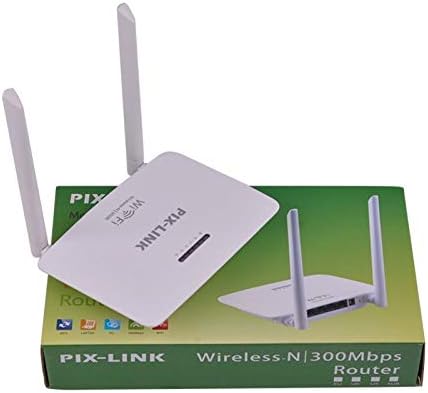
Image 3.1: The PIX-LINK LV-WR07 Wireless Router shown with its retail packaging, indicating the product as it appears in the box.

Image 3.2: The essential accessories included with the router: the power adapter for electrical connection and an Ethernet cable for wired network setup.
4. Treoir Socraithe
4.1 Ceangal Crua-earraí
- Cumhacht ar: Connect the power adapter to the router's power port and then plug the adapter into a standard electrical outlet. The power indicator light on the router should illuminate.
- Connect to Internet Source: Connect one end of the provided Ethernet cable to your modem's LAN port or your internet service provider's (ISP) Ethernet wall jack. Connect the other end of the Ethernet cable to the WAN port (usually labeled differently or colored) on your PIX-LINK LV-WR07 router.
- Ceangail Do Ghléas:
- Ceangal Wired: For initial setup or stable connection, connect your computer to one of the router's LAN ports (usually yellow) using another Ethernet cable.
- Ceangal Gan Sreang: Locate the default Wi-Fi network name (SSID) and password printed on a label on the bottom or back of your router. Connect your wireless device (laptop, smartphone, tablet) to this network.
4.2 Cumraíocht Tosaigh (Web Comhéadan)
After connecting the hardware, you can configure your router via a web bhrabhsálaí.
- Socruithe Ródaire Rochtana: Oscail a web browser (e.g., Chrome, Firefox, Edge) on a device connected to the router. In the address bar, type the default IP address (e.g.,
192.168.1.1or192.168.0.1) and press Enter. This IP address is usually found on the router's label. - Logáil isteach: A login window will appear. Enter the default username and password (commonly
admindon dá cheann, nó mar atá sonraithe ar lipéad an ródaire). - Rith an Draoi Socraithe: Most routers have a Quick Setup Wizard. Follow the on-screen instructions to configure your internet connection type (e.g., DHCP, Static IP, PPPoE) and set up your new Wi-Fi network name (SSID) and a strong password.
- Sábháil Socruithe: Tar éis duit do shocruithe a chumrú, sábháil do shocruithe agus atosú an ródaire má iarrtar ort é.
5. Ag Oibriú Do Ródaire
5.1 Gléasanna a Cheangal le Wi-Fi
Chun gléas a nascadh le do líonra Wi-Fi:
- On your device, go to Wi-Fi settings.
- Roghnaigh ainm do líonra Wi-Fi (SSID) ón liosta.
- Enter the Wi-Fi password you set during configuration.
- Ba chóir go mbeadh do ghléas ceangailte leis an idirlíon anois.
5.2 Ag Úsáid WPS (Socrú Cosanta Wi-Fi)
WPS allows you to connect devices to your Wi-Fi network without entering the password manually.
- Press the WPS button on your router (usually located on the back or side, labeled 'WPS'). The WPS LED indicator will start blinking.
- Within two minutes, activate WPS on your client device (e.g., a wireless adapter, smartphone, or printer). Refer to your device's manual for specific instructions on activating WPS.
- The device will automatically connect to your Wi-Fi network.
5.3 Wired Connections (LAN Ports)
The router provides multiple LAN ports for wired connections, offering stable and fast connectivity for devices like desktop computers, gaming consoles, and smart TVs.
- Simply connect an Ethernet cable from the device's Ethernet port to any available LAN port on the router.
- The corresponding LAN indicator light on the router should illuminate, indicating a successful connection.
6. Cothabháil
- Socrúchán is Fearr: Place the router in a central location, away from obstructions (thick walls, metal objects) and interference sources (microwaves, cordless phones) to maximize Wi-Fi coverage.
- Coinnigh Glan: Regularly clean the router's exterior with a soft, dry cloth. Ensure ventilation holes are not blocked to prevent overheating.
- Nuashonruithe Firmware: Periodically check the PIX-LINK official website for firmware updates. Updating firmware can improve performance, add new features, and fix bugs. Follow the instructions provided on the websuíomh go cúramach.
- Atosaigh go tréimhsiúil: Restarting your router every few weeks can help clear its memory and resolve minor network issues, improving overall performance.
7. Fabhtcheartú
7.1 Gan Nasc Idirlín
- Check if the power adapter is securely connected and the router is powered on.
- Ensure the Ethernet cable from your modem/ISP is securely connected to the router's WAN port.
- Restart your modem and then your router. Wait a few minutes for them to fully boot up.
- Fíoraigh do shocruithe cineál nasc idirlín i suíomh an ródaire web interface (e.g., DHCP, Static IP, PPPoE).
- Téigh i dteagmháil le do Sholáthraí Seirbhíse Idirlín (ISP) chun a dheimhniú nach bhfuil aon tseirbhís ar fáil.tages i do cheantar.
7.2 Slow Wi-Fi Speed or Intermittent Connection
- Bog an ródaire go suíomh níos lárnaí, ar shiúl ó chonstaicí agus ó chur isteach.
- Cinntigh go bhfuil firmware do ródaire cothrom le dáta.
- Reduce the number of devices connected to the network, especially those performing high-bandwidth activities.
- Try changing the Wi-Fi channel in the router's settings to avoid interference from neighboring networks.
7.3 Ní féidir rochtain a fháil ar an ródaire Web Comhéadan
- Ensure your device is connected to the router (either via Ethernet cable or Wi-Fi).
- Verify that you are typing the correct IP address (e.g.,
192.168.1.1) in the browser's address bar. - Glan taisce agus fianáin do bhrabhsálaí, nó bain triail as ceann eile web bhrabhsálaí.
- If you forgot the login credentials, you may need to perform a factory reset (see section 7.4).
7.4 Conas Athshocrú Monarcha a Dhéanamh
A factory reset will restore the router to its default settings, including the default Wi-Fi name and password, and login credentials.
- With the router powered on, locate the Reset button (often a small pinhole) on the back or bottom of the router.
- Use a paperclip or a thin object to press and hold the Reset button for about 5-10 seconds until the router's lights flash or change behavior.
- Release the button and wait for the router to restart. You will then need to reconfigure it using the initial setup steps.
8. Sonraíochtaí Teicniúla
| Gné | Cur síos |
|---|---|
| Branda | PIX-NASC |
| Múnla | LV- WR07 |
| Luas Gan Sreang | 300 Meigigiotán in aghaidh an tSoicind (Mbps) |
| antennas | 2 Aeróga Seachtracha |
| Líon na gCalafort | 5 (1 WAN, 4 LAN) |
| Teicneolaíocht Nascachta | Wi-Fi, LAN |
| Gnéithe Speisialta | WPS (Socrú Cosanta Wi-Fi) |
| Gléasanna Comhoiriúnacha | Gaming Consoles, Tablets, Smart Televisions |
9. Faisnéis Bharántas
PIX-LINK products are designed for reliability and performance. For specific warranty terms and conditions, please refer to the warranty card included with your product or visit the official PIX-LINK websuíomh. Coinnigh d’admháil ceannaigh mar chruthúnas ceannaigh le haghaidh éilimh bharántais.
10. Tacaíocht do Chustaiméirí
If you encounter any issues that are not covered in this manual or require further assistance, please contact PIX-LINK customer support. You can usually find contact information (phone number, email, or support portal) on the official PIX-LINK weban suíomh nó ar phacáistiú an táirge.
Before contacting support, please have the following information ready:
- Product Model: LV-WR07
- Serial Number (found on the product label)
- Cur síos mionsonraithe ar an tsaincheist a bhfuil tú ag fulaingt
- Steps you have already taken to troubleshoot
Ask a question about this manual
Ask about setup, troubleshooting, compatibility, parts, safety, or missing instructions. Manuals+ will review the question and use this page’s manual context to help answer it.