
1. Réamhrá
This manual provides detailed instructions for setting up, operating, and maintaining your Epson L485 Wi-Fi Inktank Printer. Please read this manual thoroughly to ensure proper use and to maximize the performance and longevity of your device.
Táirge Tharview
The Epson L485 is a versatile all-in-one printer offering print, scan, and copy functionalities with the added convenience of Wi-Fi Direct. It features an innovative ink tank system designed for high-volume printing with impressive page yields and a high print resolution for quality output.

Fíor 1: Tosaigh view of the Epson L485 Wi-Fi Inktank Printer.
Cad atá sa Bhosca
- Epson L485 Printer Unit
- Bogearraí CD
- Cábla Cumhachta
- Cárta Bharántas
- Set of Original Epson Ink Bottles (Black, Cyan, Magenta, Yellow)
Físeán 1: Thar barrview of the Epson L485 Wi-Fi Inktank Printer's features and design.
2. Treoir Socraithe
Follow these steps to set up your Epson L485 printer for the first time.
Video 2: Step-by-step guide on how to set up your Epson InkTank Printer.
2.1 Initial Printer Preparation
- Díphacáil an Printéir: Bain an printéir go cúramach as a phacáistiú. Bain na téipeanna agus na hábhair chosanta go léir.
- Check Valve Position: Locate the ink tank valve on the side of the printer. Ensure it is in the upright (printing) position.
- Open Ink Tank Unit: Gently unhook the ink tank unit from the side of the printer and open its lid to access the ink tanks.
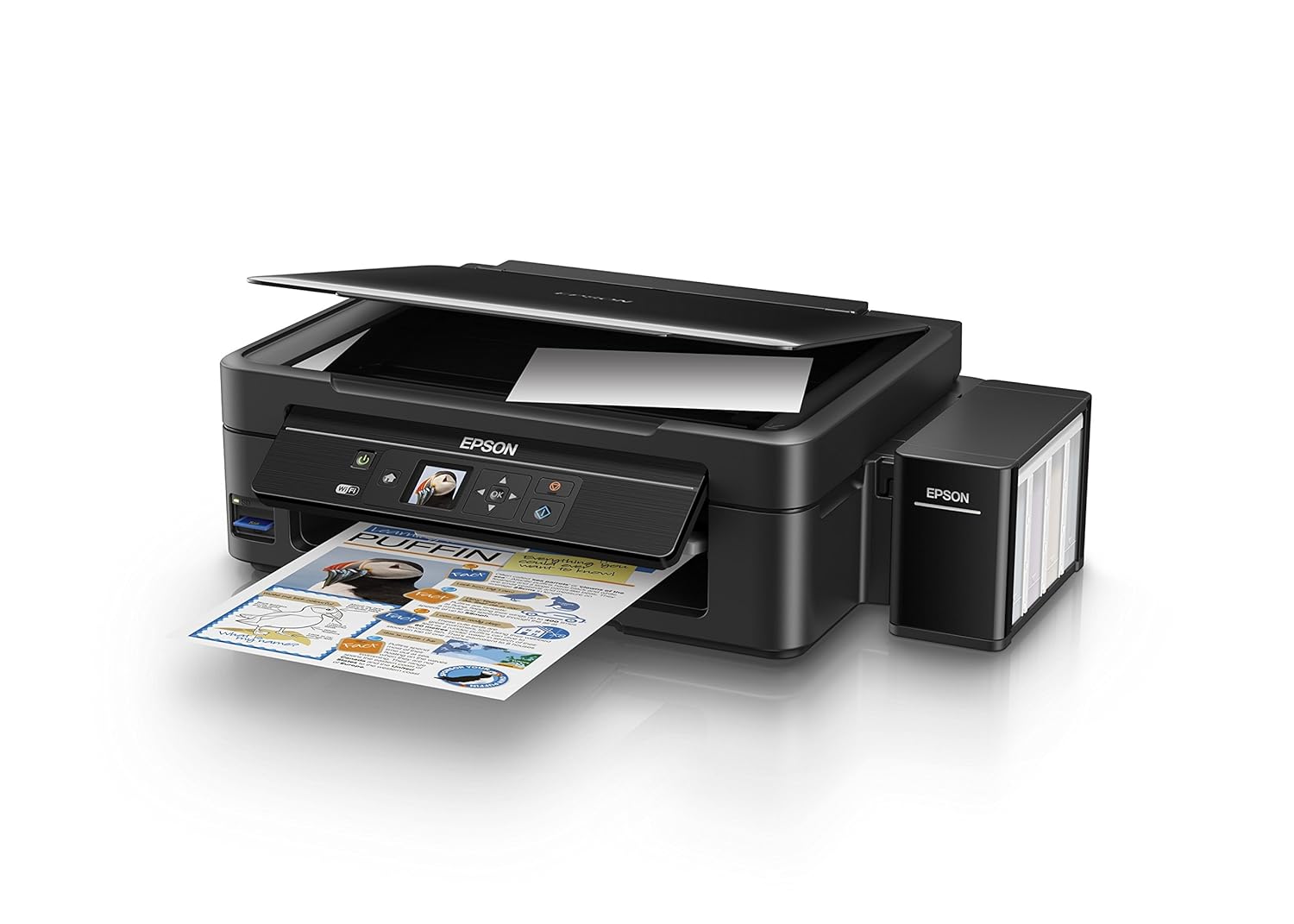
Figure 2: The ink tank unit unhooked and open, showing the ink reservoirs.
2.2 Líonadh na nUmar Dúigh
- Prepare Ink Bottles: Snap off the tip of each ink bottle and remove the cap.
- Fill Ink Tanks: Match the color of the ink bottle with the corresponding ink tank. Carefully pour the entire contents of each ink bottle into its respective tank. Do not overfill.
- Caipíní Slána: Once all tanks are filled, replace the caps securely on the ink tanks.
- Close Ink Tank Unit: Close the lid of the ink tank unit and re-hook it to the printer.

Figure 3: Demonstrating the process of filling an ink tank with a yellow ink bottle.

Figure 4: The four color ink bottles used for the Epson L485 printer.
2.3 Power On and Ink Charging
- Cumhacht Ceangail: Plug the power cable into the printer and then into a wall outlet.
- Turn On Printer: Brúigh an cnaipe cumhachta chun an printéir a chur ar siúl.
- Initiate Ink Charge: Press and hold the 'Ink Charge' button (usually indicated by a droplet icon) for 3 seconds until the lights start blinking. The initial ink charging process takes approximately 20 minutes. Do not turn off or unplug the printer during this process.
- Críochnú: The lights will stop blinking when ink charging is complete.
2.4 Suiteáil Tiománaithe
- Insert Software CD: Insert the provided Software CD into your computer's CD/DVD drive. If your computer does not have a CD drive, download the latest drivers from the official Epson support websuíomh.
- Lean na Treoracha ar an Scáileán: Follow the prompts on your computer screen to install the printer drivers and utilities. Agree to the license agreement and select 'Start & Connection' for setup.
- Connect USB Cable (if prompted): If setting up via USB, connect the USB cable between the printer and your computer when prompted by the installation software.
2.5 Socrú Nascachta
The Epson L485 supports both USB and Wi-Fi connectivity.
Ceangal USB
Connect the USB cable from the printer to an available USB port on your computer. The printer should be recognized automatically after driver installation.
Socrú Wi-Fi
The printer features an LCD screen for easy Wi-Fi setup without needing a PC.
- Access Wi-Fi Setup: On the printer's control panel, navigate to the 'Wi-Fi Setup' option using the arrow keys and press 'OK'.
- Roghnaigh Líonra: Choose your desired wireless network from the list and enter the password if required.
- Deimhnigh Ceangal: Once connected, the Wi-Fi indicator light will be solid, and the LCD screen will confirm the setup is complete.

Figure 5: Demonstrating wireless printing from a smartphone to the Epson L485 printer.
3. Oibriú an Printéara
3.1 Priontáil
The Epson L485 delivers high-quality prints with a resolution of 5760 dpi. It offers print speeds of up to 33 ppm for black and 15 ppm for color documents.
- Páipéar Luchtaithe: Luchtaigh páipéar isteach sa friothálaí páipéir cúil. Coigeartaigh na treoracha páipéir chun go n-oirfidh siad don mhéid páipéir.
- Select Print Job: Ó do ríomhaire nó do ghléas soghluaiste, roghnaigh an doiciméad nó an íomhá is mian leat a phriontáil.
- Coigeartaigh Socruithe: Choose your print settings (e.g., paper size, print quality, color/black & white) in the print dialog box.
- Priontáil: Click 'Print' to send the job to the printer.

Figure 6: The Epson L485 printer in action, producing a vibrant print.
3.2 Scanadh
The printer features a sheetfed scanner with an optical resolution of 1200 dpi x 2400 dpi for clear and detailed scans.
- Doiciméad Áit: Lift the scanner lid and place your document face-down on the scanner glass, aligning it with the corner mark.
- Tosaigh Scanadh: Ó do ríomhaire, oscail bogearraí Epson Scan nó bain úsáid as an fheidhm scanadh ar phainéal rialaithe an printéara.
- Coigeartaigh Socruithe: Roghnaigh socruithe scanadh amhail rún, mód datha, agus fillteán ceann scríbe.
- Tosaigh Scan: Begin the scanning process.

Figure 7: The scanner bed of the Epson L485 printer with the lid open.
3.3 Cóipeáil
Make copies directly from the printer's control panel.
- Doiciméad Áit: Place the document you wish to copy on the scanner glass.
- Roghnaigh Feidhm Cóipeála: On the printer's LCD screen, navigate to the 'Copy' option.
- Coigeartaigh Socruithe: Select the number of copies, color or black & white, and other copy settings.
- Start Copy: Brúigh an cnaipe 'Tosaigh' chun tús a chur leis an gcóipeáil.
3.4 Wi-Fi Direct
Wi-Fi Direct allows you to connect your mobile devices directly to the printer without a router, enabling convenient wireless printing.
- Cumasaigh Wi-Fi Direct: On the printer's control panel, go to 'Wi-Fi Setup' and select 'Wi-Fi Direct'. Follow the on-screen instructions to enable it and view ainm agus pasfhocal an líonra.
- Ceangail Gléas Soghluaiste: On your mobile device, go to Wi-Fi settings, find the printer's Wi-Fi Direct network, and connect using the provided password.
- Priontáil: Use an Epson printing app (e.g., Epson iPrint) or your device's native print function to print directly to the printer.
4. Cothabháil
4.1 Athlíonadh Dúigh
When ink levels are low, refill the tanks using genuine Epson ink bottles. Refer to section 2.2 for detailed ink filling instructions. Always use the correct color ink for each tank.
4.2 Glanadh
Cuidíonn glanadh rialta le cáilíocht an phriontála a choinneáil agus le saolré do phrintéara a shíneadh.
- Glanadh Taobh amuigh: Glan taobh amuigh an printéara le clúdach bog,amp éadach. Seachain glantóirí scríobacha a úsáid.
- Glanadh Ceann Priontála: If print quality declines (e.g., missing lines, incorrect colors), perform a print head cleaning using the printer's utility software on your computer or through the printer's control panel menu.
- Seiceáil Nozzle: Run a nozzle check pattern to diagnose print quality issues before performing a head cleaning.
5. Fabhtcheartú
Pléann an chuid seo fadhbanna coitianta a d'fhéadfadh teacht ort le do phrintéir Epson L485.
5.1 Printéir Gan Freagairt
- Cinntigh go bhfuil an printéir ar siúl agus ceangailte go daingean leis an asraon cumhachta.
- Check the USB cable connection to both the printer and computer, or verify the Wi-Fi connection status.
- Atosaigh an printéir agus do ríomhaire/gléas soghluaiste araon.
5.2 Droch-Cháilíocht Priontála
- Perform a nozzle check to identify clogged nozzles. If necessary, run a print head cleaning cycle.
- Seiceáil leibhéil dúigh agus athlíon aon umair atá íseal.
- Ensure you are using genuine Epson ink and appropriate paper types for your print job.
5.3 Subhanna Páipéir
- Turn off the printer and carefully remove any jammed paper from the paper tray, output tray, or inside the printer.
- Cinntigh go bhfuil an páipéar luchtaithe i gceart agus nach bhfuil sé fillte ná curleag.
6. Sonraíochtaí
| Branda | Epson |
| Ainm an tSamhail | L485 |
| Teicneolaíocht Nascachta | Wi-Fi |
| Teicneolaíocht Priontála | Inkjet |
| Gné Speisialta | Sliotán Cárta Cuimhne |
| Dath | Dubh |
| Aschur Printéir | Dath |
| Uasluas Priontála (Dath) | 15 ppm |
| Uasluas Priontála (Monacrómach) | 33 ppm |
| Meáchan Mír | 6001 gram |
| Cineál Clódóra | Inkjet |
| Cineál scanóir | Bileoga |
| Uasluas Cóipeála (Dubh agus Bán) | 33 ppm |
| Cineál Taispeána | LCD |
| Gléasanna Comhoiriúnacha | Fóin chliste |
| Dath Dúigh | Dubh, Cian, Magenta, Buí |
| Rún | 5760 x 5760 pso |
| Feidhmeanna Breise Printéara | Uile-i-gCeann (Priontáil, Scanadh, Cóipeáil) |
| Uasmhéid Méid na Meán | A4 |
| Méid an Pháipéir | A4 |
| Priontáil déthaobhach | Níl |
7. Barántas agus Tacaíocht
Your Epson L485 Wi-Fi Inktank Printer comes with a free installation service and an onsite warranty.
7.1 Free Installation and Onsite Warranty
To avail free installation for your printer, please contact Epson support after receiving your product. The onsite warranty covers manufacturing defects and ensures professional assistance at your location.
7.2 Déan Teagmháil leis an Tacaíocht
For installation, support, or any technical assistance, please contact Epson customer service:
- Fón: 1860 3000 1600 (Timings: 9 am - 6 pm)