
Intermec PB51B33004100
Intermec PB51 Mobile Receipt Printer User Manual
Model: PB51B33004100
Réamhrá
The Intermec PB51 is a rugged, 4-inch direct thermal mobile receipt printer designed for demanding field service, route accounting, and point-of-service applications. It offers fast, reliable printing performance to enhance productivity for mobile workers.
This manual provides essential information for the proper setup, operation, maintenance, and troubleshooting of your PB51 printer.
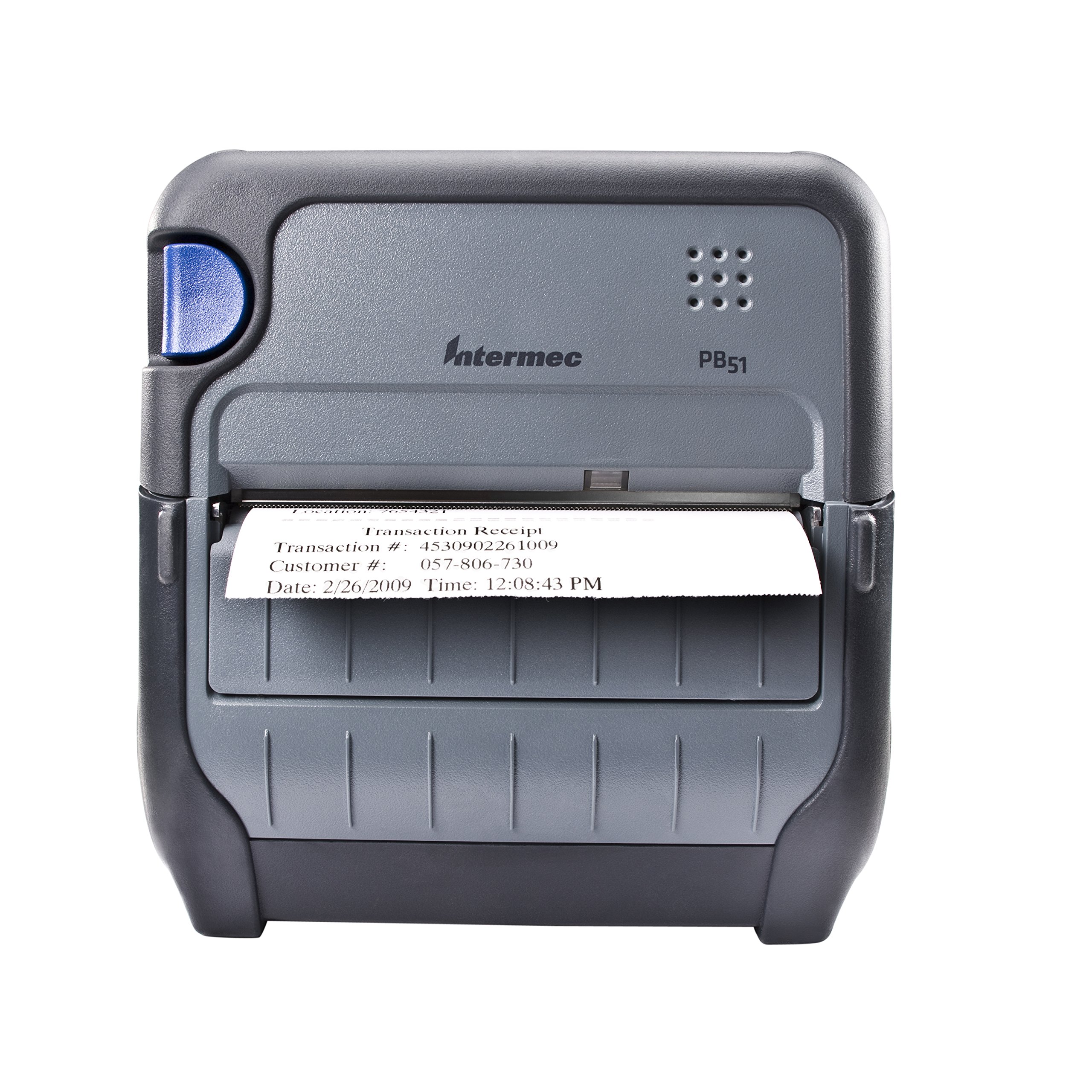
Fíor 1: Tosaigh view of the Intermec PB51 mobile receipt printer. A receipt is partially ejected from the front slot, displaying "Transaction Receipt", "Transaction #: 4530902261009", "Customer #: 057-806-730", and "Date: 2/26/2009 Time: 12:08:43 PM". The printer features a dark gray casing with a blue button on the left side and the "Intermec PB51" logo on the top panel.
Socrú
1. Díphacáil agus Cigireacht
- Bain an printéir agus na gabhálais go léir as an bpacáistiú go cúramach.
- Deimhnigh go bhfuil na comhpháirteanna uile atá liostaithe ar an sleachta pacála i láthair.
- Inspect the printer for any visible damage. If damage is found, contact your supplier immediately.
2. Suiteáil agus Muirearú Battery
- Cinntigh go bhfuil an printéir múchta.
- Locate the battery compartment on the printer.
- Insert the battery, ensuring proper alignment with the contacts.
- Dún an urrann ceallraí go daingean.
- Connect the AC adapter to the printer and a power outlet. The battery indicator light will show charging status. Allow the battery to fully charge before first use.
3. Páipéar Teirmeach á Luchtú
- Oscail an clúdach urrann páipéir.
- Insert the thermal paper roll with the print-side facing the print head.
- Pull a small amount of paper out past the print mechanism.
- Close the paper compartment cover firmly until it latches.
- The printer's paper sensors will detect the paper, minimizing lost transactions.
4. Connectivity Setup (Bluetooth / USB / Serial)
- Bluetooth: Turn on the printer and enable Bluetooth on your host device (e.g., smartphone, tablet, or computer). Cuardaigh le haghaidh available devices and select the PB51. Pair using the default PIN (refer to the printer's display or documentation for the specific PIN).
- USB: Connect the printer to your host device using a standard USB cable. Install the necessary printer drivers on your host device if prompted.
- Sraith: Connect the printer to your host device using a serial cable. Configure the serial port settings (baud rate, data bits, parity, stop bits) on both the printer and the host device to match.
Treoracha Oibriúcháin
1. Cumhacht Ar / As
- Chun cumhacht a chur ar, brúigh agus coinnigh an cnaipe cumhachta go dtí go mbeidh an taispeáint soilsithe.
- To power off, press and hold the power button until the display indicates shutdown, then release.
2. Printing a Receipt
- Ensure the printer is powered on and connected to your host device.
- Open the application on your host device that generates receipts or invoices.
- Initiate the print command from your application. The PB51 is designed for 20-30% faster time-to-receipt printing.
- The printer will automatically feed and print the receipt.
- Tear off the receipt along the serrated edge.
3. Ag Úsáid an Taispeántais LCD
The standard LCD display provides important information about the printer's status, battery level, connectivity, and error messages. Use the navigation buttons (if present) to scroll through menu options and settings.
Cothabháil
1. Glanadh an Chinn Priontála
- Múch an printéir agus dícheangail é ó aon fhoinse cumhachta.
- Oscail an urrann páipéir.
- Gently wipe the print head surface with a lint-free cloth dampéirithe le halcól isopropil.
- Lig don cheann priontála triomú go hiomlán sula ndúnann tú an clúdach agus sula gcuireann tú an printéir ar siúl.
- Perform this cleaning regularly, especially if print quality degrades.
2. Cúram Battery
- Chun saolré na ceallraí a uasmhéadú, seachain an ceallraí a dhíluchtú go hiomlán go minic.
- Store the printer and battery in a cool, dry place when not in use for extended periods.
- Use only genuine Intermec replacement batteries.
3. Glantachán Ginearálta
Glan taobh amuigh an printéara le clúdach bog,amp cloth. Do not use harsh chemicals or abrasive cleaners. Ensure no liquid enters the printer's openings.
Fabhtcheartú
| Fadhb | Cúis Féideartha | Réiteach |
|---|---|---|
| Níl an printéir ag dul ar siúl | Low or dead battery; faulty power adapter; loose battery connection. | Charge the battery; check power adapter connection; re-seat the battery. |
| Gan aschur priontála | No paper; paper loaded incorrectly; connectivity issue; print head dirty. | Load paper correctly; check Bluetooth/USB/Serial connection; clean print head. |
| Droch-chaighdeán priontála | Dirty print head; incorrect paper type; low battery. | Clean print head; ensure thermal paper is used; charge battery. |
| Saincheisteanna nascachta | Incorrect pairing; driver issues; out of range. | Re-pair Bluetooth; reinstall drivers; move closer to host device. |
If the problem persists after attempting these solutions, please contact Intermec customer support.
Sonraíochtaí
| Gné | Sonraigh |
|---|---|
| Ainm an tSamhail | PB51B33004100 |
| Teicneolaíocht Priontála | Teirmeach Díreach |
| Aschur Printéir | Monacrómach |
| Uasmhéid Méid na Meán | 4 orlach |
| Teicneolaíocht Nascachta | USB, Serial, Bluetooth |
| Meáchan Mír | 42 Ounces (approx. 2.63 lbs) |
| Toisí Pacáiste | 10.2 x 10 x 5 orlach |
| Cineál Rialaitheora | Android (comhoiriúnach) |
| Monaróir | Idirmeic |
Barántas agus Tacaíocht
Specific warranty information for the Intermec PB51 printer is not available in this document. Please refer to the warranty card included with your product or visit the official Intermec (now Honeywell) websuíomh gréasáin le haghaidh téarmaí agus coinníollacha mionsonraithe an bharántais.
For technical support, service, or to purchase accessories, please contact your authorized Intermec/Honeywell dealer or visit their official support portal.
Ask a question about this manual
Ask about setup, troubleshooting, compatibility, parts, safety, or missing instructions. Manuals+ will review the question and use this page’s manual context to help answer it.