
Réamhrá
This manual provides instructions for the installation, operation, and maintenance of your Sitecom WLA-3001 AC450 Wi-Fi 5GHz USB Adapter. This device is designed to upgrade your notebook or desktop PC to the latest 802.11ac Wi-Fi technology, enabling fast and reliable 5GHz wireless connectivity.
- 802.11ac Technology: Utilizes the latest generation Wi-Fi standard for enhanced performance.
- Luas Gan Sreang: Offers a wireless throughput of up to 450 Mbps.
- 5GHz Adapter: Adds 5GHz band support to your device, reducing interference and improving speed.
- High-Performance Antenna: Features one internal high-performance antenna for optimal signal reception.
- Nano Design: Compact size allows it to remain permanently connected to your device without obstruction.
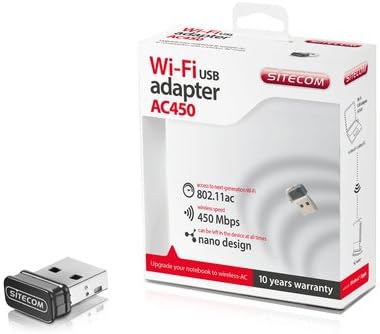
Image: The Sitecom WLA-3001 AC450 Wi-Fi 5GHz USB Adapter shown alongside its retail box, highlighting its compact size and packaging details.
Treoracha Socraithe
Follow these steps to install and set up your Sitecom WLA-3001 USB Adapter.
1. Suiteáil Crua-earraí
- Cuir isteach an Cuibheoir: Carefully insert the Sitecom WLA-3001 USB Adapter into an available USB port on your laptop or desktop computer. Ensure it is fully seated.
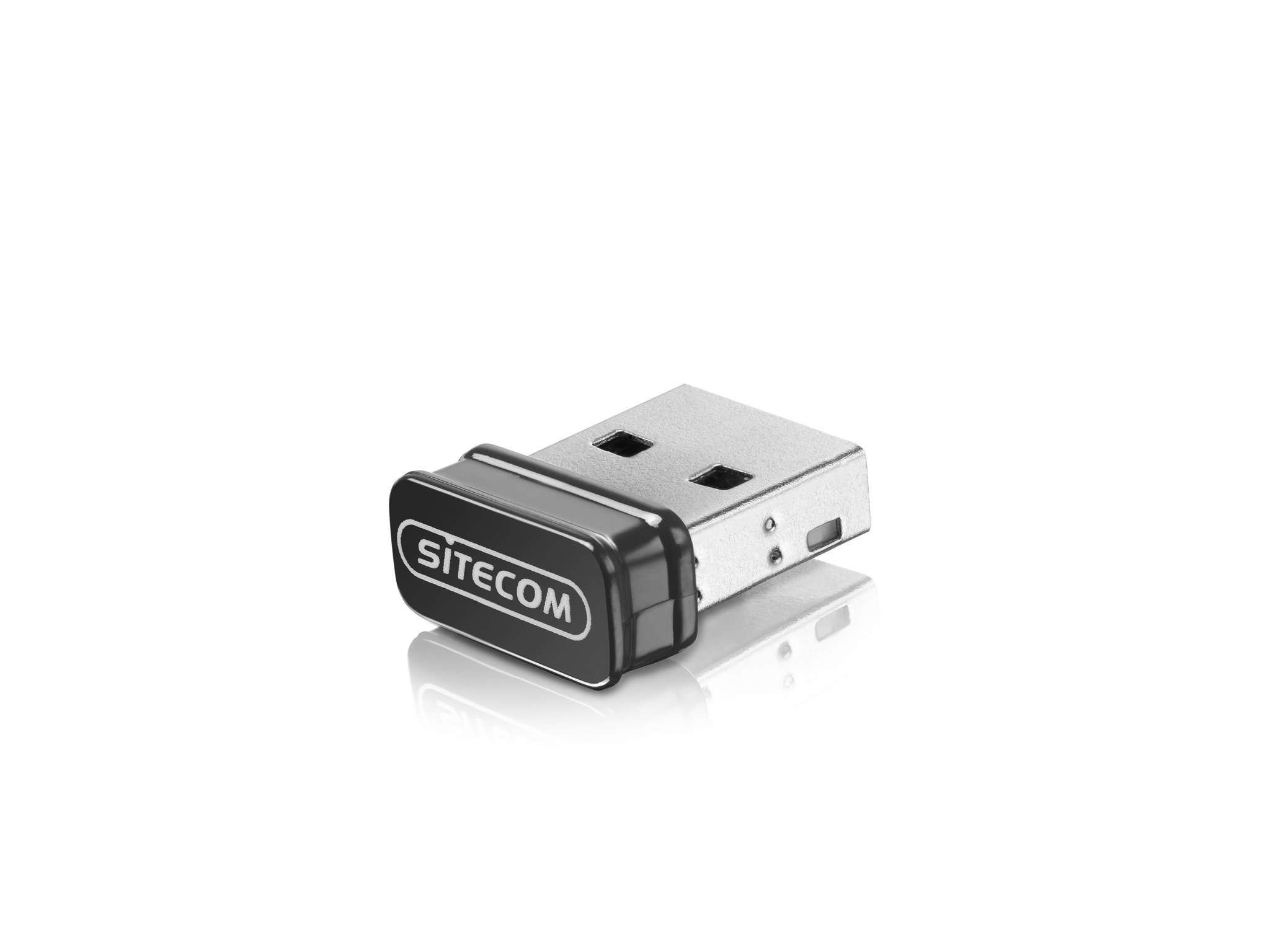
Image: The Sitecom WLA-3001 USB Adapter plugged into the side USB port of a laptop, showing its low-profile dearadh.
2. Suiteáil Tiománaithe
Upon inserting the adapter, your operating system may automatically detect and install the necessary drivers. If not, follow these steps:
- Check for Auto-Installation: Wait a few moments to see if your operating system (Windows, macOS, Linux) automatically installs the drivers. A notification usually appears upon successful installation.
- Suiteáil Tiománaí Láimhe: If drivers are not installed automatically, you may need to download them from the official Sitecom support websuíomh. Cuardaigh le haghaidh 'WLA-3001 drivers' on www.sitecom.com. Follow the on-screen instructions provided by the installer.
- Fíoraigh Suiteáil: After installation, check your computer's Device Manager (Windows) or System Information (macOS) to ensure the adapter is recognized and functioning correctly.
3. Ceangal le Líonra Wi-Fi
Once the adapter is installed, you can connect to a wireless network:
- Socruithe Líonra Rochtana: Cliceáil ar dheilbhín Wi-Fi i do thráidire córais (Windows) nó i do bharra roghchláir (macOS).
- Roghnaigh Líonra: A list of available wireless networks will appear. Select your desired 5GHz network (often indicated by '5G' or '5GHz' in the network name).
- Iontráil Pasfhocal: If prompted, enter the network security key (Wi-Fi password) and click 'Connect'.
- Deimhnigh Ceangal: The adapter's LED indicator may light up or blink to confirm an active connection. Your device should now be connected to the internet via the 5GHz band.
Treoracha Oibriúcháin
The Sitecom WLA-3001 adapter operates automatically once connected and configured. Here are some operational considerations:
- Athcheangal Uathoibríoch: The adapter is designed to automatically reconnect to previously configured networks when within range.
- 5GHz Band Advantage: Utilizing the 5GHz band provides higher speeds and less interference compared to the 2.4GHz band, ideal for streaming, gaming, and large file transfers. Ensure your wireless router also supports 5GHz.
- Neart Comhartha: For optimal performance, ensure your device is within a reasonable range of your 5GHz Wi-Fi router. While 5GHz offers higher speeds, its range can be shorter and more susceptible to obstacles than 2.4GHz.
Cothabháil
To ensure the longevity and optimal performance of your Sitecom WLA-3001 USB Adapter, consider the following maintenance tips:
- Coinnigh Glan: Periodically clean the adapter with a soft, dry cloth. Avoid using liquid cleaners or solvents.
- Cosain ó Dhamáiste: Due to its nano design, it can remain in the USB port. However, be mindful of physical impacts that could damage the adapter or the USB port.
- Nuashonruithe Tiománaithe: Regularly check the Sitecom website for updated drivers. Keeping your drivers current can improve performance, stability, and security.
- Stóráil: If removing the adapter for storage, keep it in a safe, dry place away from extreme temperatures.
Fabhtcheartú
If you encounter issues with your Sitecom WLA-3001 USB Adapter, try the following solutions:
- Níor braitheadh an t-oiriúntóir:
- Cinntigh go bhfuil an t-oiriúntóir curtha isteach go hiomlán sa phort USB.
- Bain triail as port USB eile ar do ríomhaire.
- Atosaigh do ríomhaire.
- Check Device Manager (Windows) or System Information (macOS) to see if the adapter is listed. If there's an error, reinstall the drivers.
- Ní féidir ceangal le Wi-Fi:
- Verify that your Wi-Fi router is powered on and broadcasting a signal.
- Ensure you are selecting the correct network and entering the correct password.
- Atosaigh do ródaire agus do mhóidim Wi-Fi.
- Seiceáil an féidir le gléasanna eile ceangal leis an líonra Wi-Fi céanna.
- Confirm your router supports 5GHz Wi-Fi and that the 5GHz band is enabled.
- Luas Nasc Mall:
- Ensure you are connected to a 5GHz network, not a 2.4GHz network.
- Bog níos gaire do do ródaire Wi-Fi chun neart an chomhartha a fheabhsú.
- Minimize physical obstructions (walls, large furniture) between the adapter and the router.
- Nuashonraigh tiománaithe d’oiriúnóra go dtí an leagan is déanaí.
- Seiceáil le haghaidh gléasanna eile ar do líonra a d'fhéadfadh a bheith ag úsáid bandaleithead.
- Dícheangal go minic:
- Ensure the adapter is securely plugged into the USB port.
- Seiceáil le haghaidh nuashonruithe tiománaithe.
- Consider changing the Wi-Fi channel on your router to avoid interference from neighboring networks.
- Ensure your computer's power management settings are not turning off the USB port to save power.
Sonraíochtaí
| Gné | Sonraigh |
|---|---|
| Branda | Sitecom |
| Uimhir Mhúnla | WLA-3001 |
| Sraith | AC450 Wi-Fi 5GHz USB Adapter |
| Dath | Dubh |
| Cineál Teicneolaíocht Gan Sreang | 802.11a, 802.11n, 802.11ac |
| Prótacal Nasc Sonraí | IEEE 802.11a, IEEE 802.11ac, IEEE 802.11n, USB |
| Ráta Aistrithe Sonraí | 450 Mbps (Wireless), 480 Mbps (USB) |
| Comhéadan Crua-earraí | USB |
| Bluetooth | Níl |
| Toisí na Mír (L x W x H) | 5.2 x 13.1 x 15.5 cm (Note: These dimensions seem unusually large for a nano adapter and might refer to packaging or a different product. The adapter itself is very small.) |
| An Chéad Dáta Ar Fáil | 4 Aibreán, 2014 |
Faisnéis Bharántas
The Sitecom WLA-3001 AC450 Wi-Fi 5GHz USB Adapter comes with a manufacturer's warranty of 2 years from the date of purchase. Please retain your proof of purchase for warranty claims. The warranty covers defects in materials and workmanship under normal use. It does not cover damage caused by misuse, accidents, unauthorized modifications, or external factors.
For detailed warranty terms and conditions, please refer to the official Sitecom websuíomh nó déan teagmháil lena tacaíocht do chustaiméirí.
Tacaíocht
For further assistance, technical support, or to download the latest drivers and firmware for your Sitecom WLA-3001 USB Adapter, please visit the official Sitecom support websuíomh:
You may also find frequently asked questions (FAQs) and additional resources on their websuíomh.


