
1. Réamhrá
The Microsoft Arc Touch Mouse is a portable and innovative wireless mouse designed for mobile computing. Its unique flexible design allows it to be curved for comfortable use and flattened for easy storage. Featuring Microsoft's BlueTrack Technology, it offers precise tracking on a wide variety of surfaces. This manual provides essential information for setting up, operating, maintaining, and troubleshooting your Arc Touch Mouse.
2. Príomhghnéithe
- Dearadh Solúbtha: Curve for comfort during use, flatten for ultimate portability and storage.
- Cumhacht ar siúl agus as: The mouse automatically powers on when curved and powers off when flattened, conserving battery life.
- Touch to Scroll: Utilize the touch strip for smooth, intuitive vertical scrolling with haptic feedback.
- Teicneolaíocht BlueTrack: Enables precise tracking on virtually any surface, combining optical power with laser precision.
- Plug-and-go Nano Transceiver: A compact USB transceiver that can be left plugged into your computer or magnetically stowed in the mouse.
- Dearadh Ambidextrous: Suitable for use with either hand.
3. Socrú
3.1. Suiteáil Battery
The Microsoft Arc Touch Mouse requires two AAA alkaline batteries (included). To install:
- Aimsigh an urrann ceallraí ar an taobh thíos den luiche.
- Oscail an clúdach urrann ceallraí.
- Cuir an dá chadhnraí AAA isteach, ag cinntiú go bhfuil an polaraíocht cheart (+/-).
- Dún an clúdach urrann ceallraí go daingean.
3.2. Connecting the Transceiver
The mouse connects wirelessly to your computer via a USB Nano Transceiver.
- Locate the Nano Transceiver, which may be magnetically stowed in the underside of the mouse for transport.
- Plug the Nano Transceiver into an available USB port on your computer.
- Ba chóir go mbraithfeadh agus go suiteálfadh do ríomhaire na tiománaithe riachtanacha go huathoibríoch. D’fhéadfadh sé seo cúpla nóiméad a thógáil.
- Once the drivers are installed, the mouse is ready for use.
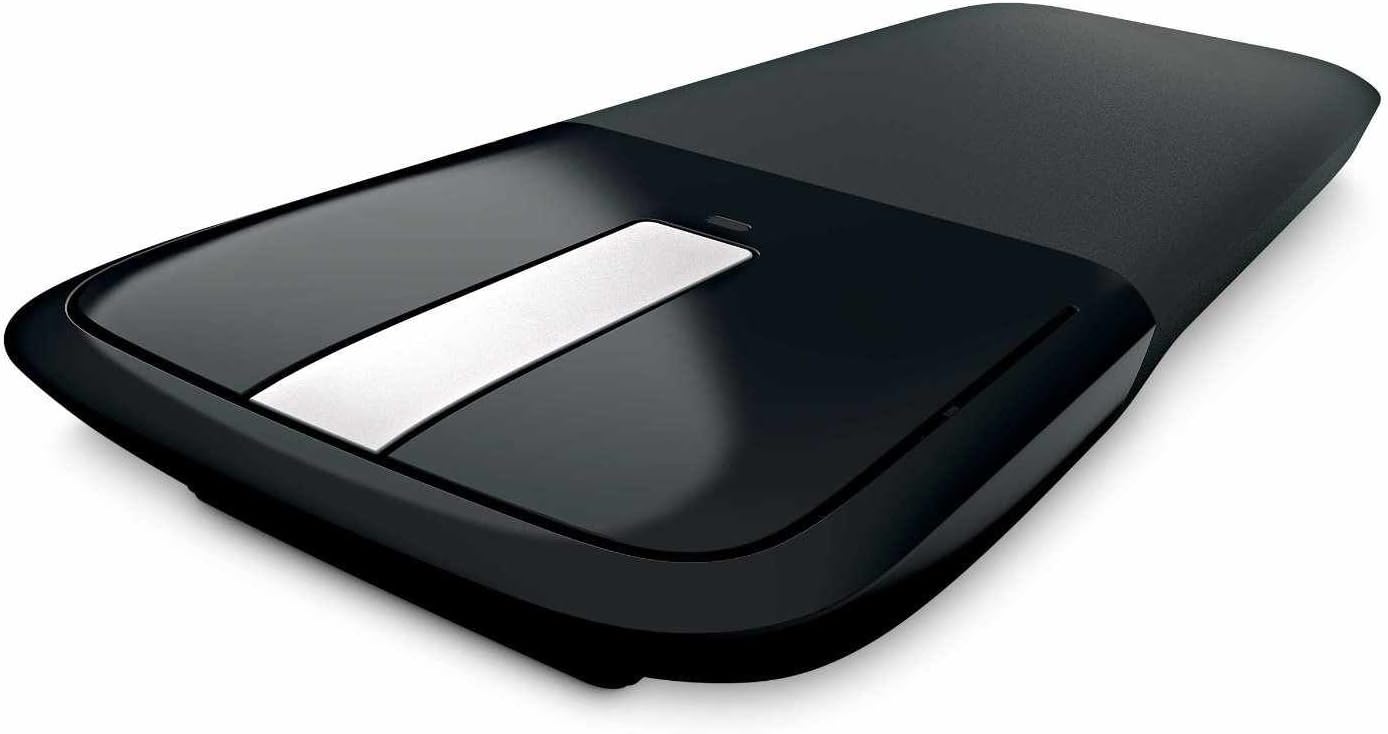
Image: The Microsoft Arc Touch Mouse in its flattened state, showing the USB Nano Transceiver magnetically attached to its underside for storage.
4. Ag Oibriú an Luch
4.1. Power On/Off (Flexible Design)
The Arc Touch Mouse features an intuitive power mechanism:
- To turn the mouse on, curve the mouse into its ergonomic arc shape. A green light will briefly flash to indicate it is powered on.
- To turn the mouse as, flatten the mouse. This action conserves battery life and makes the mouse compact for storage.

Image: The Microsoft Arc Touch Mouse in its curved, ready-to-use position, displaying its touch strip and power indicator light.
4.2. Touch Scrolling
The central touch strip allows for precise vertical scrolling:
- Scrollaigh Suas/Síos: Gently brush your finger up or down the touch strip to scroll through documents or web leathanaigh.
- Hyperfast Scrolling: Flick your finger quickly up or down for rapid scrolling.
- Aiseolas Haptic: The touch strip provides light vibrations to signal scrolling speed, enhancing the tactile experience.
- Tap to Stop: Tap the touch strip to stop scrolling.
4.3. BlueTrack Technology
BlueTrack Technology allows the Arc Touch Mouse to track on a wide range of surfaces that traditional optical or laser mice may struggle with. This includes rough wood, carpet, and other challenging textures. For optimal performance, avoid using the mouse on clear glass or mirrored surfaces.
5. Cothabháil
5.1. Athsholáthar Ceallraí
When the mouse's performance degrades or the power indicator light no longer flashes green upon curving, it's time to replace the batteries. Follow the steps in Section 3.1 to replace the two AAA batteries.
5.2. Glanadh
To clean your Arc Touch Mouse:
- Ensure the mouse is flattened and powered off.
- Bain úsáid as éadach bog, saor ó lint go héadrom dample huisce nó le tuaslagán glantacháin éadrom.
- Wipe the surface of the mouse gently. Avoid excessive moisture.
- Ná húsáid glantóirí nó tuaslagóirí scríobach.
6. Fabhtcheartú
- Níl an luch ag freagairt: Ensure the mouse is curved to power on. Check battery levels and replace if necessary. Verify the Nano Transceiver is securely plugged into a USB port. Try a different USB port.
- Erratic cursor movement or no tracking: Ensure the BlueTrack sensor on the underside of the mouse is clean and free of obstructions. Try using the mouse on a different surface. Avoid clear glass or mirrored surfaces.
- Wireless interference: Move the mouse closer to the Nano Transceiver. Avoid placing the transceiver near other wireless devices or large metal objects that could cause interference.
- Scroll strip not working: Ensure the mouse is powered on. Gently clean the touch strip with a soft cloth.
7. Sonraíochtaí
| Gné | Sonraigh |
|---|---|
| Toisí Táirge | 1.38 x 6.25 x 4 orlach |
| Meáchan Mír | 3 unsa |
| Uimhir Mhúnla | RVF-00001 |
| Cadhnraí | 2 cadhnraí AAA (san áireamh) |
| Teicneolaíocht Nascachta | Minicíocht Raidió (2.4 GHz) |
| Teicneolaíocht Braite Gluaiseachta | BlueTrack (Laser, Optical) |
| Dath | Dubh |
| Monaróir | Microsoft |
8. Riachtanais Chórais
To use the Microsoft Arc Touch Mouse, your computer must meet the following requirements:
- Córas Oibriúcháin: Windows 8, Windows 7, Windows Vista, Windows XP (excluding Windows XP 64-bit)
- Tiomántán Crua: 100 MB free space
- Eile: USB port
9. Barántas agus Tacaíocht
The Microsoft Arc Touch Mouse comes with a Barántas Crua-earraí Teoranta 3 Bhliain. For detailed warranty information, terms, and conditions, please refer to the warranty documentation included with your product or visit the official Microsoft support websuíomh.
For technical support, driver downloads, or additional assistance, please visit the Tacaíocht Microsoft websuíomh or contact Microsoft customer service.