
Réamhrá
This manual provides instructions for the setup, operation, and maintenance of your Microsoft Wireless Comfort Desktop 5000. This product combines a wireless keyboard and a wireless mouse designed for comfortable and efficient computer interaction.
The Microsoft Wireless Comfort Desktop 5000 features an ergonomically designed Comfort Curve keyboard and a mouse utilizing BlueTrack Technology for versatile surface tracking. It operates on a 2.4 GHz wireless connection, offering a reliable connection with a range of up to 30 feet.
Treoir Socraithe
Cad atá sa Bhosca
- Microsoft Wireless Comfort Desktop 5000 Keyboard
- Microsoft Wireless Comfort Desktop 5000 Mouse
- USB Mini-Transceiver
- 2 AA Alkaline Batteries (for keyboard)
- 1 AA Alkaline Battery (for mouse)
Riachtanais Chórais
- Córas Oibriúcháin: Windows 8, Windows 7, Windows Vista, Windows XP (excluding Windows XP 64-bit)
- Tiomántán Crua: 100 MB free space
- Port: USB port
Suiteáil Battery
The keyboard requires two AA alkaline batteries, and the mouse requires one AA alkaline battery. Batteries are included with the product.
- Aimsigh urrann na ceallraí ar thaobh íochtair an mhéarchláir agus na luiche.
- Oscail an clúdach urrann ceallraí.
- Insert the AA batteries, ensuring correct polarity (+/-).
- Dún an clúdach urrann ceallraí go daingean.
Connecting the Wireless Transceiver
The wireless desktop set connects to your computer via a USB mini-transceiver.
- Locate the USB mini-transceiver. It may be stored in the mouse's battery compartment for transport.
- Insert the USB mini-transceiver into an available USB port on your computer.
- Ba chóir go mbraithfeadh agus go suiteálfadh do ríomhaire na tiománaithe riachtanacha go huathoibríoch. D’fhéadfadh sé go dtógfadh an próiseas seo cúpla nóiméad.
- Once drivers are installed, the keyboard and mouse should be ready for use.

Figure 1: The compact USB mini-transceiver for wireless connection.

Figure 2: The underside of the mouse showing the storage slot for the USB mini-transceiver.
Treoracha Oibriúcháin
Gnéithe Méarchláir

Fíor 3: Barr-síos view of the Comfort Curve keyboard layout.
- Comfort Curve Design: The keyboard features an ergonomist-approved Comfort Curve design that encourages a natural wrist posture, reducing strain during extended use.
- Quiet Touch Keys: Experience comfortable typing with low-profile, quiet-touch keys.
- Palm Resta: A soft-touch palm rest is integrated to provide additional comfort and support for your wrists.
- Removable Feet: Adjustable feet on the underside allow you to set the keyboard at a preferred angle for a more comfortable wrist posture.
- Taskbar Favorites for Windows 7: Easily access programs pinned to the Windows Taskbar using dedicated shortcut keys. The keys automatically adapt if you rearrange icons in the Taskbar.
- Media Center Controls: Control media playback directly from your keyboard using dedicated media keys (e.g., play/pause, volume up/down, mute).

Fíor 4: Uilleach view highlighting the integrated palm rest and Comfort Curve design.
Gnéithe Luiche

Fíor 5: Uilleach view of the wireless mouse.
- Teicneolaíocht BlueTrack: The mouse utilizes Microsoft's BlueTrack Technology, combining the power of optical with the precision of laser for remarkable tracking on virtually any surface, including granite, carpet, and wood.
- Scrollaigh Ceithre Bhealach: The tilt wheel allows for four-way scrolling (up, down, left, and right), enhancing efficiency and comfort when navigating documents or web leathanaigh.
- Cnaipí Inoiriúnaithe: The mouse buttons can be customized for quick access to programs, files, media, and webpages you use most often. Refer to your operating system's mouse settings for customization options.
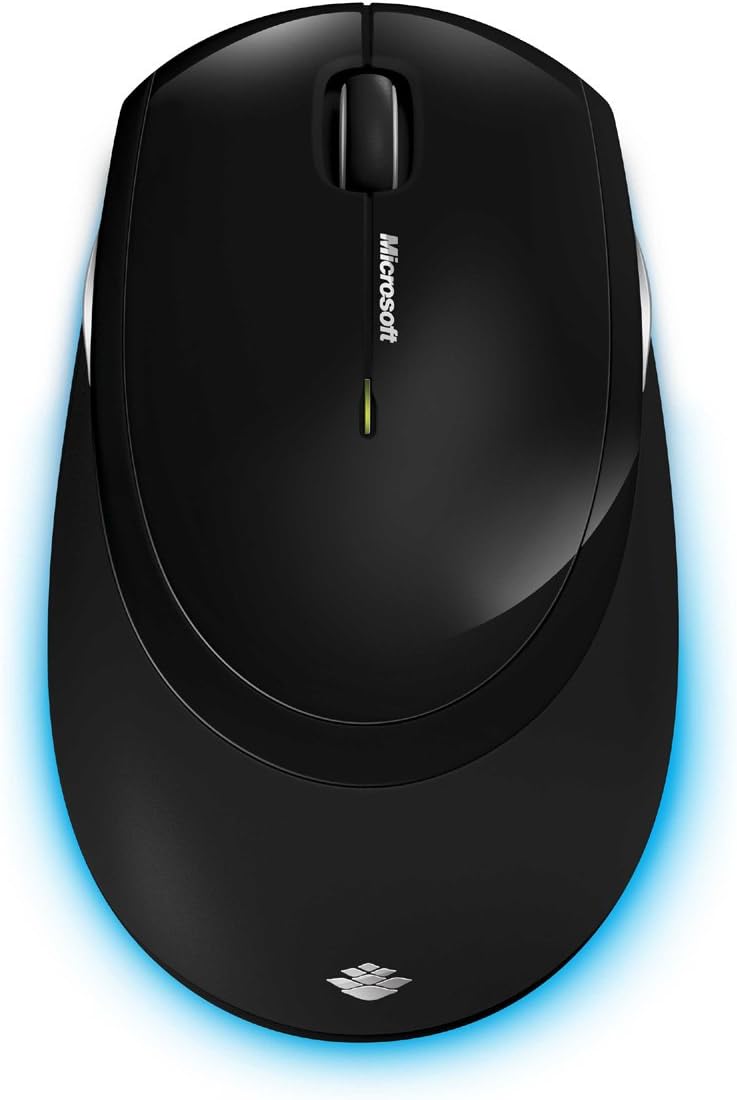
Fíor 6: Barr-síos view of the wireless mouse.
Cothabháil
Glanadh
To maintain the performance and appearance of your Microsoft Wireless Comfort Desktop 5000, follow these cleaning guidelines:
- Disconnect the USB transceiver from your computer before cleaning.
- Bain úsáid as éadach bog, saor ó lint beagán dample huisce nó le tuaslagán glantacháin éadrom.
- Avoid using harsh chemicals, abrasive cleaners, or solvents, as these can damage the surfaces.
- Maidir leis an méarchlár, is féidir leat aer comhbhrúite a úsáid chun deannach agus smionagar a bhaint idir na heochracha.
- For the mouse, gently wipe the optical sensor area on the bottom to ensure optimal tracking performance.
Athsholáthar Ceallraí
When the batteries are low, the indicator light on the keyboard or mouse may flash. Replace the batteries as described in the "Battery Installation" section under Setup Guide.
- Always use new, high-quality AA alkaline batteries.
- Déan cadhnraí úsáidte a dhiúscairt de réir rialacháin áitiúla.
Fabhtcheartú
Saincheisteanna Ceangail
- No response from keyboard/mouse:
- Ensure the USB mini-transceiver is securely plugged into a working USB port on your computer.
- Check if the batteries in the keyboard and mouse are correctly installed and have sufficient charge. Replace if necessary.
- Bain triail as an tarchuradóir a phlugáil isteach i gcalafort USB difriúil.
- Atosaigh do ríomhaire.
- Cur isteach:
- The 2.4 GHz wireless technology can be affected by other wireless devices. Move the transceiver closer to the keyboard and mouse, or move other wireless devices away.
- Avoid placing the transceiver near large metal objects, which can block the wireless signal.
Fadhbanna Rianaithe Luiche
- Erratic or no tracking:
- Ensure the BlueTrack sensor on the bottom of the mouse is clean and free of debris.
- Try using the mouse on a different surface. While BlueTrack is versatile, highly reflective or transparent surfaces (like clear glass) may still cause issues.
Sonraíochtaí
| Gné | Sonraigh |
|---|---|
| Branda | Microsoft |
| Uimhir Mhúnla | TLU-00001 |
| Teicneolaíocht Nascachta | Wireless (USB Transceiver) |
| Cineál Gan Sreang | Minicíocht Raidió 2.4 GHz |
| Gléasanna Comhoiriúnacha | Ríomhaire Pearsanta |
| Comhoiriúnacht an Chórais Oibriúcháin | Windows 8, Windows 7, Windows Vista, Windows XP (excluding Windows XP 64-bit) |
| Dath | Dubh |
| Meáchan Mír | 2.9 punt |
| Toisí Táirge (LxWxH) | 8.7 x 2.9 x 18.54 orlach |
| Foinse Cumhachta | Ceallraí Powered |
| Cadhnraí ag Teastáil | 3 AA batteries (2 for keyboard, 1 for mouse) |
| An Chéad Dáta Ar Fáil | 29 Iúil, 2009 |
Faisnéis Bharántas
Specific warranty details for the Microsoft Wireless Comfort Desktop 5000 are not provided within this manual. For comprehensive warranty information, including terms, conditions, and duration, please refer to the official Microsoft websuíomh gréasáin nó an cárta bharántais atá san áireamh le pacáistiú do tháirge.
Tacaíocht
For further assistance, technical support, or to download the latest drivers and software for your Microsoft Wireless Comfort Desktop 5000, please visit the official Microsoft support websuíomh:
You can also visit the Microsoft Store on Amazon for product information and related accessories:
Eolas Tábhachtach
Séanadh Dlíthiúil
Please note that the "Legal Disclaimer" provided with the product pertains to sales terms and conditions, such as return policies and shipping details, and is separate from the operational instructions in this user manual. For specific product usage and safety guidelines, please refer to the relevant sections of this manual.