
Réamhrá
This manual provides instructions for the setup, operation, maintenance, and troubleshooting of your Microsoft Wireless Optical Mouse Blue, Model K80-00004. Please read this manual thoroughly before using your device.
Cad atá sa Bhosca
Deimhnigh go bhfuil na míreanna uile i láthair sa phacáiste:
- Microsoft Wireless Optical Mouse
- Glacadóir Gan Sreang
- 2 chadhnraí AA (réamhshuiteáilte nó san áireamh ar leithligh)
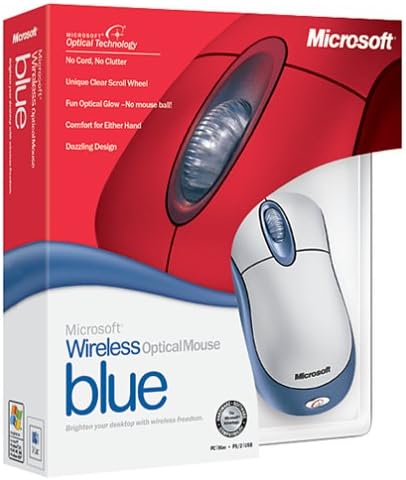
Image: Retail packaging of the Microsoft Wireless Optical Mouse Blue, showing the mouse and receiver.
Socrú
1. Cadhnraí a shuiteáil
- Aimsigh an urrann ceallraí ar an taobh thíos den luiche.
- Oscail an clúdach urrann ceallraí.
- Cuir an dá chadhnraí AA isteach, ag cinntiú go bhfuil an polaraíocht cheart (+/-).
- Dún an clúdach urrann ceallraí.

Íomhá: Tosaigh view of the Microsoft Wireless Optical Mouse Blue, showing the top buttons and scroll wheel. The battery compartment is on the underside.
2. Connect the Wireless Receiver
- Breiseán an glacadóir gan sreang USB isteach i gcalafort USB atá ar fáil ar do ríomhaire.
- Allow your operating system to detect and install the necessary drivers. This process is usually automatic.
- For optimal performance, ensure the receiver is placed at least 12 inches away from other wireless devices or large metal objects.
3. Optional Software Installation (IntelliPoint)
- While not required for basic functionality, installing Microsoft IntelliPoint software provides advanced customization options for your mouse buttons and scroll wheel.
- Refer to the Microsoft support website for the latest IntelliPoint software compatible with your operating system.
4. Set Orientation (Calibration)
- After initial setup, it is recommended to perform an "Orientation Set" or calibration if available through the IntelliPoint software or your operating system's mouse settings. This helps optimize tracking performance.
Treoracha Oibriúcháin
The Microsoft Wireless Optical Mouse Blue is designed for comfortable and precise navigation.
Feidhmeanna Bunúsacha
- Cliceáil ar Chlé: Príomhchnaipe chun míreanna a roghnú, ag oscailt files, agus idirghníomhú le bogearraí.
- Cliceáil ar dheis: Cnaipe tánaisteach chun rochtain a fháil ar roghchláir chomhthéacs agus roghanna breise.
- Roth Scrollaigh: Rollaigh an roth suas nó síos chun scrollú trí dhoiciméid agus web pages. The scroll wheel may also function as a clickable button for additional commands, depending on software configuration.
Oibríocht Gan Sreang
- The mouse operates wirelessly up to 6 feet (approximately 1.8 meters) from its receiver.
- Optical technology scans the desktop surface for precise cursor movement without the need for a mouse pad on most surfaces.
- The mouse is designed for comfortable use with either the right or left hand.

Íomhá: Uilleach view of the Microsoft Wireless Optical Mouse Blue, highlighting its ergonomic shape and blue/silver design.
Cothabháil
Athsholáthar Ceallraí
- The mouse requires two AA batteries.
- When battery power is low, your computer may display a notification (if IntelliPoint software is installed) or mouse performance may degrade.
- Replace batteries as described in the "Install Batteries" section under Setup.
- Bain úsáid as cadhnraí úra, ardchaighdeáin i gcónaí chun an fheidhmíocht is fearr a bhaint amach.
Glanadh
- To clean the mouse, gently wipe the surface with a soft, damp éadach.
- Seachain ceimiceáin ghéara nó glantóirí scríobacha a úsáid, mar is féidir leo damáiste a dhéanamh don chríoch.
- Cinntigh nach dtéann aon leacht isteach i gcomhpháirteanna inmheánacha an luiche.
Travel Considerations
- The Microsoft Wireless Optical Mouse is a transmitting device. When traveling by air, it is recommended to remove the batteries from the mouse before boarding to comply with airline regulations regarding electronic devices.
Fabhtcheartú
Mouse Not Responding or Lagging
- Seiceáil Cadhnraí: Cinntigh go bhfuil na cadhnraí suiteáilte i gceart agus go bhfuil dóthain luchta iontu. Athraigh iad más gá.
- Seiceáil Nasc an Ghlacadóra: Ensure the wireless receiver is securely plugged into a functioning USB port. Try a different USB port.
- Cóngaracht: Ensure the mouse is within 6 feet of the receiver. Reduce obstacles between the mouse and receiver.
- Cur isteach: Other wireless devices (e.g., Wi-Fi routers, cordless phones) can cause interference. Move the receiver away from such devices.
- Dromchla: Ensure the mouse is used on a suitable surface. Highly reflective or transparent surfaces may affect optical tracking.
- Re-sync: Some wireless mice have a re-sync button on both the mouse and receiver. Consult the full product manual or Microsoft support for specific re-sync procedures for this model if issues persist.
Clicking Issues
- If clicks are not registering or require multiple presses, check for physical obstructions or debris around the buttons.
- Cinntigh go bhfuil an luch ar siúl agus ceangailte.
Comhoiriúnacht Bogearraí
- The IntelliPoint software may have specific operating system requirements. For example, older versions may not be compatible with newer operating systems like Windows Vista or later.
- Always download the latest software from the official Microsoft support websuíomh gréasáin do do chóras oibriúcháin ar leith.
Sonraíochtaí
| Gné | Sonraigh |
|---|---|
| Uimhir Mhúnla | K80-00004 |
| Branda | Microsoft |
| Teicneolaíocht Nascachta | Gan sreang |
| Brath Gluaiseachta | Optúil |
| Dath | Blue / Silver |
| Cadhnraí | 2 cadhnraí AA (san áireamh) |
| Meáchan Mír | 13.6 unsa (thart ar 385.5 gram) |
| Toisí Táirge | 9.3 x 8.9 x 2.1 orlach (thart ar 23.6 x 22.6 x 5.3 cm) |
| An Chéad Dáta Ar Fáil | 1 Lúnasa, 2002 |
Faisnéis Bharántas
According to the legal disclaimer, this product is sold without a warranty. Please refer to your point of purchase for any return or exchange policies.
Tacaíocht
For further assistance, driver downloads, or updated information regarding your Microsoft Wireless Optical Mouse Blue, please visit the official Microsoft support websuíomh.
You can typically find support resources by searching for "Microsoft support" and your product model number (K80-00004).